80S-2080F480F4-680F5 User’s Manual.pdf - 第621页
11 Station Extensions/Options SIPLACE 80S-20/F4/F4-6/F5 User’s M anual 11.4 Component Barcode Edition 03/98 from Software Version SR.404.xx 11 - 24 l Alternative if barcode cannot be read-in: - S witch out refill c heck …
SIPLACE 80S-20/F4/F4-6/F5 User’s Manual 11 Station Extensions/Options
Edition 03/98 from Software Version SR.404.xx 11.4 Component Barcode
11 - 23
11.4.2 Notes on Operating
- The barcode reader has to be connected to the station computer.
- The bar code must be keyed in at the line computer for the component in question.
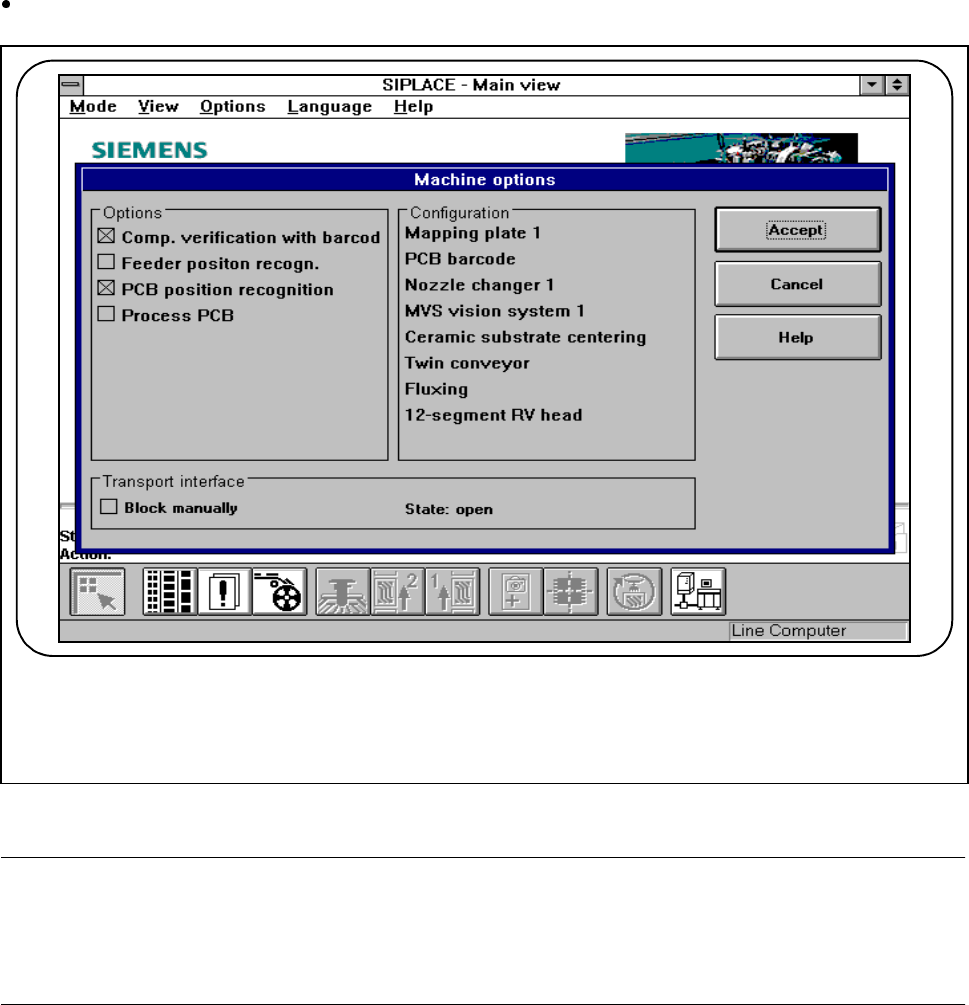
Activate the "Set-up check with barcode“ function from the Machine options menu.
Fig. 11.4.2 Set-up check with barcode
NOTE
If a place in the bar code is occupied by a filter (using an asterisk *) this place will not be evaluated. This facil-
ity can be used for filtering out unwanted data contained in the bar code (such as date, company name, and
so on).
- If the component barcode is set at the line computer and in the station the „Component verification with
barcode“ has been switched in via the machine options:
it will not be possible to manually „Refill location“ or „Refill track with barcode“.
- In the case of tracks with a component without barcode, it will be possible to „Refill“ manually despite the
refill check having been activated.
F
11 Station Extensions/Options SIPLACE 80S-20/F4/F4-6/F5 User’s Manual
11.4 Component Barcode Edition 03/98 from Software Version SR.404.xx
11 - 24
l Alternative if barcode cannot be read-in:
- Switch out refill check in the machine options.
- Enter bar code by hand.
11.4.3 Operating
NOTE
In this connection see also Section 3.2, ’Set-Up’ and 3.4, ’Feeders’ in this user's manual.
In the Set-up menu select the view Empty tracks.
Use the bar code reader to read the track bar code in question.
If the track is included in the set-up and the component has a bar code, the Set-up check with bar code
dialog will appear, showing the corresponding track.
NOTE
You can open this dialog by clicking on the track in question and then on the Set-up check with bar code
button.
Following a successful check and subsequent reading-in of the return barcode, the track can be refilled.
11.4.4 Technical Data
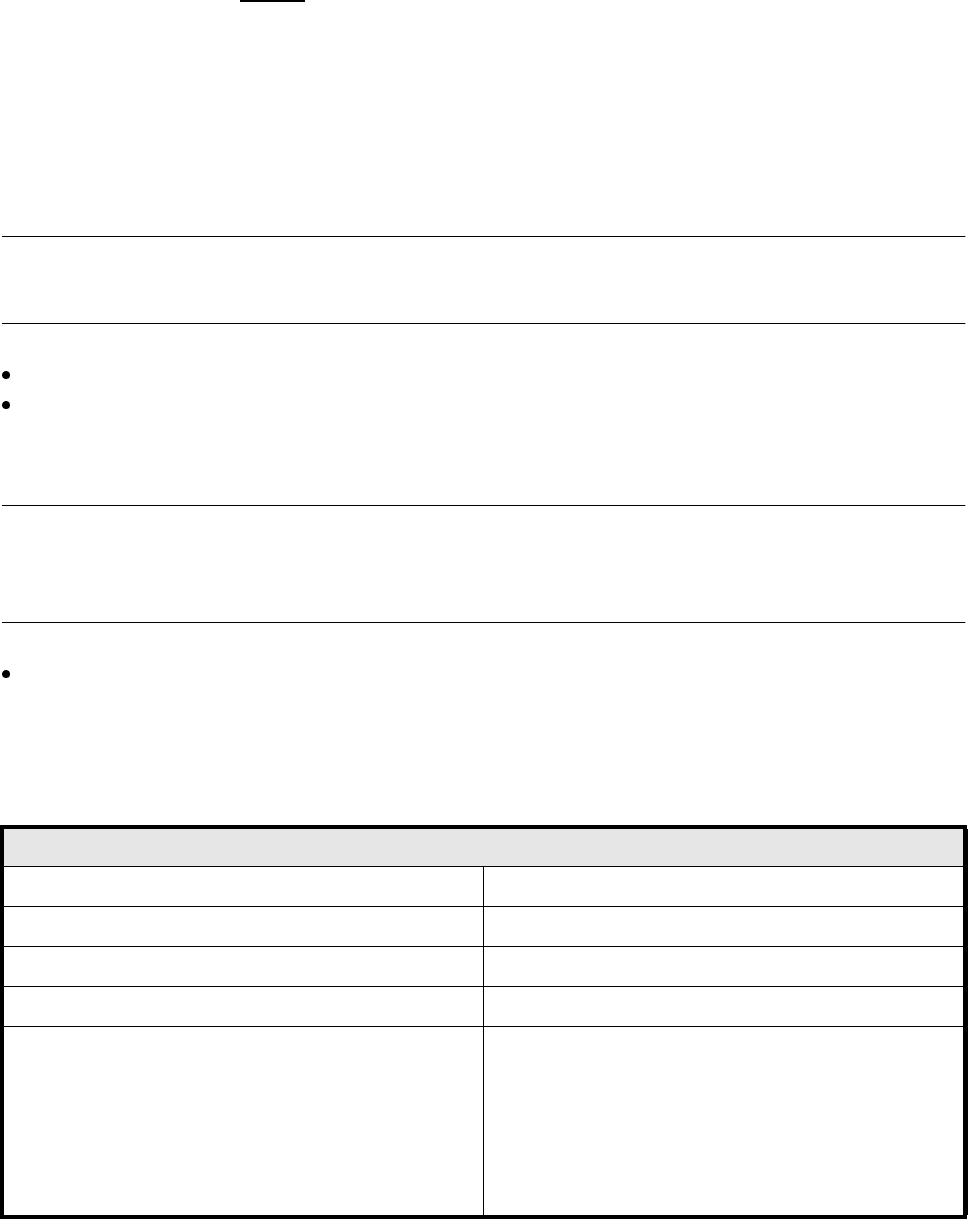
Component barcode
Max. resolution 0.13 mm
Reading speed 36 scans/sec
Laser class IEC Class 2
Degree of protection IP 64
Readable barcode types Code 39 (normal / FULL ASCII)
EAN/UPC (family with/without ADD ON
CODABAR
INTERLEAVED 2/5
NORMAL 2/5 (5 bars)
(other types available upon request)
SIPLACE 80S-20/F4/F4-6/F5 User’s Manual 11 Station Extensions/Options
Edition 03/98 from Software Version SR.404.xx 11.5 Flip-Chip Vision Module
11 - 25
11.5 Flip-Chip Vision Module
11.5.1 Overview
The flip chip vision module is based on the concept of the fine pitch vision system.
It differs from it in that the resolution is higher and the illumination has been modified. Two illumination levels
are available, for a flat and for a middle angle of incidence.
The package form editor has been extended to cover programming of the array-type lead structures and for
some irregular structures.
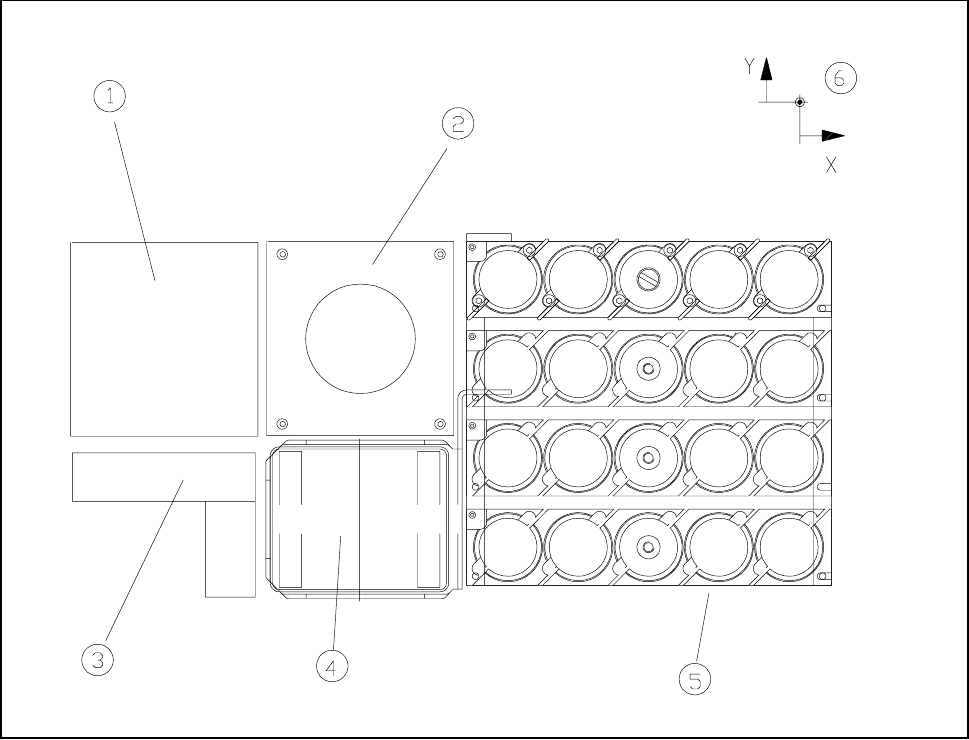
Fig. 11.5.1 Location of the flip chip vision module
- Key to Fig. 11.5.1
1 Fine-pitch vision module 2 Flip-chip vision module
3 Coplanarity laser module 4 Reject box
5 Nozzle changer 6 Machine zero point
The module is described, including using it, in Chapter 5 ’Vision Functions’.