80S-2080F480F4-680F5 User’s Manual.pdf - 第611页
11 Station Extensions/Options SIPLACE 80S-20/F4/F4-6/F5 User’s M anual 11.3 PCB Barcode Edition 03/98 from Software Version SR.404.xx 11 - 14 11.3.2 Notes on Safety CAUTION The radia nt power of the barcode reader‘s scan…
SIPLACE 80S-20/F4/F4-6/F5 User’s Manual 11 Station Extensions/Options
Edition 03/98 from Software Version SR.404.xx 11.3 PCB Barcode
11 - 13
11.3 PCB Barcode
11.3.1 Overview
The PCB barcode can be read from the underside (solder side) or from the top side (insertion side) of a board.
If the bar code is placed on the top side of a board the reading head will be mounted in such a way that the
reading beam of the barcode reader hits the board from above.
If the bar code is located on the underside of a board, the reading head will be mounted in such a way that the
reading beam of the barcode reader hits the board from below.
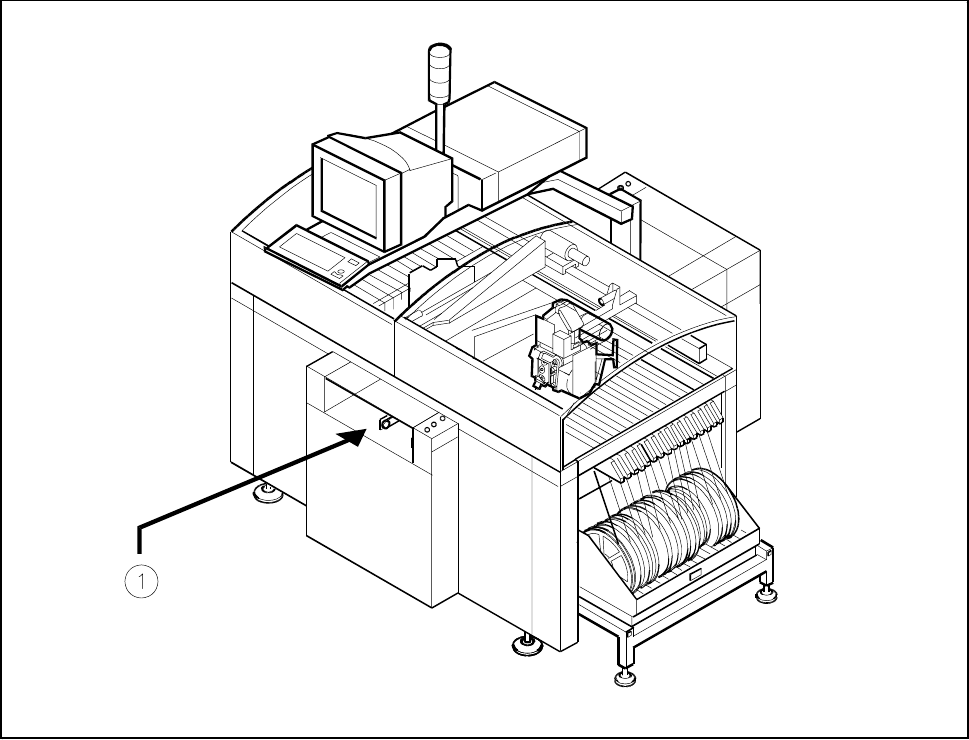
Fig. 11.3.1 Location where the PCB barcode reader is installed
Key to Fig. 11.3.1
1 Location of PCB barcode reader (can be fitted on top or below)
11 Station Extensions/Options SIPLACE 80S-20/F4/F4-6/F5 User’s Manual
11.3 PCB Barcode Edition 03/98 from Software Version SR.404.xx
11 - 14
11.3.2 Notes on Safety
CAUTION
The radiant power of the barcode reader‘s scanning beam is less than 1mW. This means that the barcode
reader conforms to laser class 2 and, according to DIN EN 60825-1, requires no special safety equipment or
protective measures. NEVER look into the laser beam. There is also a safety circuit that switches off the laser
diode if the polygon wheel stops or turns too slowly.
11.3.3 How It Works
The barcode reader is a reading device which registers and decodes data presented in the form of bar-cod-
ing. The barcode reader consists of the reading head and the decoder.
The laser diode which is built into the reading head creates a beam of monochrome red light. This is focussed
by a lens and deflected by a rotating polygonal mirror wheel. The signals reflected from the barcoded base
are registered by a photodiode and amplified. This train of electrical impulses which reproduces the sequence
of dark-to-light transitions in the base is then routed to an electronic evaluation device, the decoder.
The decoder consists of two parts: a rapid signal conditioning unit and a processing unit which decodes the
signals and converts them into ASCII format. The data are then routed to a serial interface for further process-
ing.
11.3.4 Parametrization and Adjustment
WARNING
Only personnel who have been trained at Siemens training center for SMD placement machines should be
permitted to carry out parametrization of the barcode reader.
Before a barcode is actually read, the barcode reader must know what kind of code is to be read and how
much data information (number of places) is contained in that code. The barcode reader is furnished with this
information via parametrization. From the structure of the defined code and the number of places it has, the
barcode reader can then calculate the precise number of lines and blanks.

SIPLACE 80S-20/F4/F4-6/F5 User’s Manual 11 Station Extensions/Options
Edition 03/98 from Software Version SR.404.xx 11.3 PCB Barcode
11 - 15
NOTE
If you know what barcode you want to process during start-up, the barcode will be set to your barcode type.
Otherwise the CODE 2/5 interleaved barcode type will be preinstalled. If you want to change your barcode
type, the steps you will need to take for parametrization are described below.
Parametrization takes place using the program SR_INST_LPBC.001.001.
The only actions you should carry out in the menus are the ones described below. All other parameters are
standard values and need not be changed.
Insert the diskette with the SITEST test program into drive A: of the MC computer
Switch the control unit ON
Boot the system with the key combination Strg (Ctrl) + Alt + Entf (Del)
Insert diskette SR_INST_LPBC.001.001 into drive A: of the MC computer
Boot the system with the key combination Ctrl+Alt+Del
The home screen with the main view menu will be displayed.
Press function key F4. A menu for selecting the interface will be displayed.
Select the interface COM 2.
Press the function key F10. This will return you to the main view menu and the interface will be configured
for COM 2.
In the main view menu select < E >
In the Code sub-menu select < 1 >
NOTE
If the sub-menu does not open, there is no communication with the PCB bar code reader unit.
Possible causes: +24 V voltage supply missing, interface interrupted, laser defective.
In the Code type sub-menu select < 1>
Select the code type you want to work with < Customer-specific>
NOTE
When the code type or number of digits is changed both new values will need to be keyed in anew.
Key in the number of digits in the bar code <Customer-specific>
Confirm with < Enter >
NOTE
Specify a single number for the number of digits in the bar code. If you specify a range of numbers, this
may lead to errors.
Quit the menu with < Esc >
Quit the menu with < Esc >
Quit the menu with < Esc >
Secure the parameters with ’Store permanent’ < 3 >