80S-2080F480F4-680F5 User’s Manual.pdf - 第91页
SIPLACE 80S-20/F4/F4-6/F5 User’s Manual 2 Introduction and Basic Concepts Edition 03/98 from Software Version SR.404.xx 2.2 Principles and S tructure of the User Interface 2 - 13 2.2.2. 3 Worki ng Area Depending on the m…
2 Introduction and Basic Concepts SIPLACE 80S-20/F4/F4-6/F5 User’s Manual
2.2 Principles and Structure of the User Interface Edition 03/98 from Software Version SR.404.xx
2 - 12
2.2.2.1 Title bar
The title bar shows the machine type and the view currently selected.
2.2.2.2 Menu Line
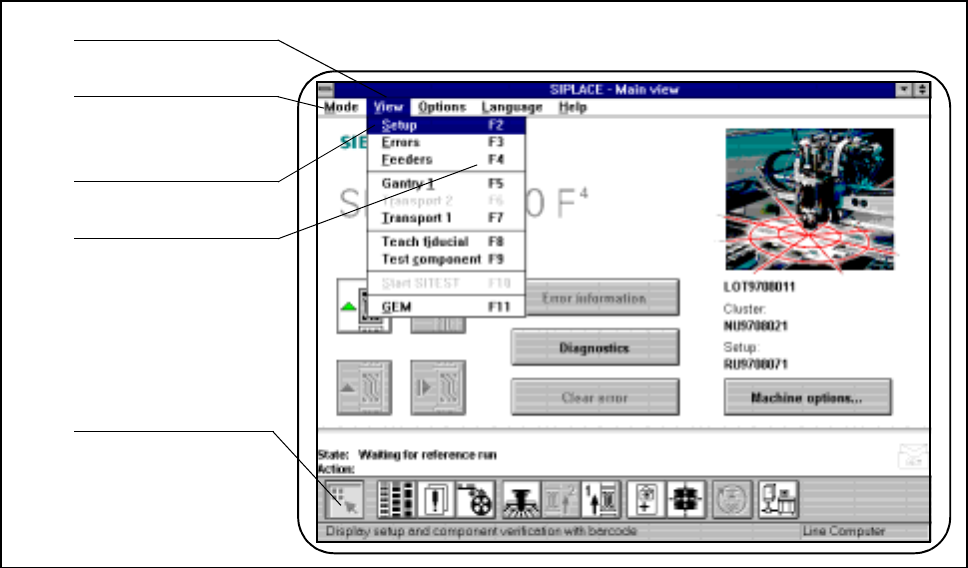
The menu line offers various menus, under which submenus can be opened and actions executed.
Fig. 2.2.2 Example of a menu line
- Key to Fig. 2.2.2
1 Menu 2 Menu line
3 Submenu 4 Key combination
5 With key combinations F1 to F12 max.
The menus or the items on the menu line can be selected and executed by using the trackball, the touch
screen or key combinations F1 to F12.
The key combination Shift+ F1 opens the Help menu.
The commands in the View menu can also be executed by clicking on the corresponding icons on the symbol
strip.
5
1
2
3
4
SIPLACE 80S-20/F4/F4-6/F5 User’s Manual 2 Introduction and Basic Concepts
Edition 03/98 from Software Version SR.404.xx 2.2 Principles and Structure of the User Interface
2 - 13
2.2.2.3 Working Area
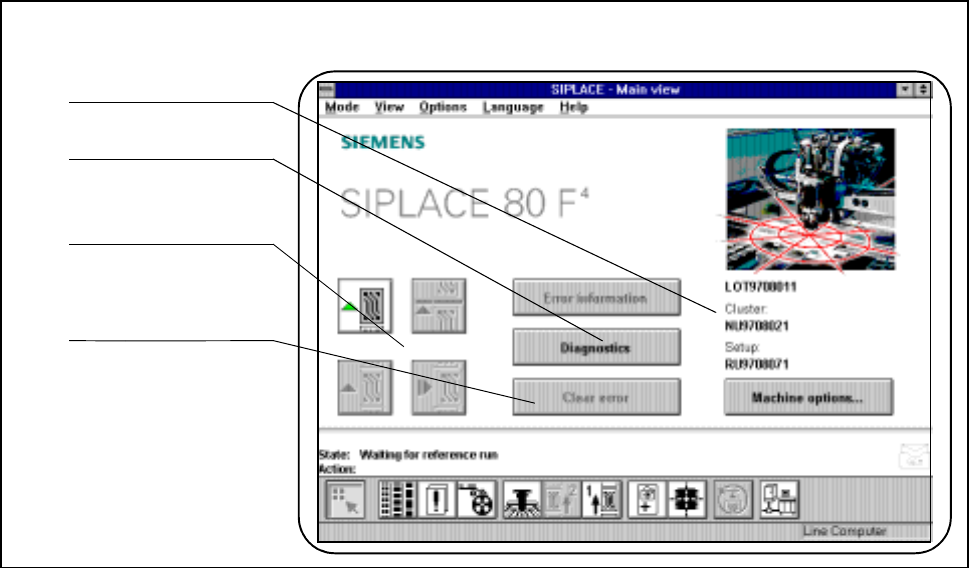
Depending on the menu or object selected, the working area presents the operator with actions or displays.
Fig. 2.2.3 Example of the working area
- Key to Fig. 2.2.3
1 Job, cluster and set-up name 2 Selector field for submenus
3 Symbols (buttons) for operator actions 4 Selector fields for operator actions
Actions appearing in the working area can be selected or launched by using either the trackball or the touch
screen.
1
2
3
4
2 Introduction and Basic Concepts SIPLACE 80S-20/F4/F4-6/F5 User’s Manual
2.2 Principles and Structure of the User Interface Edition 03/98 from Software Version SR.404.xx
2 - 14
2.2.2.4 Status Window
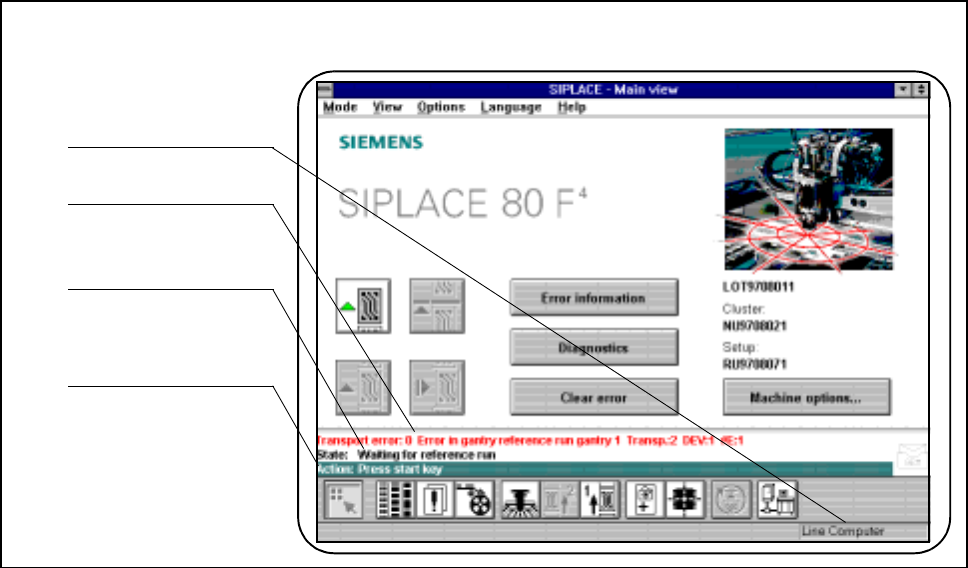
The status window shows the last fault, the control mode of the machine (Stand alone, line computer, GEM)
and an action which the operator has been asked to carry out.
Fig. 2.2.4 Example of the status window
- Key to Fig. 2.2.4
1 Machine control mode 2 Last fault to occur (red bar)
3 State of the machine 4 Action for the operator (green bar)
1
2
3
4