80S-2080F480F4-680F5 User’s Manual.pdf - 第615页
11 Station Extensions/Options SIPLACE 80S-20/F4/F4-6/F5 User’s M anual 11.3 PCB Barcode Edition 03/98 from Software Version SR.404.xx 11 - 18 11.3.6 Fitting Instructions In order to al low var ious arra ngements o f the …
SIPLACE 80S-20/F4/F4-6/F5 User’s Manual 11 Station Extensions/Options
Edition 03/98 from Software Version SR.404.xx 11.3 PCB Barcode
11 - 17
11.3.5 Limitations
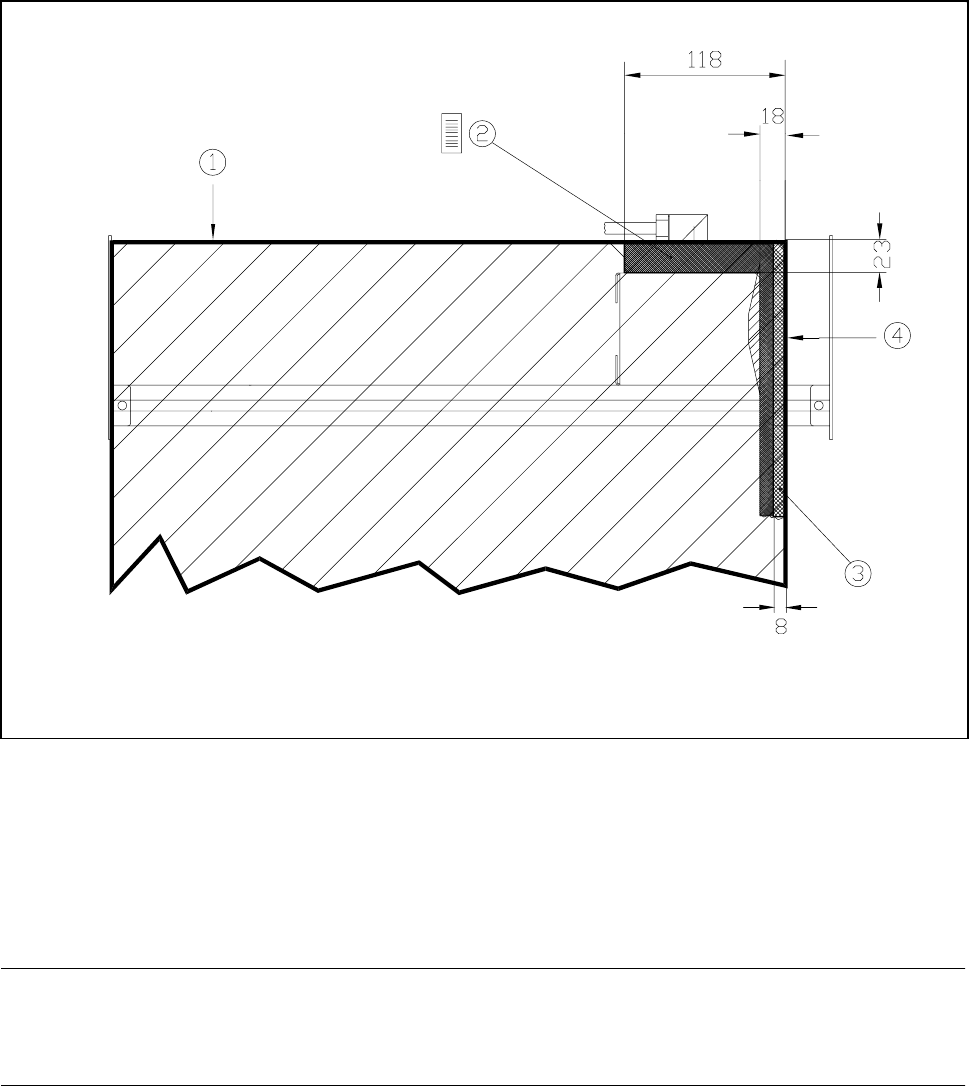
11.3.5.1 Barcode reading from above
Restrictions will apply to barcode reading from above in the case of boards longer than 460 mm (see Fig.
11.3.3).
Fig. 11.3.3 Restrictions to barcode reading from above
- Key to see Fig. 11.3.3
1 Trailing edge of the board at a length of 460 mm
2 In this area a vertical positioning of the barcode is not permissible.
3 In this area it is not possible to read the barcode over the entire board length.
4 Outer edge of boards
NOTE
No barcodes should be located in the vicinity of the board clamping device as the barcode could then be
scraped and rendered illegible.
11 Station Extensions/Options SIPLACE 80S-20/F4/F4-6/F5 User’s Manual
11.3 PCB Barcode Edition 03/98 from Software Version SR.404.xx
11 - 18
11.3.6 Fitting Instructions
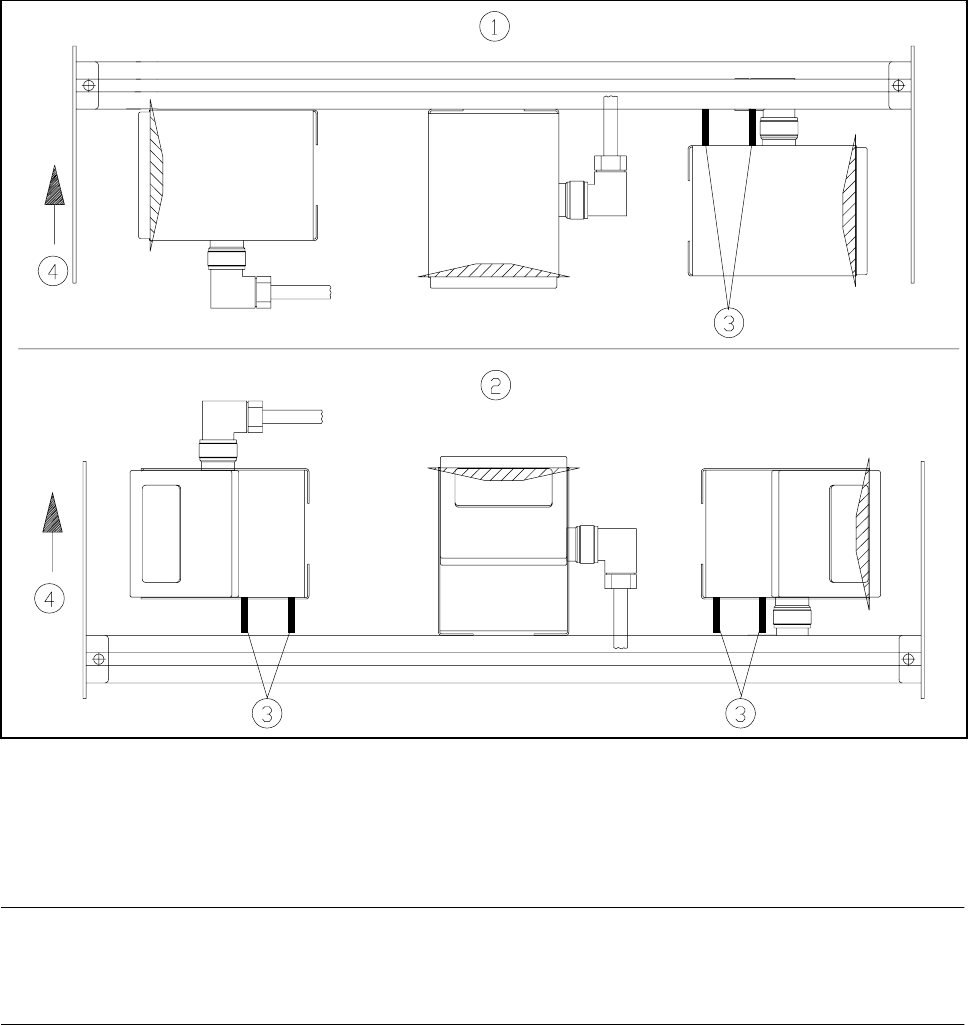
In order to allow various arrangements of the barcodes to be read (such as vertical or horizontal) the barcode
reader can be fitted accordingly. For this purpose use the two spacer tubes supplied.
Fig. 11.3.4 Installation of different reading devices
- Key to Fig. 11.3.4
1 Board barcode at top 2 Board barcode at bottom
3 Spacer tubes
NOTE
Make sure that the connecting cable has a loop long enough to allow the reading head to be moved over the
full width of the profile rail.
SIPLACE 80S-20/F4/F4-6/F5 User’s Manual 11 Station Extensions/Options
Edition 03/98 from Software Version SR.404.xx 11.3 PCB Barcode
11 - 19
11.3.7 Display PCB bar code
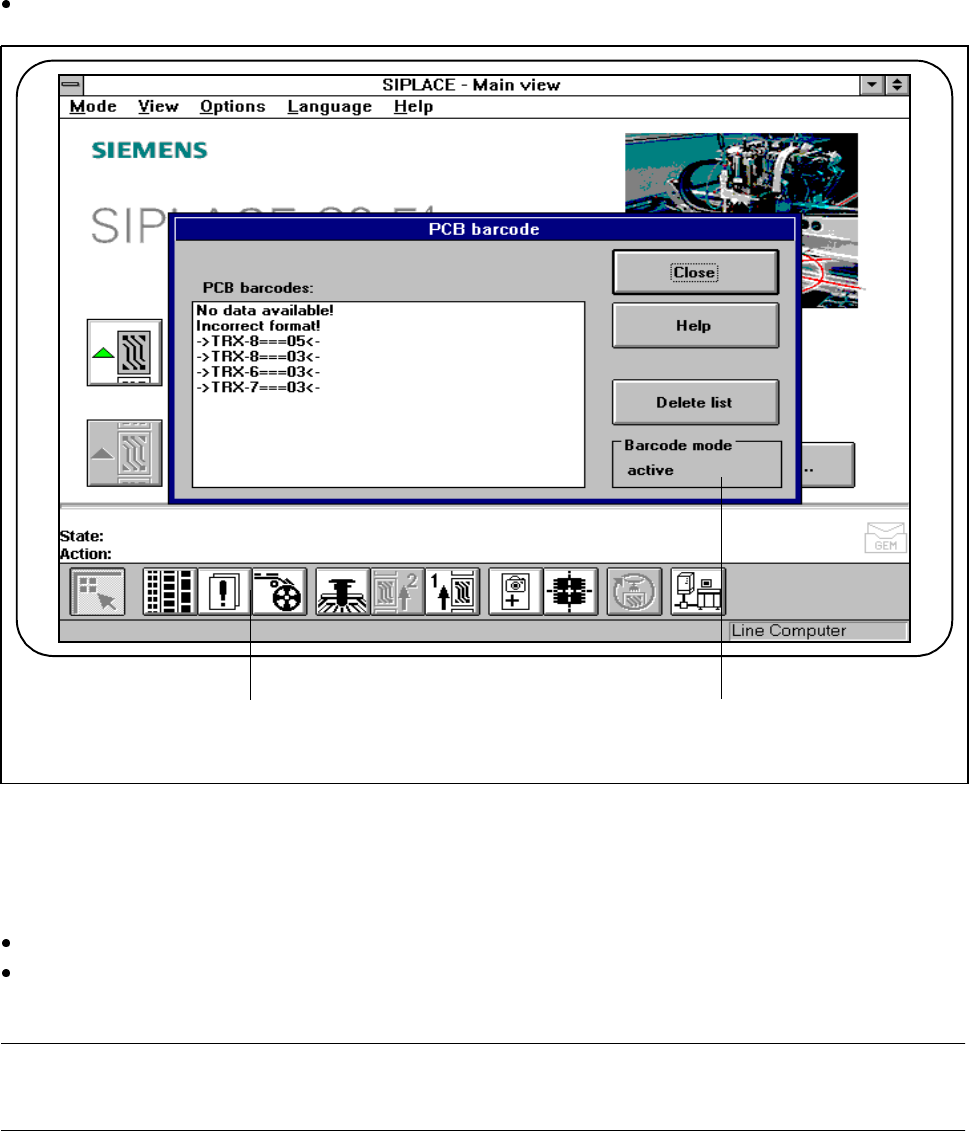
This menu is used to display the last barcode that was read by the PCB barcode reader in a list box.
It also indicates whether the barcode was read incorrectly or a start signal or the wrong signal occurred, or
whether no data was available.
On the menu bar, select the PCB barcode submenu from the Options menu.
Fig. 11.3.5 11.3.5 Display PCB barcode
- Key to Fig. 11.3.5
1 List box 2 Status display
Click on the Delete list button to delete the list.
The status display in the menu window shows the operating status of the barcode mode. This operating
status is activated and deactivated by the line computer.
PLEASE NOTE
This menu is only active if the PCB bar code option has been installed and activated in the machine options.
2 1
F