80S-2080F480F4-680F5 User’s Manual.pdf - 第156页
SIPLACE 80S- 20/F4/F4-6 User’s Manual 3 Placement Functions Edition 07/97 from Software Version SR.403.xx 3.4 Feeders 3 - 27 3.4.3 Display Trays and Changing Inventory Levels (Siplace 80F 4 ) In the Trays menu you can pr…
3 Placement Functions SIPLACE 80S-20/F4/F4-6 User’s Manual
3.4 Feeders Edition 07/97 from Software Version SR.403.xx
3 - 26
3.4.2 Omit Components
The "Omit components“ function enables you to omit one or more specific components from the PCB and
complete the rest of the placement operation.
PLEASE NOTE
PCBs placed using this function must not be moved automatically into the next station. They must be
removed manually from the output belt.
This function is intended only for introducing a new product.
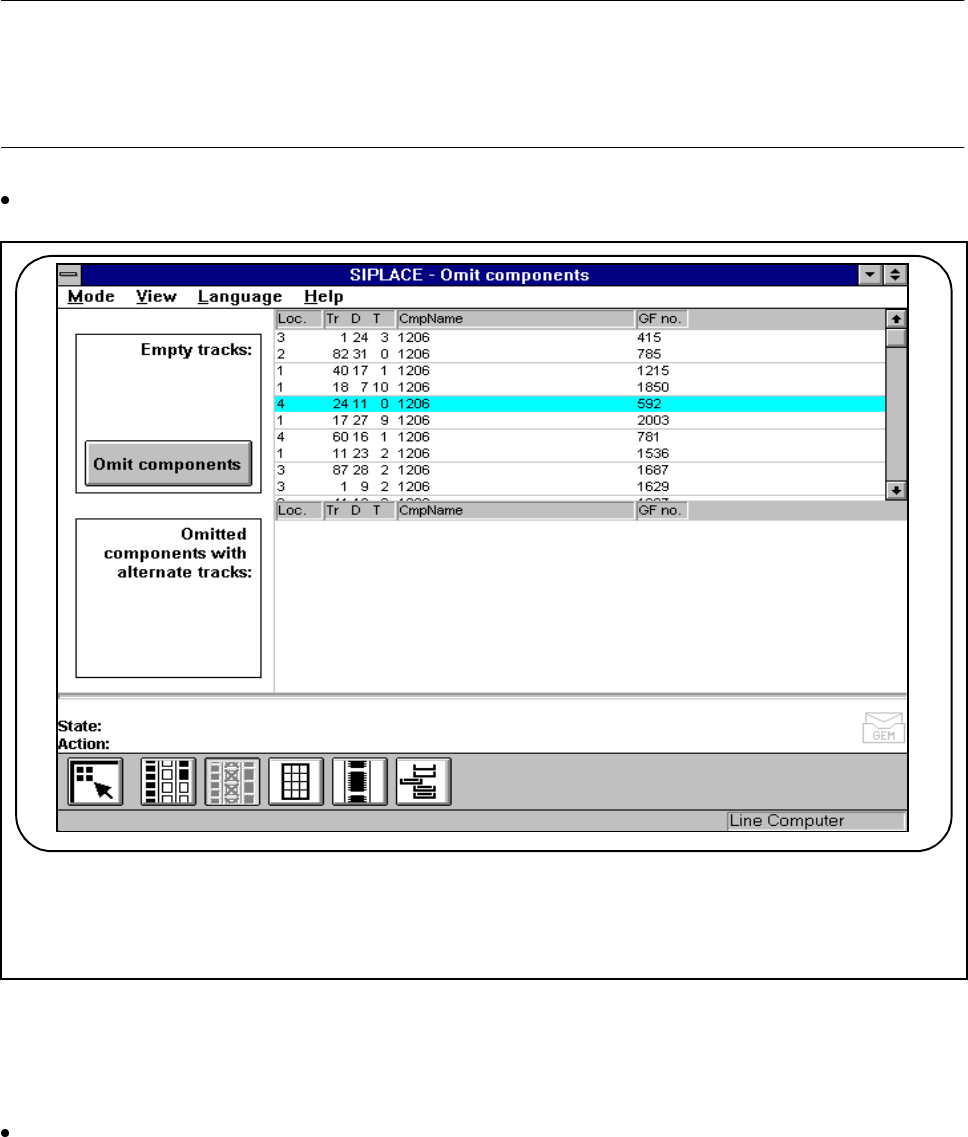
Click on the Omit components button in the "Feeders“ menu.
Fig. 3.4.4 Omit components
The empty tracks are displayed in the "Empty tracks“ menu window. You can then omit any component on
any of the displayed tracks.
Highlight an empty track in the top list and click on the Omit component button.
The "Omitted components with alternative tracks“ window contains the tracks that have been set to "omit-
ted".
Once the PCB has been removed, the omitted components are deleted (this function only applies to one
PCB).
F
SIPLACE 80S-20/F4/F4-6 User’s Manual 3 Placement Functions
Edition 07/97 from Software Version SR.403.xx 3.4 Feeders
3 - 27
3.4.3 Display Trays and Changing Inventory Levels (Siplace 80F
4
)
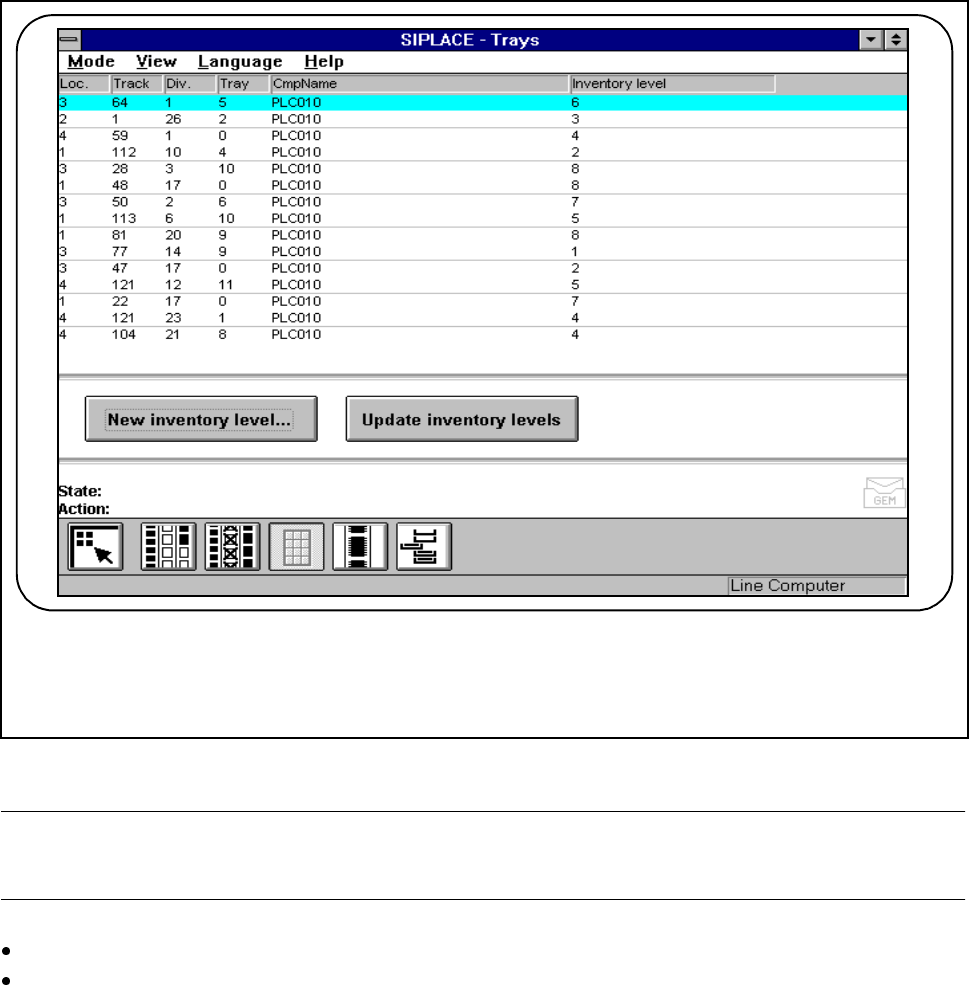
In the Trays menu you can process inventory levels of the flatpack magazines which have been brought up.
Fig. 3.4.5 Display trays and changing inventory levels
NOTE
Inventory levels are not updated while placement is actually going on.
Click on the Update inventory levels button. The current state of the machine will be displayed.
Mark a track.
F
3 Placement Functions SIPLACE 80S-20/F4/F4-6 User’s Manual
3.4 Feeders Edition 07/97 from Software Version SR.403.xx
3 - 28
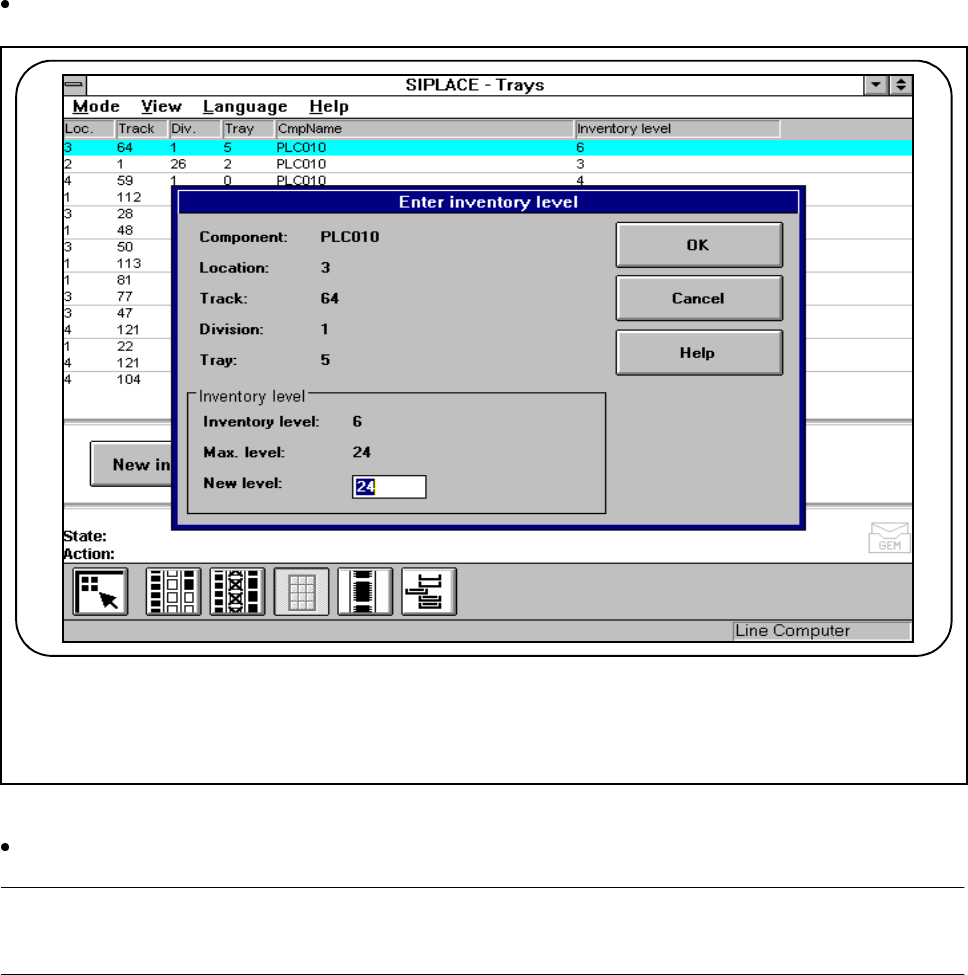
Click on the New inventory level button if you want to enter a new inventory level for this track.
Fig. 3.4.6 New inventory level
Type the quantity of components which you have set up into the New inventory level input field.
NOTE
The maximum inventory level will be specified in the input field.
The track or tray is switched off when the fill level is 0 ("Track emptied by operator“).
If "Fill“ is selected from the Empty tracks menu, the operation will continue once the previous fill level is
reached.
F