2OM-1733-005w_F8.pdf - 第204页
2OM-1733 3-1-8 1.2.4 Renaming the Component ID Procedure (1) Select the component ID to be renamed. (The selected component ID turns blue, indicating that it is selected.) Fig. 2C1-6 (2) Press the [Rename...] button. (Th…
2OM-1733
3-1-7
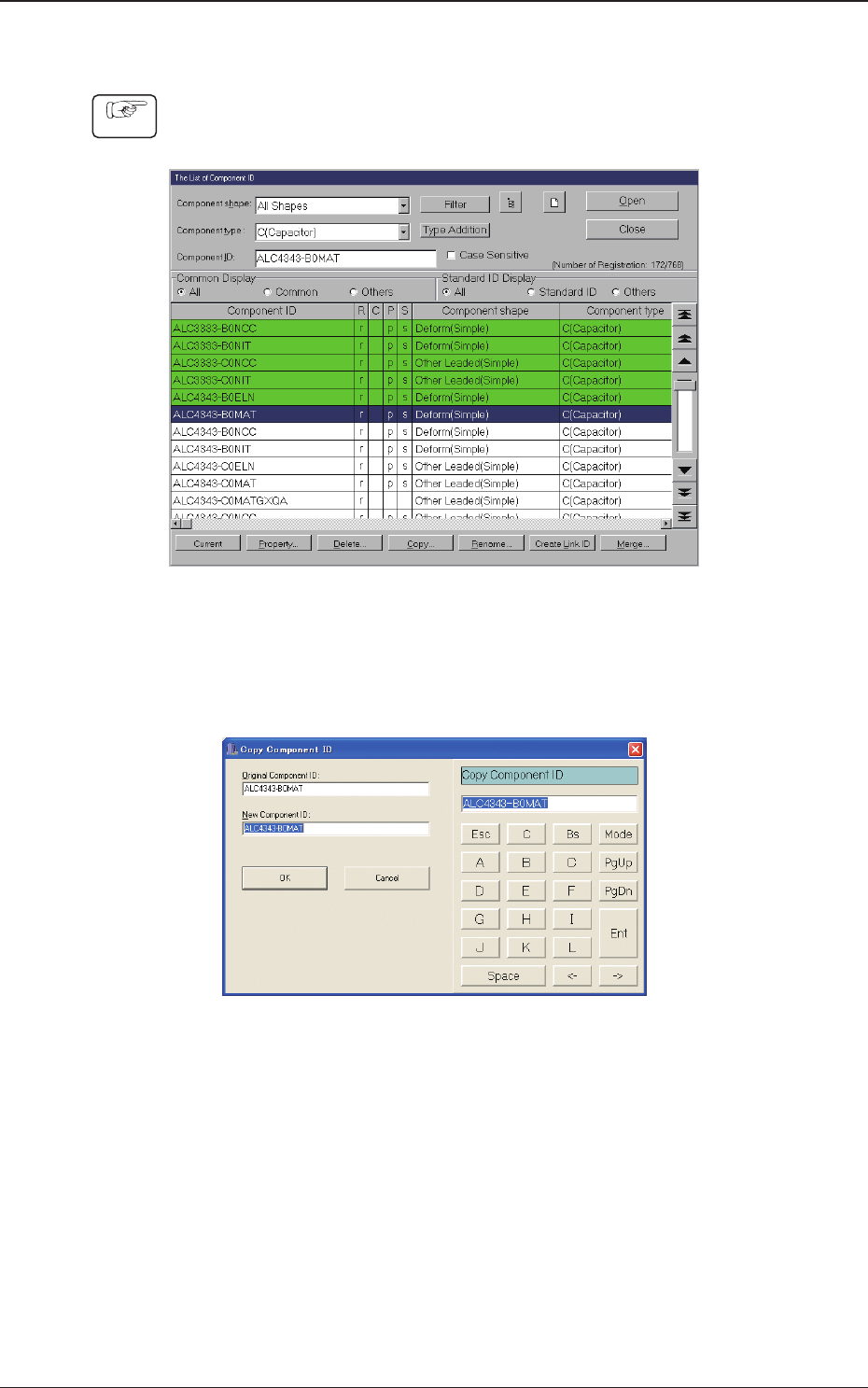
1.2.3 Copying the Component ID
Procedure
(1) Select the component ID to be copied.
(The selected component ID turns blue, indicating that it is selected.)
Fig. 2C1-4
(2) Press the [Copy...] button.
(The "Copy Component ID" dialog box opens.)
Fig. 2C1-5
(3) Enter a new component ID name in the "New Component ID" text box and
press the [OK] button.
(A Component ID is created.)
1212-002
1.2 Basic Operations in "Selection of component ID" Window
2OM-1733
3-1-8
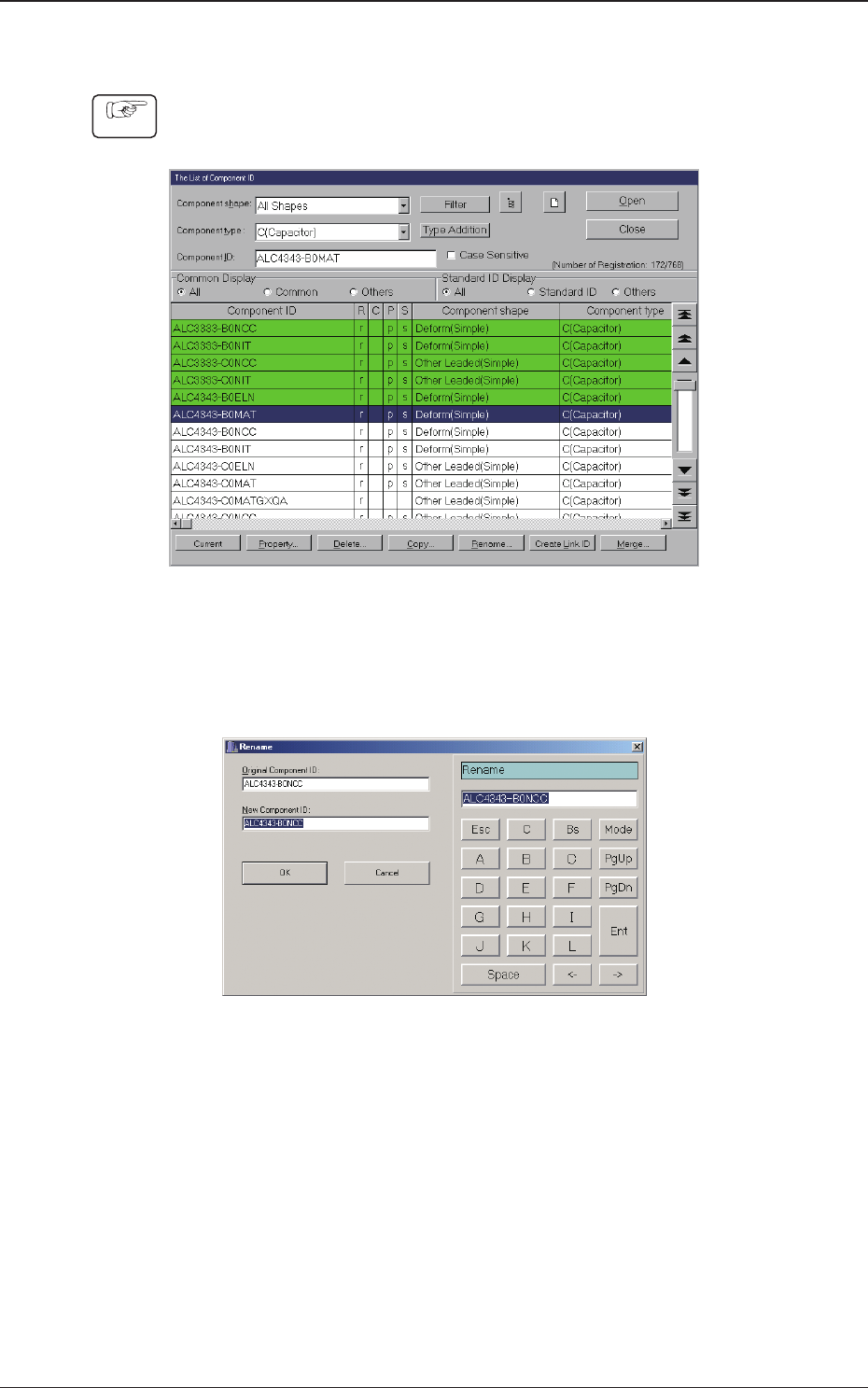
1.2.4 Renaming the Component ID
Procedure
(1) Select the component ID to be renamed.
(The selected component ID turns blue, indicating that it is selected.)
Fig. 2C1-6
(2) Press the [Rename...] button.
(The "Rename" dialog box opens.)
Fig. 2C1-7
(3) Enter a new component ID name in the "New Component ID" text box and
press the [OK] button.
(The name of the original component ID is changed to the new one.)
1212-002
1.2 Basic Operations in "Selection of component ID" Window
2OM-1733
3-1-9
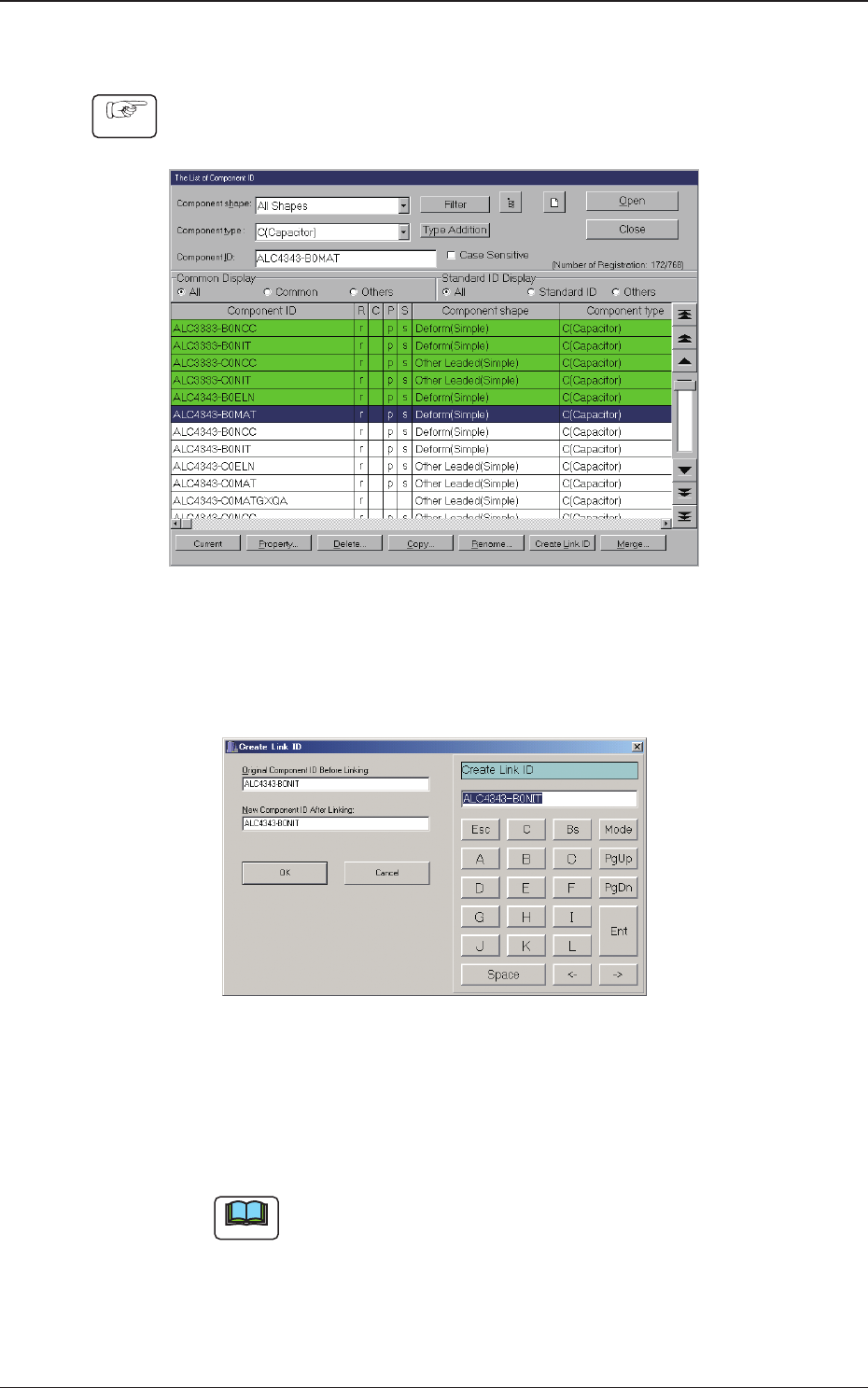
1.2.5 Creating the Link ID
Procedure
(1) Select the component ID as an original component ID before linking.
(The selected component ID turns blue, indicating that it is selected.)
Fig. 2C1-8
(2) Press the [Create Link ID] button.
(The "Create Link ID" dialog box opens.)
Fig. 2C1-9
(3) Enter a new link ID name in the "New Component ID After Linking" text
box and press the [OK] button.
(A new link ID is created.)
Note
Creating Link ID means giving a new name to the original component ID
before linking while keeping the data of the original component ID as it is.
For application, it can be used for a capacitor of the same shape as other
one but of different capacity.
1212-002
1.2 Basic Operations in "Selection of component ID" Window