2OM-1733-005w_F8.pdf - 第337页
2OM-1733 6-7-19 [3] [Mark Pos Edit] Button Using this button, the PEC recognition mark position is setup. Each item is shows as a button and when each button is pressed, the corresponding data set window appears. Fig. 2F…
2OM-1733
6-7-18
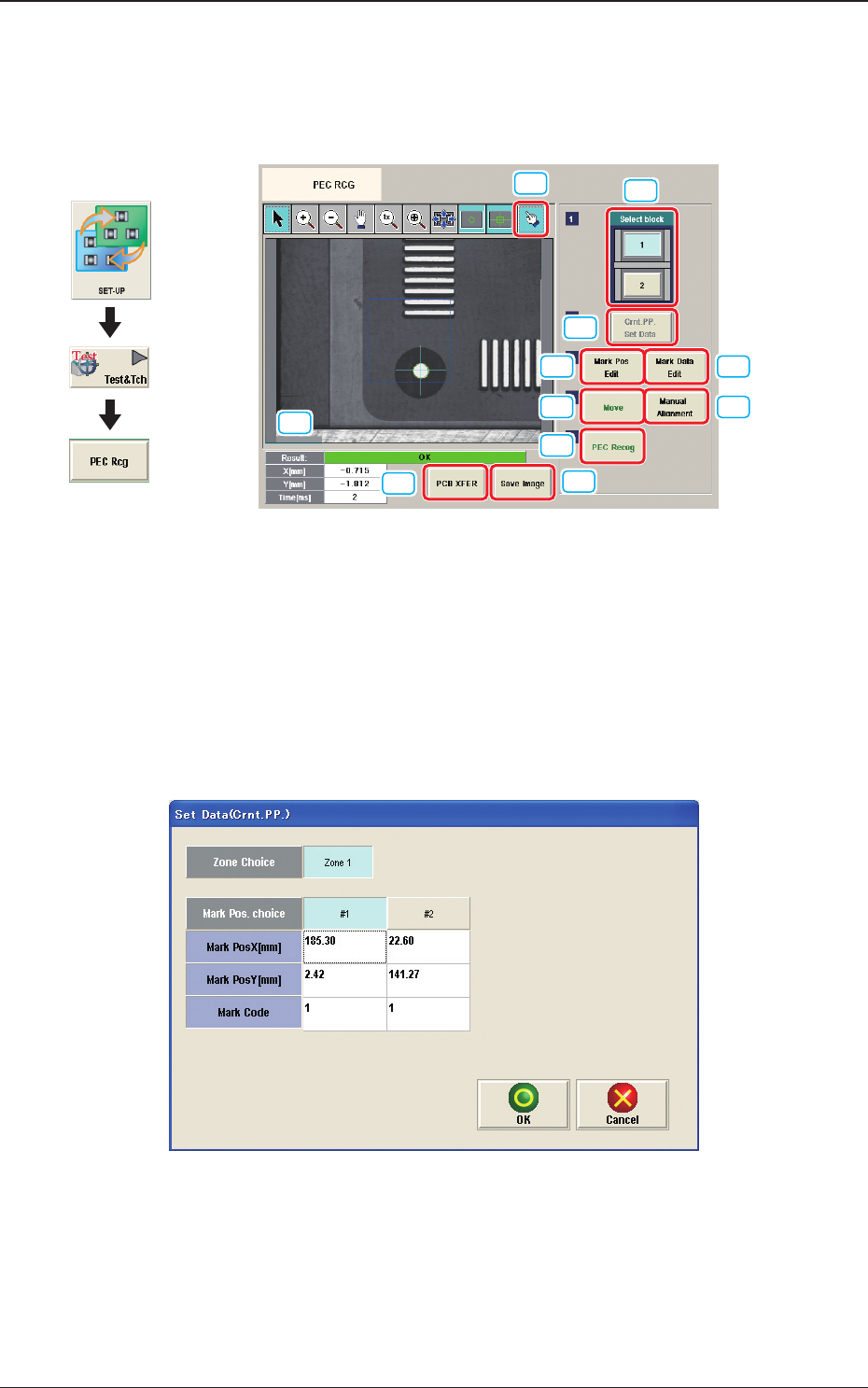
7.3 "PEC RCG" Test Window
This window enables the operator to perform the PEC recognition mark
recognition test.
[1]
[2]
[3] [4]
[5]
[6]
[7]
[9]
[10]
[8]
[11]
Fig. 2F7-13
[1] [Select block] Button
The buttons showing each block are displayed using images. Using one of
these buttons, the block used for the PEC recognition test is selected.
[2] [Crnt. PP. Set Data] Button
When this button is pressed, the [Set Data (Crnt. PP.)] window appears.
Fig. 2F7-14
When [Zone n] is selected for the "Zone Choice" for the global recognition
position and the [#n] button is selected and then the [OK] button is pressed,
the position data and PEC recognition mark code are set.
The set data is displayed in the Mark Pos X, Y data boxes in the "Setup Pos
Move" window and "Recognized Data Setting" window.
1212-001
7.3 "PEC RCG" Test Window
Graphic
Development
2OM-1733
6-7-19
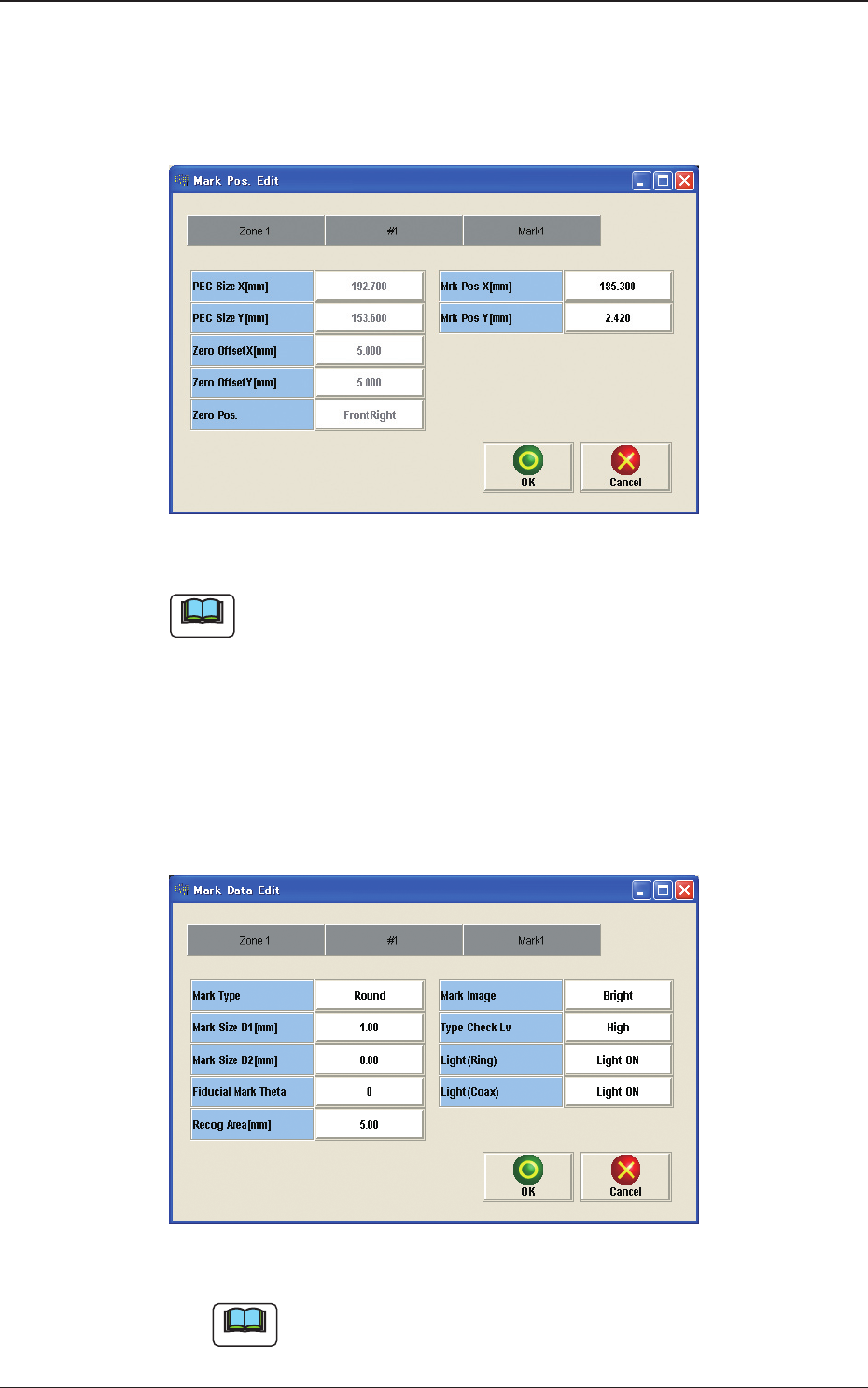
[3] [Mark Pos Edit] Button
Using this button, the PEC recognition mark position is setup.
Each item is shows as a button and when each button is pressed, the
corresponding data set window appears.
Fig. 2F7-15
Note
(a) When the pattern program has been setup, the parameters for the [PEC Size
X[mm]], [PEC Size Y[mm]] and [Y arrange Pos] are automatically
set.
(b) When the settings have been performed in the "Cmt PP Data Setting"
window, the [Mrk Pos X[mm]] and [Mark Pos Y[mm]] also have already
been setup.
[4] [Mark Data Edit] Button
Press each button to set the PEC recognition mark.
Fig. 2F7-16
Note
When the settings have been performed in the "Cmt PP Data Setting"
window, the PEC recognition mark data has already been setup
1212-001
7.3 "PEC RCG" Test Window

2OM-1733
6-7-20
[5] [Move] Button
Using this button, the beam is moved to the set position.
[6] [Manual Alignment] Button
Using this button, the window where the recognition position setup using the
manual alignment operation, is opened.
[7] [PEC Recog] Button
When this button is pressed, the PEC recognition test is prepared.
[8] Result:
In this pane, the PEC recognition test results are displayed.
[9] [PCB XFER] Button
When this button is pressed, the "PCB Transfer" window appears.
[10] [Save Image] Button
When this button is pressed, the "Image Save" window appears.
This window is used to save the test results.
[11] [Re-Recognition] Button
After pressing this button, the recognition image is touched in the "Manual
Alignment" window to re-recognize the marks.
1212-001
7.3 "PEC RCG" Test Window