2OM-1733-005w_F8.pdf - 第274页
2OM-1733 5-6-4 1403-005 [5] [Delete] Button When this button is pressed, the recognized image is deleted. When the No. for the recognized image to be deleted is selected and the [Delete] button is pressed, the deletion c…
2OM-1733
5-6-31403-005
6.1 Recog Image List
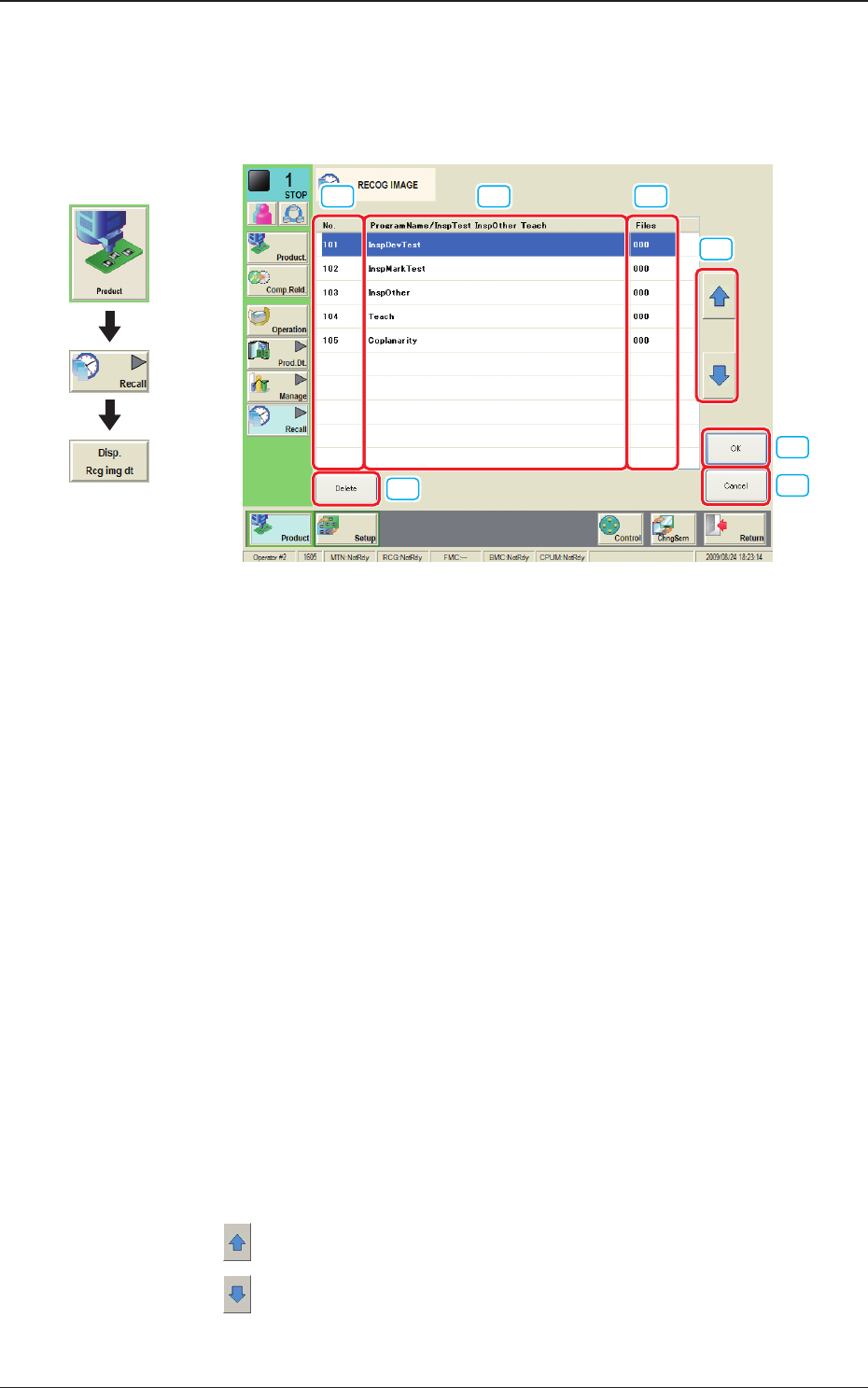
When the [SelectProgram/] button is pressed in the "RECOG IMAGE" window,
the following window appears.
[1] [2] [3]
[4]
[5]
[6]
[7]
Fig. 2E6-3
[1] No.
Shown are the saved recognized image Nos.
1 to 100
: The recognized images for the Component Recognition or PEC
Recognition for each pattern program are saved.
101
: The recognized images obtained in the Component Recognition
Test are saved.
102
: The recognized images obtained in the PEC Recognition Test are
saved.
103
: Other recognized images are saved.
104
: The recognized images obtained in the teaching results are saved.
[2] ProgramName/InspTest InspOther Teach
Shown are the pattern program names, items, etc.
[3] Files
Shown is the number of recognition images saved in "[1] No." pane.
[4] Page Change Button
[
] : When pressed, the previous page appears.
[
] : When pressed, the next page appears.
6.1 Recog Image List
Graphic
Development
2OM-1733
5-6-41403-005
[5] [Delete] Button
When this button is pressed, the recognized image is deleted.
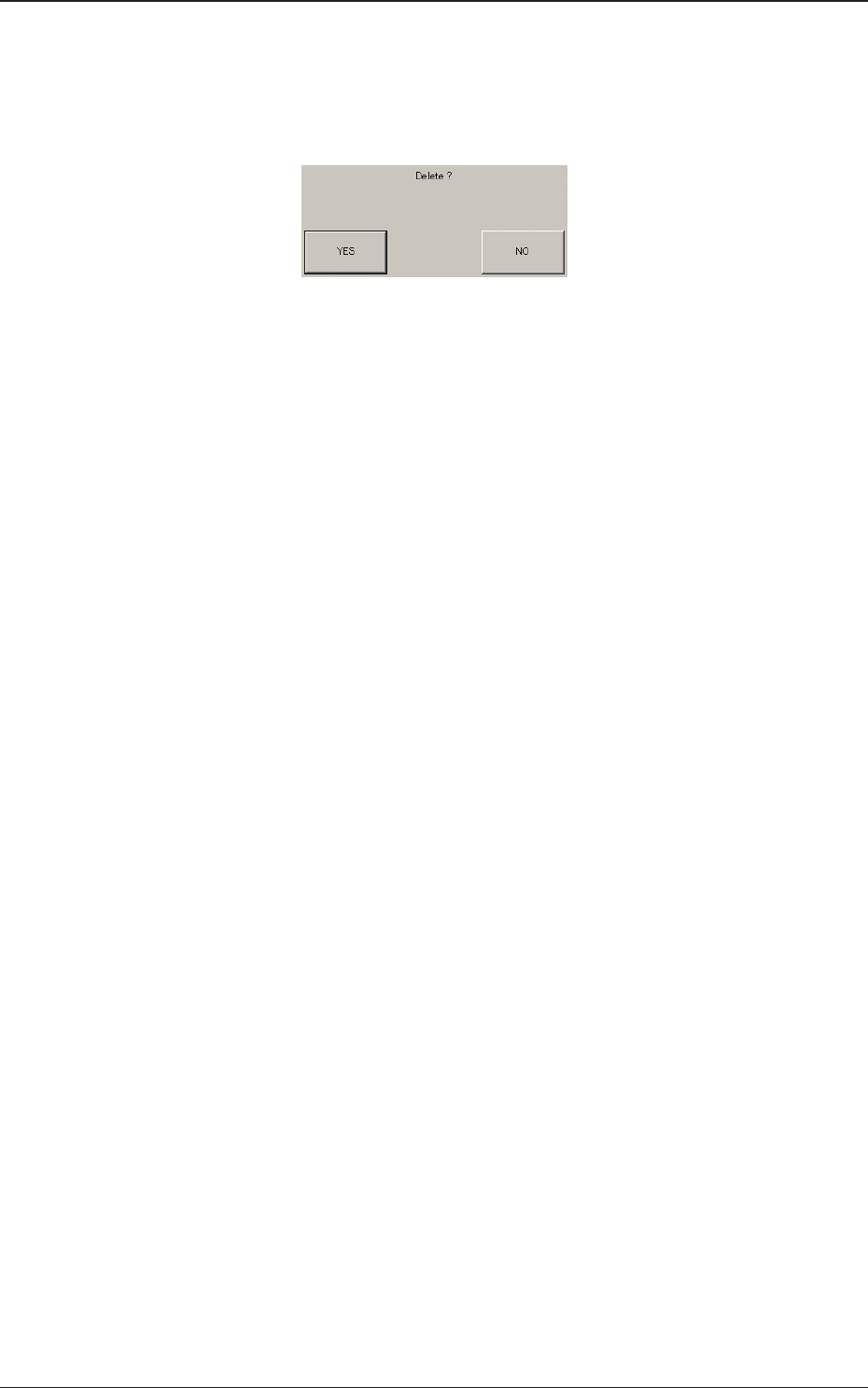
When the No. for the recognized image to be deleted is selected and the
[Delete] button is pressed, the deletion conrmation window appears.
Fig. 2E6-4
[6] [OK] Button
When this button is pressed, the "RECOG IMAGE" window is returned and
the recognized image with the selected No. is displayed.
[7] [CANCEL] Button
When this button is pressed, the "RECOG IMAGE" window is returned.
6.1 Recog Image List
2OM-1733
5-6-51403-005
6.2 "RECOGIMAGE"ConrmationWindow
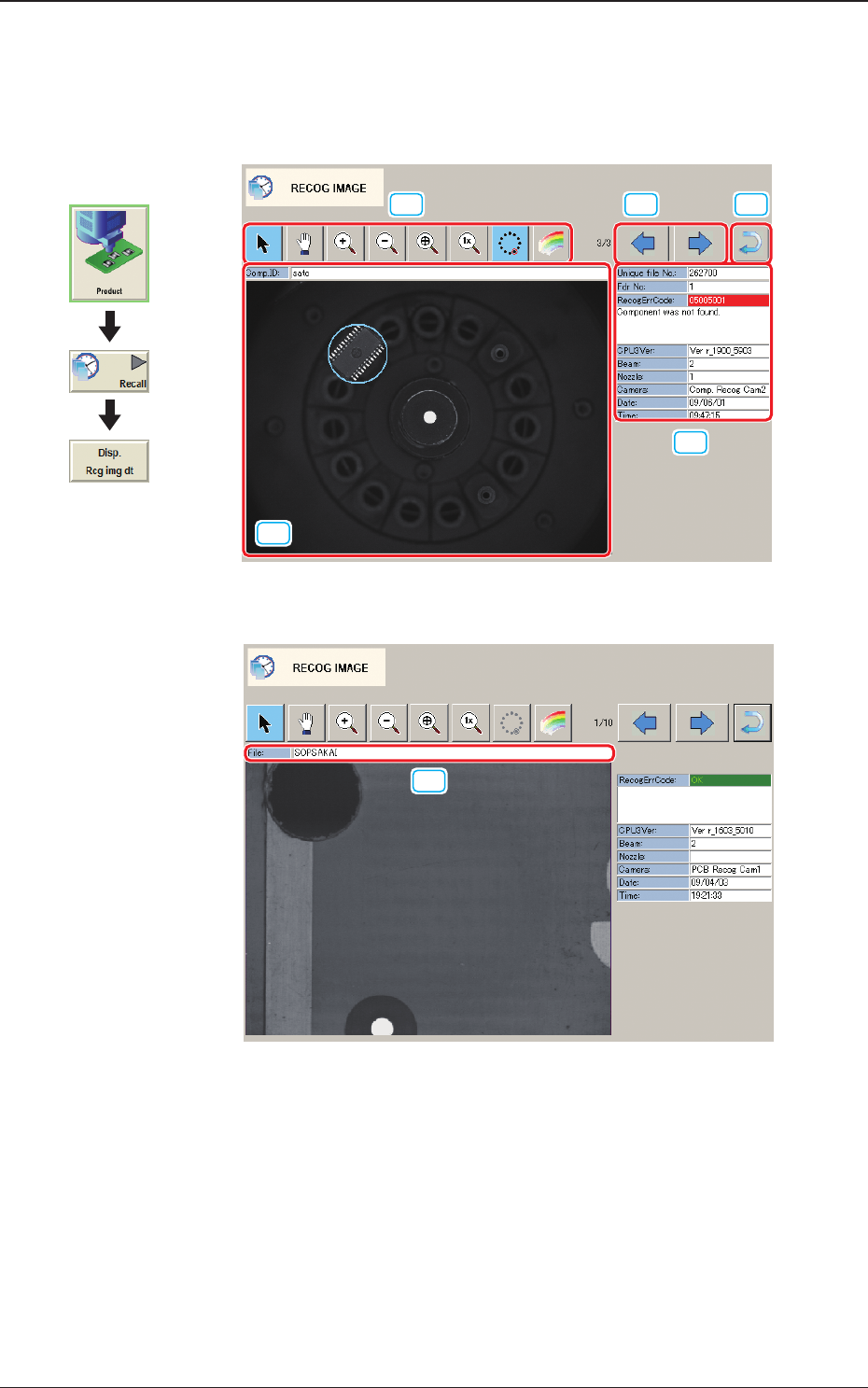
When the recognized image displayed in the "RECOG IMAGE" window, is
selected, the following window appears.
[1]
[2]
[3] [4]
[5]
[2]
Fig. 2E6-5 For Component Recognition
[6]
[6]
Fig. 2E6-6 For PEC Recognition
6.2"RECOGIMAGE"ConrmationWindow
Graphic
Development