2OM-1733-005w_F8.pdf - 第211页
2OM-1733 3-1-15 1.3.2 Saving of Component IDs The following describes how to save a newly created le (component ID) or the edited parameters of the component ID. Procedure (1) Press the [Save] or the [Save As] icon on t…

2OM-1733
3-1-141204-001
1.3 Editing of Component Library Data
Edit the component library data in each tab sheet.
Reference
Refer to "Component Library (Vol.6)" for the description of the component
library data items.
Note
The standard component library data prepared by us cannot be edited. Before
editing the data in a le, give another name to the le and save it, using the
(
) icon.
2OM-1733
3-1-15
1.3.2 Saving of Component IDs
The following describes how to save a newly created le (component ID) or the
edited parameters of the component ID.
Procedure
(1) Press the [Save] or the [Save As] icon on the toolbar.
: Savingactivele
When pressed, this saves the edited component ID (le), replacing the
original component ID (le) with the current one.
: Save As
When pressed, this saves a newly created le (data of a new
component ID) or the edited le with another name (component ID).
(2) Press the [Saving active le] icon.
(The active component library data is saved with the current component ID
name, replacing the original program with the active one).
(3) Press the [Save As] icon.
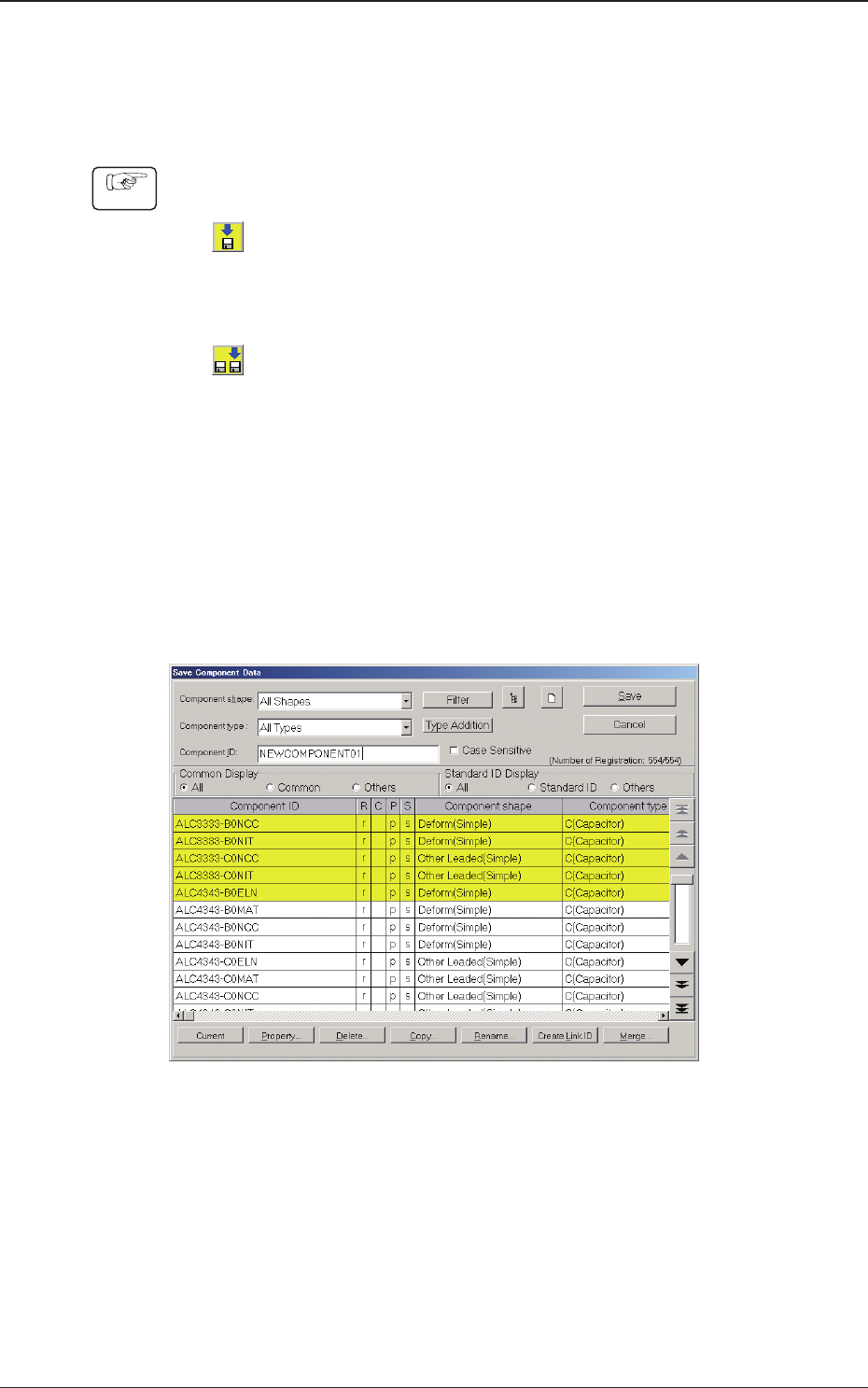
(The following "Save Component Data" window will be displayed).
Fig. 2C1-15 "Save Component Data" Window
1212-002
1.3 Editing of Component Library Data
2OM-1733
3-1-16
(4) Enter a new component ID name as a le name and press [Save] button in
the "Save Component Data" window.
(The data in the active edit window is saved as a le with the entered
component ID name. )
Note
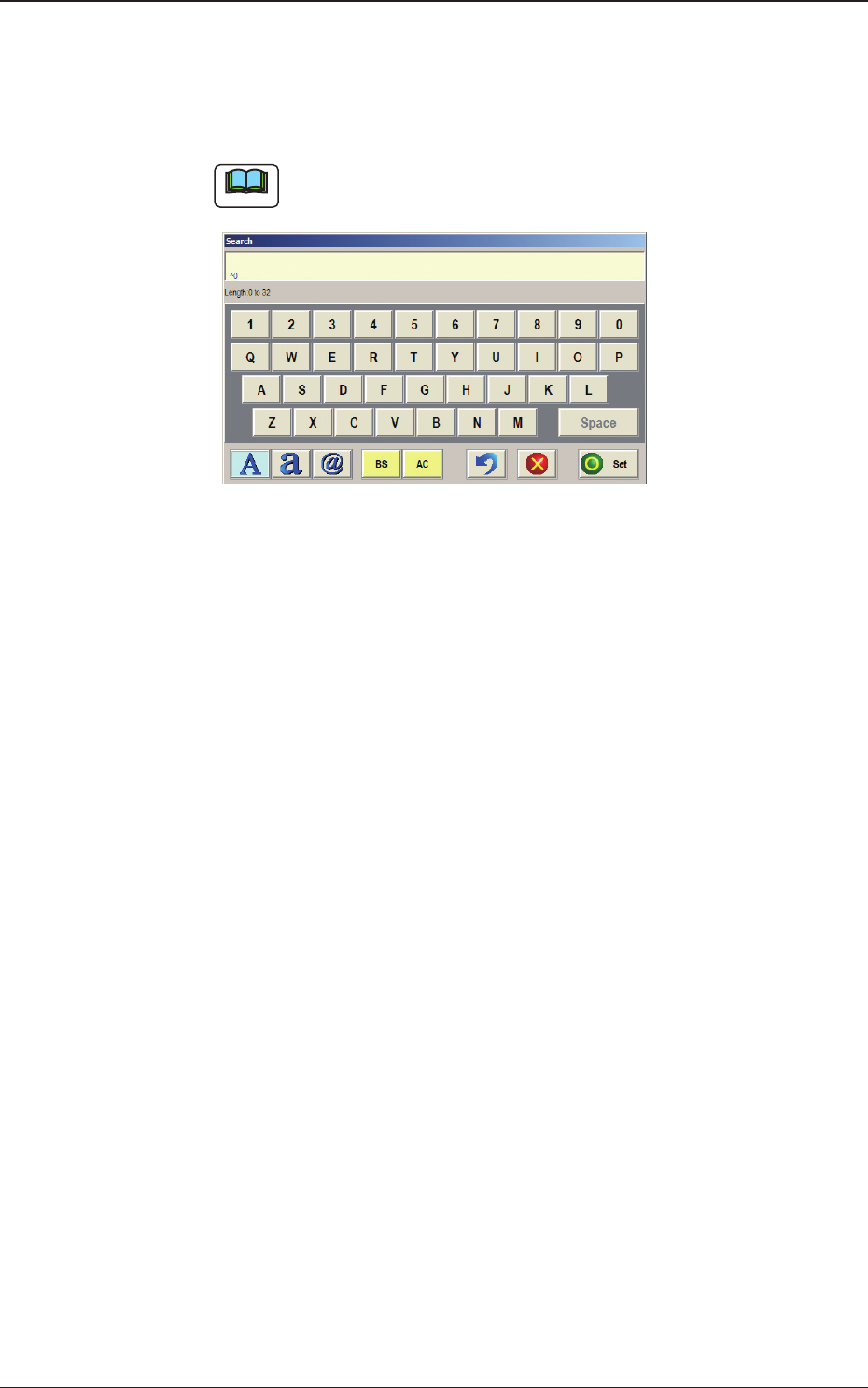
Double-clicking the "Component ID:" text box opens the "Component ID
Input" window.
F2C1-16 "Component ID Input" Window
A component ID can be entered with the touch keypad.
1212-002
1.3 Editing of Component Library Data