2OM-1733-005w_F8.pdf - 第212页
2OM-1733 3-1-16 (4) Enter a new component ID name as a le name and p ress [Save] button in the "Save Component Data" window . (The data in the active edit window is saved as a le with the entered component ID…
2OM-1733
3-1-15
1.3.2 Saving of Component IDs
The following describes how to save a newly created le (component ID) or the
edited parameters of the component ID.
Procedure
(1) Press the [Save] or the [Save As] icon on the toolbar.
: Savingactivele
When pressed, this saves the edited component ID (le), replacing the
original component ID (le) with the current one.
: Save As
When pressed, this saves a newly created le (data of a new
component ID) or the edited le with another name (component ID).
(2) Press the [Saving active le] icon.
(The active component library data is saved with the current component ID
name, replacing the original program with the active one).
(3) Press the [Save As] icon.
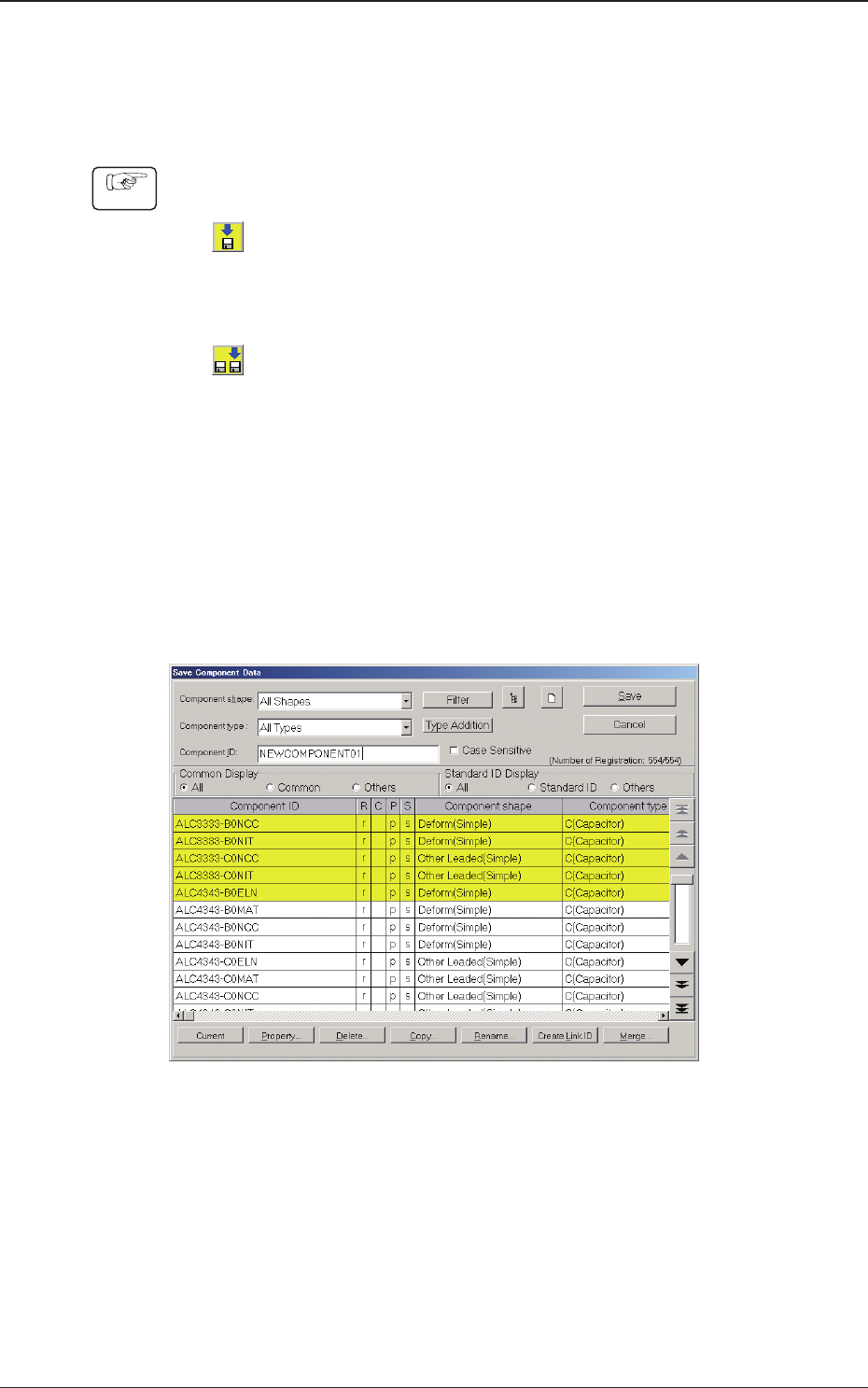
(The following "Save Component Data" window will be displayed).
Fig. 2C1-15 "Save Component Data" Window
1212-002
1.3 Editing of Component Library Data

2OM-1733
3-1-16
(4) Enter a new component ID name as a le name and press [Save] button in
the "Save Component Data" window.
(The data in the active edit window is saved as a le with the entered
component ID name. )
Note
Double-clicking the "Component ID:" text box opens the "Component ID
Input" window.
F2C1-16 "Component ID Input" Window
A component ID can be entered with the touch keypad.
1212-002
1.3 Editing of Component Library Data
2OM-1733
3-2-1
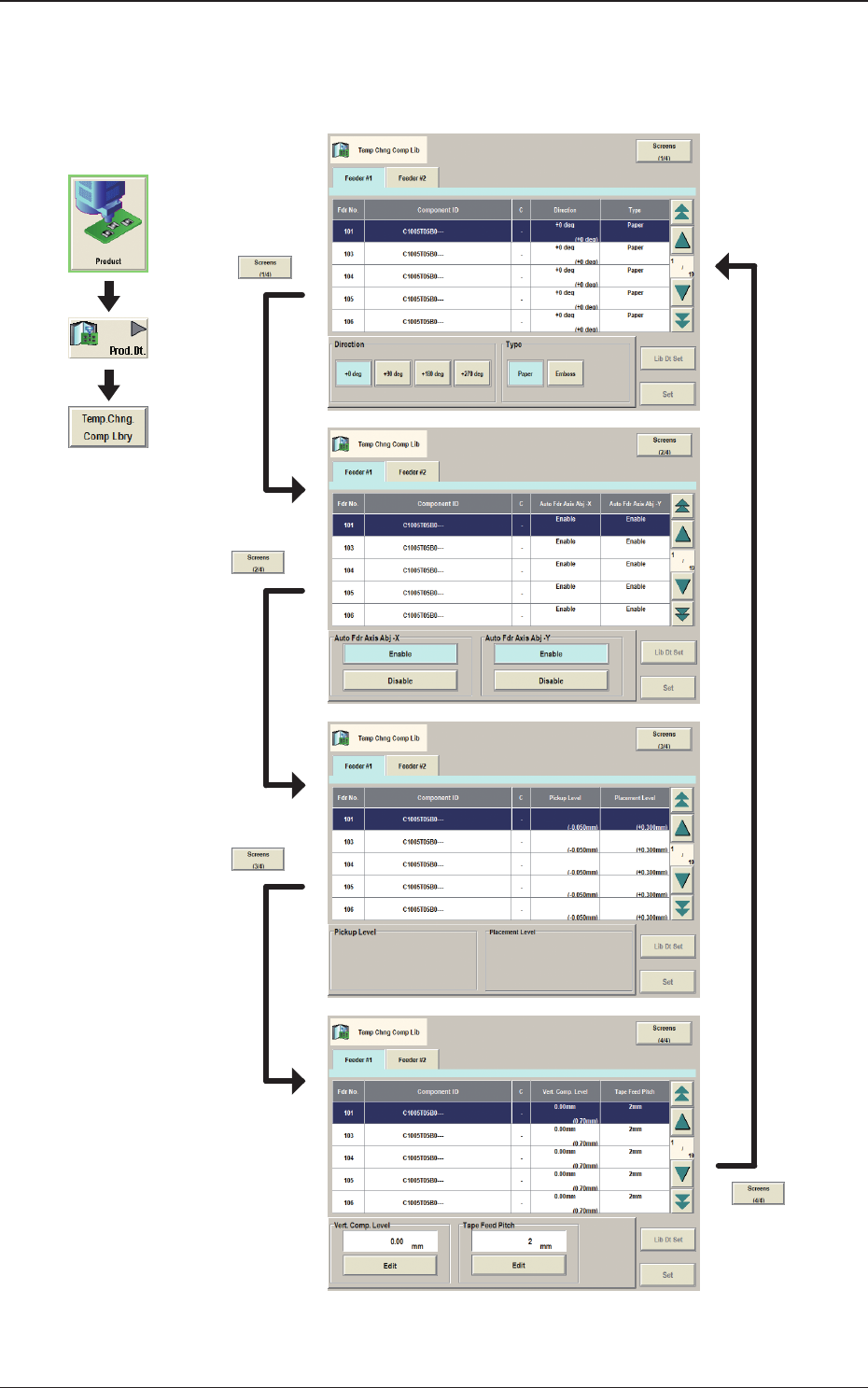
2. "Temp Chng Comp Lib" Window
In these tab sheets, the component library parameters are changed temporarily.
Fig. 2C2-1
Graphic
Development
1212-002
2. "Temp Chng Comp Lib" Window