2OM-1733-005w_F8.pdf - 第262页
2OM-1733 5-1-2 1205-001
2OM-1733
5-1-11212-002
1. Outline of "Recall" Window
1. Outline of "Recall" Window
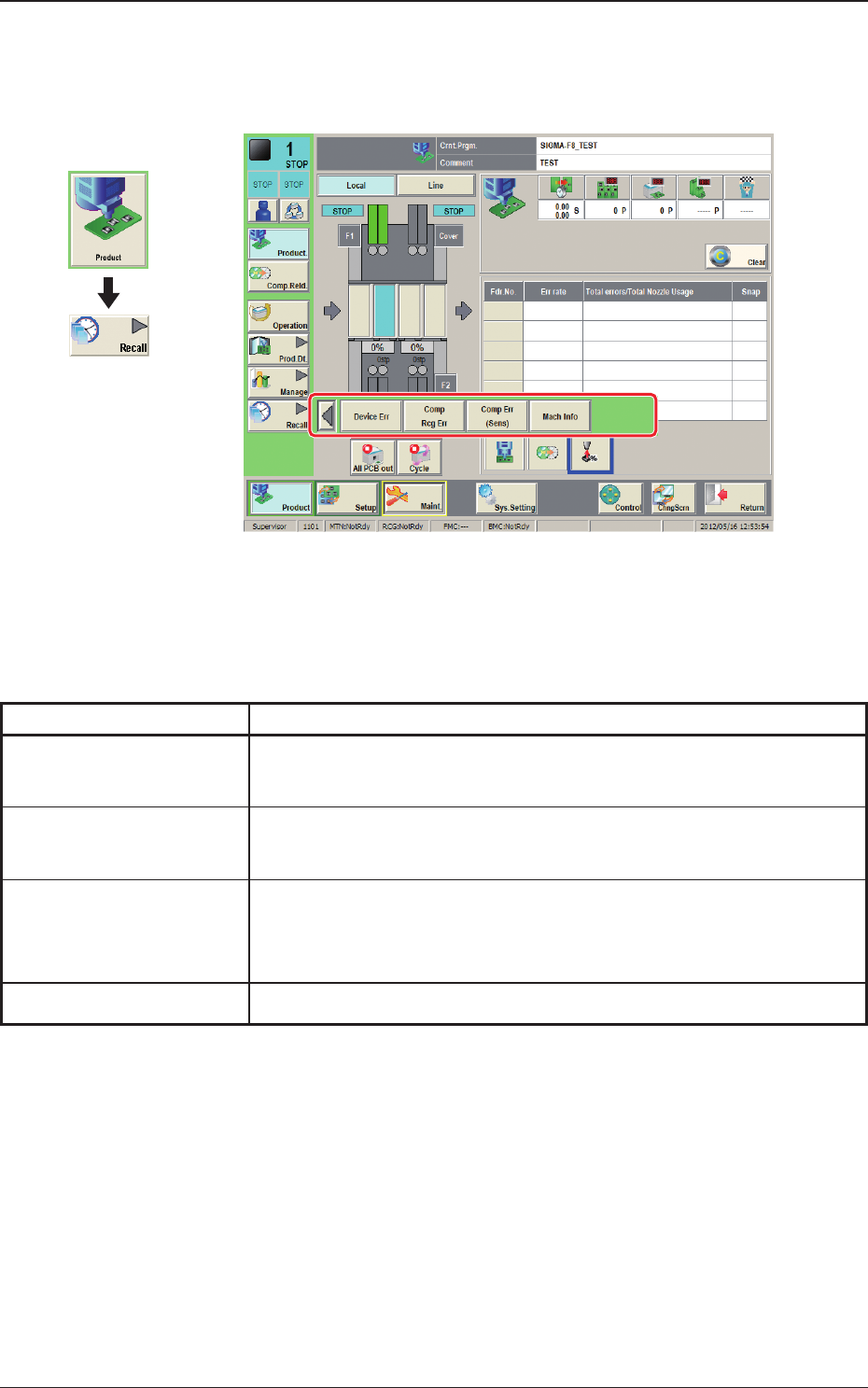
The submenu for the "Recall" window is displayed.
Fig. 2E1-1 "Recall" Window
The "Recall" menu is provided with the following four buttons.
When a button is pressed, the corresponding window opens.
Table 2E1-1
Buttons Description
Device Err
When pressed, the "Device Err" window appears, enabling the operator
to check the device error logs.
Comp Rcg Err
When pressed, the "Comp Rcg Err" window appears, enabling the
operator to check the logs of the component recognition errors.
Comp Err(Sens)
When pressed, the "Comp Err(Sens)" window appears, enabling the
operator to check the logs of the component posture errors detected by
the linear measure sensor.
Mach Info
The logs of the machine information will be displayed.
Graphic
Development

2OM-1733
5-1-21205-001
2OM-1733
5-2-1
2. "Device Err" Window
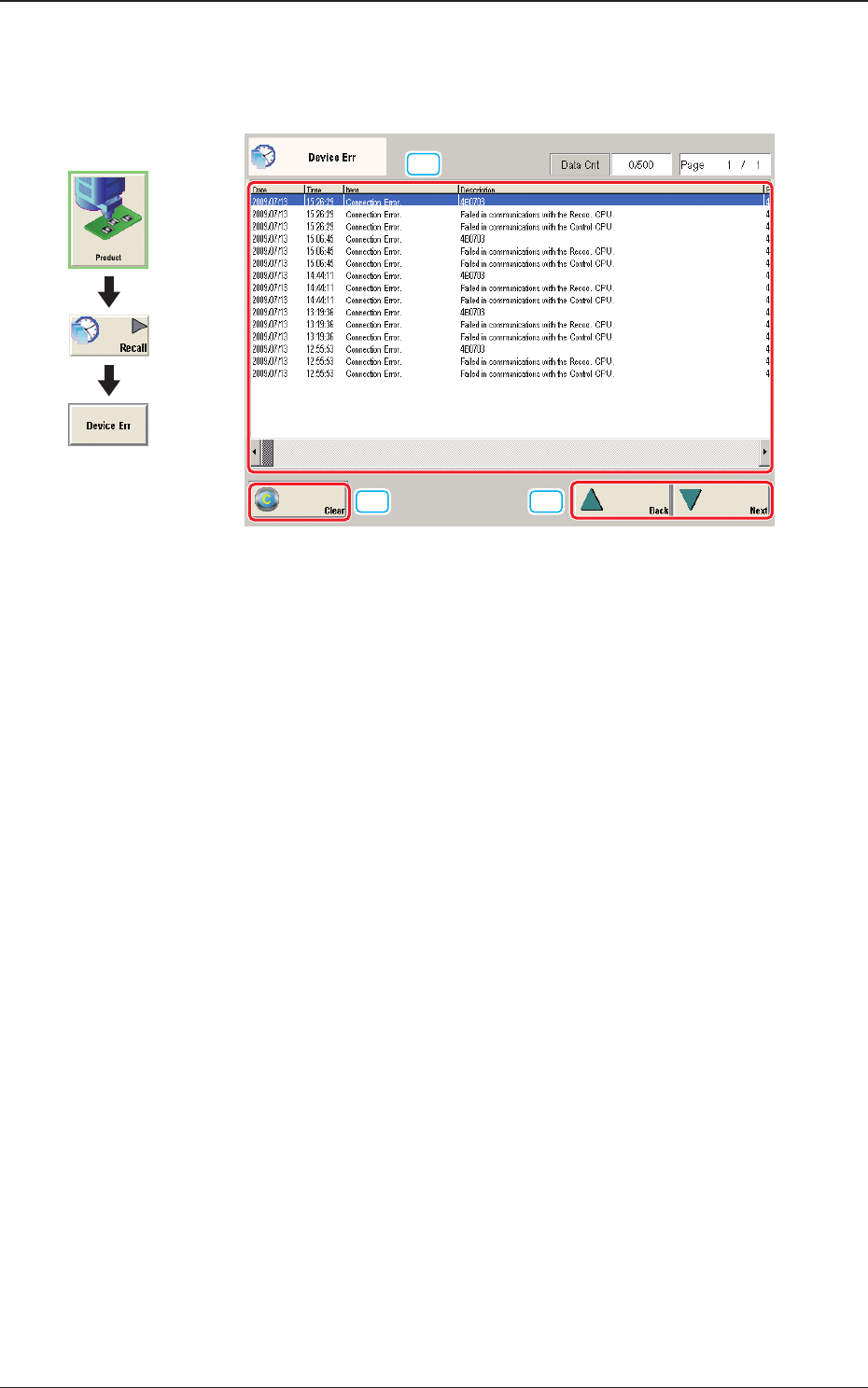
When the [Device Err] button is pressed, the "Device Err" window appears.
[2]
[3]
[1]
Fig. 2E2-1 "Device Err" Window
[1] Detailed Display
Up to 500 logs of device errors will be displayed.
When the number of logs exceeds "500", the old logs are deleted in the
sequential order. That is, the logs are updated.
[2] [Clear] Button
When pressed, this button deletes the error logs.
[3] [Back] and [Next] Buttons
When the [Next] button is pressed, the next page opens. Pressing the [Back]
button opens the previous page.
Graphic
Development
1212-002
2. "Device Err" Window