2OM-1733-005w_F8.pdf - 第342页
2OM-1733 6-7-24 • PEC Recognition Test Execution Procedure (1) Press the [ST AR T] button on the operation panel within 10 seconds after pressing the [Recog] button. (The PEC recognition operation are performed.) When th…
2OM-1733
6-7-23
•
Move to Setup Position
Procedure
(1) Display the "Set from PP" window and conrm the movement destination.
(2) When the [START] button on the operation panel is pressed within 10
seconds after the [Move] button is pressed, the XY beam is moved to the
specied position.
•
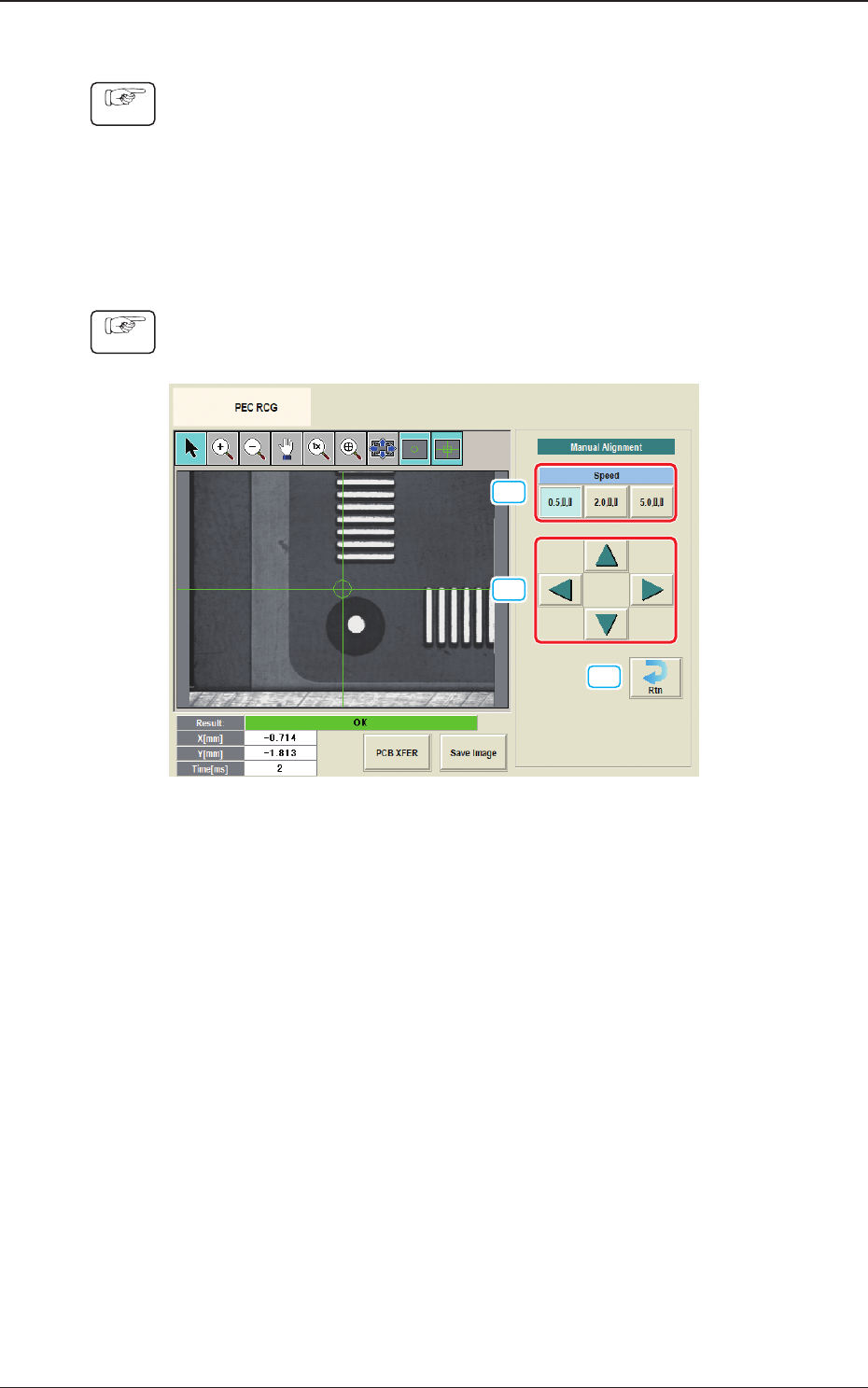
Manual Alignment Operation
Procedure
(1) Display the "Manual Alignment Move" window.
[1]
[2]
[3]
Fig. 2F7-19
(2) Setup the XY beam movement speed using the "Manual Alignment Move"
operation.
(3) Press the direction button (Upper, Right, Lower or Left Arrows) to setup the
beam movement direction.
(4) Press the [START] button on the operation panel within 10 seconds after
pressing the direction button.
(The XY beam will be moved to the recognition test position).
1212-001
7.3 "PEC RCG" Test Window

2OM-1733
6-7-24
•
PEC Recognition Test Execution
Procedure
(1) Press the [START] button on the operation panel within 10 seconds after
pressing the [Recog] button.
(The PEC recognition operation are performed.)
When the "Mrk Pos Align" has been set to "Enable" and the recognition test
is completed successfully, the XY beam is moved so that the PEC recognition
mark is located at the center on the recognition monitor.
•
When the recognition test fails, an error (recognition error) window
appears.
Collect each parameter referring to the descriptions in the "Error" window
and perform the PEC recognition test again.
•
When the recognition test is completed successfully, make a note of
collected parameters and reflect them onto the pattern program data for the
product PCB to be tested.
1212-001
7.3 "PEC RCG" Test Window
2OM-1733
6-7-25
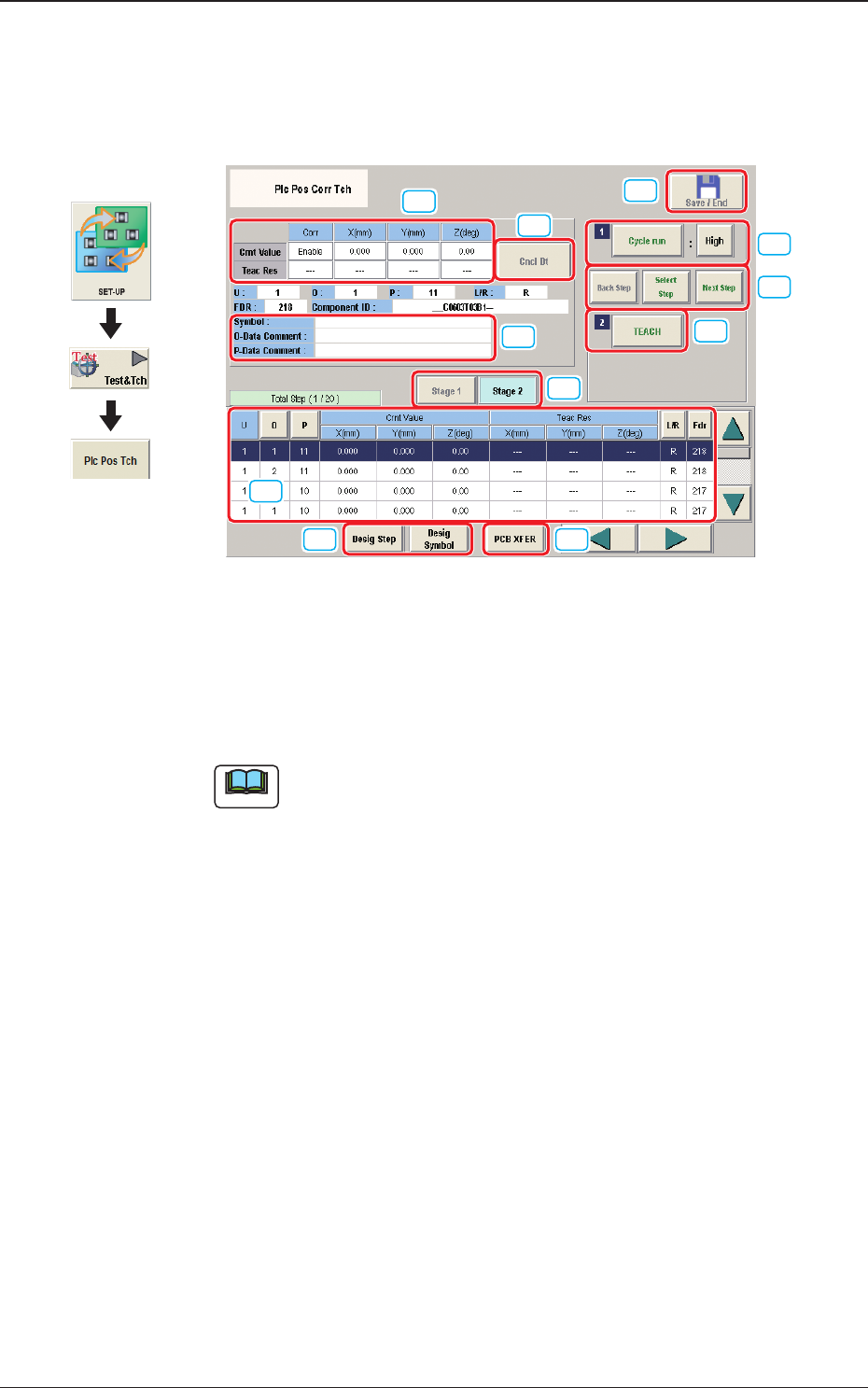
7.4 "Plc Pos Corr Tch" Window
This window enables the operator to measure the placement position correction
data and reect the measurement results on the pattern program.
[1]
[2] [3]
[6]
[5]
[11]
[7]
[8]
[4]
[9]
[10]
Fig. 2F7-20
[1] "Step No."Display Section
The step data selected in the "Desig Step"(Designate Step) operation, is
displayed.
Note
Normally, the Item are displayed in the order of component placement.
However, pressing the [Desig Symbol] button can arrange them in
ascending order.
Graphic
Development
1212-001
7.4 "Plc Pos Corr Tch" Window