2OM-1733-005w_F8.pdf - 第348页
2OM-1733 6-7-30 [ ] Button : Image Fitting Mode (the image is displayed fully using the recognition image display domain). After changing to the image tting mode using the [ ] button (the shape of the pointer is changed…
2OM-1733
6-7-29
[3] Image Operation Buttons
When the machine is in the "STOP" mode, the following buttons can be used
to enlarge or move the image in the recognized image display area.
[
] Button
: Normal Operation Mode
[
] Button
: Image Movement Mode
After changing to the image movement mode using the
[
] button (the shape of the pointer is changed to
mark), drag the image to be moved (with the left button on
the mouse pressed) to move.
[
] Button
: Image Enlargement Mode
After changing to the image enlargement mode using the
[
] button (the shape of the pointer is changed to ),
when the image to be enlarged is touched, or the left button
of the mouse is clicked on the image, the image is enlarged
from the pointer position as the center.
When the image is to be enlarged with its position xed,
place the pointer on the center of the image before the
enlargement operation.
[
] Button
: Image Reduction Mode
After changing to the image reduction mode using the
[
] button (the shape of the pointer is changed to )
when the image to be reduced is touched, or the left button
of the mouse is clicked on the image, the image is reduced
from the pointer position as the center.
When the image is to be reduced with its position xed,
place the pointer on the center of the image before the
reduction operation.
[
] Button
: Image Real-Size Display Mode (Captured image is
displayed in real-size).
After changing to the image real-size display mode using
the [
] button (the shape of the pointer is changed to
), when the image to be displayed in real-size is
touched, or the left button of the mouse is clicked on the
image, the image is displayed in real-size from the pointer
position as the center.
When the image is to be displayed in real-size with its
position xed, place the pointer on the center of the image
before the image real-size display operation.
1212-001
7.4 "Plc Pos Corr Tch" Window
2OM-1733
6-7-30
[
] Button
: Image Fitting Mode (the image is displayed fully using the
recognition image display domain).
After changing to the image tting mode using the [
]
button (the shape of the pointer is changed to ), when the
image to be t is touched, or the left button of the mouse
is clicked on the image, the image is displayed fully using
the recognition image display domain, from the pointer
position as the center.
When the image is to be displayed in the image tting mode
with its position xed, place the pointer on the center of the
image before the image tting operation.
[
] Button
: Using this button, the image displayed in the display area
in the recognition window can be moved to the desired
position.
[
] Button
: This button is used when the displayed image position is
aligned with the graphic image position.
1212-001
7.4 "Plc Pos Corr Tch" Window
2OM-1733
6-7-311212-002
7.5 "Noz Lv./Pos." Window
7.5 "Noz Lv./Pos." Window
Noz.Lv.
This window enables you to perform teaching operations on the nozzle level (lower
surface) offsets of the ordinary nozzles on the heads.
Noz.Pos.
This window enables you to perform teaching operations on the deviations from
the reference values between the head rotational centers and the nozzle end
positions.
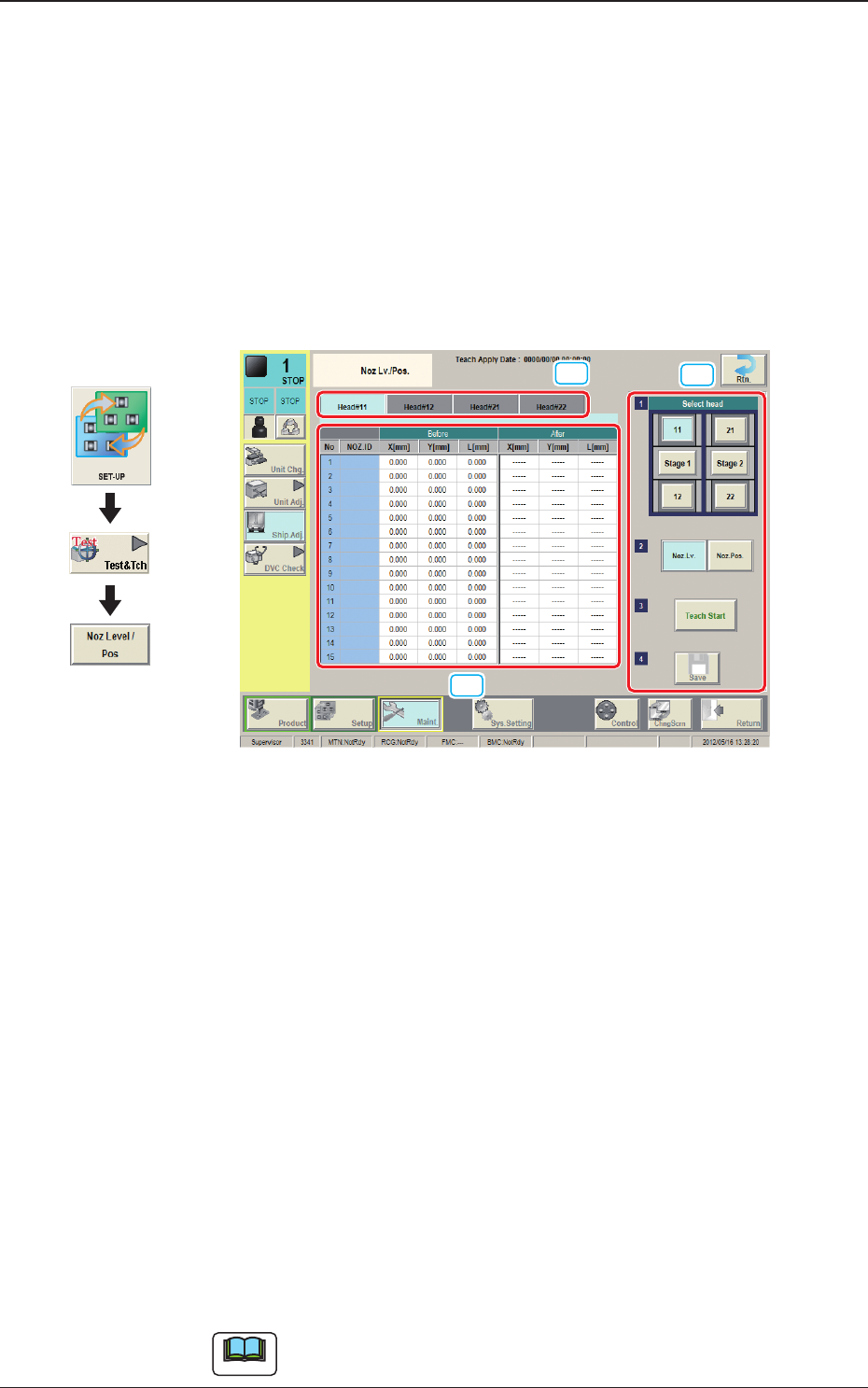
[2]
[3]
[1]
Fig. 2F7-22
[1] Head Change Tabs
When each tab is pressed, the corresponding tab sheet for the head for each
teaching operation, appears.
[2] Teaching Data Display Section
Displayed are the teaching data items for the nozzle in the designated head.
[3] Teaching Procedure Display Area
Displayed are the buttons to be used for the teaching operations.
Select head
The positions of the heads corresponding to each nozzle are displayed as
images. Select the head corresponding to the nozzle for which the teaching is
performed.
Select [Stage 1] or [Stage 2] when the teaching operation is performed for
each stage.
Note
When the head is selected in Item Head Selection, the window is changed
accordingly.
Graphic
Development