2OM-1733-005w_F8.pdf - 第80页
2OM-1733 1-4-4 • Automatic Operation Start after the Component Reload or for the T est Operation Setup the Starting Mode and Starting Step No. and press the [ST AR T] button on the operation panel to start up the automat…

2OM-1733
1-4-3
[3] Cancel Run
When the Cancel Run button is pressed, the "Pause" condition is cancelled
and the machine is turned to the "STOP" mode.
Note
When the machine is set in the "PAUSE" mode by pressing the [STOP]
button on the operation panel during the automatic operation, etc., the
Cancel Run button becomes available.
1212-002
4.1 "Run Mode" Tab Sheet
2OM-1733
1-4-4
•
Automatic Operation Start after the Component Reload or for the Test
Operation
Setup the Starting Mode and Starting Step No. and press the [START] button
on the operation panel to start up the automatic operation.
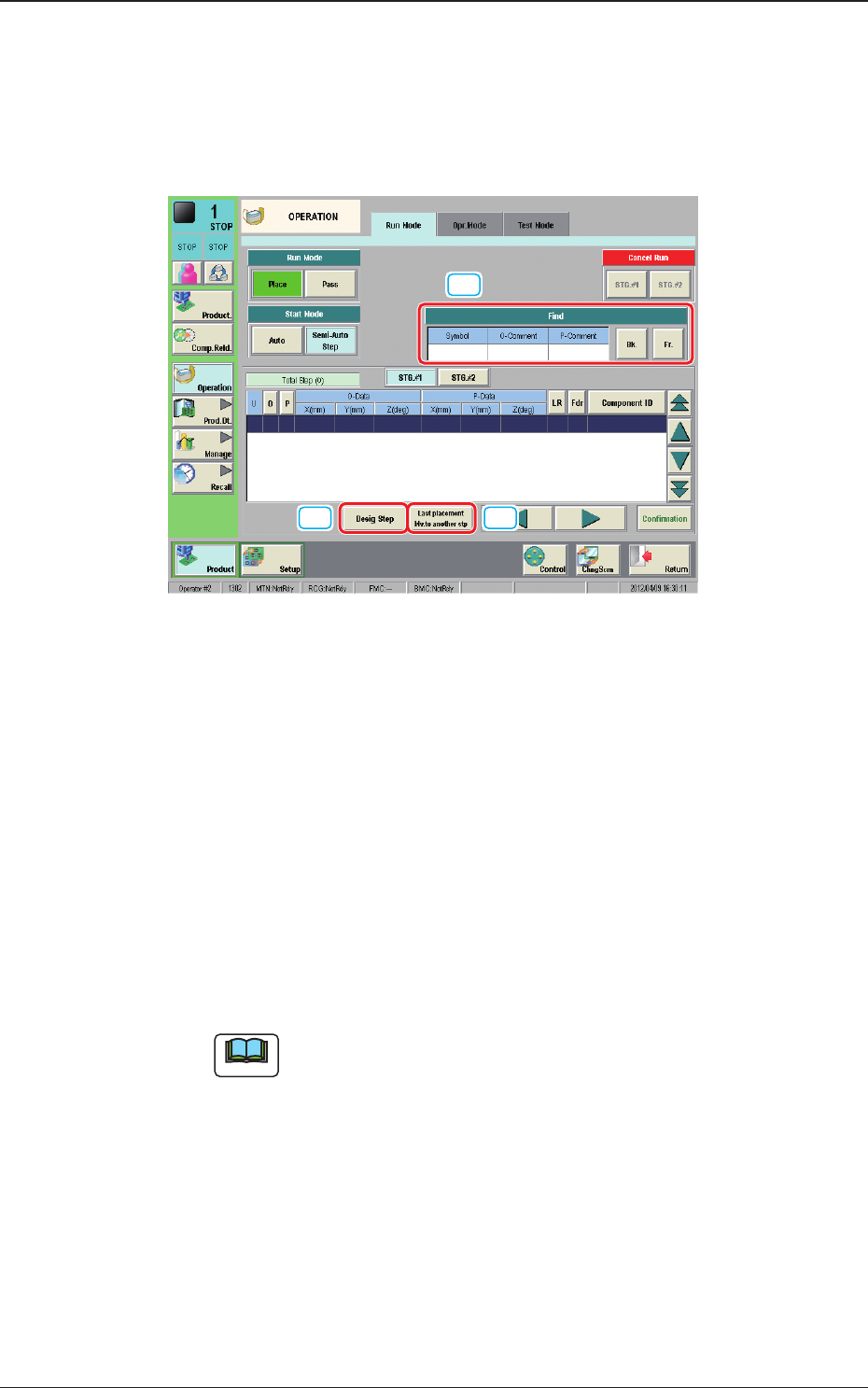
When the [Semi-Auto Step] button is pressed, the following window appears.
[1]
[2] [3]
Fig. 2A4-4 "Run Mode" Tab Sheets
[1] Find
Enter characters in the text boxes for "Symbol", "O-Data Comment" and
"P-Data Comment" and press the [Forward] or [Backward] button to search
the parameter successively.
[2] Desig Step
When the operation is to be started from the desired step No. in the pattern
program, setup the starting step No.
The background color of the designated step turns blue.
Starting Step Nos. U, O, and P can be designated sequentially, using the
entry window that can be opened by pressing the [Desig Step] button.
Note
In normal cases, the starting step Nos. are displayed in the order of actual
component placement.
By pressing the [O] or the [P] button, the steps can be re-arranged in the
ascending order.
Even when the step Nos. are rearranged, the component placement order is
not changed.
[3] Last placement Mv.to another stp
When this button is pressed, the position is moved to the nal placement
step.
1212-002
4.1 "Run Mode" Tab Sheet
2OM-1733
1-4-5
•
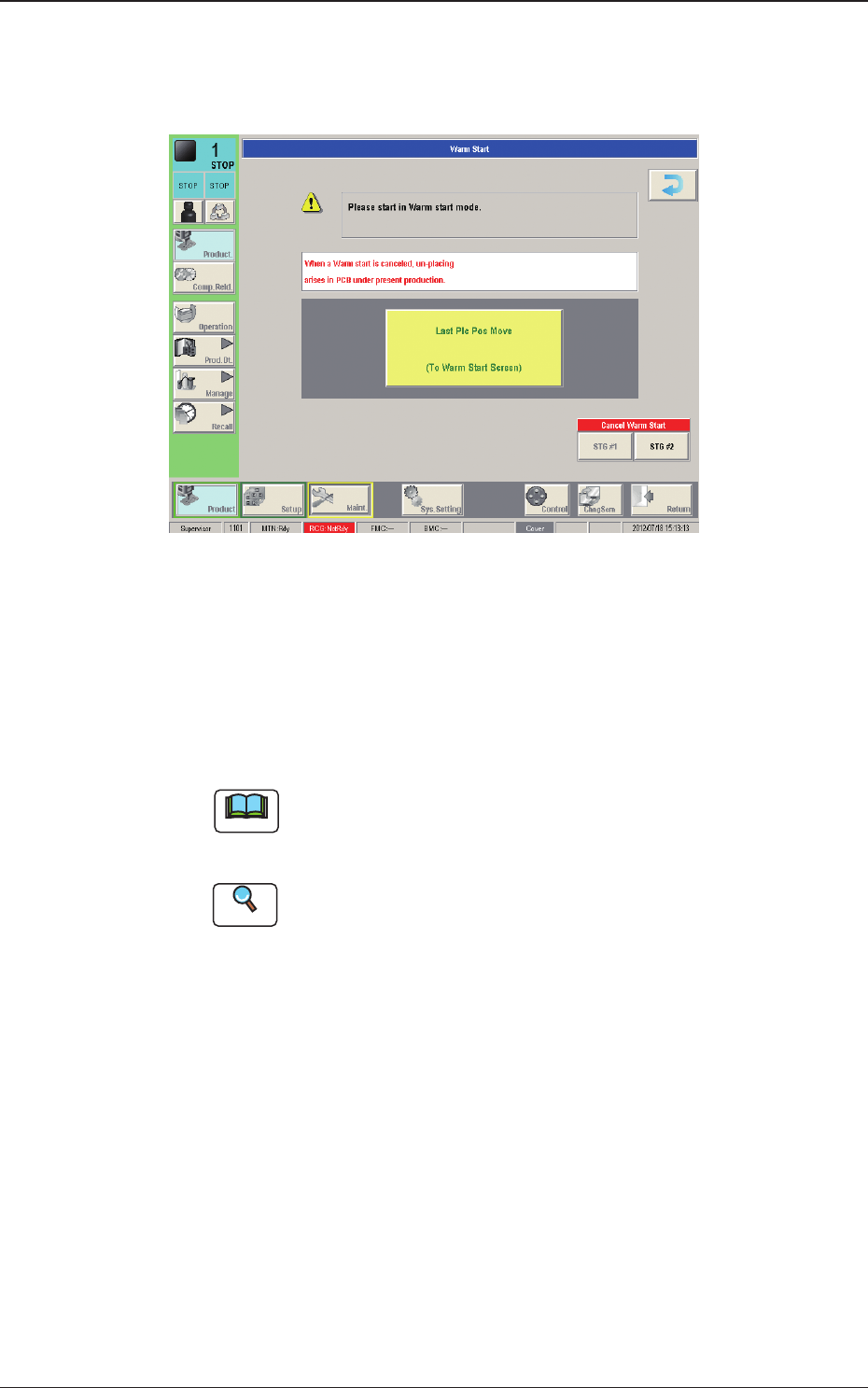
"Run Mode" Window ("Warm Start" Possible)
When the machine is set in the "PAUSE" mode during the automatic operation,
a warm start operation becomes possible and the "Warm Start" window appears.
Fig. 2A4-5
[1] [Last Plc Pos Move] Button
When this button is pressed, the "Warm Start" window is opened.
[2] [Cancel Warm Start] Button
When pressed, the warm start is cancelled.
Note
When the machine is set in the "STOP" mode by pressing the [Cancel]
button with the machine in the "PAUSE" mode, the "Warm Start" window
appears and becomes available.
Reference
Refer to "5.3 Resumption of Production through Warm Start Procedure"
(Chapter 3 in Volume 1) for the detailed information on how to execute a
warm start operation.
1212-002
4.1 "Run Mode" Tab Sheet