2OM-1733-005w_F8.pdf - 第335页
2OM-1733 6-7-17 Deleting the T each Data (All T each Data Delete) Press the [No] button in the "Conrmation to Saving" window ("W ould you like to save the data registered temporarily to the pattern progra…
2OM-1733
6-7-16
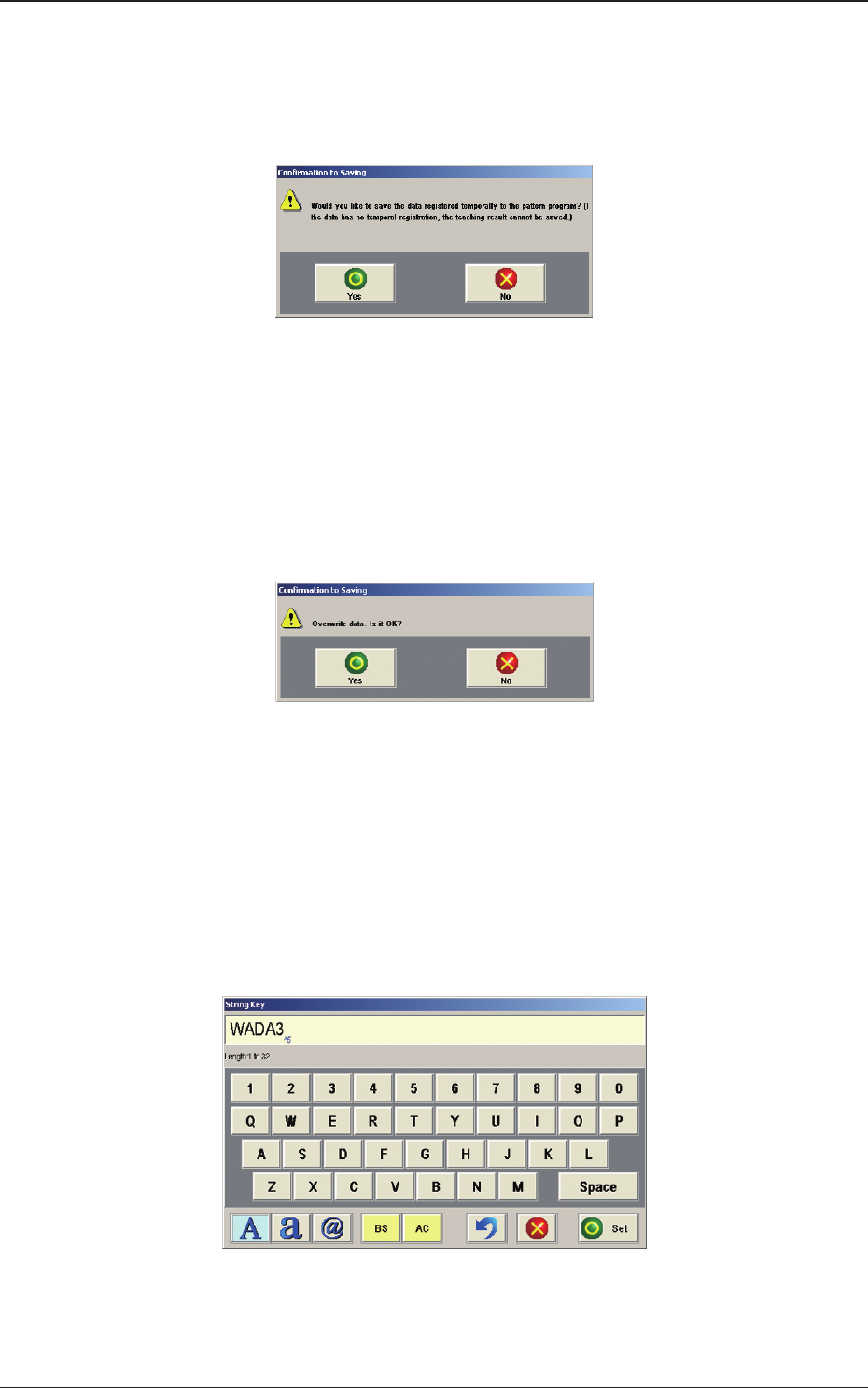
(6) When new placement position is to be registered formally, press the [End]
button.
(The "Conrmation to Saving" window will appear ("If a data has no
temporal registration, the teaching result cannot be saved").)
Fig. 2F7-10
To replace the current pattern program data with the new one ("Save"
Command)
When the [Yes] button is pressed in the "Conrmation to Saving" window,
the "Conrmation to Saving" message is displayed ("Overwrite data. Is it
OK?")
Fig. 2F7-11
Maintaining the Current Pattern Program Data (Save As)
When the [No] button is pressed in the "Conrmation to Saving" message
window ("Overwrite it. Is it OK?"), the "String key" window appears.
Enter new le name and press the [Set] button.
The temporarily entered pattern program will be saved with the newly
entered le name.
Fig. 2F7-12
1212-001
7.2 "Place Pos Teach" Window

2OM-1733
6-7-17
Deleting the Teach Data (All Teach Data Delete)
Press the [No] button in the "Conrmation to Saving" window ("Would you
like to save the data registered temporarily to the pattern program? (If the
data has not temporal registration, the teaching result cannot be saved)").
1212-001
7.2 "Place Pos Teach" Window
2OM-1733
6-7-18
7.3 "PEC RCG" Test Window
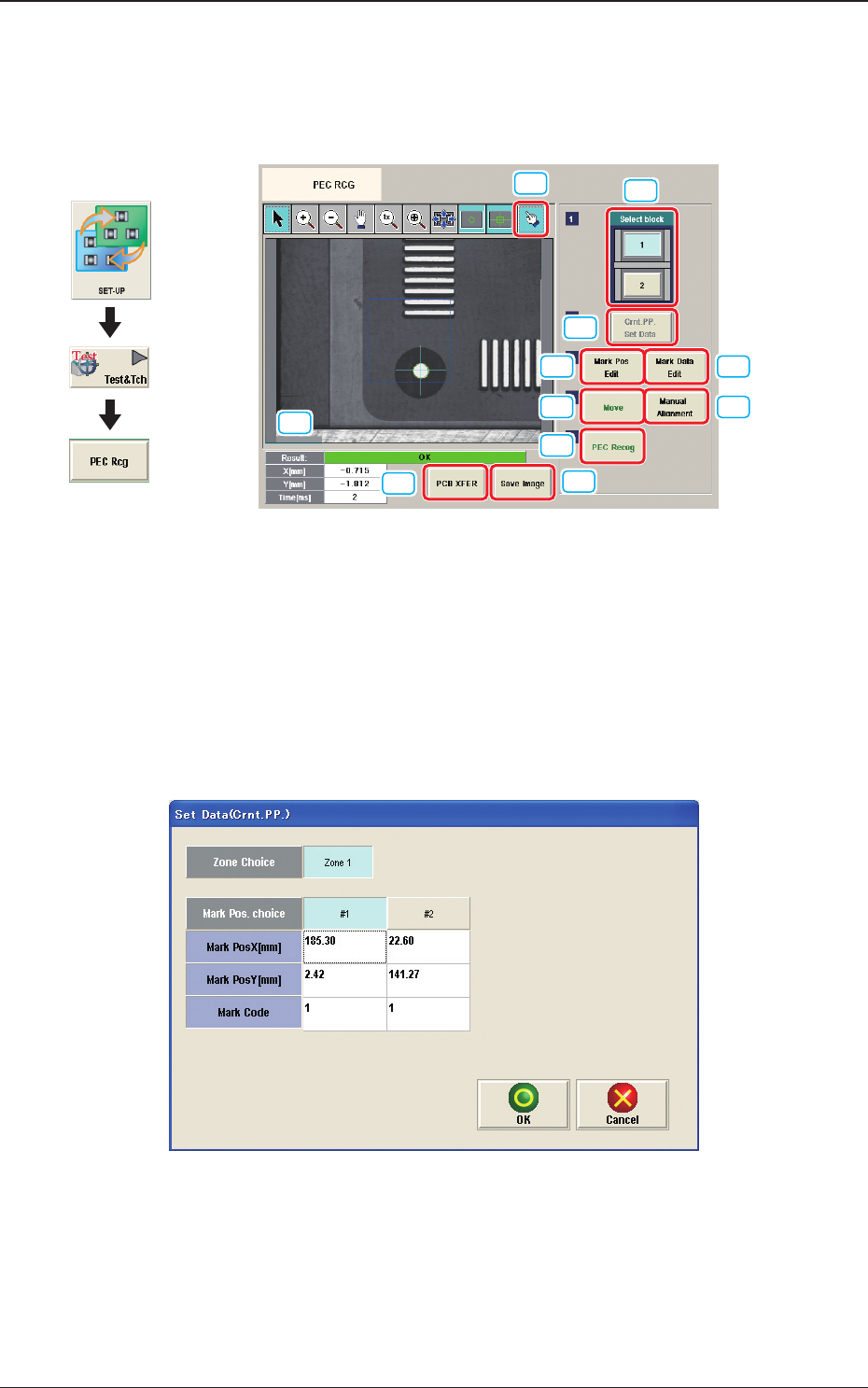
This window enables the operator to perform the PEC recognition mark
recognition test.
[1]
[2]
[3] [4]
[5]
[6]
[7]
[9]
[10]
[8]
[11]
Fig. 2F7-13
[1] [Select block] Button
The buttons showing each block are displayed using images. Using one of
these buttons, the block used for the PEC recognition test is selected.
[2] [Crnt. PP. Set Data] Button
When this button is pressed, the [Set Data (Crnt. PP.)] window appears.
Fig. 2F7-14
When [Zone n] is selected for the "Zone Choice" for the global recognition
position and the [#n] button is selected and then the [OK] button is pressed,
the position data and PEC recognition mark code are set.
The set data is displayed in the Mark Pos X, Y data boxes in the "Setup Pos
Move" window and "Recognized Data Setting" window.
1212-001
7.3 "PEC RCG" Test Window
Graphic
Development