2OM-1733-005w_F8.pdf - 第308页
2OM-1733 6-5-6 [10] [Noz Pos T eaching Rslt] Button When pressed, the teaching results for each nozzle position are displayed. Fig. 2F5-6 1212-002 5. "NOZ.CHG." Window
2OM-1733
6-5-5
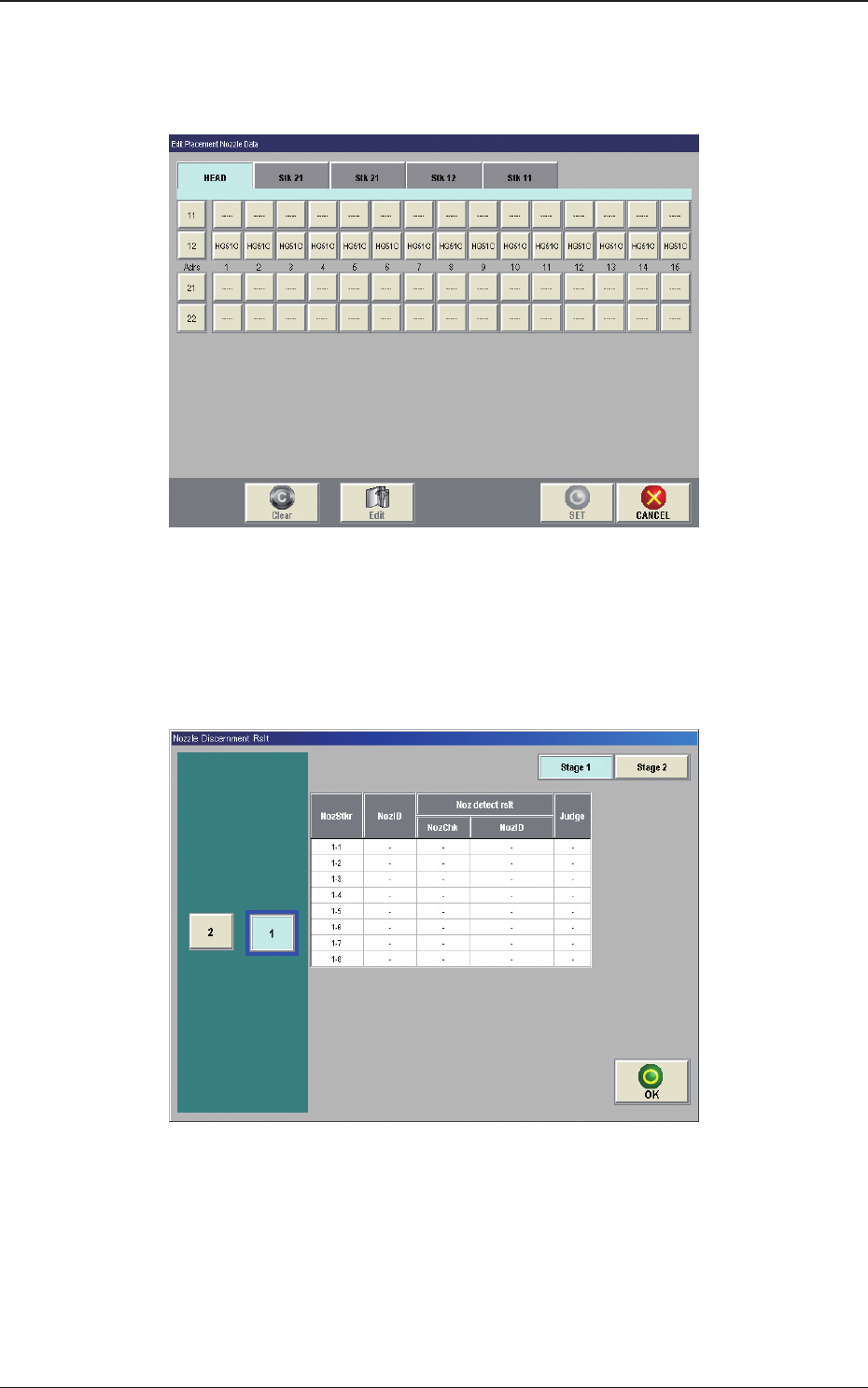
[8] [Place. Noz Edit] Button
When the [Place.Noz Edit] button is pressed, the "Edit Placement Nozzle
Data" window appears.
Fig. 2F5-4
[9] [Nozzle Disce Rslt] Button
When the [Noz.Disce Rslt] button is pressed, the "Nozzle Discernment Rslt"
window appears.
Fig. 2F5-5
1212-002
5. "NOZ.CHG." Window
2OM-1733
6-5-6
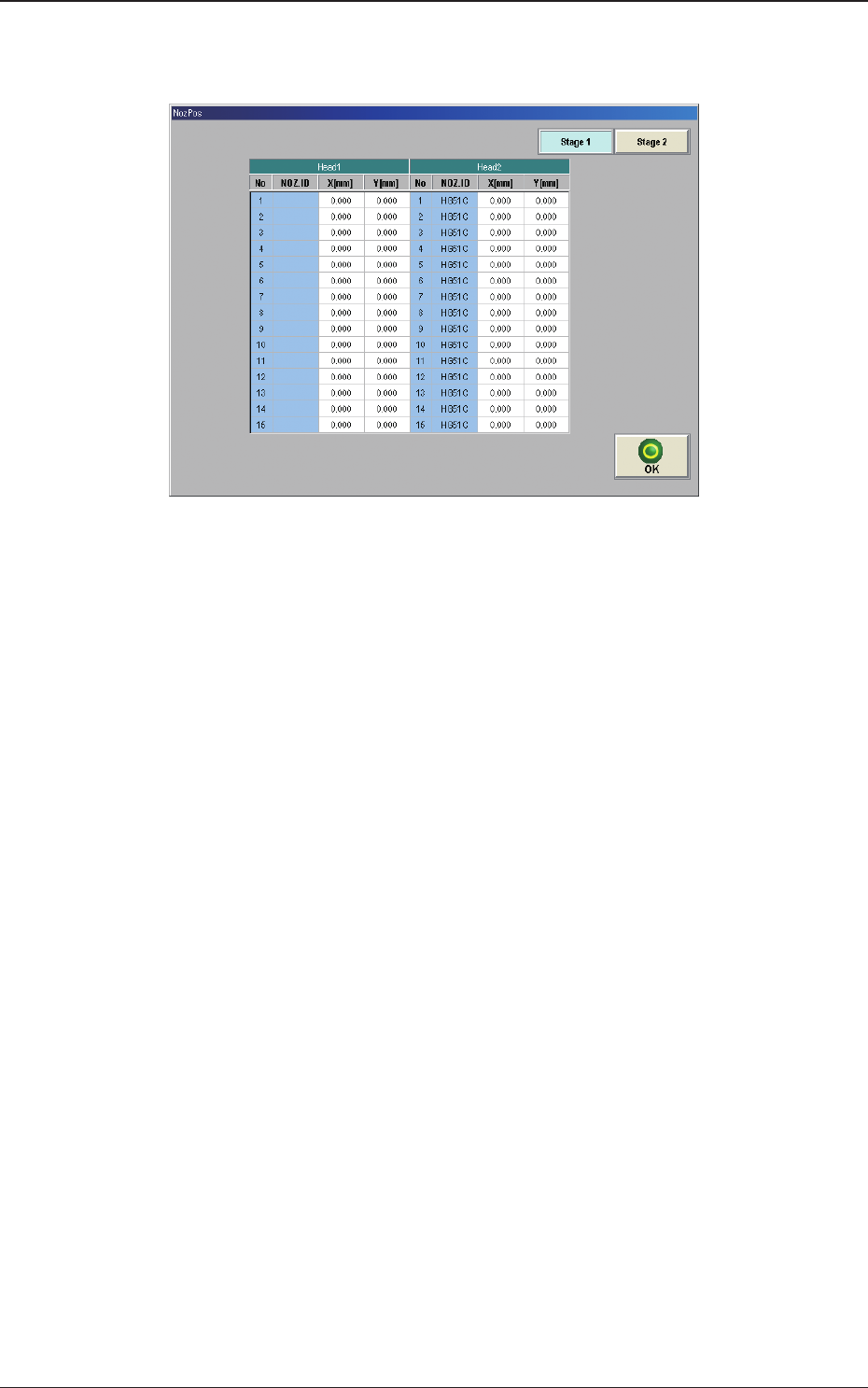
[10] [Noz Pos Teaching Rslt] Button
When pressed, the teaching results for each nozzle position are displayed.
Fig. 2F5-6
1212-002
5. "NOZ.CHG." Window
2OM-1733
6-6-1
6. "PCB XFER" Window
6.1 "Local" Tab Sheet
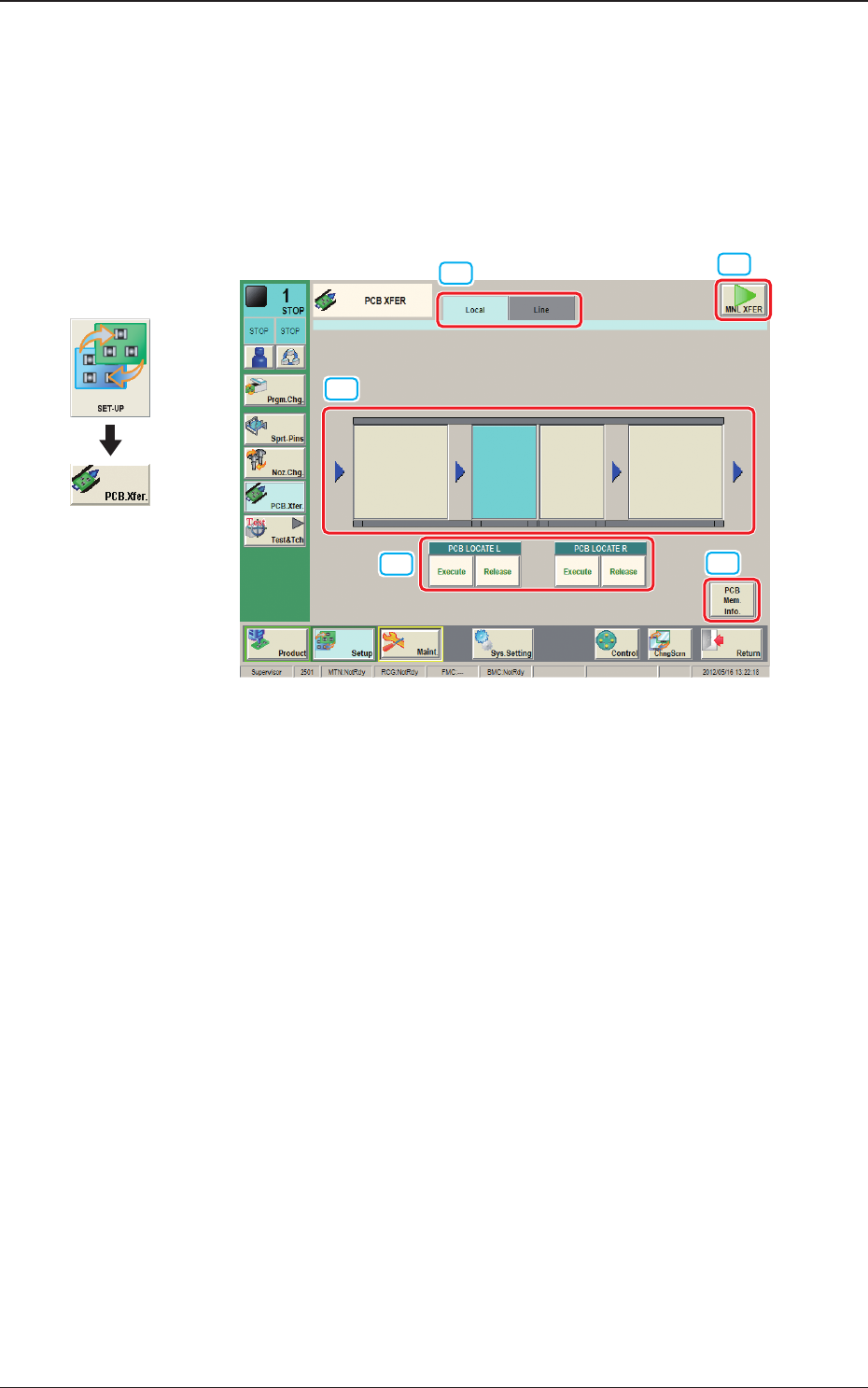
Using this function, the PCB on each block on the conveyor can be moved to the
next block.
[3]
[4]
[1]
[2]
[5]
Fig. 2F6-1
[1] Local/Line Switch Button
This button switches the "Local" tab sheet and "Line" tab sheet.
[2] [MNL XFER] Button
When pressed, the PCB positioning is performed manually.
[3] Transfer Buttons
Each block in the graphic image of the conveyor is provided with a button
function.
When the [START] button on the operation panel is pressed in 10 seconds
after a conveyor block button, the PCB is transferred to the block position.
[4] PCB LOCATE (PCB LOCATE L, R)
The PCB locating operation is performed.
When the [START] button on the operation panel is pressed in 10 seconds
after the [Execute] button, the backup base of the selected stage moves up
and the PCB is positioned.
When the [START] button on the operation panel is pressed in 10 seconds
after the [Release] button, the backup base moves down and the PCB
positioning is released.
Graphic
Development
1212-002
6. "PCB XFER" Window