2OM-1733-005w_F8.pdf - 第346页
2OM-1733 6-7-28 7.4.1 Placement Position Correction T eaching Recognition Window When the "Place Pos Teach" window is opened and the [Cycle run] button or any of the step operation mode buttons is pressed, the …

2OM-1733
6-7-27
[6] [Cycle run] Button
When the [START] button on the operation panel is pressed in 10 seconds
after this button, the "Recognition" window appears and the X/Y beam starts
moving automatically in succession according to the pattern program.
When the [STOP] button on the operation panel is pressed during the
movement, the X/Y beam stops after the 1-step operation.
Note
Select [High], [Mid] or [Low] for the movement speed in this selection
box.
[7] Step Move Mode
Specify the step for the step movement.
Back Step
: The window is moved to the recognition window for the
previous step to the selected step.
Select Step
: The window is moved to the recognition window for the
selected step.
Next Step
: The window is moved to the recognition window for the
next step to the selected step.
[8] [TEACH] Button
The teaching operation is performed at the present position.
[9] [Cncl Dt] Button
When pressed, this button cancels the placement position that was saved
temporarily.
[10] Symbol
The symbol for the pattern program is displayed in this data box.
O-Data Comment
The O-Data Comment in the pattern program is displayed in this text box.
P-Data Comment
The P-Data Comment in the pattern program is displayed in this text box.
[11] [Save / End] Button
When pressed, the taught placement position correction data is reected
on the pattern program data and after the reection, the automatic pattern
program change is performed.
1212-001
7.4 "Plc Pos Corr Tch" Window
2OM-1733
6-7-28
7.4.1 Placement Position Correction Teaching Recognition Window
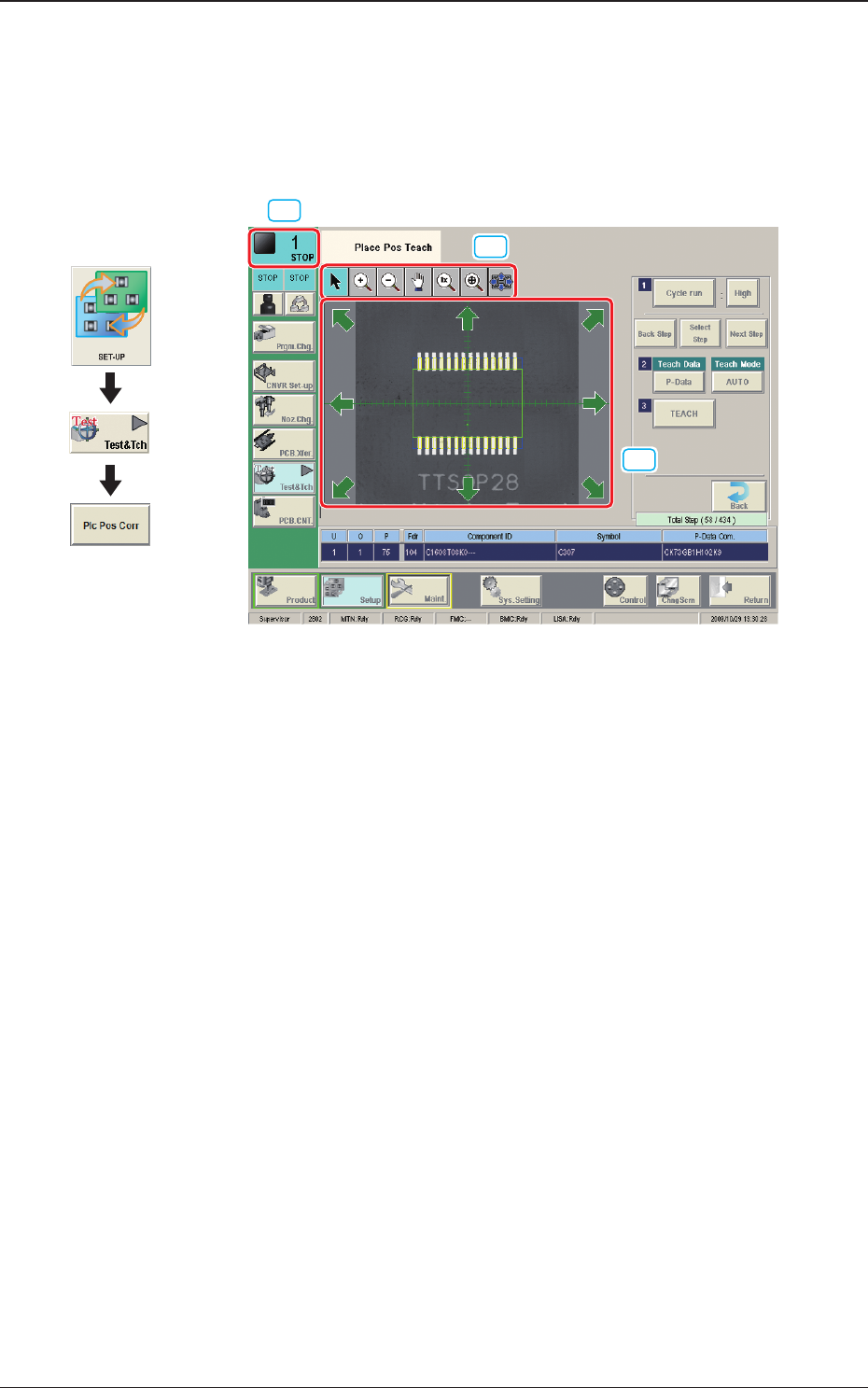
When the "Place Pos Teach" window is opened and the [Cycle run] button or any
of the step operation mode buttons is pressed, the following recognition window
is displayed.
[1]
[3]
[2]
Fig. 2F7-21
[1] Current Machine Status
"RUN", "STOP", "PAUSE", etc., will appear here, indicating in which mode
the machine is set.
Depending on which mode the machine is set in when the recognition
window is opened, different buttons appear on the recognition window.
[2] Recognized Image Display Area
Recognized images (images captured by cameras) are displayed in this area.
1212-001
7.4 "Plc Pos Corr Tch" Window
Graphic
Development
2OM-1733
6-7-29
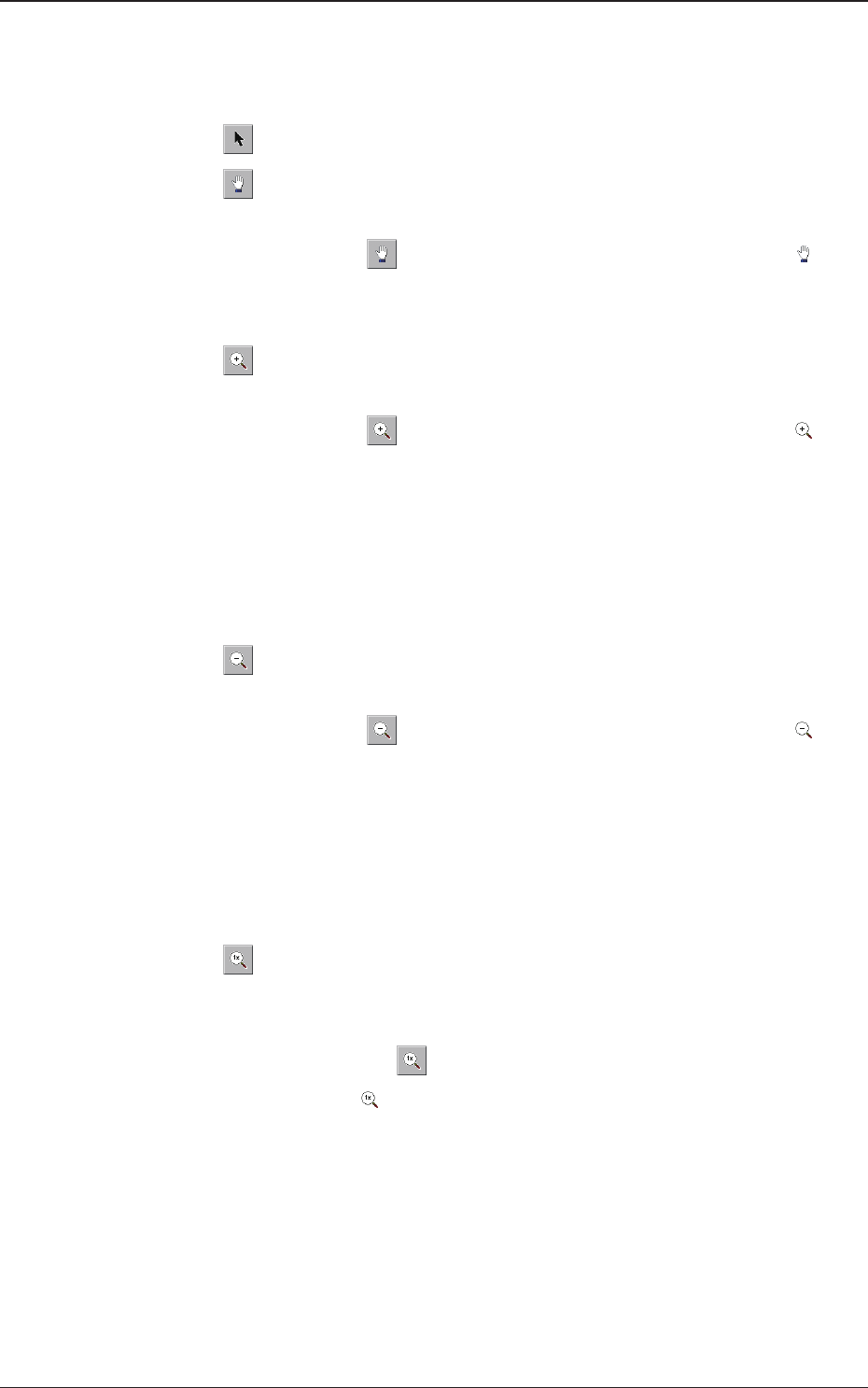
[3] Image Operation Buttons
When the machine is in the "STOP" mode, the following buttons can be used
to enlarge or move the image in the recognized image display area.
[
] Button
: Normal Operation Mode
[
] Button
: Image Movement Mode
After changing to the image movement mode using the
[
] button (the shape of the pointer is changed to
mark), drag the image to be moved (with the left button on
the mouse pressed) to move.
[
] Button
: Image Enlargement Mode
After changing to the image enlargement mode using the
[
] button (the shape of the pointer is changed to ),
when the image to be enlarged is touched, or the left button
of the mouse is clicked on the image, the image is enlarged
from the pointer position as the center.
When the image is to be enlarged with its position xed,
place the pointer on the center of the image before the
enlargement operation.
[
] Button
: Image Reduction Mode
After changing to the image reduction mode using the
[
] button (the shape of the pointer is changed to )
when the image to be reduced is touched, or the left button
of the mouse is clicked on the image, the image is reduced
from the pointer position as the center.
When the image is to be reduced with its position xed,
place the pointer on the center of the image before the
reduction operation.
[
] Button
: Image Real-Size Display Mode (Captured image is
displayed in real-size).
After changing to the image real-size display mode using
the [
] button (the shape of the pointer is changed to
), when the image to be displayed in real-size is
touched, or the left button of the mouse is clicked on the
image, the image is displayed in real-size from the pointer
position as the center.
When the image is to be displayed in real-size with its
position xed, place the pointer on the center of the image
before the image real-size display operation.
1212-001
7.4 "Plc Pos Corr Tch" Window