2OM-1733-005w_F8.pdf - 第89页
2OM-1733 1-4-13 [9] Nozzle When "Designate" is selected in the "Nozzle designation" text box, it is required to enter the No. of the nozzle to be designated. [10] Nozzle ID designation When the image …

2OM-1733
1-4-12
[2] Object
Select one of the following options as a recognized object to be saved.
Comp and PEC Recog :
Both images captured through component and
PEC recognition operations are regarded as
object images to be saved.
Comp Recog :
Only the image captured through a component
recognition operation is regarded as an object
image to be saved.
PEC Recog :
Only the image captured through a PEC
recognition operation is regarded as an object
image to be saved.
[3] Comp designation
In this section box, whether or not the component to be saved is designated,
is selected.
No Designate
: The component to be saved is not designated.
Feeder No.
: The component to be saved is designated using the feeder
No.
Component ID
: The component to be saved is designated using the
component ID.
[4] Feeder No.
When it is selected that the feeder No. is designated, enter the feeder No. to
be designated.
[5] Component ID
When "Component ID" is selected in the "Comp designation" text box, it is
required to enter the component ID to be designated.
[6] Beam designation
When the image only of the specied beam is to be saved, select "Designate"
in this text box.
[7] Beam
When "Designate" is selected in the "Beam designation" text box, it is
required to select one of the following options (beams).
1, 2
[8] Nozzle designation
When the image only of the specied nozzle No. is to be saves, select
"Designate" in this text box.
1204-001
4.2 "Opr.Mode" Tab Sheet

2OM-1733
1-4-13
[9] Nozzle
When "Designate" is selected in the "Nozzle designation" text box, it is
required to enter the No. of the nozzle to be designated.
[10] Nozzle ID designation
When the image only of the specied nozzle ID, is to be saved, select
"Designate" in this text box.
[11] Nozzle ID
When "Designate" is selected for the "Nozzle ID designation", the nozzle ID
to be designated is input.
1204-001
4.2 "Opr.Mode" Tab Sheet
2OM-1733
1-4-14
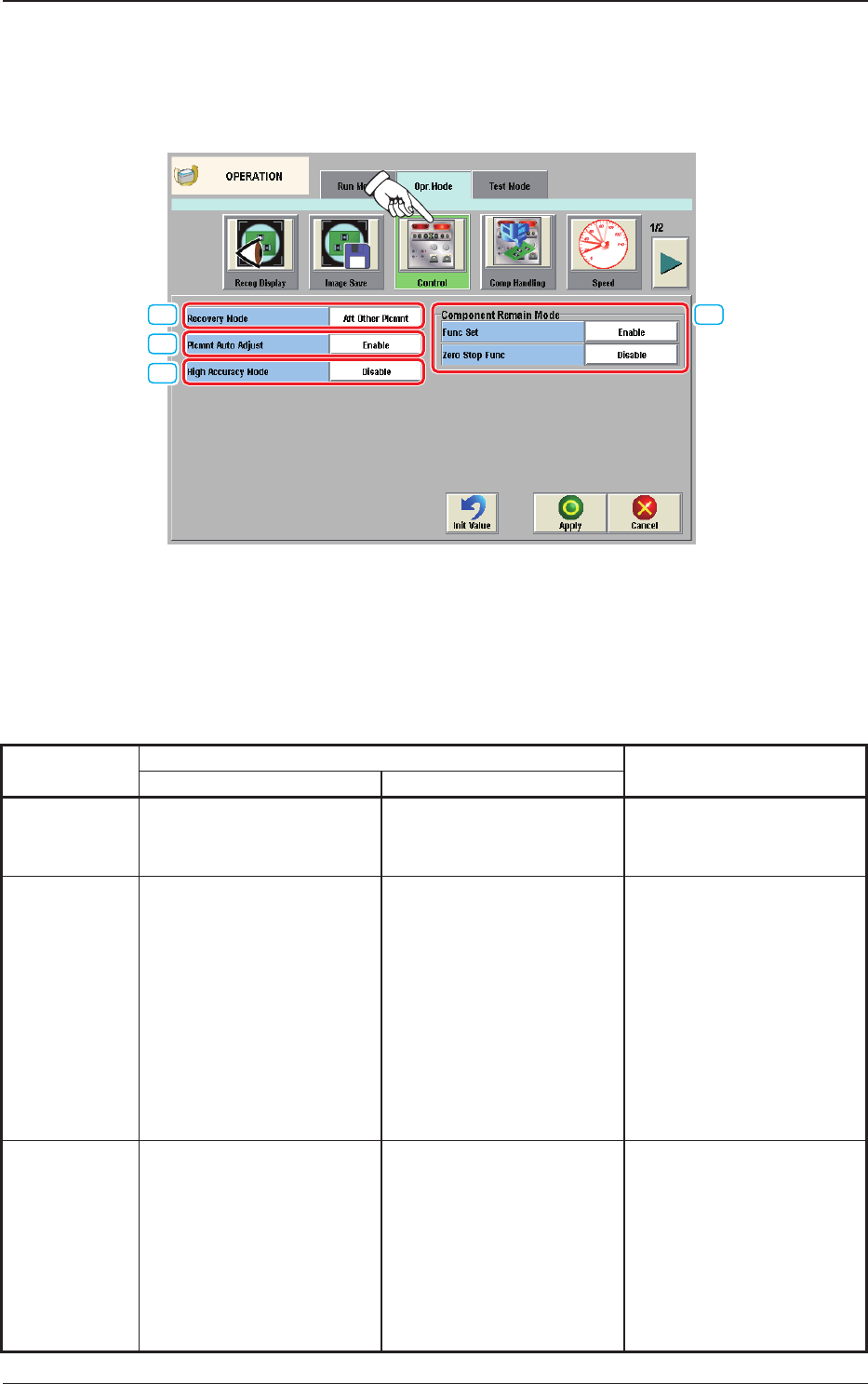
4.2.3 Control
When the [Control] button is pressed on the "Opr. Mode" tab sheet, the following
window appears.
[1]
[2]
[3]
[4]
Fig. 2A4-11
[1] Recovery Mode
For the Recovery Mode, select "Immediately Stop (Priority of Reload)",
"Recovery Mode" or "All Recovery Mode".
Table 2A4-2
Recovery Mode
When the component shortage has been detected: Treatment when a pick-up
error has been detected
Treatment "Alternate" has been setup.
Stop Auto Run
When the component shortage is
detected, the machine is stopped
immediately.
When the component shortage is
detected, the alternative operation
is started up.
When the component shortage is
detected, the machine is stopped
immediately.
Aft Other Plcmnt
When the component shortage
is detected, the machine is not
stopped immediately. In turn,
the machine information is
issued, prompting the operator to
replenish the components. Then,
after placing the components
other than the missing ones,
the machine is stopped without
discharging the PCB.
When the component shortage is
detected, the alternative operation
is not started up immediately, but
after the PP nal step.
When the pick-up error is
detected, the components for the
next cycle are used to recover the
operation.
Batch Recovery
When the component shortage is
detected, the alternative operation
is started up.
When the component shortage is
detected, the alternative operation
is started up.
After the pick-up error is
detected, the operation is
continues using the spare nozzles
set up for the following cycles.
When there is no spare nozzle,
recovery operation is performed
lastly using the components for
the following cycles for recovery.
1212-002
4.2 "Opr.Mode" Tab Sheet