OM-1068-001.pdf - 第134页
Tg0252-PM-SO 991 1-001 Chapter 1 3-5 “COMPONENT REPLENISHMENT” Menus are used in the following cases. • T o replenish components due to component shortage When the “ERROR” Display or the “INFO.” Display appears on the op…
Tg0252-PM-SO
0112-002 Chapter 1 3-4
2. Component Replenishment
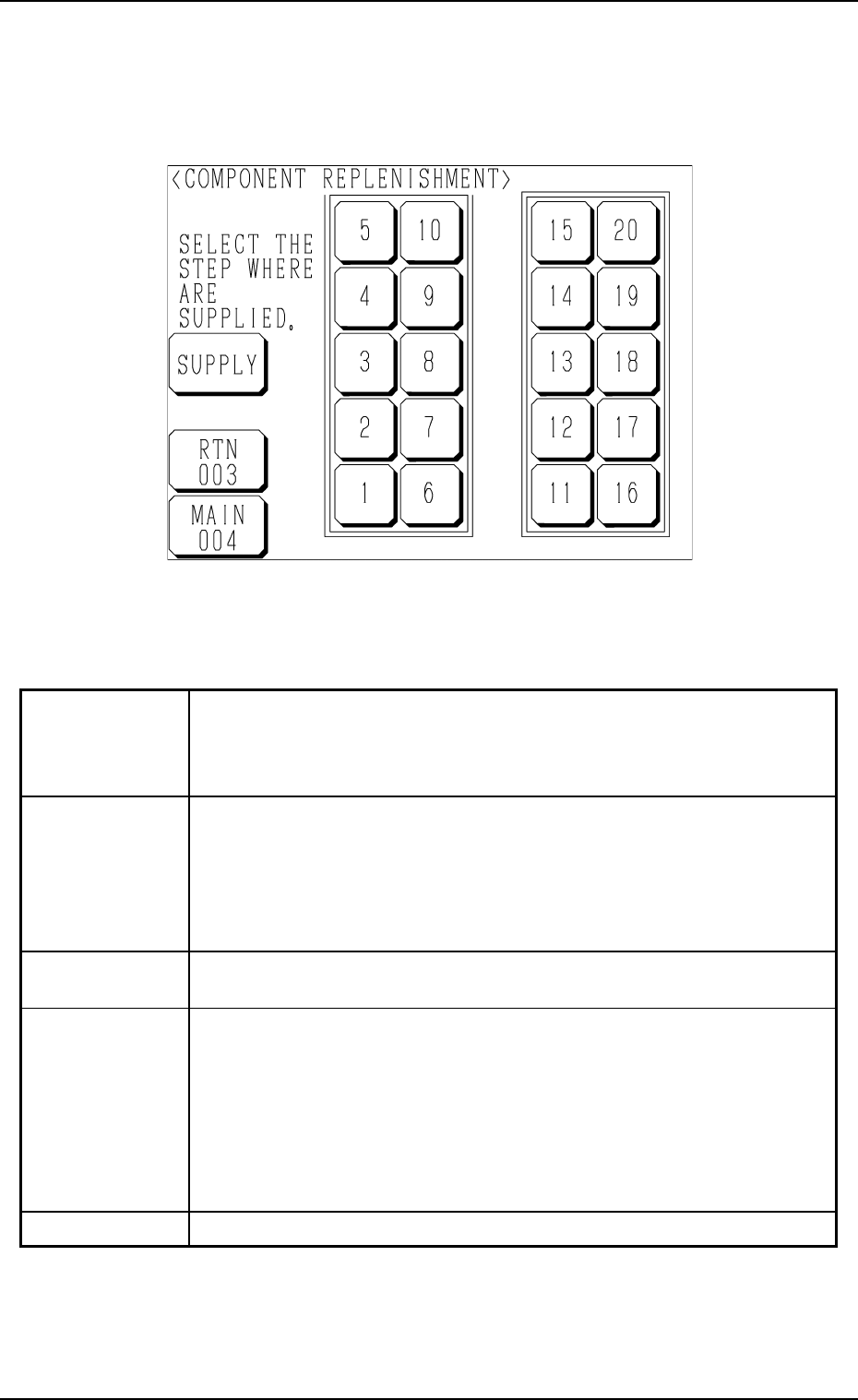
When the [COMPONENT REPLENISHMENT] key is pressed at the display
(Fig. 1.57), the following display appears on the screen.
Fig. 1.58
Colors of Stage No. Keys
2. Component Replenishment
Table 1.9
When a key turns red, it indicates the stage where a component shortage
error has occurred.
When several blocks are specified and a material shortage error occurs in
even one block of the tray, the related key turns red.
When a key flickers, it indicates the step where the components of the type
for which a material shortage error message are issued are set.
(The machine is in the condition that the automatic operation cannot be
continued without component supply operation after the type of components
(the components specified in the pattern program) are used up in the carriage
alternate function.)
When a key turns green, it indicates that the step used for the production
model is not short of components.
When a stage No. is selected for the step (only when the corresponding key
turns red or flickers in red), the key turns violet.
This indicates that the stage is selected to be replenished with components.
(When the key is pressed again, it turns to the original color. When the
"COMPONENT REPLENISHMENT" display is opened by pressing the
[RTN 003] or the [MAIN 004] key, the key also turns to the original color.)
This operation can be performed only for the stage where the magazine is
located at its replacement position (not connected).
This indicates that the stage is not used for the production model.
Red (ON)
Red (Flickering)
Green (ON)
Violet (ON)
Black

Tg0252-PM-SO
9911-001 Chapter 1 3-5
“COMPONENT REPLENISHMENT” Menus are used in the
following cases.
• To replenish components due to component shortage
When the “ERROR” Display or the “INFO.” Display appears on the
operation monitor.
(Refer to “7. Component Replenishment during Automatic Operation of
Section 2 in Chapter 1” for details.)
• To replenish components whenever necessary
When the machine is in stop mode and components are to be replenished
before re-starting operation as there is a stage or a tray which caused
component shortage or when the set-up operation must be performed.
• To check whether or not the “Component Replenishment Completed”
mode is set before operating the machine
2. Component Replenishment
Tg0252-PM-SO
0112-002 Chapter 1 3-6
2.1 To replenish components whenever necessary
(1) Press the [STOP] button of the main machine to stop the machine.
(2) Open the “ELEVATOR UNIT” display.
Select the [UPPER MAGAZINE CONNECT/DISCON] or the [LOWER
MAGAZINE CONNECT/DISCON] key and press the [MOVE] button
to separate the pertinent magazine from the elevator shaft.
(3) Open the “COMPONENT REPLENISHMENT” display (Fig. 1.58).
(4) Check the stage (pallet) and the block which caused a component short-
age error.
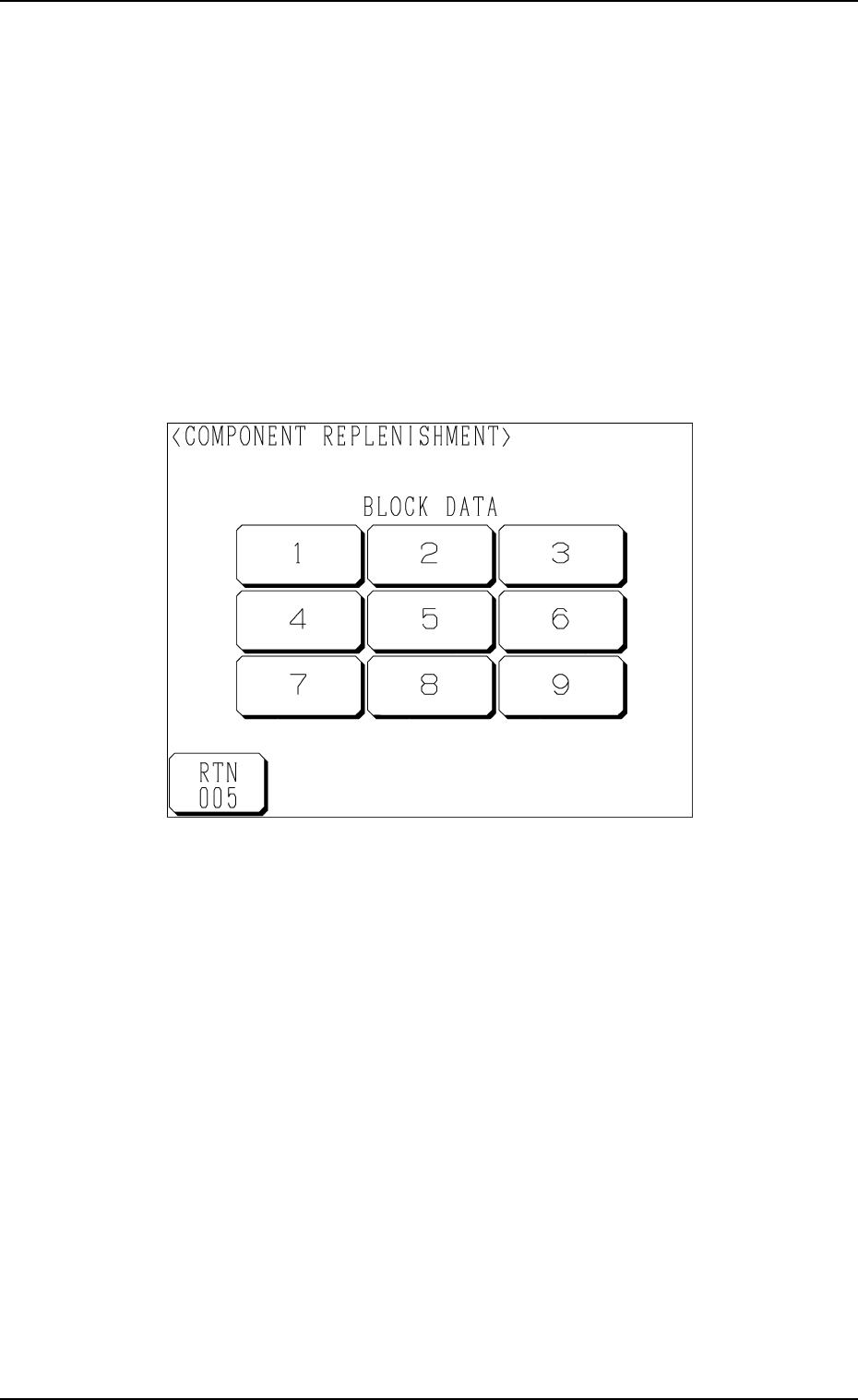
When a block is specified, press the No. key of the stage where a compo-
nent shortage error has occurred. The display (Fig. 1.59) appears on the
screen, enabling you to check the block data.
Fig. 1.59
(5) Press the [U Ready] or [L Ready] key according to the side to which
magazine is to be supplied.
The LED corresponding to the pressed key is turned off and the lock of
the door (upper or lower) is released.
(6) Open the upper or the lower door and then the magazine door.
(7) Pull out the pallet on the stage where components should be supplied and
load it with components.
(8) Press the No. key of the stage in red (ON or flickering) at the display
(Fig. 1.58) and the No. key of the block in red (ON or flickering) at the
display (Fig. 1.59). The keys turn violet.
(9) Confirm that all components are supplied completely and close all doors
(magazine, upper and lower doors).
2. Component Replenishment