OM-1068-001.pdf - 第137页
Tg0252-PM-SO 991 1-001 Chapter 1 3-8 2.2 Confirmation of “Component Replenishment Completed” Mode before Machine Operation (1) Open the display (Fig. 1.58). (2) Check whether or not all stage No. keys are green or black.…
Tg0252-PM-SO
0112-002 Chapter 1 3-7
Fig. 1.60
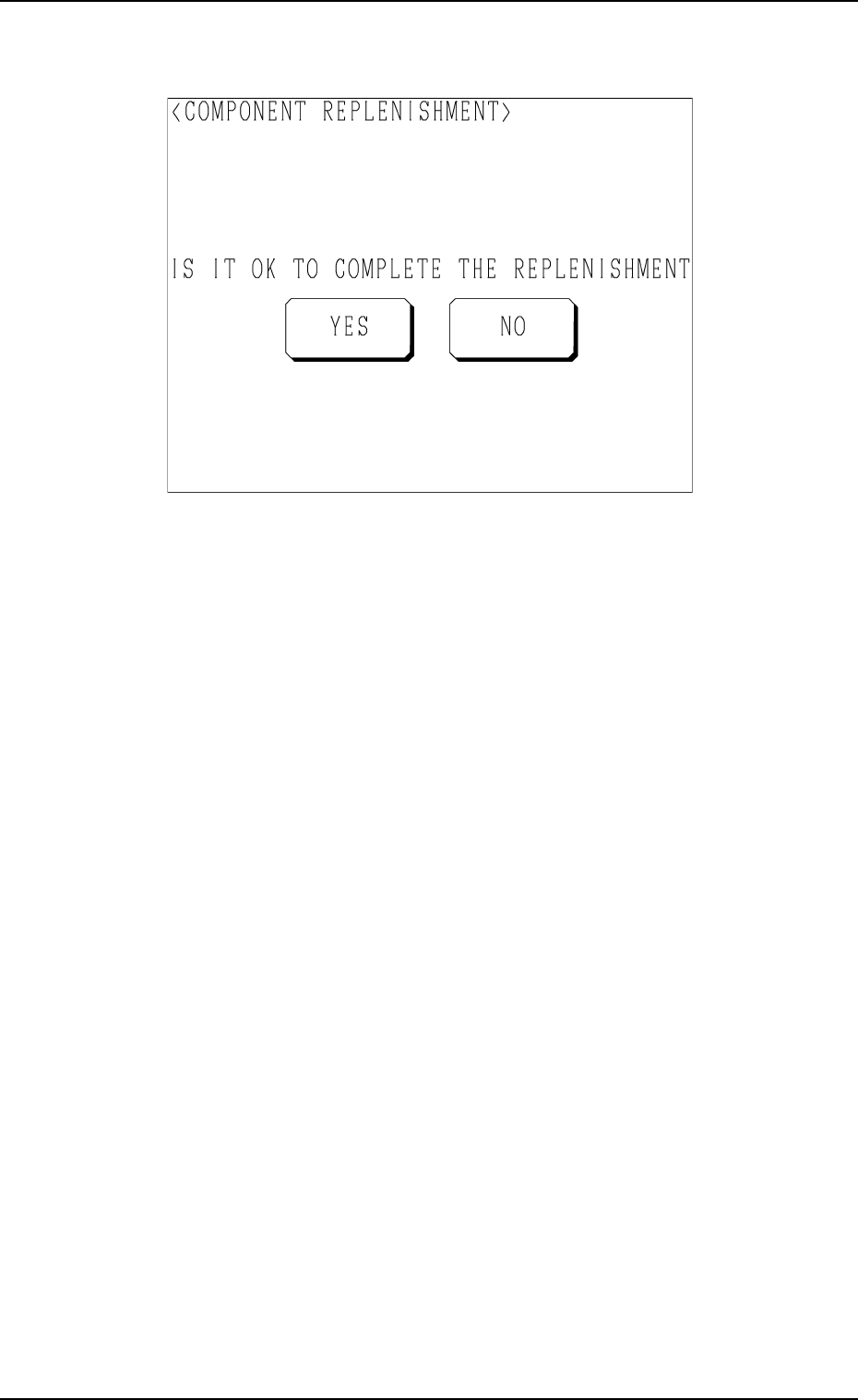
(11) Confirm that components are supplied completely and press the [YES]
key to declare the completion of component replenishment.
Pressing the [NO] key resumes the display (Fig. 1.58).
(12) Press the [U Ready] or [L Ready] key.
The LED corresponding to the pressed key is turned on and the door
(upper or lower) is electromagnetically locked.
Ref.: (a) When several pallets are short of components, follow Step (8)
every time components are supplied or another step (collective
operation) after all components are supplied.
(b) It is also possible to replenish the tray in the middle of process-
ing with components or replace it with another one. In this case,
it is required to update the tray matrix.
Refer to “4. Matrix Change Operations of Section 3 in Chapter
1” in this booklet and “7. Tray Pick-Up Matrix (Option) of
Section 3 in Volume 1” in the main machine instruction
manual for details.
(10) Press the [SUPPLY] key at the display (Fig. 1.58).
The display (Fig. 1.60) appears on the screen.
2. Component Replenishment

Tg0252-PM-SO
9911-001 Chapter 1 3-8
2.2 Confirmation of “Component Replenishment Completed”
Mode before Machine Operation
(1) Open the display (Fig. 1.58).
(2) Check whether or not all stage No. keys are green or black.
When a No. key turns red or flickers in red, it indicates that the stage is
short of components. Replenish the stage with components.
2. Component Replenishment
Tg0252-PM-SO
9911-001 Chapter 1 3-9
3. Component Information
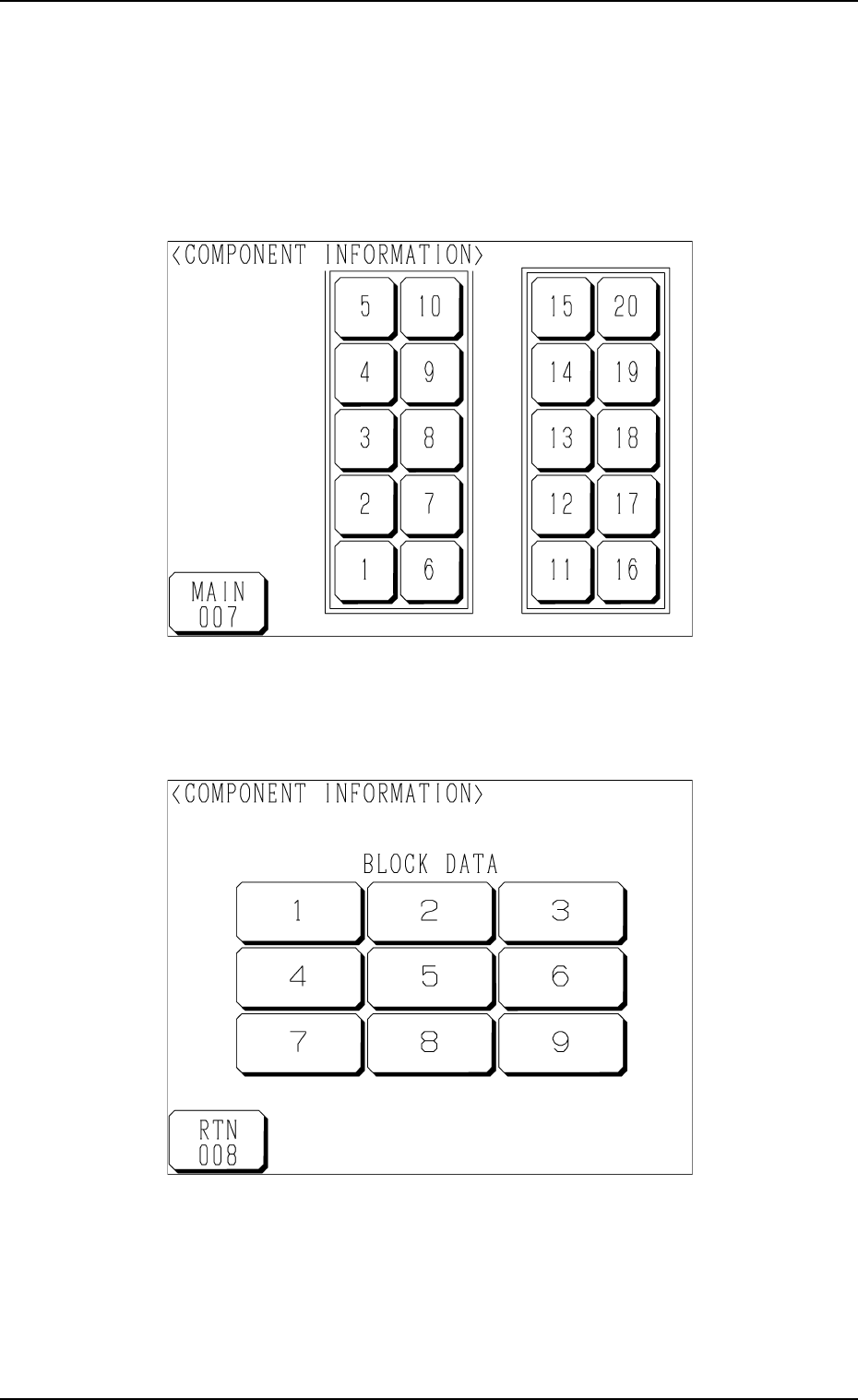
• This display enables the checking of component information on each stage
or block.
When the [COMPONENT INFORMATION] key is pressed at the “LINE
MODE” display (Fig. 1.57), the following display appears on the screen.
Fig. 1.62
Fig. 1.61
(1) Press the stage No. key desired to check the component information.
The following display appears on the screen.
3. Component Information