YV180X_Mainte_E.pdf - 第108页
4 -50 Service Manual Chapter 4 SED8013110 4 Machine adjust mode 3.5 Multi-vision camera The YV180X uses a CCD linear image sensor called the multi-vision camera for component recognition. The follo wing parameters of the…
4
-49
SED8013110
Service Manual
Chapter 4
4
Machine adjust mode
u Follow the message on the operation monitor to quit the
calibration.
Release the conveyor units, press the emergency stop button and remove
the PCB.
i Save the calibration settings.
Select <B2 SAVE DATA> or <B0 SAVE & QUIT> and press the [ENTER]
key. (To quit without saving, select <B3 RECOVER ADJUST> or <B7
QUIT> and press the [ENTER] key.)
4
-50
Service Manual
Chapter 4
SED8013110
4
Machine adjust mode
3.5 Multi-vision camera
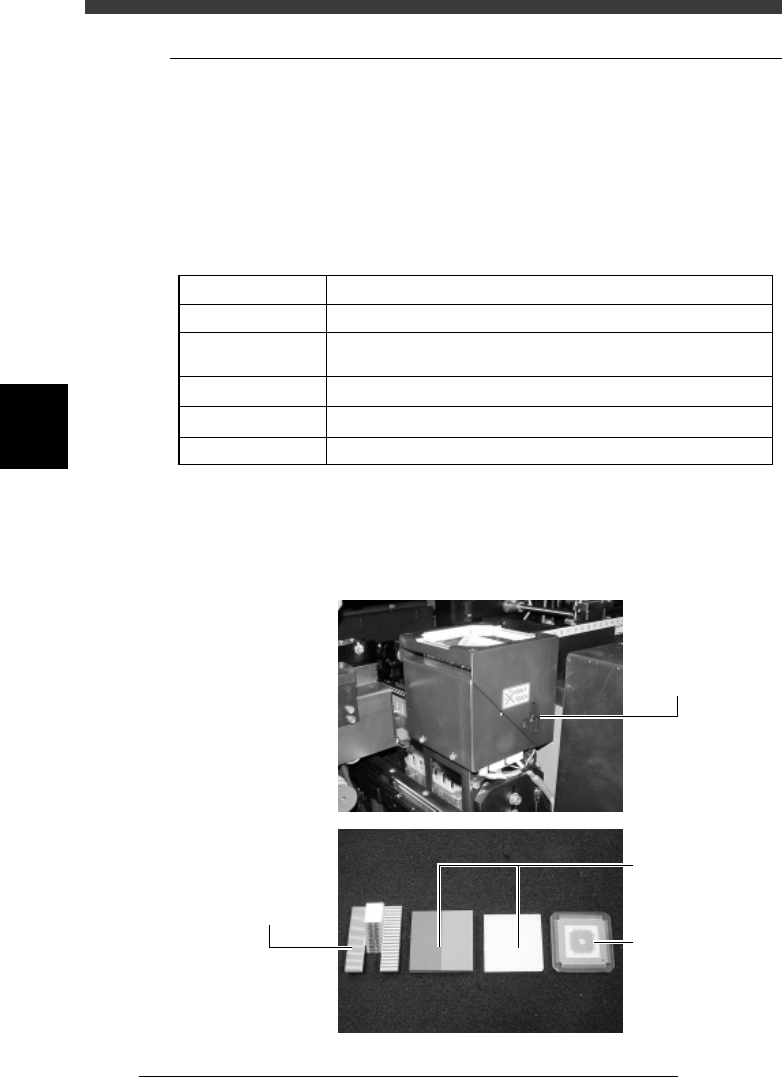
The YV180X uses a CCD linear image sensor called the multi-vision
camera for component recognition. The following parameters of the multi-
vision camera must be adjusted correctly for accurate recognition of
components. To make these adjustments easier, use the adjustment utilities
in the MAINTENANCE Manager and the Adjust Assistant commands in
the DATA Manager.
Adjustment parameters of the multi-vision camera
44406-D8-00
Fov & Focus
Brightness level
Camera scale
Dual recognition
Marker
The focus adjuster tool (KV1-M8803-00X) is required.
The light adjuster tools (KM1-M8806-0XX, KV7-M8806-0XX)
are required.
An SOP or QFP component is used. *
An SOP or QFP component is used. *
The marker provided on the head assembly is used.
Adjustment item Remarks
* For more accurate adjustments, we recommend using a glass QFP (sold separately)
specially designed for making adjustments.
Multi-vision camera and adjustment tools (option)
43422-D8-00
Multi-view camer
a
Glass QFP
Light adjuster
Focus adjuster
4
-51
SED8013110
Service Manual
Chapter 4
4
Machine adjust mode
3.5.1 Adjusting the FOV & focus
Use the following steps to adjust the FOV (field of view) and focus of the
multi-vision camera. Prepare in advance, a focus adjuster (KV1-M8803-
0XX).
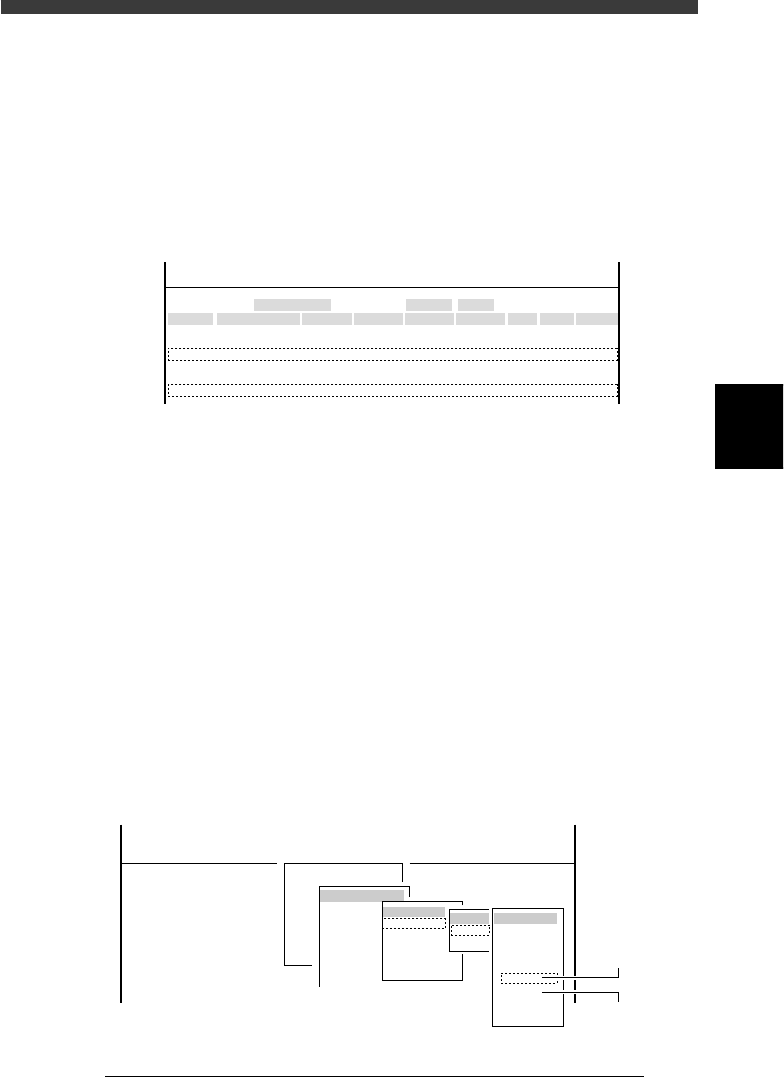
1 Check the camera height and lighting method.
Select <3/2/Camera> − ”Coordinate/Spec” and press the [ENTER] key.
Check the “Z”, “Size” “Max Z” and “Light Sp” settings of the multi-vision
camera you are going to adjust.
47444-D8-00
<<<APPLICATION>>> 3/MAINTE/M
<<MODE>> 2/MCH_DATA
Cam No.
Cam 1A
Cam 3A
Cam 5A
Cam 2A
Cam 4B
Cam 6B
X
152.042
0.000
382.925
-152.051
0.000
472.334
OBJECT
Coordinate/Spec
TCH.UNIT SPEED
- - - - - - - -
Y
-0.166
0.000
0.091
0.446
0.000
-0.064
Z
0.000
0.000
17.140
0.000
0.000
17.390
R
-0.305
0.000
-0.386
-0.099
0.000
-0.515
Type
Move
- - - - - - - - - - - - -
Dig.Multi
Move
- - - - - - - - - - - - -
Dig.Multi
Size
0
0
45
0
0
45
Max Z
0
0
7
0
0
7
Light Sp
TypeA
TypeA
TypeG
TypeA
TypeA
TypeG
"Z" Nearly equal to the PCB height
"Size" 45 (mm)
"Max Z" 7 (mm)
"Li
g
ht Sp" Should be set to the correct type. (See Help.)
e
2 Attach a QFP nozzle to Head 1.
Press the emergency stop button and then attach a QFP nozzle (Type 74A)
to Head 1.
3 Cancel emergency stop.
Release the emergency stop button by turning it clockwise and press the
[READY] button.
4 Run the “Multi Camera” − "FOV & Focus" command.
1. Select <3/3/B1 ADJUST TARGET> − ”Multi Camera” − "FOV & Focus"
and press the [ENTER] key.
2. Select the conveyor table and the camera No. by pressing the [ENTER]
key.
The A-table multi-vision camera is designated “Cam. 5” and the B-table
multi-vision camera “Cam. 6”.
47445-D8-00
B1 ADJUST TARGET
Object
Multi Camera
<<<APPLICATION>>> 3/MAINTE/M
<<MODE>> 3/MCH_ADJUST
<COMMAND_LIST> B/SAVE & QUIT
Target
FOV & Focus
Brightness
Camera Scale
Dual Recognition
Marker
table
A table
B table
Target
Cam. 1
Cam. 2
Cam. 3
Cam. 4
Cam. 5
Cam. 6
Cam. 7
Cam. 8
A Table
Multi Camer
a
B Table
Multi Camer
a