YV180X_Mainte_E.pdf - 第134页
5 -5 SED8013110 Service Manual Chapter 5 5 Manual mode ● How to read the input/output monitor The left half is the output monitor and the right half is the input monitor . T o move the cursor between the output and input…
5
-4
Service Manual
Chapter 5
SED8013110
5
Manual mode
2. I/O utility
<3/4/A>
The <3/4/A IO UTILITY> menu has commands frequently used when
checking the input/output digital signal status of the machine. To run a
command, move the cursor to the command and press the [ENTER] key or
directly enter the corresponding number. The function of each command is
explained below.
2.1 Input/output monitor
<3/4/A1>
Use this command to check the input/output digital signal status of the
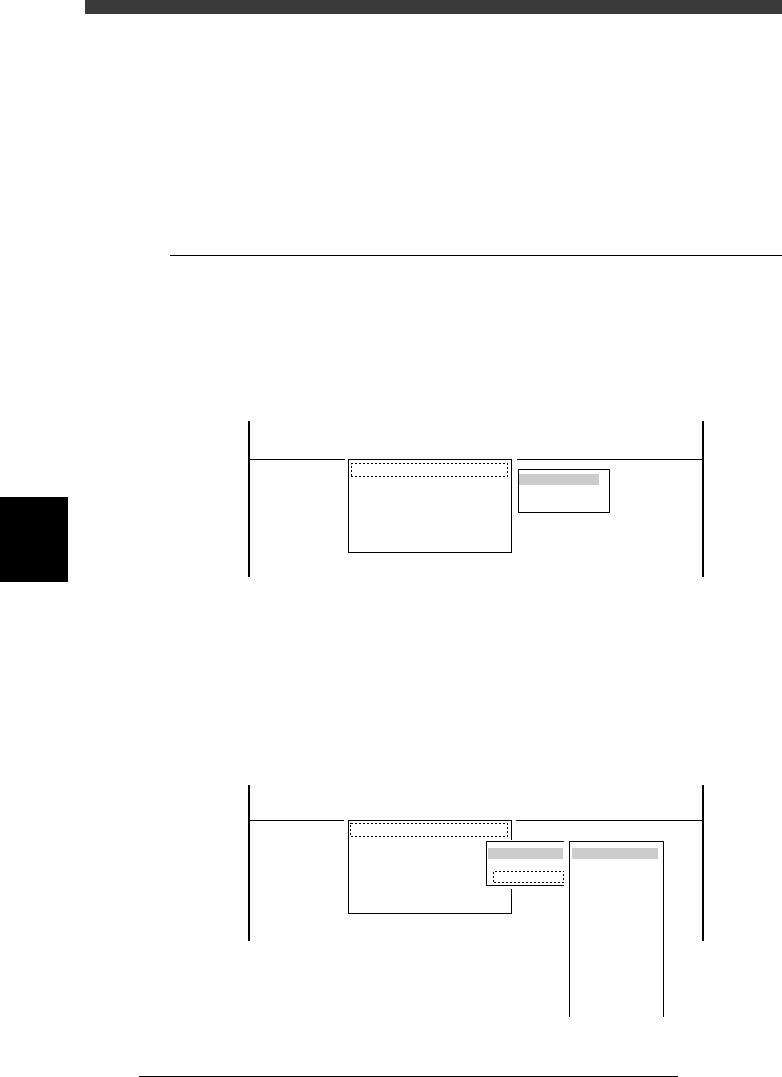
machine. When you run <3/4/A1 INPUT/OUTPUT MONITOR>, the
DISP. TYPE submenu box appears for selecting the display method as
shown below.
INPUT/OUTPUT MONITOR command and submenu
47502-D8-00
DISP. TYPE
ALL
SELECTION
<<<APPLICATION>>> 3/MAINTE/M
<<MODE>> 4/MANUAL
<COMMAND_LIST> A/IO_UTILITY B/SERVO_CONTROL
A1 INPUT/OUTPUT MONITOR
A2 FEEDER OUT MONITOR
A3
A4 VACUUM IN MONITOR
A5 CHANGE NOZZLE
A6 ATS/YTF/ PALETTE
A0 CONVEYOR UNITS
You can choose the desired method.
1) Choosing “ALL” allows you to view the entire digital I/O status.
2) Choosing “SELECTION” further displays the submenu from which you
can choose the specific group (such as “CONVEYOR” and “HEAD”).
Submenu display when “SELECTION” is chosen
47503-D8-00
OBJECT
CONVEYOR
HEAD
LIGHTING
FEEDER
NZL . STN.
DMP. STN.
TRAY CHANGER
INTER LOCK
ORG. /LIMIT
OPTION
IO SEQUENSE
WAFER
OTHERS
DISP. TYPE
ALL
SELECTION
<<<APPLICATION>>> 3/MAINTE/M
<<MODE>> 4/MANUAL
<COMMAND_LIST> A/IO_UTILITY B/SERVO_CONTROL
A1 INPUT/OUTPUT MONITOR
A2 FEEDER OUT MONITOR
A3
A4 VACUUM IN MONITOR
A5 CHANGE NOZZLE
A6 ATS/YTF/ PALETTE
A0 CONVEYOR UNITS
5
-5
SED8013110
Service Manual
Chapter 5
5
Manual mode
● How to read the input/output monitor
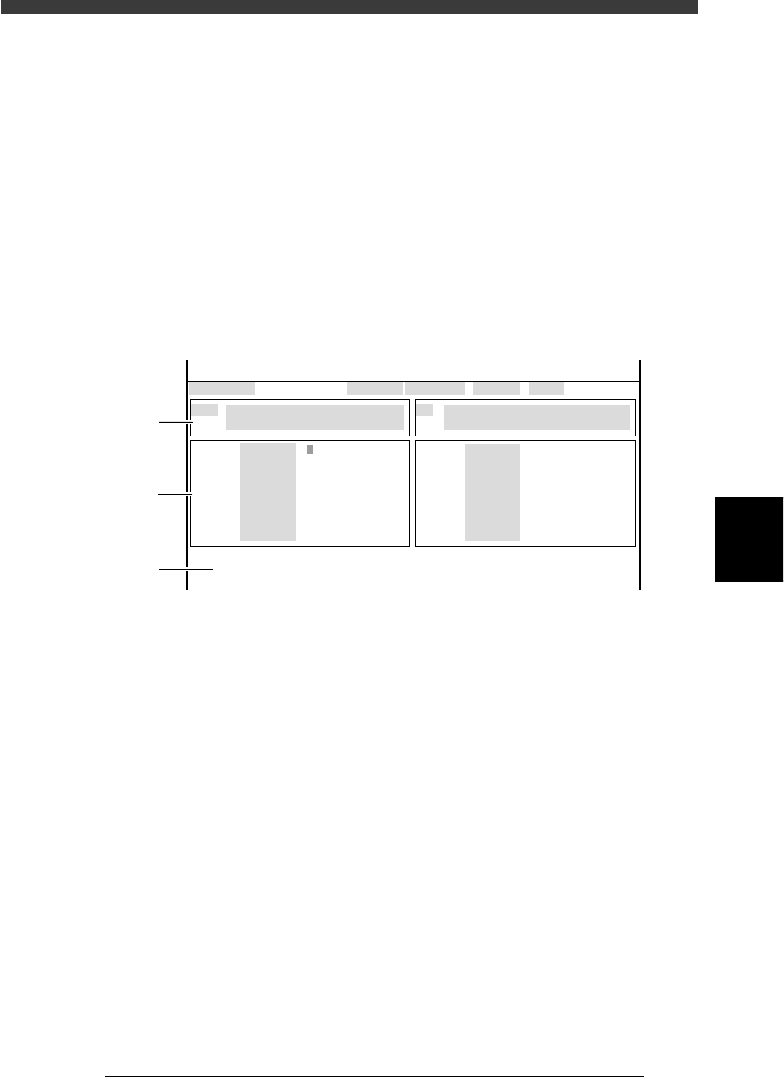
The left half is the output monitor and the right half is the input monitor.
To move the cursor between the output and input monitors, press the [TAB]
key. The active monitor is switched as the cursor moves. To see more items
on the output or input monitor screen, use the UP/DOWN arrow keys (or
[Page Up/Down] keys). When there are multiple items (binary digits) along
one line, use the right/left arrow keys to align the yellow cursor with the
item you want to check or operate.
Familiarize yourself thoroughly with this section since you will be
frequently opening output and input monitor screens in MANUAL mode in
order to check mechanical and electrical operation during adjustment.
Input/output monitor screen description
47504-D8-00
CONV
CONV
CONV
CONV
CONV
CONV
CONV
CONV
OUT
1
0
0
0
0
0
00000000
00000000
0
0
0
0
0
0
0
0
IN
T1920
T1922
T1923
T1924
T1867
T1921
T4E60
T4E70
N1113
N1117
N1115
N1120
N1116
N1030
N1121
N1123
I/O MONITOR DISP. TYPE SELECTION
MAIN STOPPER (A TABLE) UP
OFF 0 / ON 1
COUNT RESET
NOT DETECT 0 / DETECT 1
Selected Arm A_table XY
Moving Speed 40
From McahineOrigin X1= Y1= Z1= R1=
CONV
CONV
CONV
CONV
CONV
CONV
CONV
CONV
OBJECT CONV
<<<APPLICATION>>> 3/MAINTE/M
<<MODE>> 4/MANUAL
↑
↓
↑
↓
1
2
3
1. Description box
Input and output signals on the I/O monitor screen are identified by
code names such as “T1920” and “T1922” and their descriptions
displayed in a light blue box, giving the item and an explanation of
what “0” and “1” correspond to.
2. Digital I/O signal status
The status of each I/O signal is expressed in binary digits (1 and 0). The
output monitor above shows for example that the main stopper “T1920”
is ON (raised). Each time you press the [ENTER] key on the output
monitor screen, the selected item on which the cursor is placed turns
ON and OFF. On the input screen, you can check the detection status of
the sensor.
3. Selected arm, moving speed and positions from the machine origin
Displayed in the lower part of an output or input monitor screens are
the selected arms (axes) and moving speed during adjustment, and the
current position of each axis. The arms and speed can be switched by
pressing the [SEL AXIS] or [AXIS GROUP] key and [SPEED] key on
the YPU, or with the <3/4/B1 SELECT SERVO MOTOR> and <3/4/B1
RUNNING SPEED> commands.
5
-6
Service Manual
Chapter 5
SED8013110
5
Manual mode
2.2 Feeder out monitor
<3/4/A2>
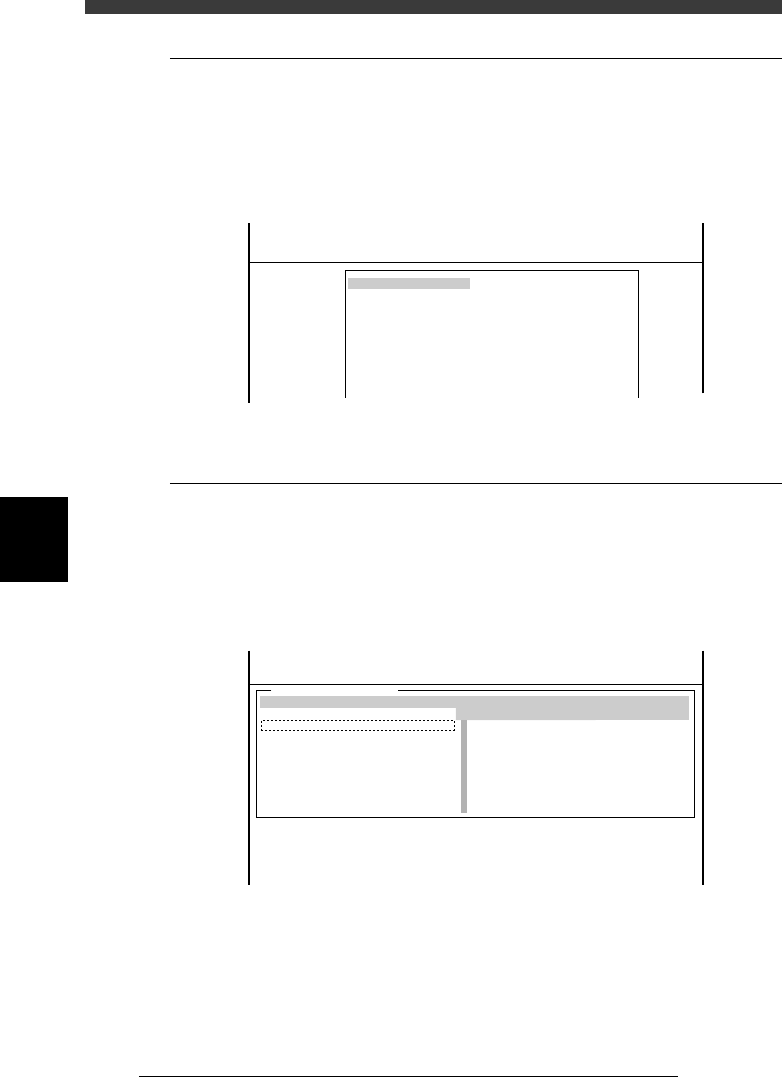
When <3/4/A2 FEEDER OUT MONITOR> is selected, the FEEDER
OPERATION screen appears as shown below. Pressing the [ENTER] key
turns the air valve operation on and off for the feeder on which the cursor
is placed.
FEEDER OPERATION screen
47505-D8-00
< FEEDER OPERATION >
1 - 8
9 - 16
17 - 24
25 - 32
33 - 40
41 - 48
49 - 56
57 - 64
00000000
00000000
00000000
00000000
00000000
/ / / / / / / /
/ / / / / / / /
/ / / / / / / /
101 - 108
109 - 116
117 - 124
125 - 132
133 - 140
141 - 148
149 - 156
157 - 164
<<<APPLICATION>>> 3/MAINTE/M
<<MODE>> 4/MANUAL
<COMMAND_LIST> A/IO_UTILITY
00000000
00000000
00000000
00000000
00000000
/ / / / / / / /
/ / / / / / / /
/ / / / / / / /
2.3 Vacuum IN monitor
<3/4/A4>
When <3/4/A4 VACUUM IN MONITOR> is selected, the VACUUM
SENSOR LEVEL screen appears as shown below. Pressing the [ENTER]
key allows you to monitor the vacuum operation of the head on which the
cursor is placed.
VACUUM SENSOR LEVEL screen
47506-C0-A0
[ ↑ ] [ ↓ ] : Select Head [Enter]:Vaccum ON/OFF
VACCUM SENSOR LEVEL
CURRENT
0
0
0
0
0
0
0
0
MAXINMUM
0
0
0
0
0
0
0
0
MINIMUM
0
0
0
0
0
0
0
0
HEAD
A
A
A
A
A
A
A
A
From MachineOrigin X1= Y1= Z1= R1=
<<<APPLICATION>>> 3/MAINTE/M
<<MODE>> 4/MANUAL
<COMMAND_LIST> A/IO_UTILITY
[Esc]:Exit
[Space]:Freeze Display