YV180X_Mainte_E.pdf - 第123页
4 -65 SED8013110 Service Manual Chapter 4 4 Machine adjust mode 3.5.5 Marker The reference marker pro vided on the head assembly of the YV180X can be used to minimize unwanted ef f ects on recognition accurac y due to me…
4
-64
Service Manual
Chapter 4
SED8013110
4
Machine adjust mode
0 Check safety, then press the [ENTER] key again.
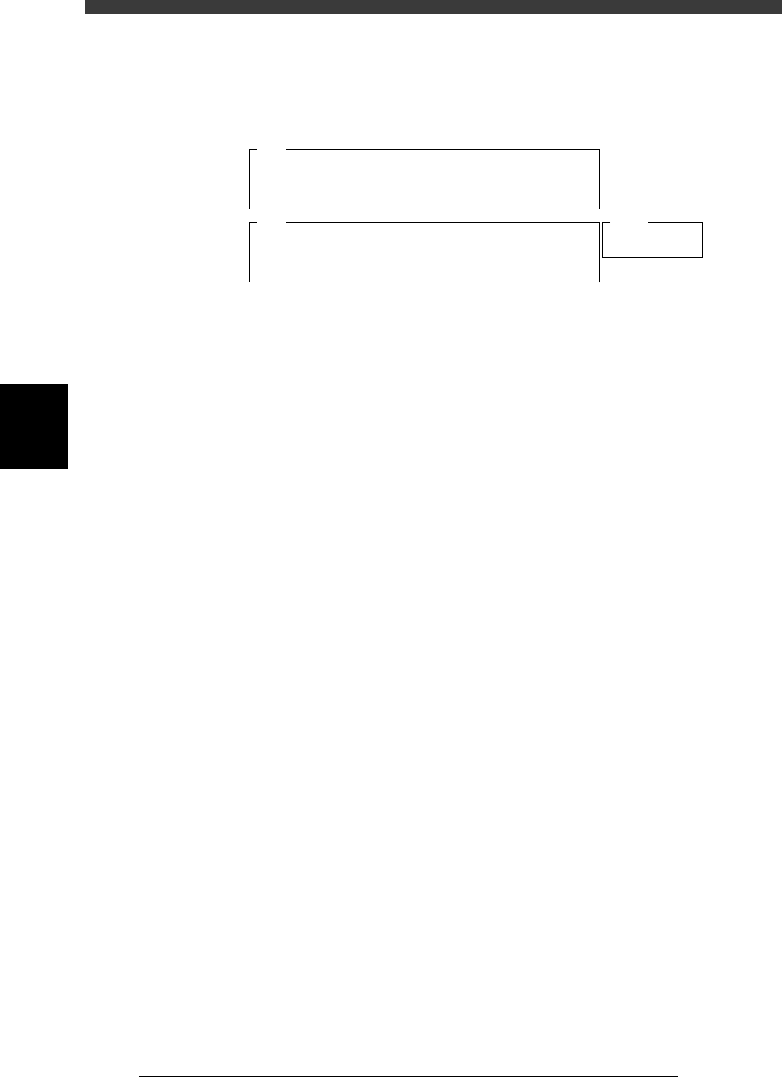
The head assembly moves and passes repeatedly over the multi-vision
camera and the dual-direction recognition offset is measured. The results
are then displayed in the upper right corner of the operation monitor.
47452-D8-00
<<<Adjusting!!>>>
Now it is adjusting the dual direct recognition offset.
The values are measured · · ·
A547
Result
<<<Result>>>
The following data is the result of the adjustment of
the multi camera dual direct recognition offset.
To save the result in memory, · · ·
Camera No.
X Offset
=
=
5
0.750
A546
q Press the [ENTER] key to save the results.
Press the [ESC] key if you want to cancel the results.
w When the measurement is complete, dump the component.
Press the [ENTER] key to dump the component automatically or follow the
message on the operation monitor.
e Save the results.
Select <B2 SAVE DATA> or <B0 SAVE & QUIT> and press the [ENTER]
key. (To quit without saving, select <B3 RECOVER ADJUST> or <B7
QUIT> and press the [ENTER] key.)
4
-65
SED8013110
Service Manual
Chapter 4
4
Machine adjust mode
3.5.5 Marker
The reference marker provided on the head assembly of the YV180X can
be used to minimize unwanted effects on recognition accuracy due to
mechanical changes over time. The following explains the method for
adjusting the reference marker offset values.
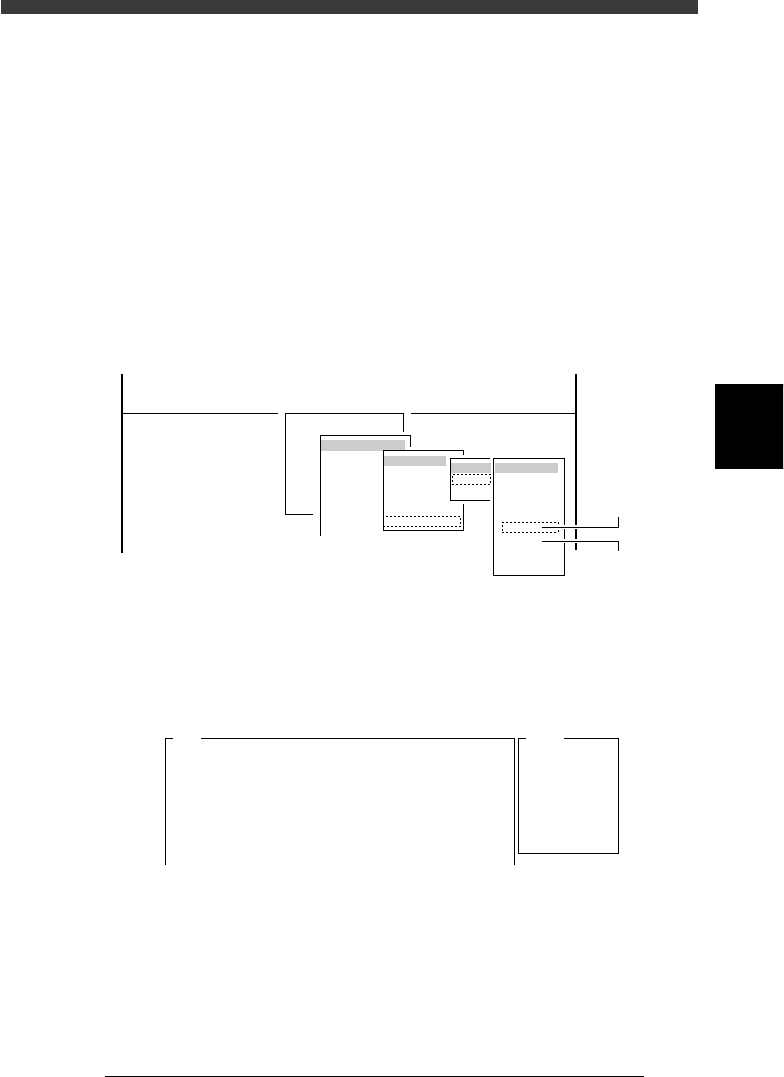
1 Run the “Multi Camera” − “Marker” command.
1. Select <3/3/B1 ADJUST TARGET> − ”Multi Camera” - “Marker” and
press the [ENTER] key.
2. Select the conveyor table and the camera No. by pressing the [ENTER]
key.
The A-table multi-vision camera is designated “Cam. 5” and the B-table
multi-vision camera “Cam. 6”.
47445-D8-D0
B1 ADJUST TARGET
Object
Multi Camera
<<<APPLICATION>>> 3/MAINTE/M
<<MODE>> 3/MCH_ADJUST
<COMMAND_LIST> B/SAVE & QUIT
Target
FOV & Focus
Brightness
Camera Scale
Dual Recognition
Marker
table
A table
B table
Target
Cam. 1
Cam. 2
Cam. 3
Cam. 4
Cam. 5
Cam. 6
Cam. 7
Cam. 8
A Table
Multi Camer
a
B Table
Multi Camer
a
2 Check safety, then press the [ENTER] key.
The head assembly moves and passes repeatedly over the multi-vision
camera and the marker offset is measured. The results (Marker 2 on the
YV180X) are then displayed in the upper right corner of the operation
monitor.
47453-D8-00
A762
Atable
<<<Adjusted>>>
The result of the adjustment of the multi-vision
camera marker is as follows.
To save.....
Camera No.
Marker1 X
Y
Marker2 X
Y
=
+
-
+
-
+
-
+
-
5
0.000
0.000
0.000
0.000
0.000
0.000
0.000
0.000
3 Press the [ENTER] key to save the results.
Press the [ESC] key if you want to cancel the results.
4 Follow the message on the operation monitor to quit the
adjustment.
4
-66
Service Manual
Chapter 4
SED8013110
4
Machine adjust mode
5 Save the data.
Select <B2 SAVE DATA> or <B0 SAVE & QUIT> and press the [ENTER]
key. (To quit without saving, select <B3 RECOVER ADJUST> or <B7
QUIT> and press the [ENTER] key.)
Reference
The marker offset values adjusted here are stored in “Precision” - “MultiCam Marker” in
MCH_DATA mode. (See “6.1” in Chapter 3.)
6 Check the data.
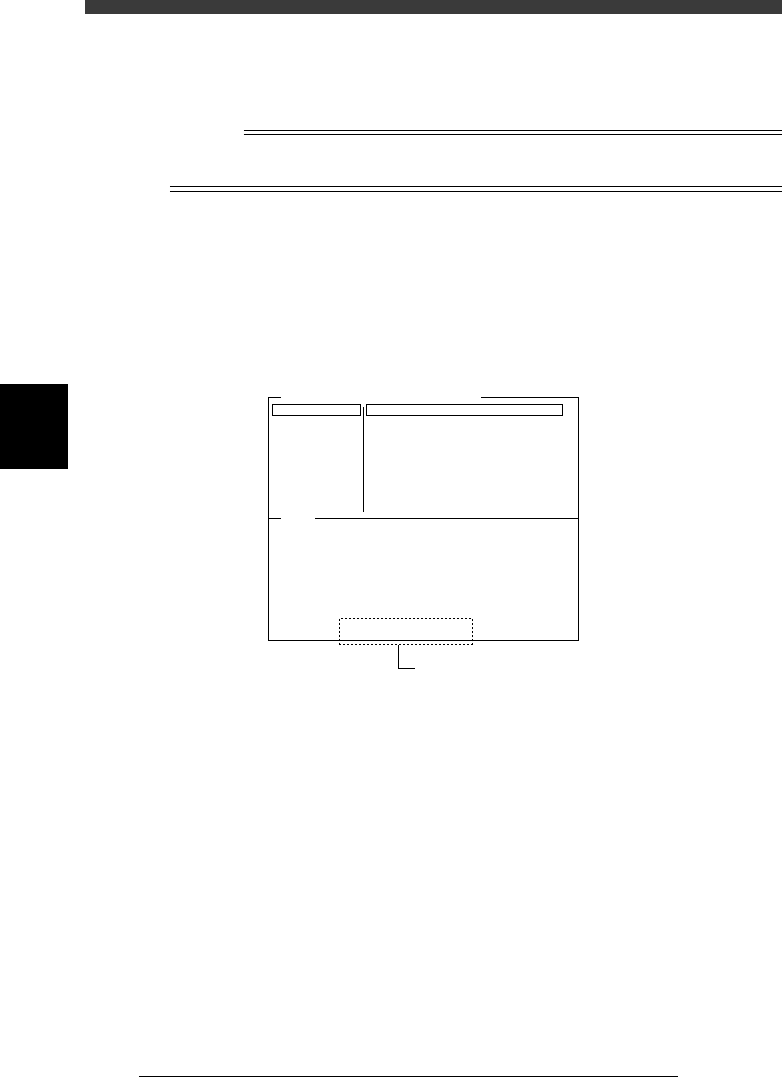
Enter the Adjust Assistant mode in DATA Manager and run the VISION
TEST command for the marker using any component data (not necessary to
actually pick up acomponent with the nozzle) and check that the [Marker
2] XY data values displayed on the lower part the Adjust Assistant screen
are within ±0.005.
Adjust Assistant screen after VISION TEST
47460-D8-00
Comp. Name : QFP208pin-0.5P
Command
PICK UP COMP.
*
VISION TEST
PARAM. SEARCH
DISCARD COMP.
DRAW THE SHAPE
CHK GRAY VALUE
EXIT
Adjust Assist Items
Feeder Set No.
Comp. Tolerance
Comp. Threshold
Lighting Level
Search Area
Monitoe Mode
Condition Chk.ModeROW
40
30
30
0.80
3 / 8
Nothing
ROW
(%)
(mm)
VO
(X= 0.000, Y= 0.000, R= 0.000)
Component was detected successfully.
Position and angle data is available.
[ Marker 2 ] (X= 0.002, Y= -0.002)
Check that these values are within
±
0.005.