YCP10 Users_E.pdf - 第132页
5-1 5 Cr eating and setting the data 1. Creating new data First, you must register a new board name to create new data. Register a new board name as follows. 1 Pr ess the [Cr eate] button on the Setup screen. The "C…

Chapter 5 Creating and setting the data
This chapter describes how to create new data necessary for solder printing and how to edit the data and parameters, as well
as the definitions of parameters.
Contents
1. Creating new data 5-1
2. Basic data setting 5-3
2.1 Configuration of [Basics] tab screen 5-3
3. Board data setting 5-5
3.1 Board marks and parameter setting 5-5
3.2 Board data detail setting 5-11
4. Mask data setting 5-15
4.1 Mask marks and parameter setting 5-15
4.2 Mask data detail setting 5-19
5. Squeegee data setting 5-21
5.1 Squeegee detail setting 5-26
6. Cleaner data setting 5-29
7. Creating the mark data 5-33
7.1 Creating procedure 5-34
7.2 Basic parameters 5-35
7.3 Shape parameters 5-36
7.4 Vision parameters 5-38
7.5 Mark Adjust mode 5-40
8. Graphic alignment 5-43
9. Making a test print 5-47
5-1
5
Creating and setting the data
1. Creating new data
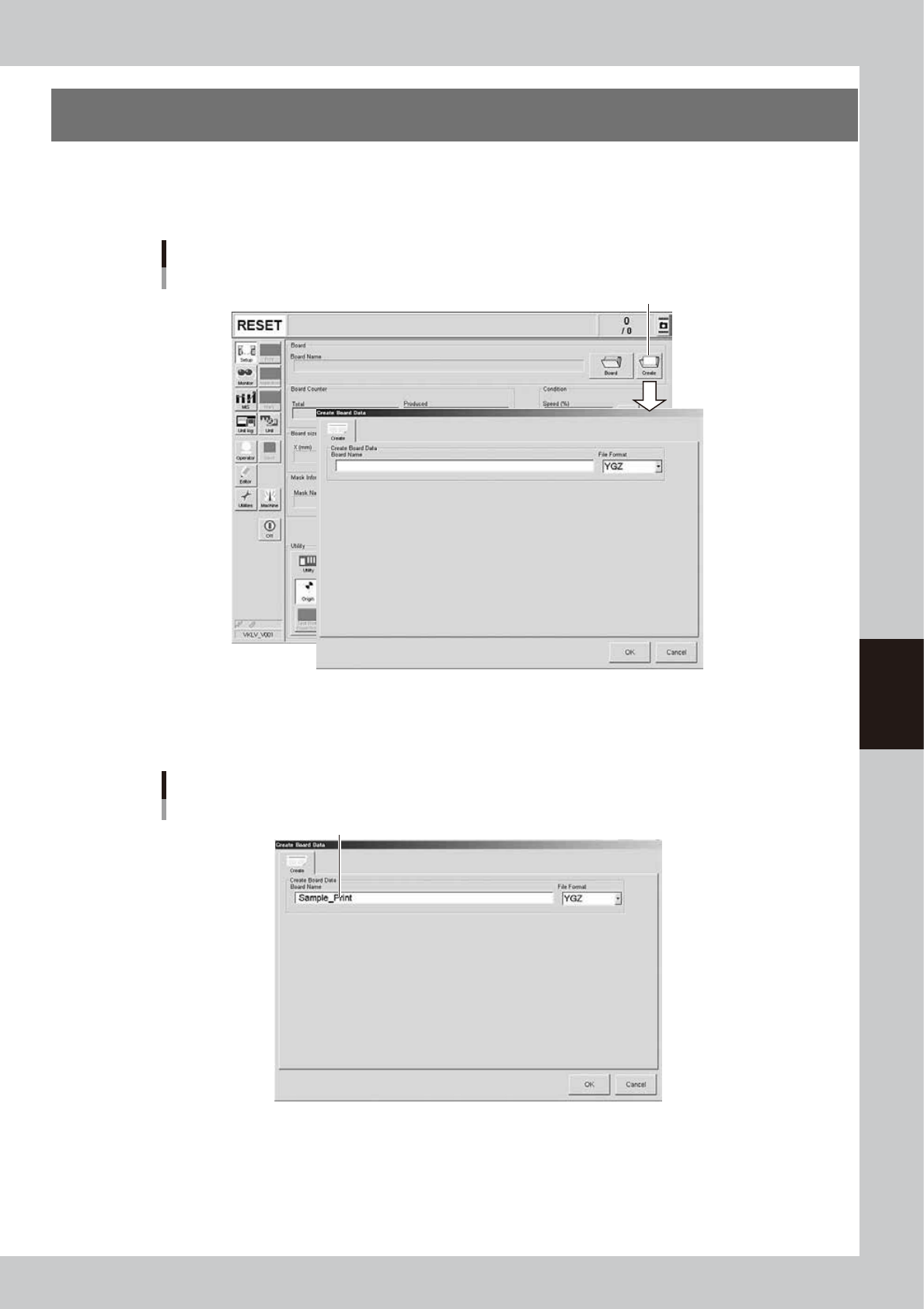
First, you must register a new board name to create new data. Register a new board name as follows.
1
Press the [Create] button on the Setup screen.
The "Create Board Data" screen appears as shown below.
[Create] button
“Create Board Data” screen
64501-N1-10
2
Enter a board name in the "File name" box.
Enter a board name within 20 alphanumeric characters from the keyboard.
Do not use spaces and symbols other than underbars ( _ ) .
Entering a board name
Enter the board name and press [OK].
64502-N1-00
5-2
5
Creating and setting the data
3
Press the [OK] button.
The display returns to the Setup screen.
TIP
An alert screen appears if a board data with the same name has already been registered. If this happens, press the
[Cancel button and reenter a different name. (If you register the same name by overwriting the previous data, press
the [OK] button.)
4
Create necessary data.
Default values are preset for the newly registered board data. Create or edit necessary data referring
from "2. Basic data setting" to "7. Creating the mark data" in this chapter.
5
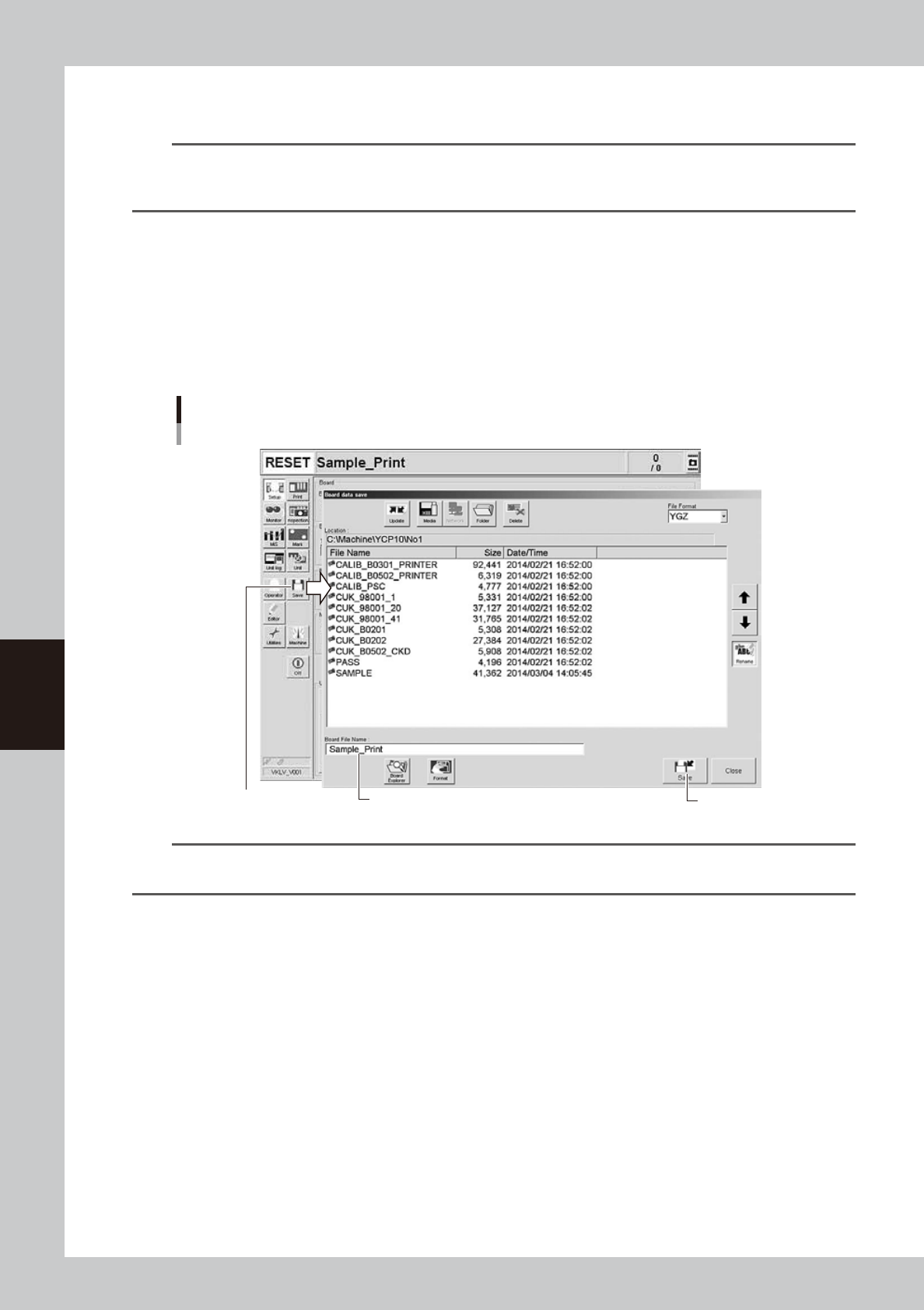
Save the new board data.
1. Press the [Save] button in the main menu button area.
The "Board data save" screen appears showing the board list.
2. Check the drive and folder to save the board data and press [Save] button.
[Save] button
Saving the PCB data
[Save] button
Check that the PCB name to be saved is displayed here.
64503-N1-10
TIP
If you press the [Off] button to quit the software before storing the board data, a confirmation screen appears to save
the board data. Pressing the [Yes] button on this screen opens the "Board data save" screen as shown above.