YCP10 Users_E.pdf - 第187页
6-5 6 Managing the data 9 Pr ess the [C opy] button. A confirmation screen appears. Press the [Y es] or [All] button to make a copy to the USB flash drive. Copy confirmation screen 64606-N1-00 0 Rename the board data as …
6-4
6
Managing the data
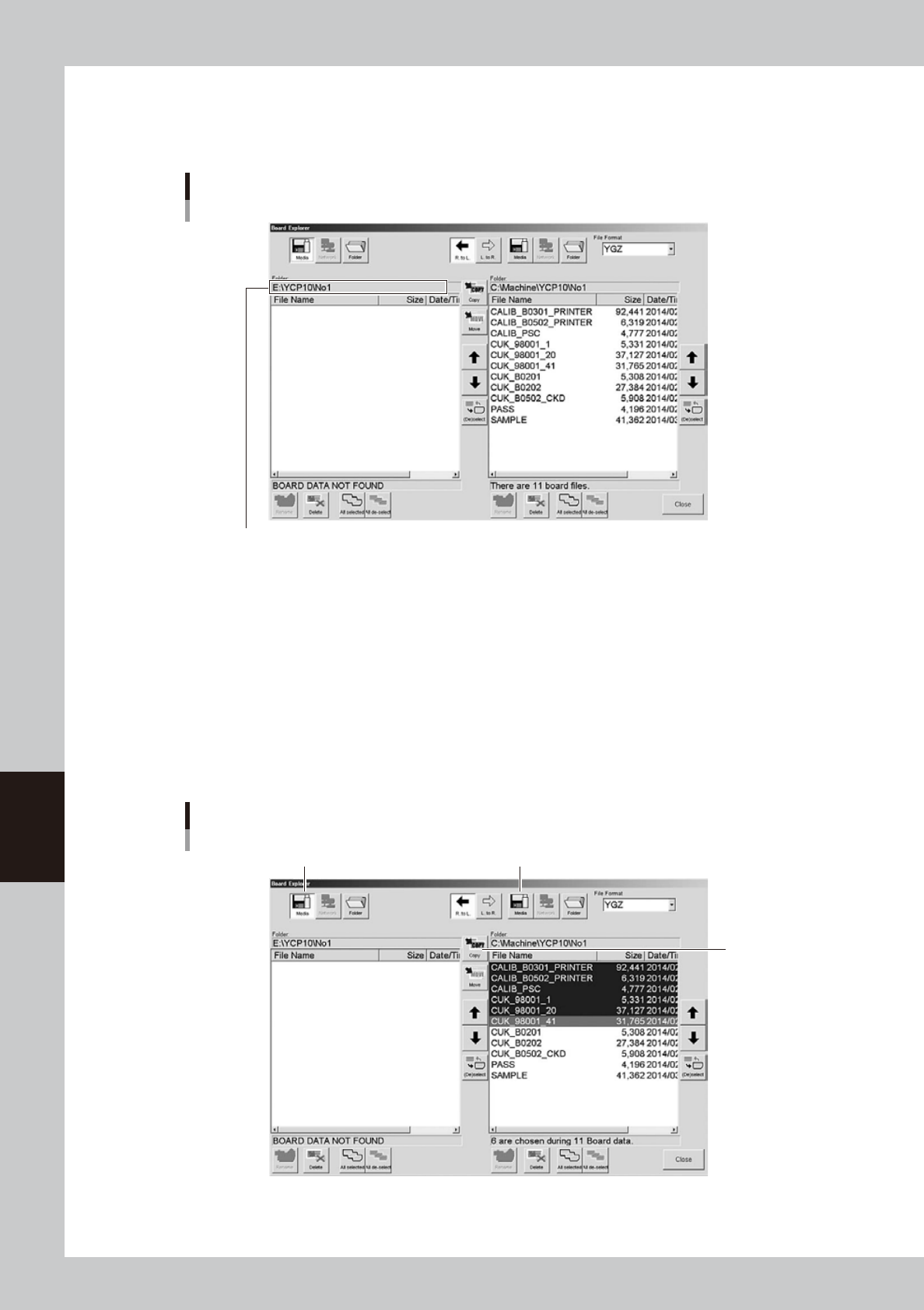
3. When the setting is complete, press the [OK] button in the "Media select" screen to close it.
4. After returning to the Board Explorer window, check the "Folder" box to see if the "No1" folder is
created.
Checking the folder
Check that a folder named "No1" is created.
64604-N1-00
7
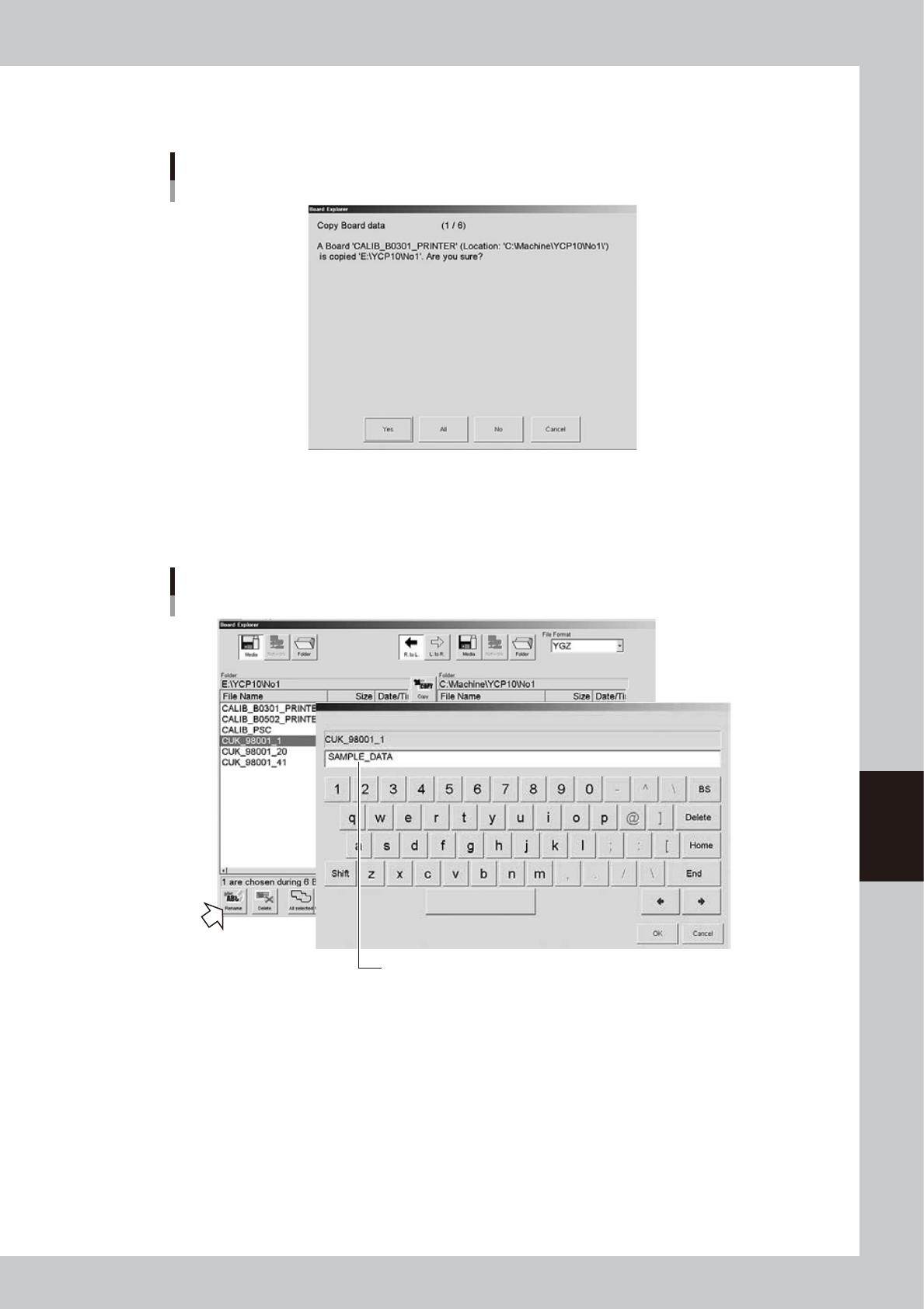
Select the file format.
Select the file format from the "File Format" drop-down list box.
8
Select the board data you want to back up.
Line up the cursor with the board data you want to back up. You can select multiple board data by
selecting them while holding down the [Ctrl] key or [Shift] key. When you want to select all board data
in the list, press the [All Selected] button.
9
Designate the copy destination.
Press the [Media] button on the left when copying from right to left, or press the [Media] button on the
right when copying from left to right.
Copy from left to right
[Copy] button
Copy from right to left
Selecting the copy destination
64605-N1-00
6-5
6
Managing the data
9
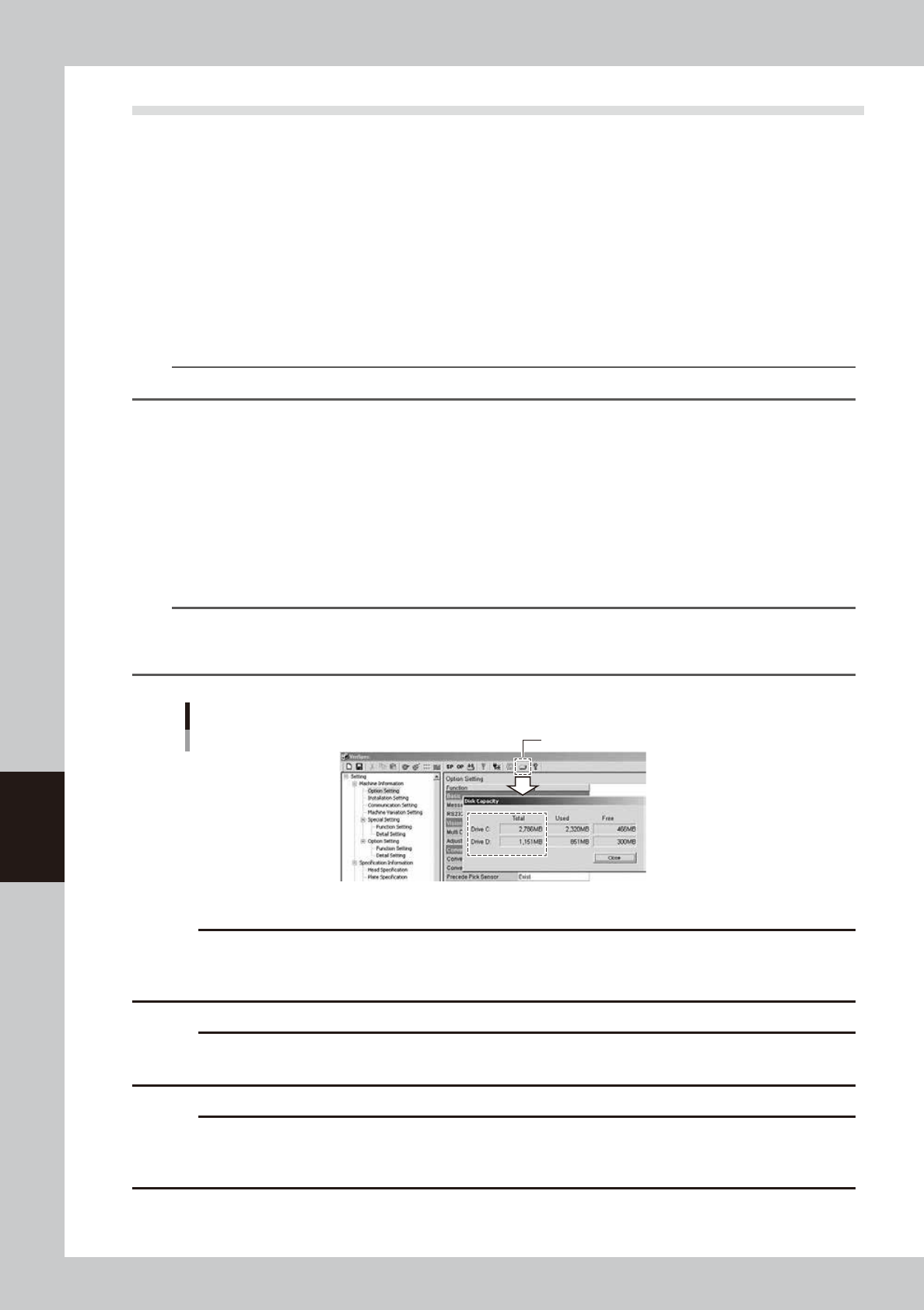
Press the [Copy] button.
A confirmation screen appears. Press the [Yes] or [All] button to make a copy to the USB flash drive.
Copy confirmation screen
64606-N1-00
0
Rename the board data as needed.
When you want to change the board name so that you can easily identify it as backup data, press the
[Rename] button. When the keyboard screen appears, enter a new name and press the [OK] button.
Enter a new name for backup data.
Rename
64607-N1-00
6-6
6
Managing the data
1.2 Making a backup of system data
System data can be backed up by two methods: system backup and system full backup.
The backup data can be stored either on a USB flash drive or network drive.
n
System backup
This function backs up only the machine setting information.
The backed up data is used to register the machine to offline software. For safety reasons, making a system backup is
recommended before upgrading the application software or changing the machine settings.
When restoring system data using the data acquired by the system backup function, only the machine setting parameters
will be restored. The restore task is performed on the machine.
If for some reason the flash disk in the machine is destroyed, the system backup data can be used to restore the machine
settings. However, the system and application software must be reinstalled before restoring the machine settings.
n
NOTE
Keep a storage capacity of 50MB by considering an allowance.
n
System full backup
This function backs up all data stored in the machine’s flash disk.
This backup data contains all information including the machine application software, OS, board data, and production
logs.
If for some reason the flash disk in the machine is destroyed, the system full backup data can be used to restore all data
necessary for machine operation into a new replacement flash disk.
A personal computer and dedicated software are needed to restore the system full backup data.
To use this backup function, the machine software version must be V3.27std R2.000 or later.
n
NOTE
A free space larger than the capacity of the machine’s flash disk is required in the location where the backup data
will be stored. The flash disk capacity may differ depending on the machine model, so check it with the [Check
Capacity] button on the VmSpec window before making a backup.
Checking the disk capacity
[Check Capacity] button
64608-N1-00
c
CAUTION
Use a USB flash drive (supplied with the machine or purchased from YAMAHA sales reps) specified by YAMAHA Motors
Co., Ltd. Using a USB flash drive other than specified might cause problems. Do not use any other type of USB flash
drive with YAMAHA surface mounters and related machines.
c
CAUTION
Before copying data to the USB flash drive, always close the media access door to prevent dust from adhering to the
USB port and to protect the USB flash drive from electrostatic noise.
c
CAUTION
After copying board data or system data into a USB flash drive, do not leave that data in the USB flash drive for a long
time. Use the USB flash drive just as a copy medium for backup data. Prepare other backup media (CD, DVD, MO,
etc.) to store the backup data.