YCP10 Users_E.pdf - 第197页
6-15 6 Managing the data 5 Check the settings for restore and start restoring the backup data. 1. When the “RESTORE” screen appears, check the flash disk drive and the path to the system full backup data. 2. After checki…
6-14
6
Managing the data
3
Restore the system data.
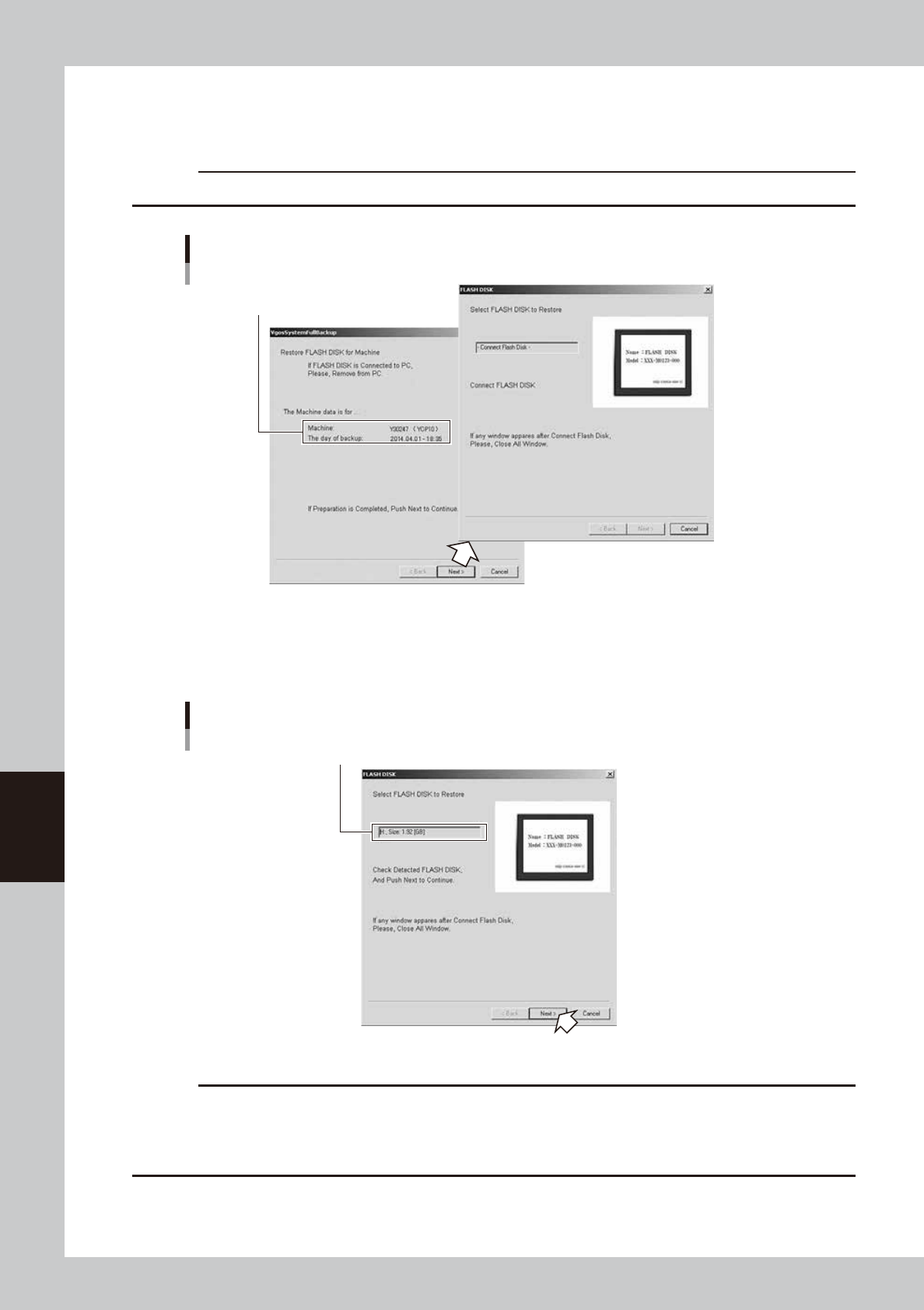
When the “VgosSystemFullBackup” screen appears, check that the backup data is for the machine
where you want to restore and click the [Next] button. The “FLASH DISK” screen then appears.
c
CAUTION
If a flash disk is connected to the PC , remove it and then click the [Next] button.
Checking the machine
Check here.
64618-N1-00
4
Connect the flash disk.
When the flash disk is connected to the PC, it is detected by the PC and displayed in the screen.
The [Next] button becomes active, and click it to continue.
When flash disk is connected
Detected flash disk
64619-N1-00
c
CAUTION
• Windows Explorer may automatically start when a flash disk is connected to the PC.
If any application automatically starts, quit it.
• If the flash disk is not detected even after connecting it to the PC , remove the flash disk and then reconnect it again.
• Restoring will write the system full backup data over the data in the flash disk.
6-15
6
Managing the data
5
Check the settings for restore and start restoring the backup data.
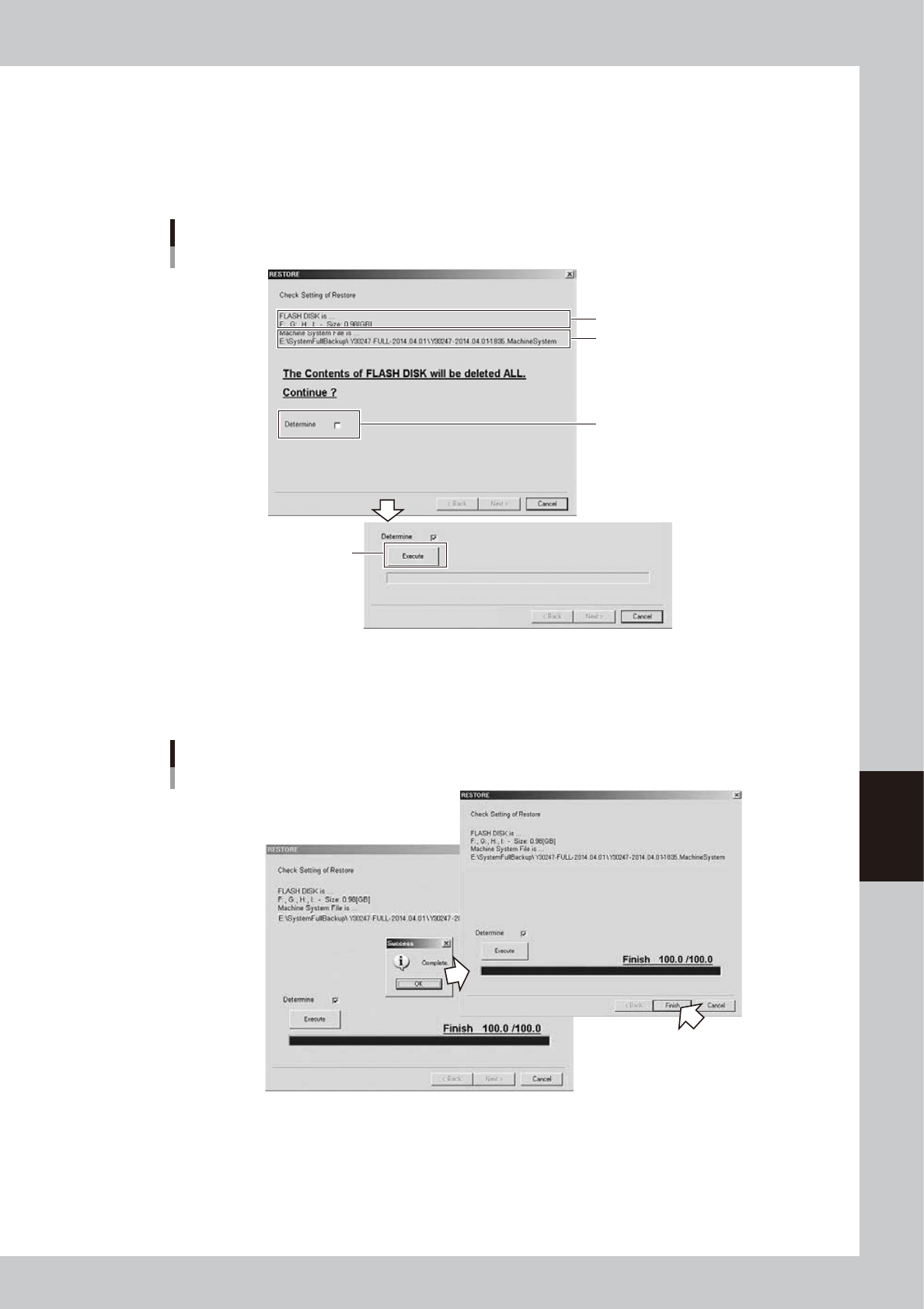
1. When the “RESTORE” screen appears, check the flash disk drive and the path to the system full
backup data.
2. After checking, select the “Determine” check box, and the [Execute] button appears.
3. Click the [Execute] button to start the restore process.
Checking the restore settings and executing restore
Flash disk drive
Path to the system full backup data
“Determine” check box
[Execute] button
64620-N1-00
4. When finished restoring the system data, the “Success” screen appears. Click the [OK] button, and
the [Next] button in the “RESTORE” screen changed to the [Finish] button.
5. Click the [Finish] button to finish the restore process.
Restore process is complete
64621-N1-00
6
Install the flash disk into the machine.
Install the new flash disk containing the restored system data into the machine.
Restoring the system full backup data is now complete.
6-16
6
Managing the data
2. Creating the user database
Registering marks in the user database will prove convenient if they are not included in the YAMAHA
database or they are used very frequently.
The user database should be registered in the user area of the database. The user database area can be
from No. 1 to No. 149 for the mark database. The registered data in this area will be retained even if the
software version is upgraded.
2.1 Copying the data into the database
To copy the component or mark data you created into the user database, follow these steps.
1
Select the board data name.
Press the [Board] button on the Setup screen and select the board data.
2
Open the Mark screen.
Press the [Mark] button in the main menu button area.
3
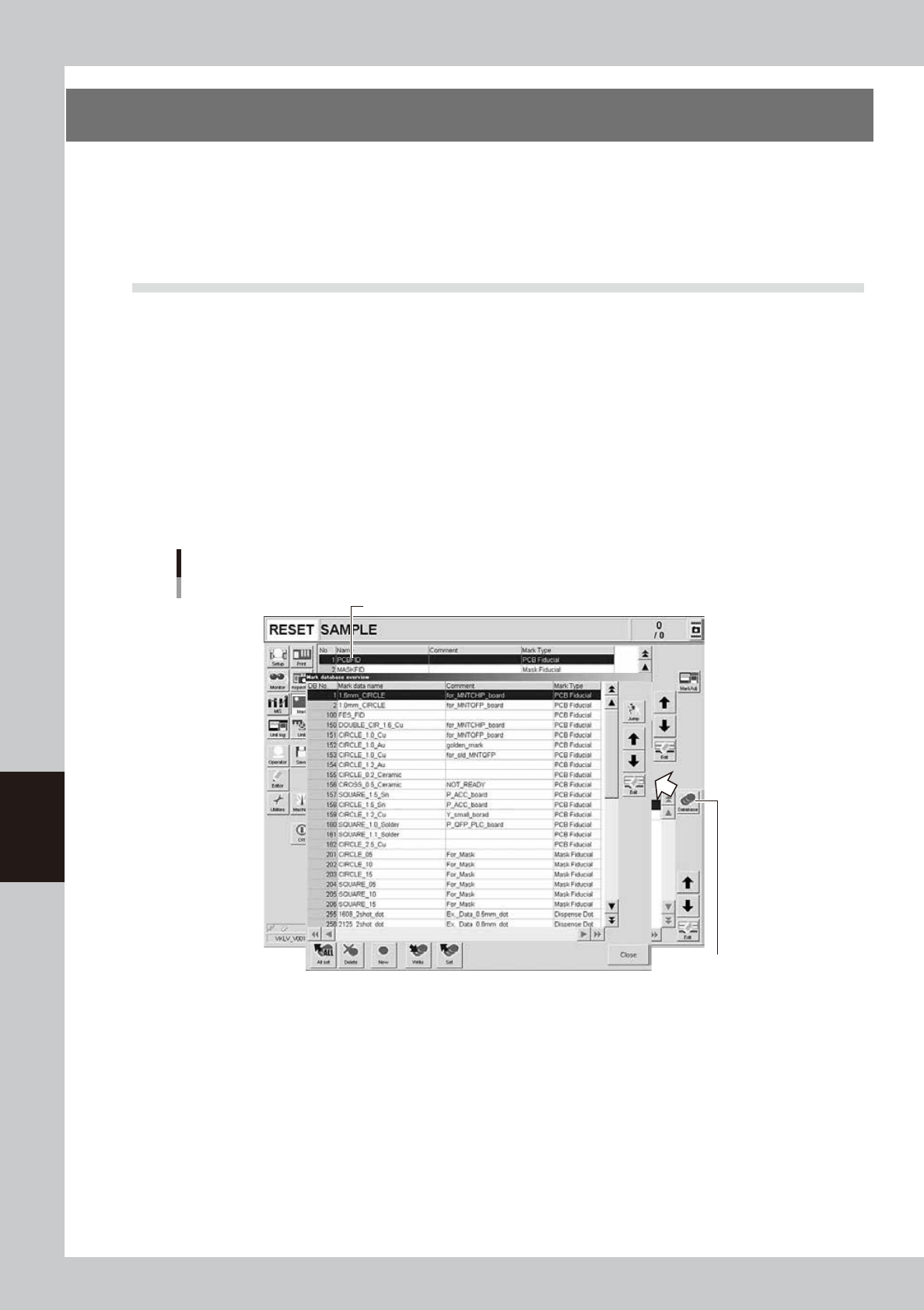
Select the copy source data.
Line up the cursor with the mark data you want to copy from.
4
Open the database list.
Press the [Database] button on the [Basic] tab. The database list appears.
Database list
Copy source
[Database] button
64622-N1-10