YCP10 Users_E.pdf - 第210页
Chapter 7 Other functions Contents 1. T each and trace 7-1 1.1 [T each] button 7-1 1.2 T each screen 7-2 1.3 Point teaching 7-3 1.4 Cursor teaching 7-6 1.5 T race 7-8 2. Pattern matching 7-9 2.1 Pattern registration 7-10…
6-27
6
Managing the data
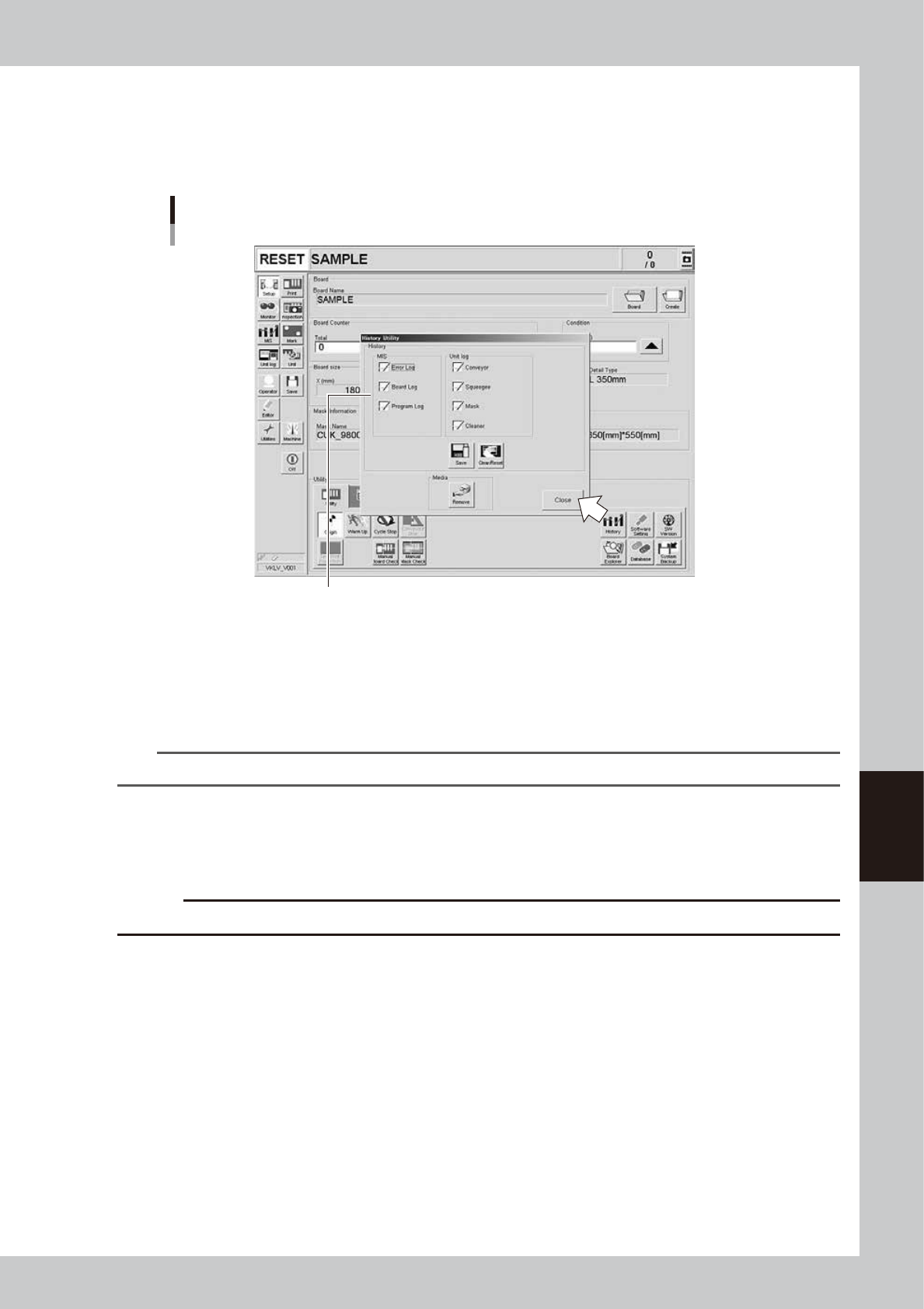
3.2.2 History Utility
The History Utility allows you to save production logs to an external storage medium at one time or clear/reset
them at one time.
On the Setup screen, pressing the [History] button opens the "History Utility" screen as shown below.
History Utility
Check the necessary items.
64635-N1-10
To save logs at one time:
1. Check the check boxes next to the items you want to save, and press the [Save] button.
2. When the "Media Select" screen appears, check or select the storage medium and press the [OK] button.
3. A confirmation screen appears. Press the [Yes] button to save the selected items.
4. Another screen appears when the selected items have been saved. Press the [OK] button to close the screen.
TIP
Production logs are saved in a folder named "My History" in the external storage medium.
To clear/reset logs at one time:
1. Check the check boxes next to the items (MIS) you want to clear or the items (Unit log) you want to reset, and press the
[Clear/Reset] button.
2. A confirmation screen appears. Press the [Yes] button to clear/reset the selected items.
c
CAUTION
Deleted data cannot be restored, so be careful.

Chapter 7 Other functions
Contents
1. Teach and trace 7-1
1.1 [Teach] button 7-1
1.2 Teach screen 7-2
1.3 Point teaching 7-3
1.4 Cursor teaching 7-6
1.5 Trace 7-8
2. Pattern matching 7-9
2.1 Pattern registration 7-10
2.2 Using the pattern matching 7-15
3. Matrix pin arrangement 7-16
4. Manual operation 7-17
4.1 "Move Axis" screen 7-18
4.2 [Unit]-[Conveyor] tab screen 7-20
4.3 [Unit]-[Mask] tab screen 7-21
4.4 [Unit]-[Squeegee] tab screen 7-22
4.5 [Unit]-[Cleaner] tab screen 7-23
4.6 [Unit]-[I/O] tab screen 7-24
7-1
7
Other functions
1. Teach and trace
1.1 [Teach] button
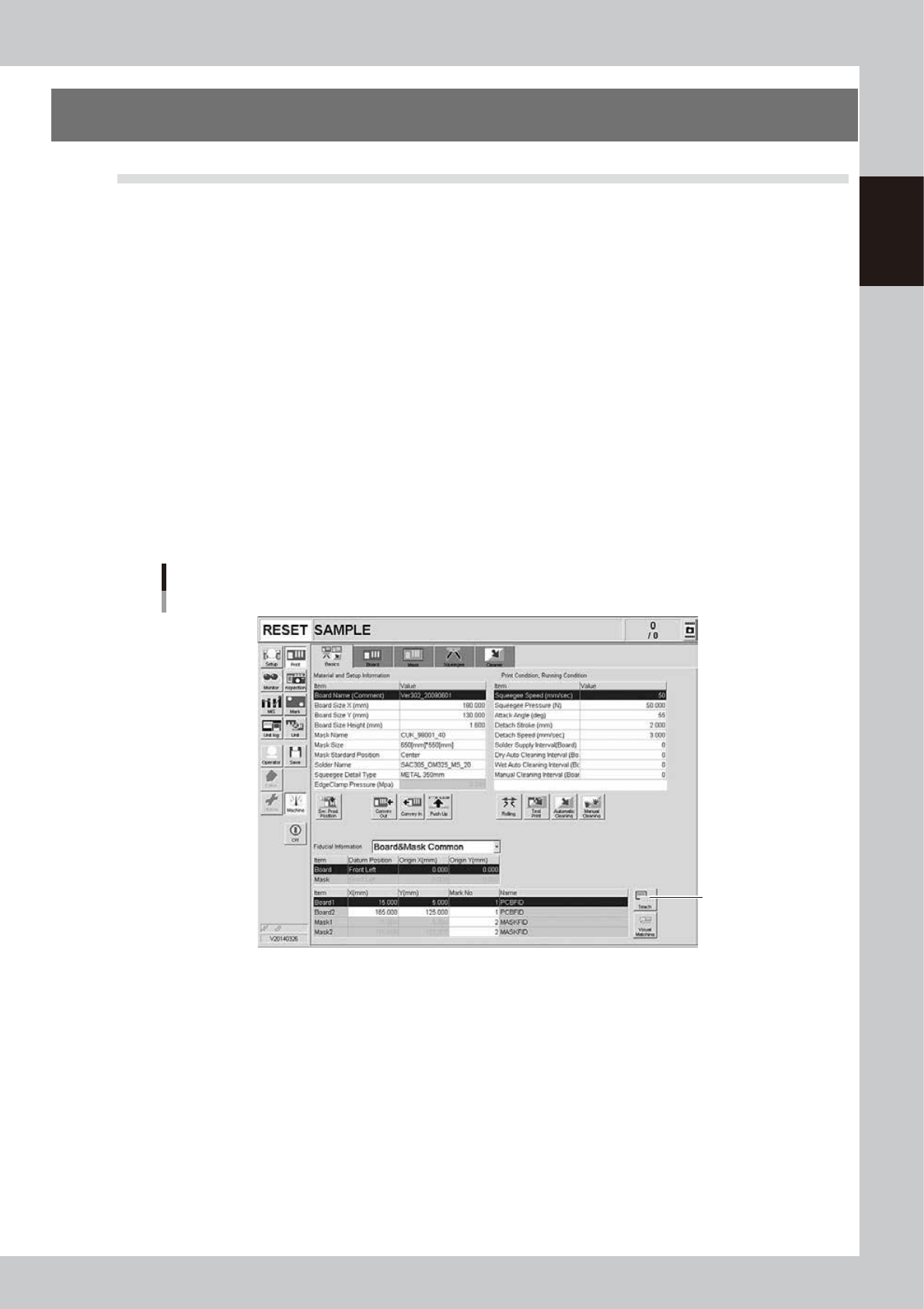
The teaching function is used to teach the machine position such as XY coordinate values using a teaching unit
such as a vision camera. To perform teaching, use the [Teach] button to open the Teach screen. There are five
[Teach] buttons at the following locations. Select a [Teach] button suitable for your purpose.
1. [Print]-[Basics] tab:
Press this [Teach] button to perform teaching on the board coordinates.
2. [Print]-[Board] tab:
Press this [Teach] button to perform teaching on the board coordinates.
3. Board inspection coordinate screen:
This screen appears when the [Detail Condition] button on the [Print]-[Board] tab screen is pressed.
Use the [Teach] button in this screen to teach the machine a board inspection position or move the machine to a
specified position.
4. [Print]-[Mask] tab:
Press this [Teach] button to teach the machine the mask coordinates.
5. Mask inspection coordinate screen:
This screen appears when the [Detail] button on the [Print]-[Mask] tab is pressed. Use the [Teach] button in this screen to
teach the machine a mask inspection position or move the machine to a specified position.
[Teach] button
Example of [Basics] tab
[Teach] button
64701-N1-10