YCP10 Users_E.pdf - 第194页
6-12 6 Managing the data 3. A confir mation screen appears to restore the backup data. Press the [Y es] button to start restoring the system data. 4. When the system data has been restored, a "Restore Completed"…
6-11
6
Managing the data
1.3 Restoring the system data
System data can be restored by using either the system backup data or system full backup data.
1.3.1 Restoring a system backup
The system backup data can be restored on the machine.
The following steps describe how to restore the machine setting information using the system backup data
stored in a USB flash drive.
1
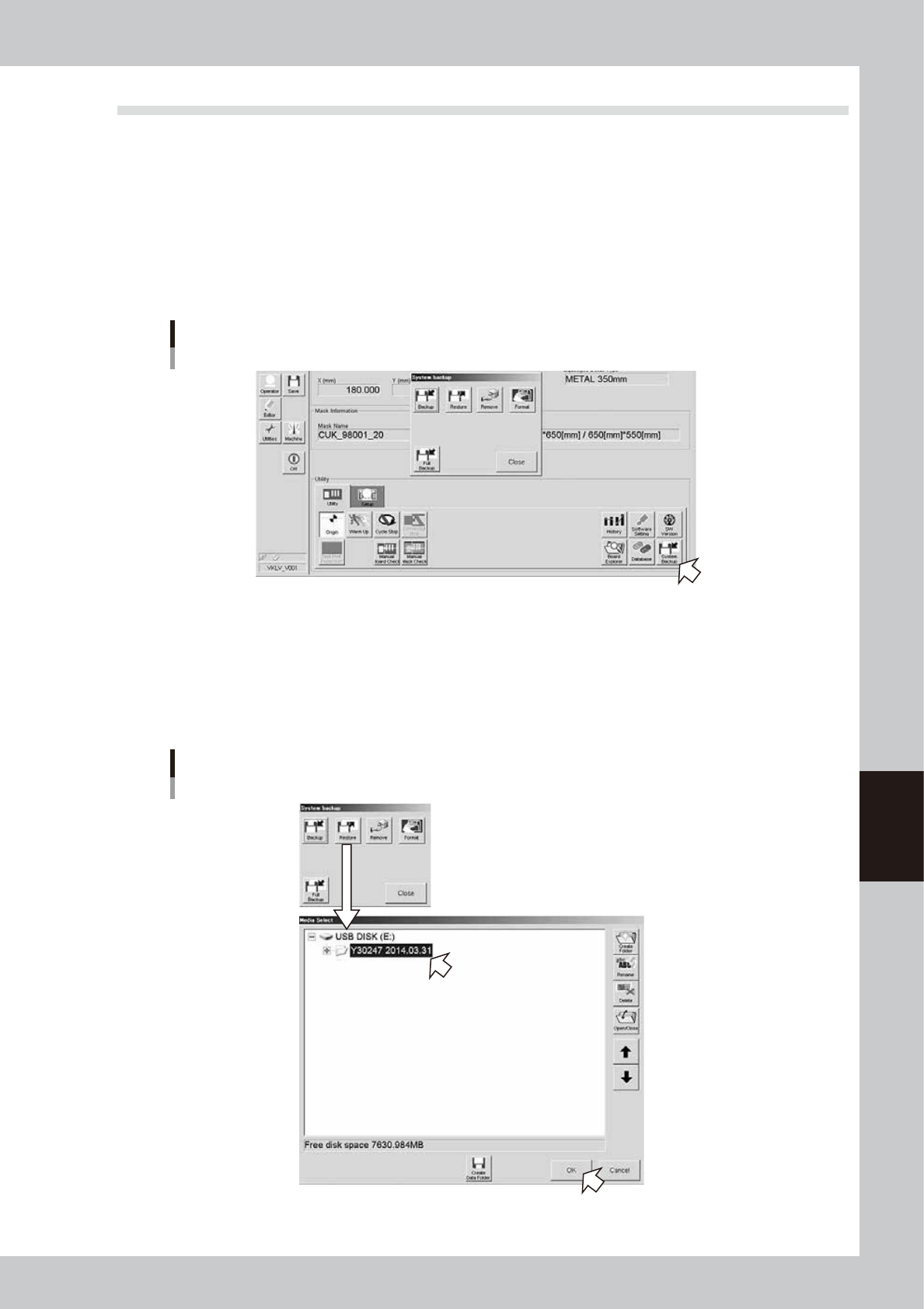
Press the [System Backup] button on the Setup screen.
The "System backup" screen appears.
Starting the “System backup” screen
64614-N1-10
2
Restore the system backup data.
1. Insert the USB flash drive that contains the system backup data, into the USB port on the machine,
and then press the [Restore] button on the "System backup" screen.
2. The "Media Select" screen appears. Select the system backup data you want to restore and press
the [OK] button.
Selecting the system backup data
64615-N1-00

6-12
6
Managing the data
3. A confirmation screen appears to restore the backup data. Press the [Yes] button to start restoring
the system data.
4. When the system data has been restored, a "Restore Completed" screen appears. Press the [OK]
button to close the screen.
Restoring the system data
64616-N1-00
5. When returned to the "System backup" screen, press the [Close] button to exit it.
Restoring the system backup data is now complete.
6-13
6
Managing the data
1.3.2 Restoring a system full backup
To restore the system full backup data, use the dedicated software installed on a PC.
The following steps describe how to restore system data into a flash disk using the system full backup data
stored in a USB flash drive.
n
Required components and devices
• Flash disk (parts No. and name: KHL-M4255-00 FLASH DISK)
• Data acquired by system full backup
• PC (Windows XP or later)
• Card reader or memory card adapter
c
CAUTION
Always use a YAMAHA genuine flash disk. U sing other flash disks may cause malfunction.
n
NOTE
Use a PC with any of the following OS: Windows XP Professional (32 bits) / Windows Vista (32 bits) / Windows 7 (32 bits /
64 bits)
n
Restoring onto a flash disk
1
Connect the USB flash drive to the PC.
1. Insert the USB flash drive containing the system full backup data into the USB port of the PC.
2. A screen appears asking you to select what you want Windows to do. Select “Using Windows
Explorer to open a folder to display a file” and click the [OK] button. The “REMOVABLE” screen then
appears.
TIP
If the data acquired by system full backup is stored on the network, select the folder containing the system full backup
data you want to restore.
2
Start the restore software.
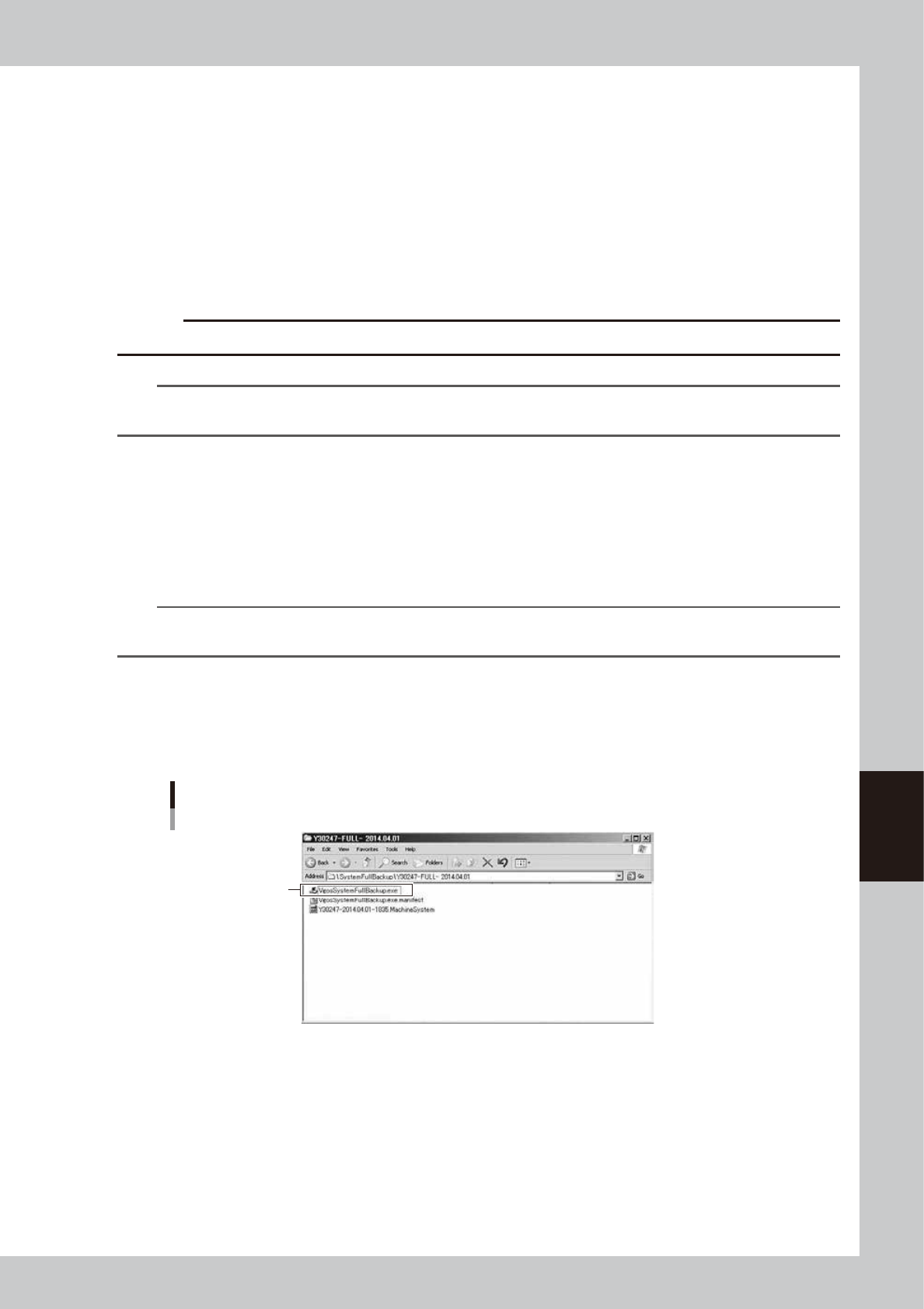
1. Double-click the folder that was created by system full backup.
2. The folder contains three files. Double-click the “VgosSystemFullBackup.exe” file, and the restore
software starts up.
Starting the restore software
Double-click this file.
64617-N1-00