YCP10 Users_E.pdf - 第190页
6-8 6 Managing the data 1.2.2 Making a backup 1 Insert a USB flash drive into the USB port. The USB port is located behind the media access door on the front left of the machi ne. 2 Check the USB flash drive connection. …
6-7
6
Managing the data
1.2.1 System backup settings
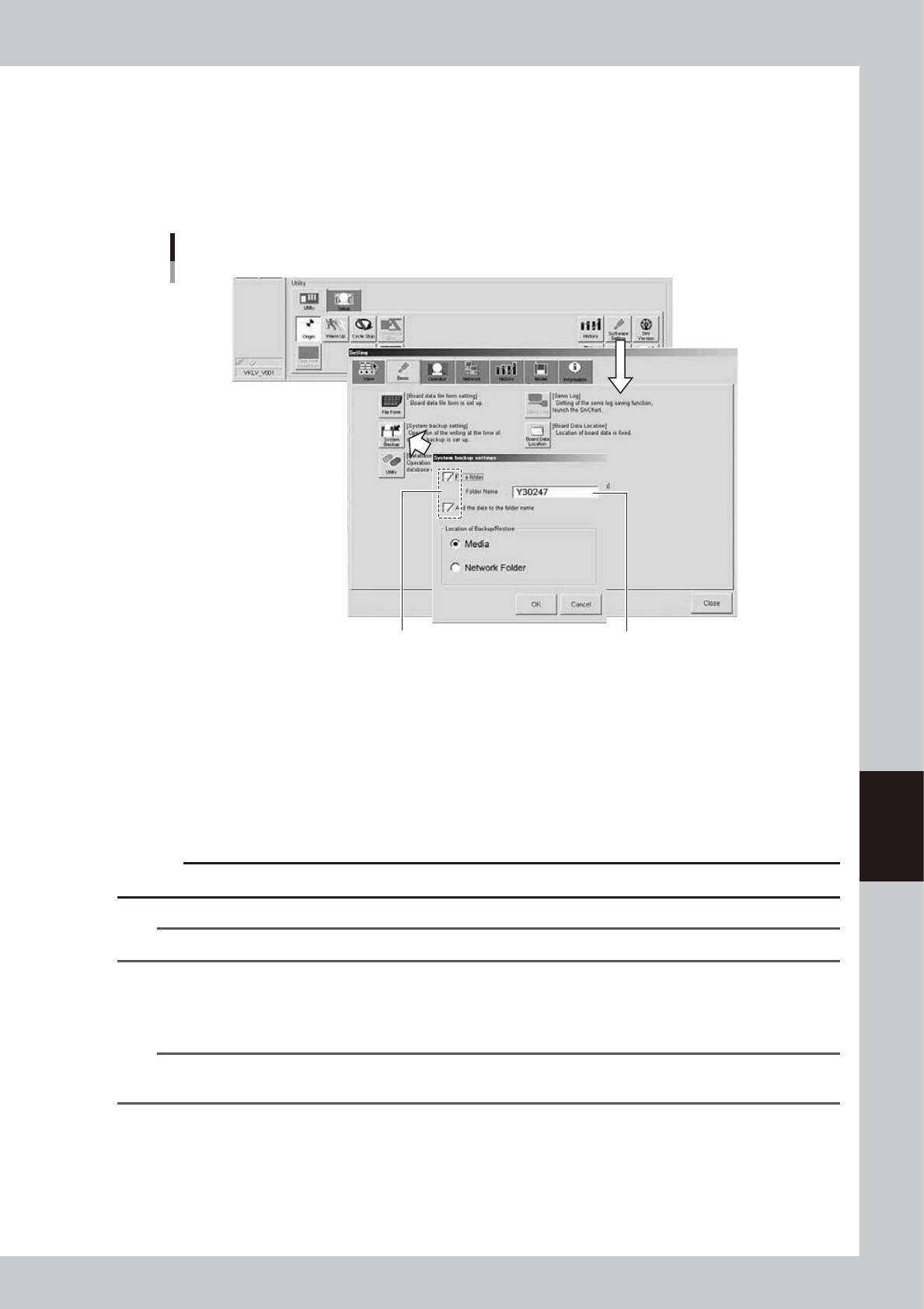
Make the following settings to back up system data. These system backup settings are also used to make a
system full backup.
Press the [Software Setting] button on the Setup screen to open the "Setting" screen, and press the [System
Backup] button on the [Basic] tab. The "System backup setting" screen then appears. Make the necessary
settings in this screen.
Making the system backup settings
Enter the folder nameSpecify the backup destination.
64609-N1-00
"Folder is fixed"
• Select this check box to automatically create a folder under the name you have entered in the
"Folder Name" text box and back up the system data into that folder.
• When this check box is cleared, a screen will appear when you back up the system data, allowing
you to select the folder to store the system data.
"Folder Name"
• Enter the folder name to store the system backup data. This is used only when the "Folder is fixed"
check box is selected.
c
CAUTION
Do not add the drive name to the folder name.
n
NOTE
A suffix “-FULL-” is added to the folder name for system full backup.
"The date is attached to the name of a folder"
When this check box is selected, the system data will be backed up in the folder whose name
includes the date.
n
NOTE
If you back up the system data twice or more a day, a number (2), (3) ... will be added to the end of each folder
name.
Path setting for saving or restoring data
• When “Media” is selected:
The system backup data is stored in the USB flash drive connected to the machine. If no USB flash
drive is connected, an error message “No media are found” appears.
• When “Network Folder” is selected:
A screen for selecting a folder appears when you back up system data. Select the folder to store the
system backup data.
6-8
6
Managing the data
1.2.2 Making a backup
1
Insert a USB flash drive into the USB port.
The USB port is located behind the media access door on the front left of the machine.
2
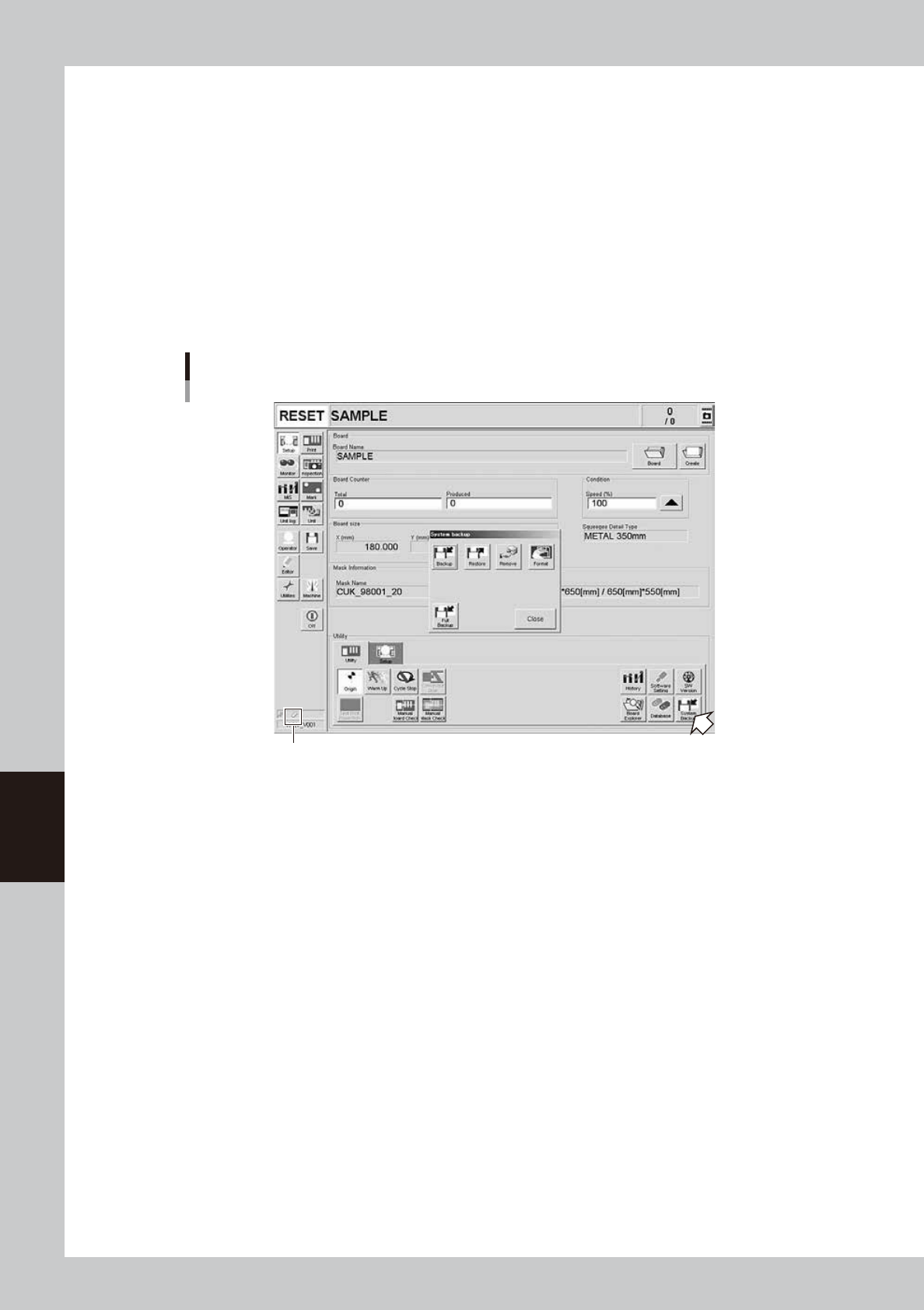
Check the USB flash drive connection.
The indicator on the lower left of the operation screen shows the connection status.
The connection is complete when the USB flash drive icon appears red.
The connection is incomplete if the USB flash drive icon is grayed out. Try reconnecting the USB flash
drive.
3
Open the “System backup” screen.
Press the [System Backup] button on the [Setup]-[Utility] tab screen.
“System backup” screen
USB flash drive icon
64610-N1-10
6-9
6
Managing the data
4
Start making a backup.
n
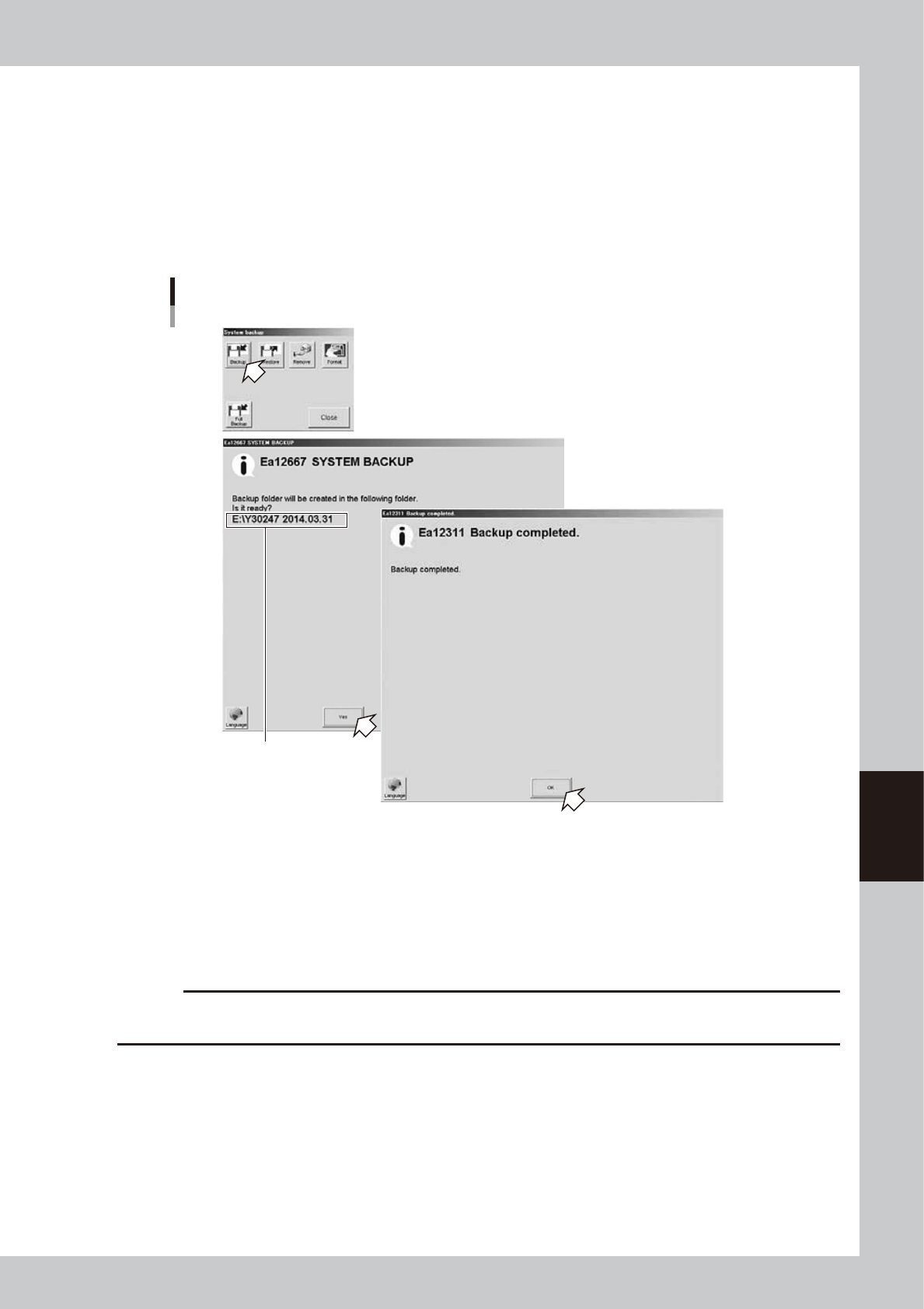
To make a system backup:
1. Press the [Backup] button.
2. A confirmation message appears asking if you want to make a backup file. Check the backup
destination and then press the [Yes] button.
System backup will start.
3. Another message appears when system backup is complete. Press the [OK] button to close the
message screen.
System backup
Check the backup destination.
64611-N1-00
4. When returned to the “System backup” screen, press the [Close] button to exit it.
n
To make system full backup:
1. Press the [Full Backup] button.
2. A confirmation message appears asking if you want to make a backup file. Check the backup
destination and then press the [Yes] button.
System full backup will start. It will take about 20 minutes to complete.
c
CAUTION
If you want to cancel the backup, press the ESC key on the keyboard.
The data being created will not be deleted even if the backup is cancelled (or fails).