3OM-1003-005.pdf - 第155页
051 1-002 2-84-1 *4 Drop-Down List When you double-click a text box, the text box is changed to a combo box that has a down arrow on the right side. When you click the down arrow , a drop-down list box opens. Set a param…

: When pressed, this enters the offset value in the se-
lected line.
The X, Y, and Z values in the line selected in the place-
ment data (P-data) can be changed collectively as much
as the entered value.
: When pressed, this button changes the items (titles) from
"Library Comment", "Dir [deg]", "Carrier Data Type", "Width
[mm]", and "Fd. Pitch [mm]" to "Pick-Up [sec]", "Turret
[sec]", "Place. [sec]", "X/Y Table", and "Recog. [sec]".
*2 [Minimize] Button, [Maximize] Button, [Restore] Button,
and [Close] Button
[Minimize] Button (
)
Minimizing a window reduces the window to an icon.
[Maximize] Button (
)
When a window is not at its maximum size, this button appears in
the window’s upper-right corner. When pressed, this enlarges the
edit window to its maximum size.
[Restore] Button (
)
When a window is already at its maximum size, the [Maximize] but-
ton switches to the [Restore] button, which returns the window to its
previous size.
[Close] Button (
)
When pressed, this closes the active window.
*3 Tab Sheets
The provided tab sheets enable the operator to edit the pattern pro-
gram.
4.1 Basic Operation
051 1-002 2-84 AIL01EDTP

051 1-002 2-84-1
*4 Drop-Down List
When you double-click a text box, the text box is changed to a combo
box that has a down arrow on the right side.
When you click the down arrow, a drop-down list box opens.
Set a parameter by selecting one of the options in the drop-down list
box.
A scrollbar might appear on the right side of a drop-down
list when there are many options.
*5 Scrollbars
When the up arrow (
) is pressed, the window scrolls up.
When the down arrow (
) is pressed, the window scrolls down.
When the left arrow (
) is pressed, the window scrolls left.
When the right arrow (
) is pressed, the window scrolls right.
Note
4.1 Basic Operation
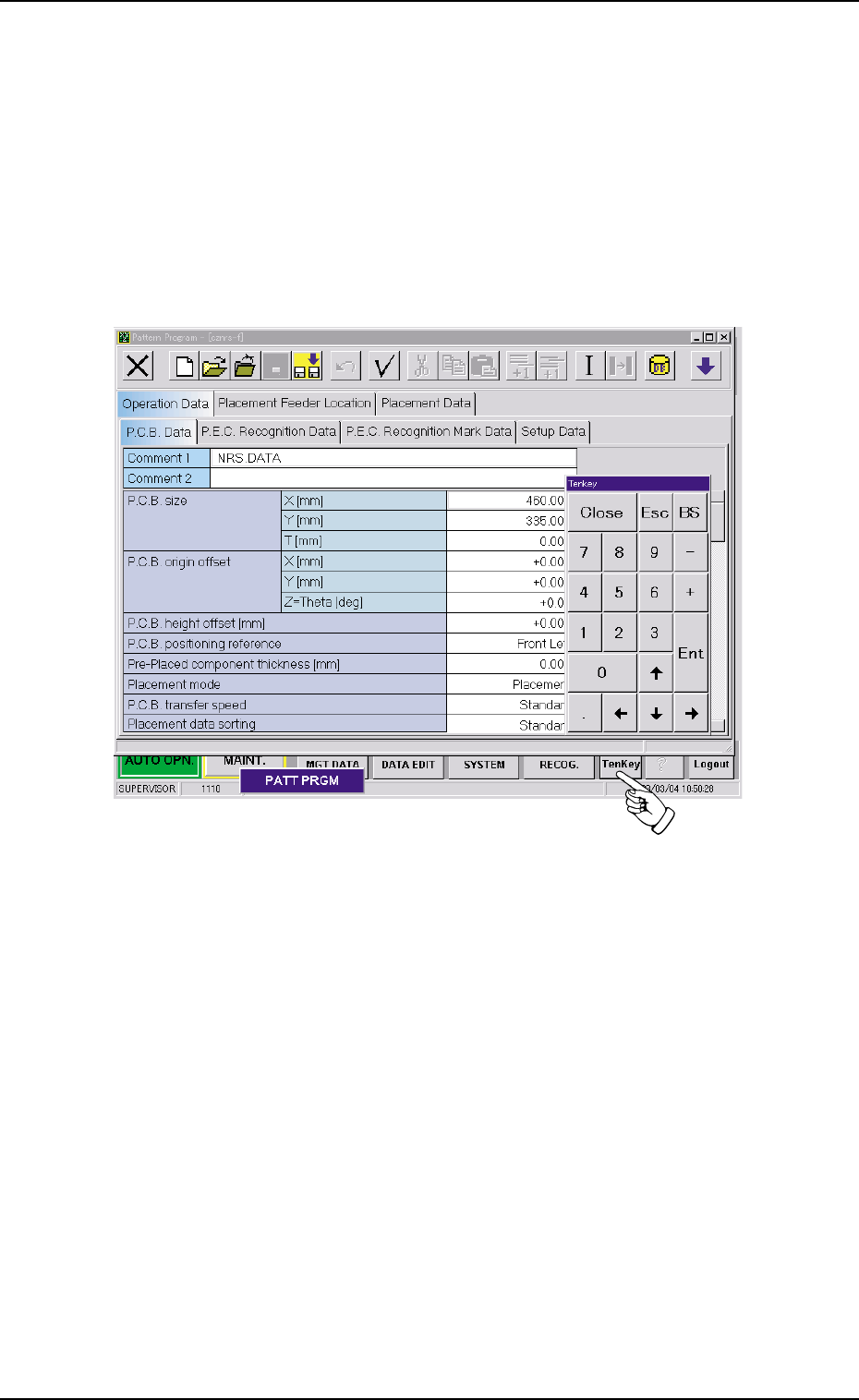
4.1.3 Basic Usage of Text Boxes
• How to enter numerical values
Follow the procedure below to enter numerical values in the text boxes
that require numerical values.
Using the "Tenkey" window
(1) Press the [TenKey] button on the main menu bar. The "Tenkey" win-
dow appears.
Fig. 3B139
4.1 Basic Operation
0305-001 2-85 AIL01EDTP