3OM-1003-005.pdf - 第283页
• Composition of "System" Window Fig. 3E4 "System" Window *1 Icons The following functions can be executed. : When pressed, this icon closes the "System" window . : When pressed, this icon s…
2. Navigations in "SYSTEM" Window
2.1 Display of Each Window
2.1.1 "System" Window
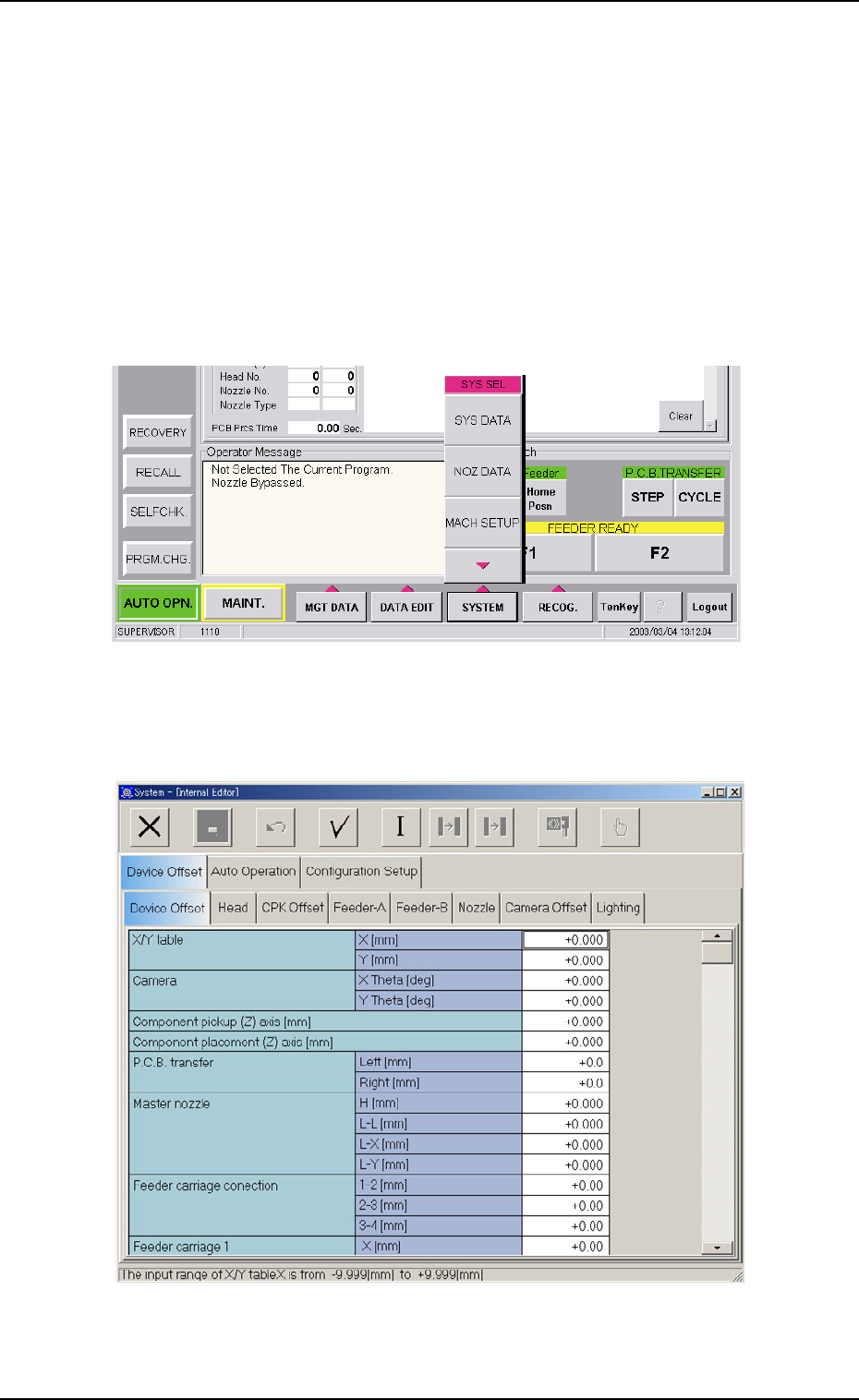
The following describes how to open the "System" window.
• Window Layout
(1) Press the [SYSTEM] button on the main menu bar. The "SYS SEL"
menu opens.
Fig. 3E2
(2) Press the [SYS DATA] button.
The "System" window opens.
Fig. 3E3 "System" Window
0403-002 5-3
AIL01EDTP
2. Navigations in "SYSTEM" Window
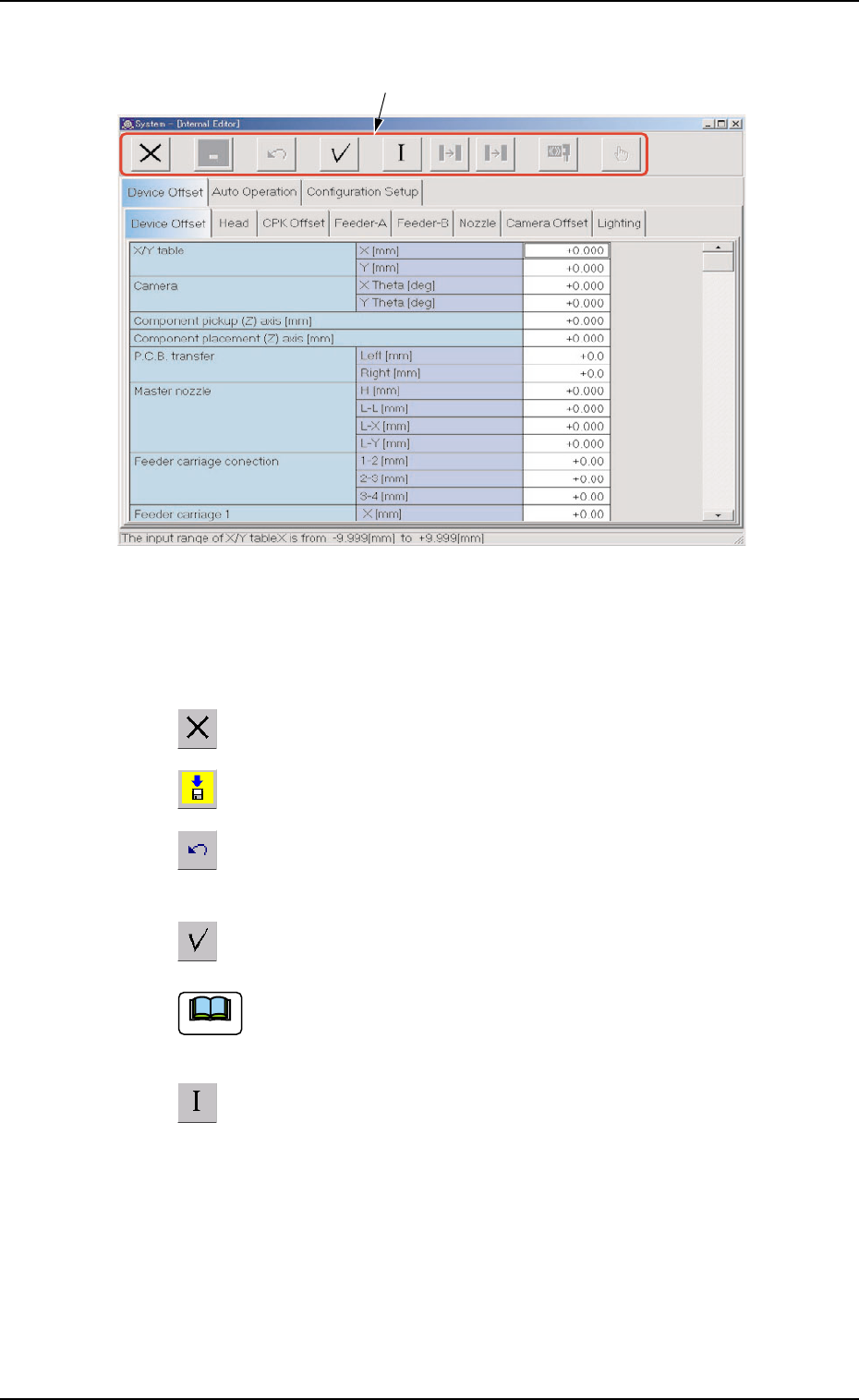
• Composition of "System" Window
Fig. 3E4 "System" Window
*1 Icons
The following functions can be executed.
: When pressed, this icon closes the "System" window.
: When pressed, this icon saves the edited contents.
: When pressed, this icon reverses the effect of your previ-
ous action.
: When pressed, this icon checks the entered parameters.
When an error is found, an error message box opens.
: When pressed, this icon initializes the selection (sets the
defaults).
0305-001 5-4
AIL01EDTP
*1
Note
2.1 Display of Each Window
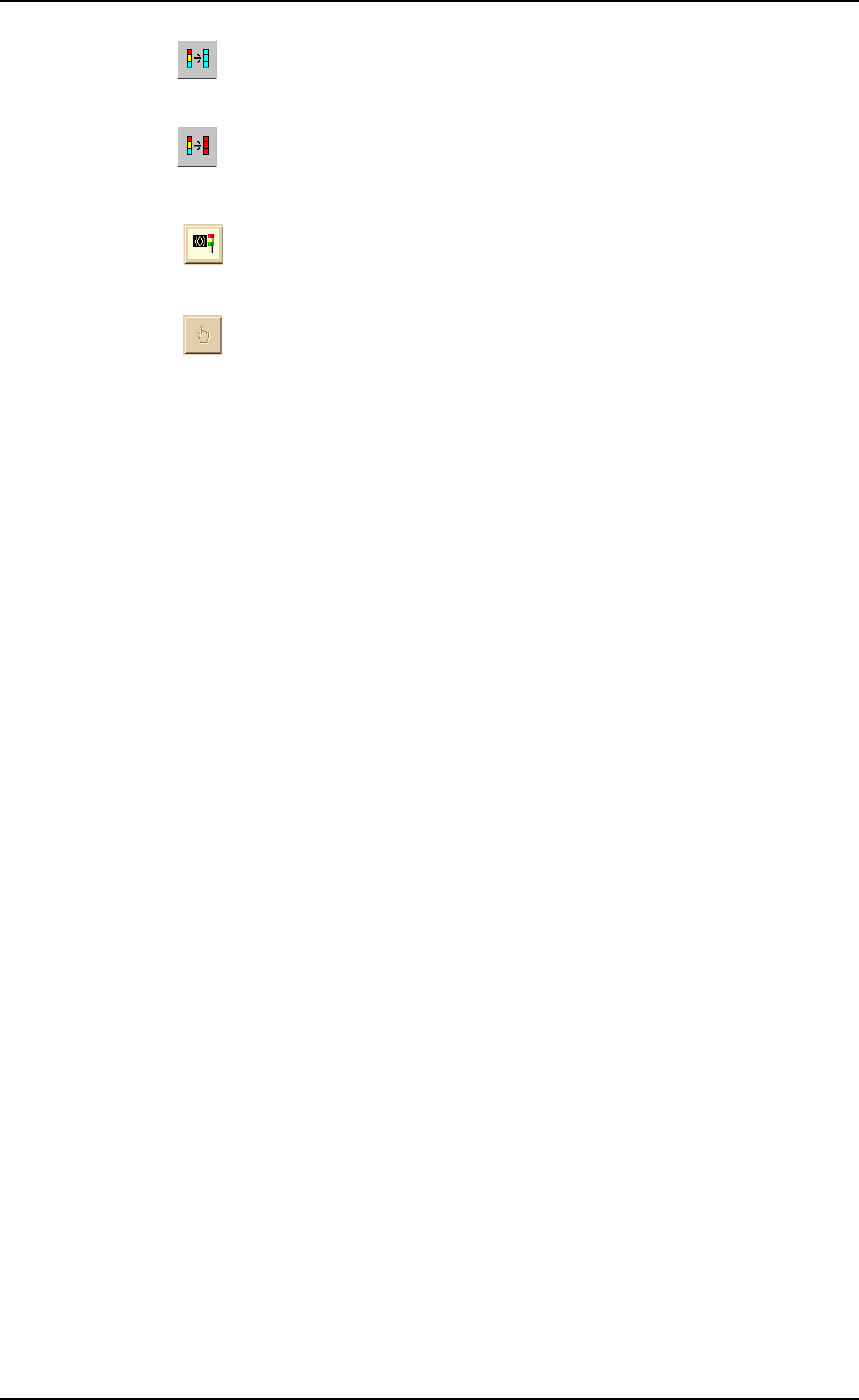
: When pressed, this icon fills all the selected text boxes
with the parameter in the last text box.
: When pressed, this icon fills all the selected text boxes
with the parameter in the first text box.
: When pressed, this changes the colors of the tower light
and the buzzer sounds to the standard ones.
: When pressed, this displays a list of component IDs, mak-
ing it possible to select a component ID.
0403-002 5-5
AIL01EDTP
2.1 Display of Each Window