3OM-1003-005.pdf - 第340页
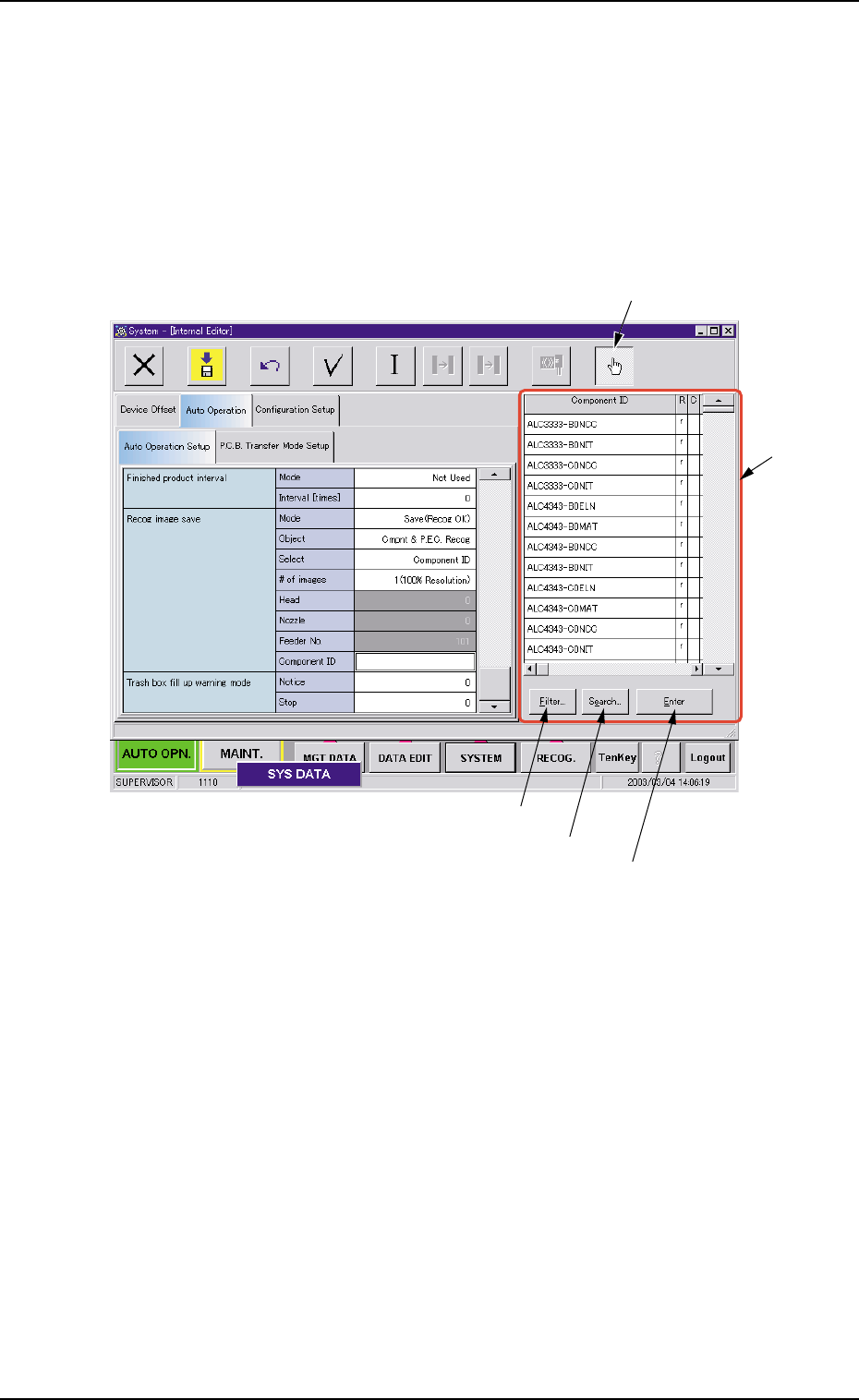
(3) Select a component ID from the list of component IDs and press the [Enter] button. (a) [Filter ...] Button When pressed, the "Filter" dialog box opens, making it pos- sible to select a type of component IDs…
••
••
• How to specify a component ID name
(1) Set "Component ID" in the "Select" text box of the label "Recog im-
age save". The "Component ID" text box turns white.
(2) While selecting the "Component ID" text box, press the "Selecting
the component ID" button. A list of component IDs is displayed.
Fig. 3E44
3.3 "Auto Operation" Tab
"Selecting the component ID" Button
"List of
Component
IDs" Pane
[Filter...] Button
[Search...] Button
[Enter] Button
0305-001 5-53 AIL01EDTP
(3) Select a component ID from the list of component IDs and press
the [Enter] button.
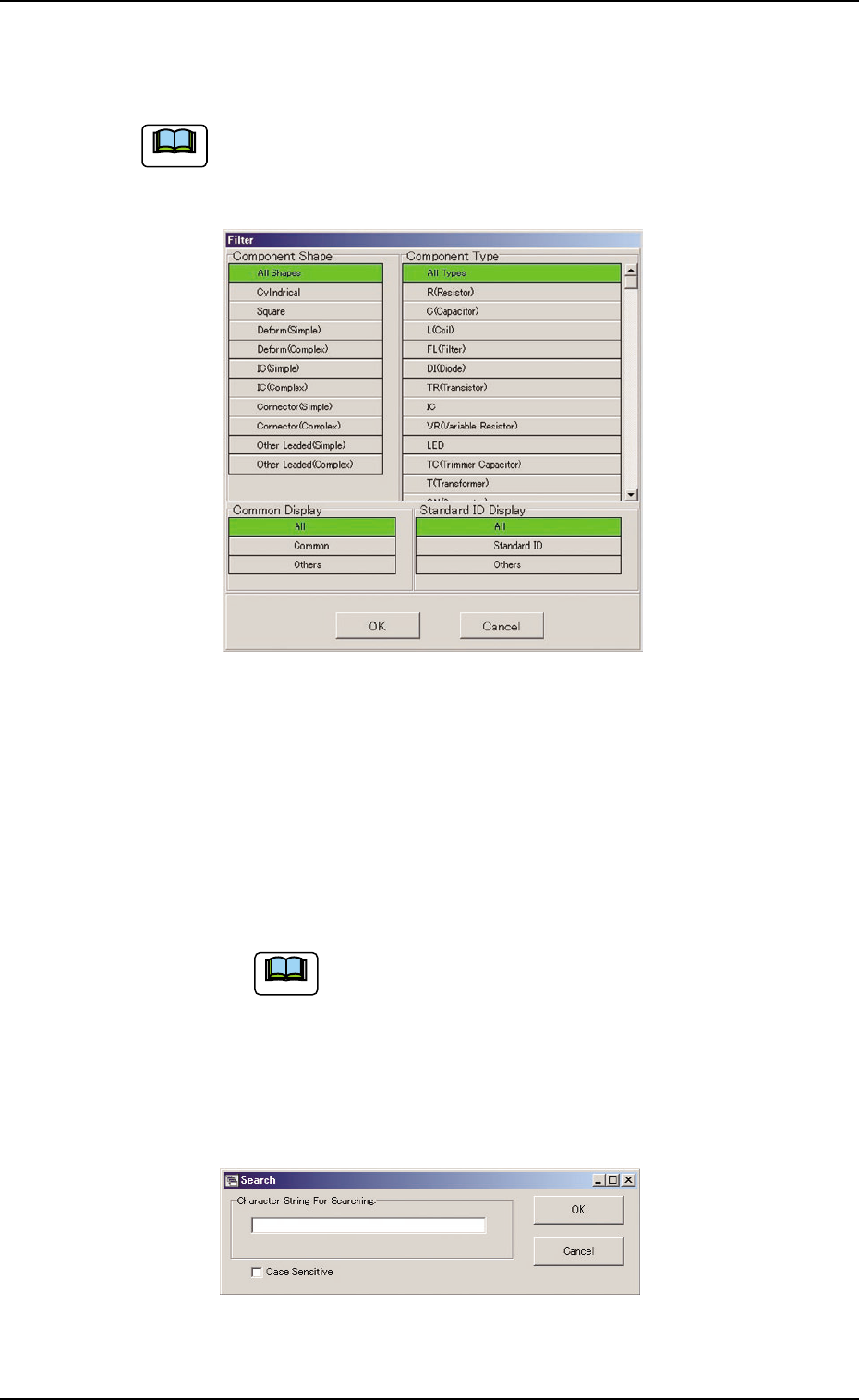
(a) [Filter...] Button
When pressed, the "Filter" dialog box opens, making it pos-
sible to select a type of component IDs.
Fig. 3E45
(b) [Search...] Button
When pressed, the "Search" dialog box opens, making it
possible to search a component ID.
Enter characters in the blank field and press the [OK] but-
ton. The "Search" window closes and the component IDs
including the entered characters are displayed in "List of
Component IDs".
"*" (asterisk) and "?" (question mark) can be used
as wild cards.
abc* : The search function retrieves the compo-
nent ID names which start with "abc"
a?c : The search function retrieves the compo-
nent ID names which start with "a" and
contain "c" as the third character.
Fig. 3E46
3.3 "Auto Operation" Tab
Note
051 1-002 5-54 AIL01EDTP
Note
3.3.2 "P.C.B. Transfer Mode Setup" Tab
• Sheet Layout
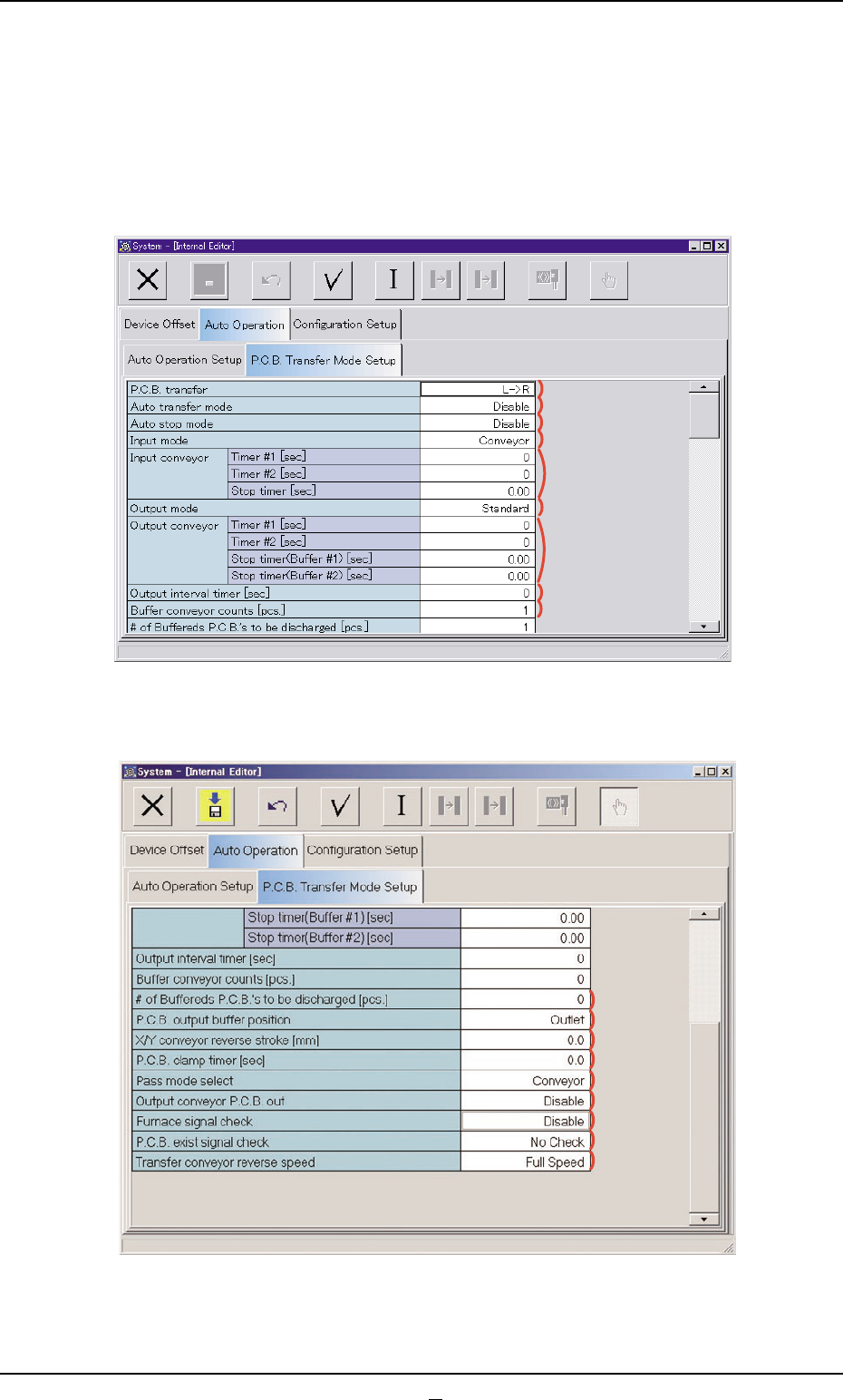
When the "P.C.B. Transfer Mode Setup" tab is pressed in the "Auto Op-
eration" tab sheet, the following tab sheet appears.
Fig. 3E47 "P.C.B. Transfer Mode Setup" Tab Sheet (1)
Fig. 3E48 "P.C.B. Transfer Mode Setup" Tab Sheet (2)
051 1-003 5-55 AIL01EDTP
3.3 "Auto Operation" Tab
*1
*2
*3
*4
*5
*6
*7
*8
*9
*10
*11
*12
*13
*14
*15
*16
*17
*18