3OM-1003-005.pdf - 第173页
*1 *4 *5 *6 *2 *3 *7 *8 4.3 "Placement Feeder Location" T ab 0305-001 2-102 AIL01EDTP 4.3.2 "Component ID List" Window • Window Layout When the [Component ID List] icon ( ) is pressed in the "Pat…
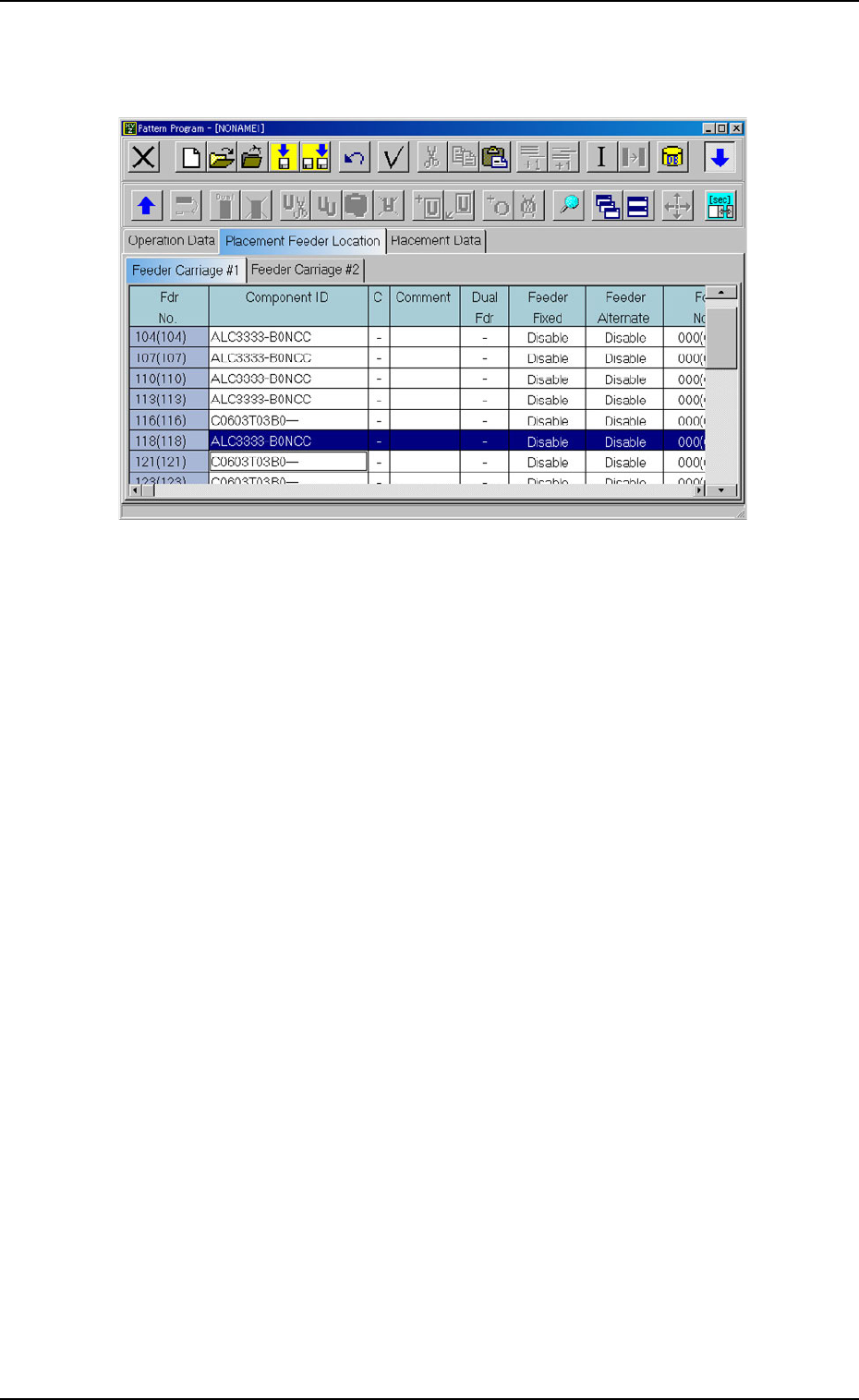
(4) Press the [YES] button. The line (step) of the selected Fdr. No. is
transferred to the step just above the specified line (step).
Fig. 3B164
4.3 "Placement Feeder Location" Tab
051 1-002 2-101 AIL01EDTP
*1
*4
*5
*6
*2
*3
*7
*8
4.3 "Placement Feeder Location" Tab
0305-001 2-102 AIL01EDTP
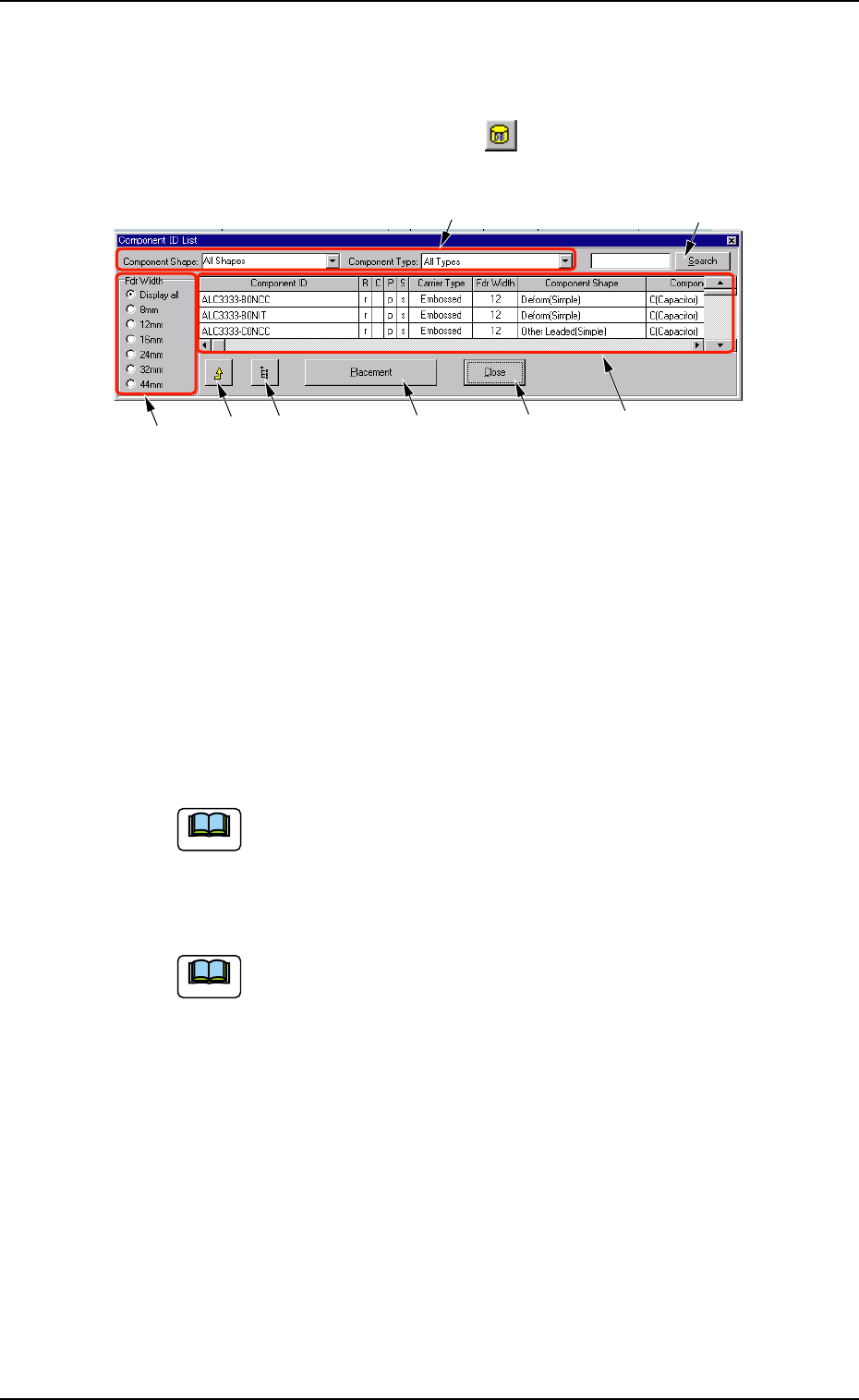
4.3.2 "Component ID List" Window
• Window Layout
When the [Component ID List] icon (
) is pressed in the "Pattern
Program" window, the "Component ID List" window opens.
Fig. 3B165 "Component ID List" Window
• Window Composition
*1 Component Shape and Component Type
Enter a parameter in each text box.
When parameters are set in the text boxes, a list of the correspond-
ing components appears in "*6".
*2 Fdr Width
Select the desired option button to specify the feeder width.
44 mm tape feeders are optional for TCM-X110J.
*3 "Component Library" Edit Window Button
When this icon is pressed, the "Component Library" edit window
opens, making it possible to edit the component library data.
Refer to "Section 3 Component Library" for the detailed in-
formation on how to edit the component library data.
*4 [Placement] Button
When this button is pressed, the component selected from the list
of component IDs is set in the placement feeder location data.
*5 [Close] Button
When this button is pressed, the "Component ID List" window closes.
*6 List of Component IDs
A list of component IDs is displayed.
*7 [Search] Button
When this button is pressed, the list of component IDs is searched.
Note
Note
051 1-002 2-103 AIL01EDTP
4.3 "Placement Feeder Location" Tab
*8 [Link ID] Button
Link and root IDs are arranged side by side and displayed in the tree
(hierarchical) file system.
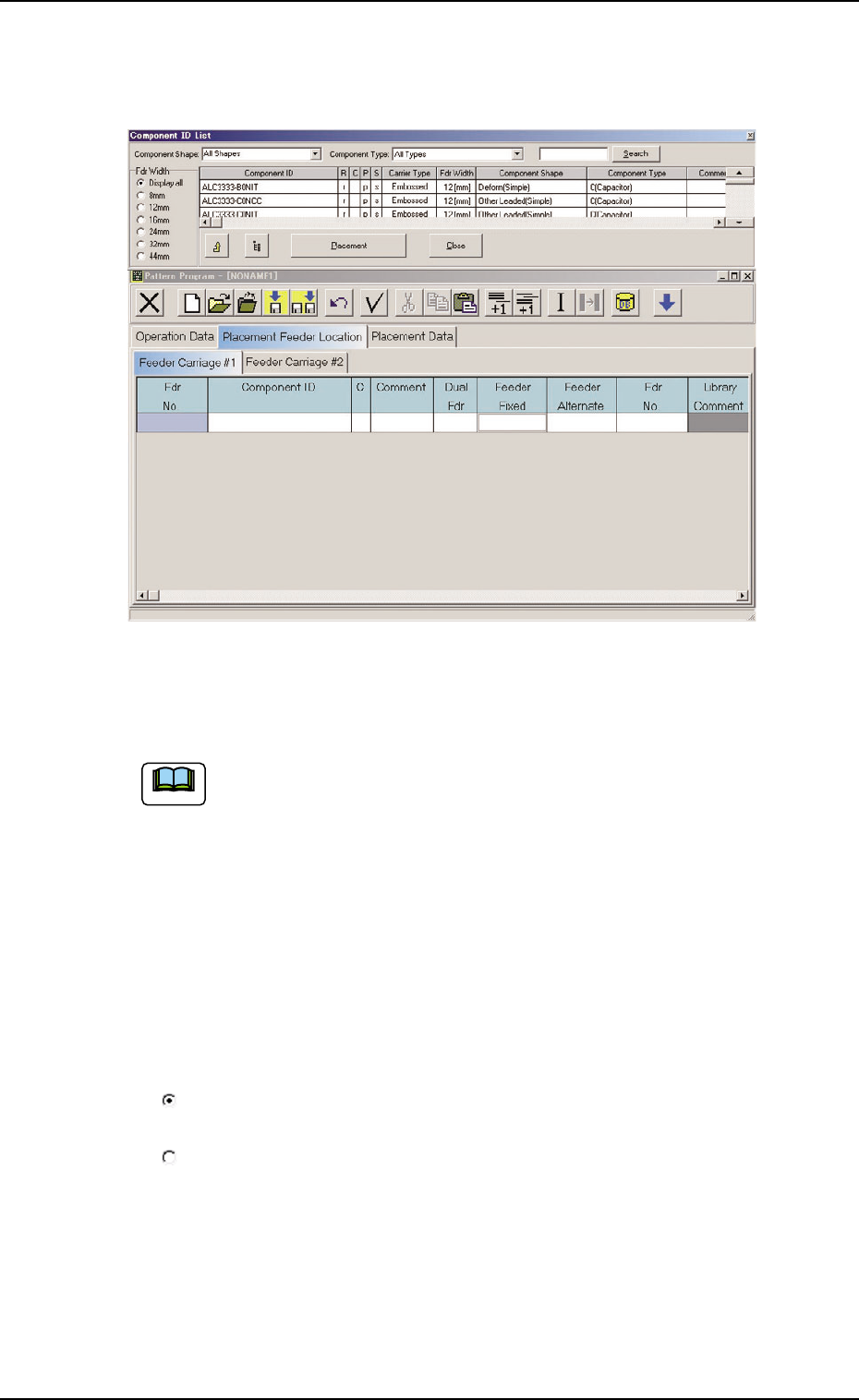
Fig. 3B166 Arrangement (Example) of "Component ID List" Window
• Operation Procedure
It is recommended to drag and drop the "Component ID List"
window at a place where it can be arranged for easier naviga-
tion as shown in Fig. 3B166.
Selection of Feeder Width
When several items (functions) are grouped and one of them must be
selected, option buttons are provided in front of the items, allowing you
to choose a single item (function) from a group of options.
A list of components related to the selected feeder width is displayed in
the "List of Component IDs" pane (*6).
Option Buttons
: A dot inside the circle indicates that the corresponding function is
selected.
: The corresponding function is not selected.
Turning on or off an option button
When a dot is not in an option button, it means that the item (function)
is not selected. When such an option button is pressed, a dot ap-
pears inside the circle, indicating that the item (function) is selected.
When an option button having a dot in the circle is pressed, the dot
disappears, indicating that the selection of the item (function) is can-
celed.
Note