3OM-1003-005.pdf - 第198页
Check Boxes : The check box is marked, indicating that the function is used or enabled. When an unmarked check box ( ) is checked, a check mark appears inside the box and looks like " ". : The check box is not …
2.3.7 Property of Component ID
(1) Select the component ID to view its property.
The selected component ID turns blue, indicating that it is selected.
(2) Press the [Property] button.
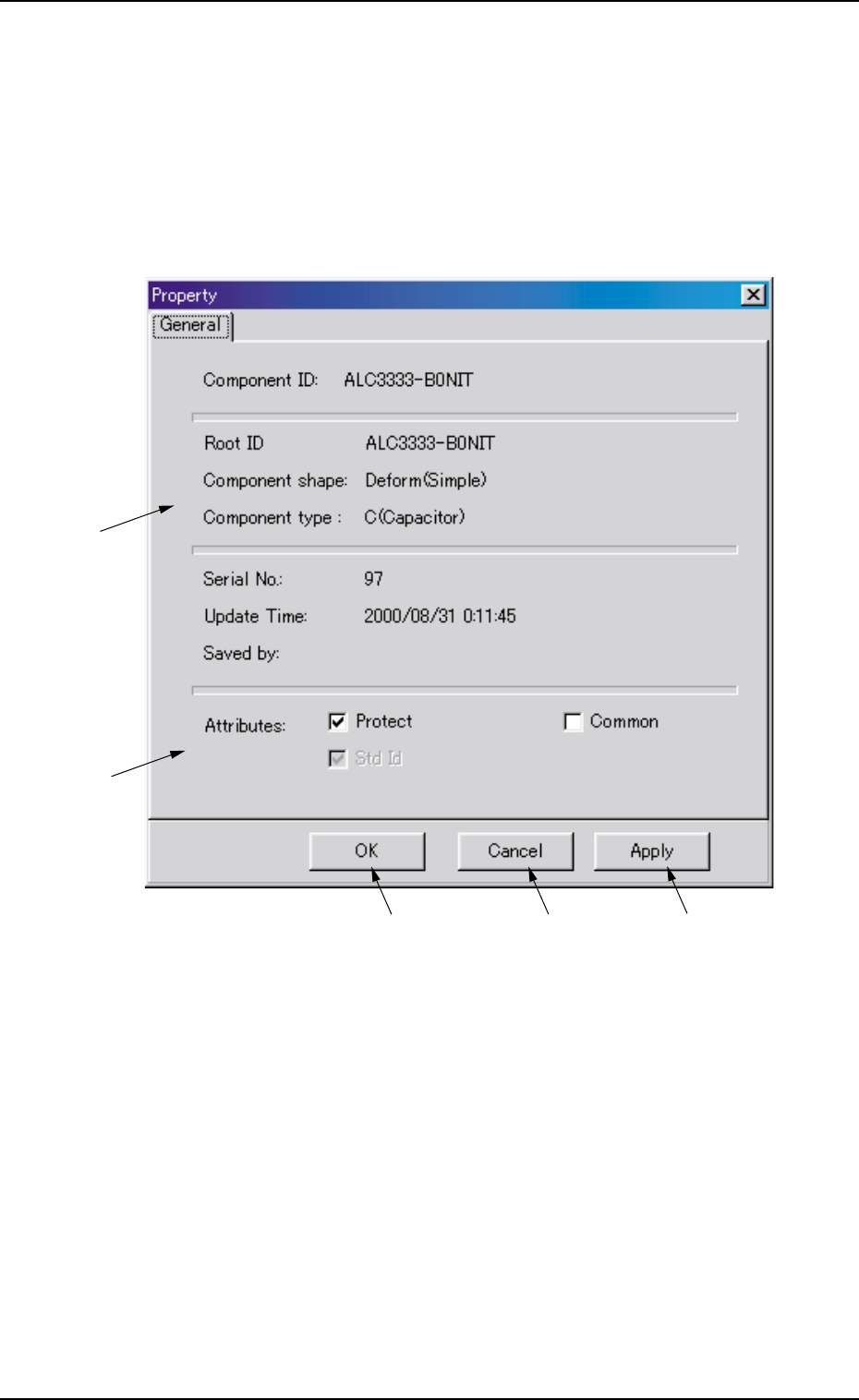
The "Property" window appears.
Fig. 3C11 "Property" Window
• Composition of "Property" Window
*1 Component ID, Root ID, Component shape, Component type,
Serial No., Update Time, Saved by
The property of the component ID is displayed.
*2 Protect, Common, Std Id
The attributes of the component ID are displayed.
The check boxes enable the operator to change the corresponding
attributes.
*1
*2
*3
*4
*5
2.3 Basic Usage of the "Selection of component ID" Window
0305-001 3-12 AIL01EDTP

Check Boxes
: The check box is marked, indicating that the function is used or
enabled.
When an unmarked check box ( ) is checked, a check mark
appears inside the box and looks like "
".
: The check box is not marked, indicating that the function is not
used or disabled.
When a marked check box ( ) is checked, a check mark
disappears and looks like "
".
• "Protect"
When this check box is turned on (checked), this component ID
is specified as "Protected", making it impossible to edit the data
of the component ID.
• "Common"
When this check box is turned on (checked), this component ID is
registered as "Common".
• "Std Id"
When this check box is turned on (checked), this component ID is
specified as "Standard ID".
*3 [OK] Button
When this button is pressed, the changed attributes are applied if
any and the "Property" sheet closes.
*4 [Cancel] Button
The changed attributes are not applied and the "Property" sheet
closes.
*5 [Apply] Button
The changed attributes are applied.
2.3 Basic Usage of the "Selection of component ID" Window
0305-001 3-13 AIL01EDTP
3. "Component Library" Edit Window
3.1 Toolbar and Icons
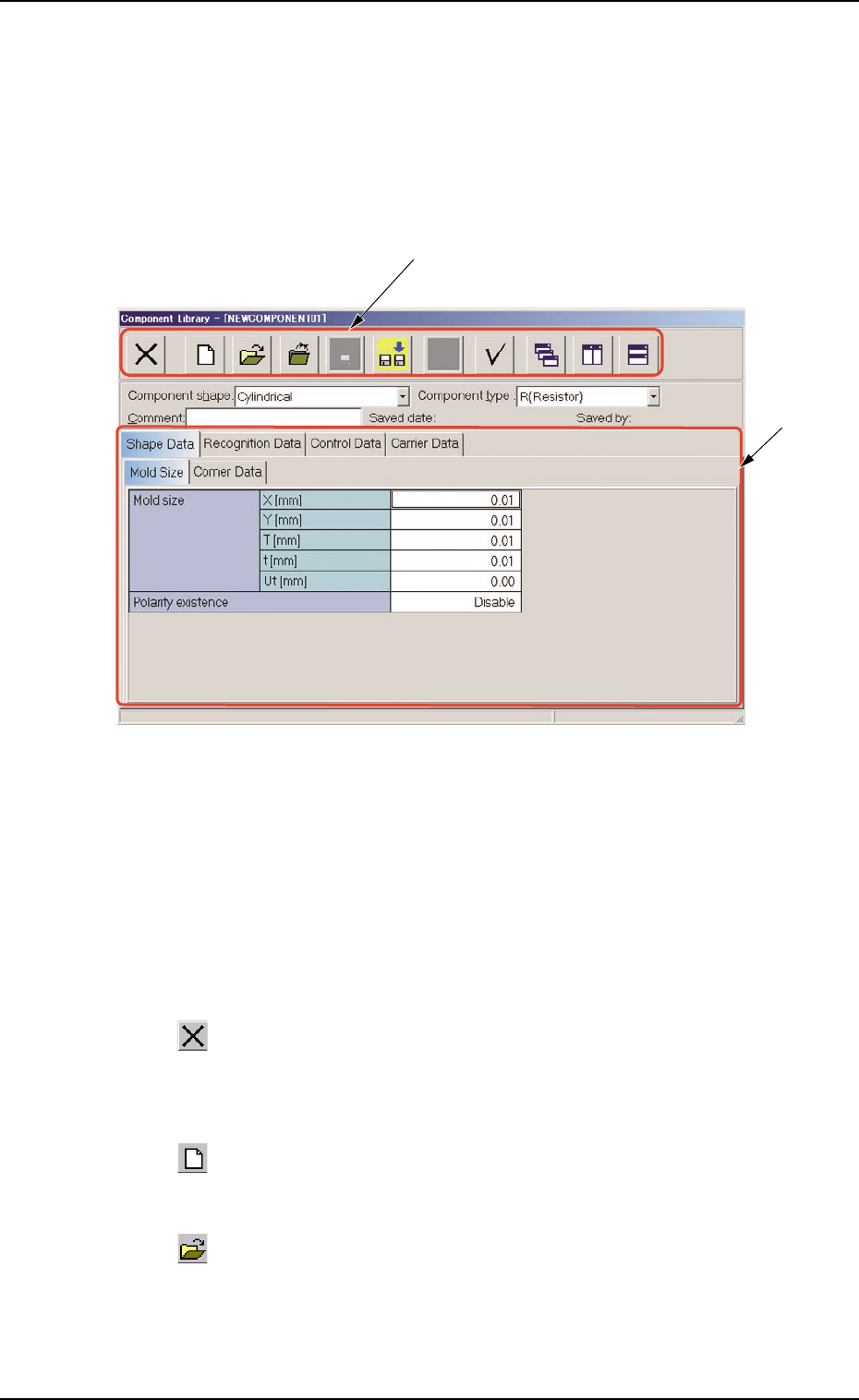
This session describes the toolbar and icons in the "Component Li-
brary" edit window.
Fig. 3C12 "Component Library" Edit Window
• Composition of "Component Library" Edit Window
*1 Toolbar
This toolbar is provided with a collection of icons that can be imple-
mented as operation commands in the "Component Library" edit
window.
: Exit
When pressed, this closes the "Component Library" edit
window.
: New
When pressed, this creates a new component ID.
: Open File
When pressed, this opens the "The List of component ID"
window.
*2
*1
3. "Component Library" Edit Window
051 1-003 3-14 AIL01EDTP