3OM-1003-005.pdf - 第179页
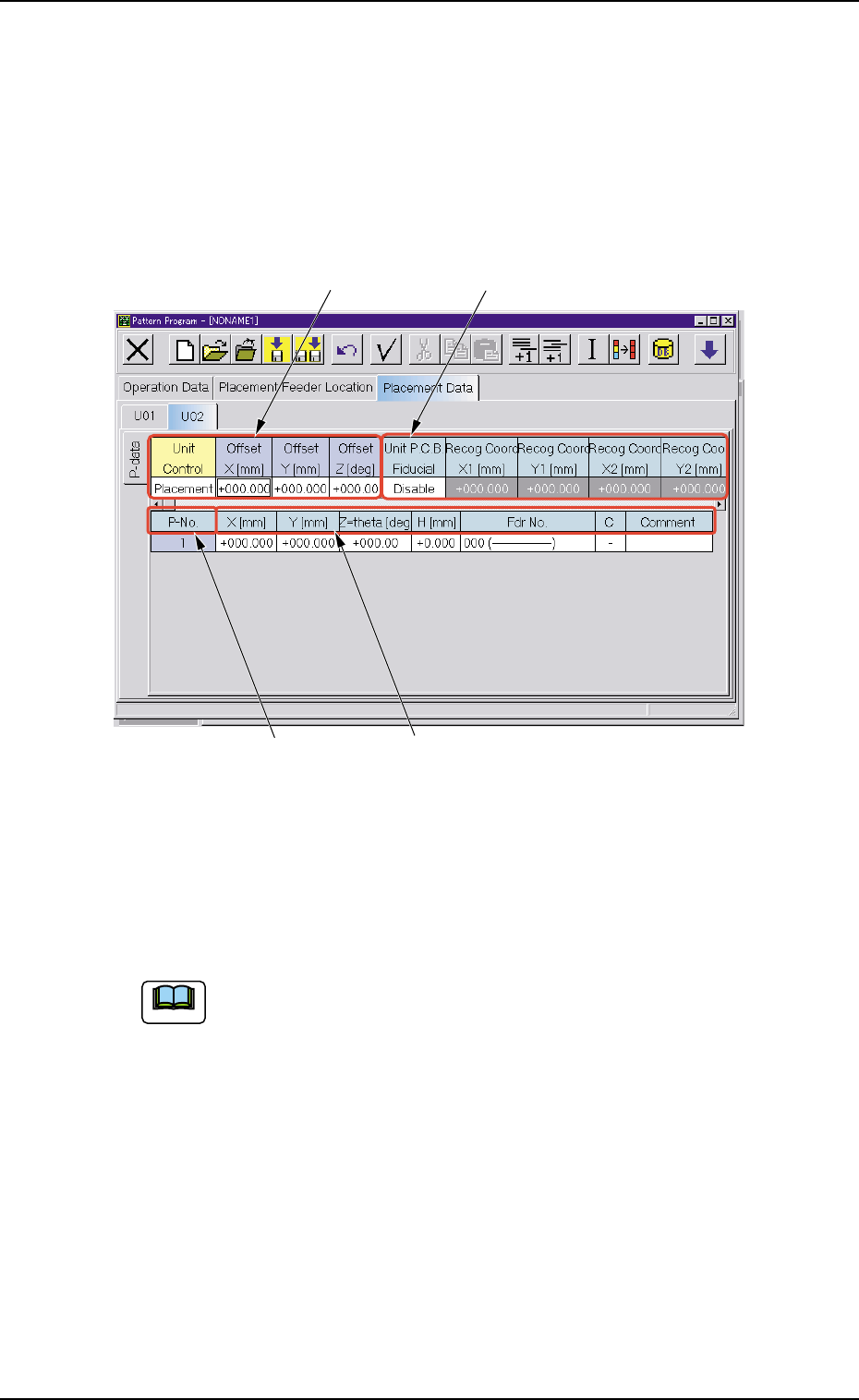
4.4 "Placement Data" T ab 0305-001 2-108 AIL01EDTP *3 P-No. Shown are the step Nos. Refer to " • Operation Procedure" (described later) for the detailed information on how to add or delete a step No. …
*1 *2
*3 *4
4.4 "Placement Data" Tab
0305-001 2-107 AIL01EDTP
4.4.2 "P-data" Tab
The corresponding tab sheet can be used to edit the placement data (P).
• Sheet Layout
When the "P-data" tab is pressed in the "Placement Data" tab sheet,
the following tab sheet appears.
Fig. 3B169 "P-data" Tab Sheet
• Sheet Composition
Each parameter is displayed or can be entered.
Refer to "4.1.3 Basic Usage of Text Boxes" for the detailed in-
formation on how to enter each parameter.
*1 Unit Control, Offset X [mm], Offset Y [mm], Offset Z [deg]
*2 Unit P.C.B. Fiducial
Recog Coord X1 [mm], Recog Coord Y1 [mm], Recog Coord
X2 [mm], Recog Coord Y2 [mm], Fiducial Mark FM1, and Fi-
ducial Mark FM2
When "Enable" is set for "P.E.C. recognition function", it is re-
quired to enter a parameter in each text box.
Note
4.4 "Placement Data" Tab
0305-001 2-108 AIL01EDTP
*3 P-No.
Shown are the step Nos.
Refer to "• Operation Procedure" (described later) for the
detailed information on how to add or delete a step No. (P-
No.).
*4 X [mm], Y [mm], Z=theta [deg], H [mm], Fdr No., C, Comment
• Operation Procedure
Addition of Step (P-No.)
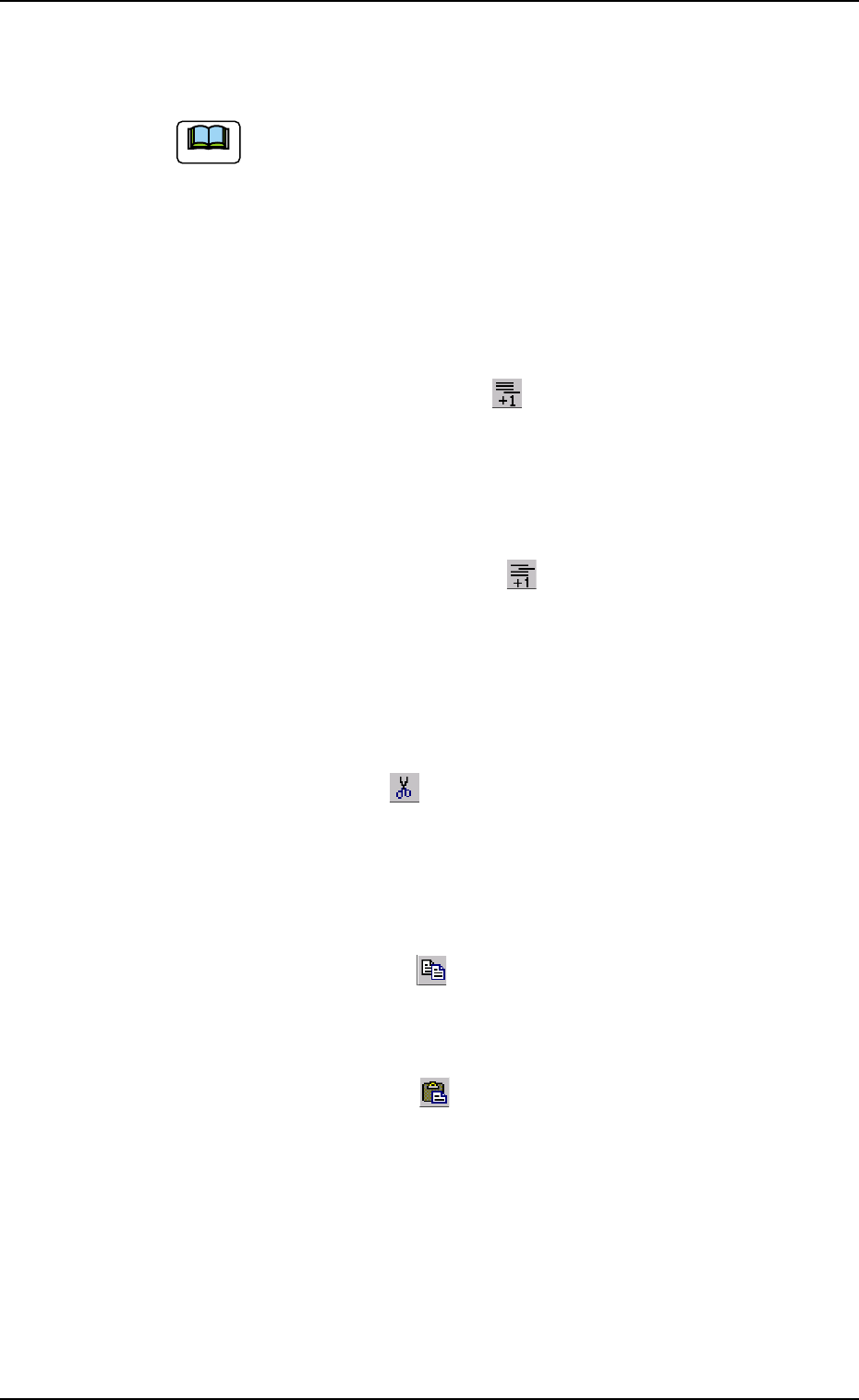
(1) When the [Add One Line] icon [
] is selected, a new step is
added to the last line (last Fdr No.).
Insertion of Step (P-No.)
(1) Select a new step (P-No.) to be inserted with the touch screen or
the pointing device.
(2) When the [Insert One Line] icon [
] is selected, a step is in-
serted into the selected position and the subsequent lines (Fdr
Nos.) are shifted down.
Deletion of Step (P-No.)
(1) Select the step (P-No.) to be deleted with the touch screen or the
pointing device.
(2) When the [Cut] icon [
] is selected, the selected line (Fdr No.)
is deleted and the subsequent lines (Fdr Nos.) are shifted up.
Step (P-No.) Copy and Paste Commands
(1) Select the step (P-No.) to be copied with the touch screen or the
pointing device.
(2) When the [Copy] icon [ ] is selected, the selected line (Fdr
No.) is copied.
(3) Select the position where the copied step (P-No.) should be
pasted.
(4) When the [Paste] icon [
] is selected, the selected line (Fdr
No.) is pasted.
Note
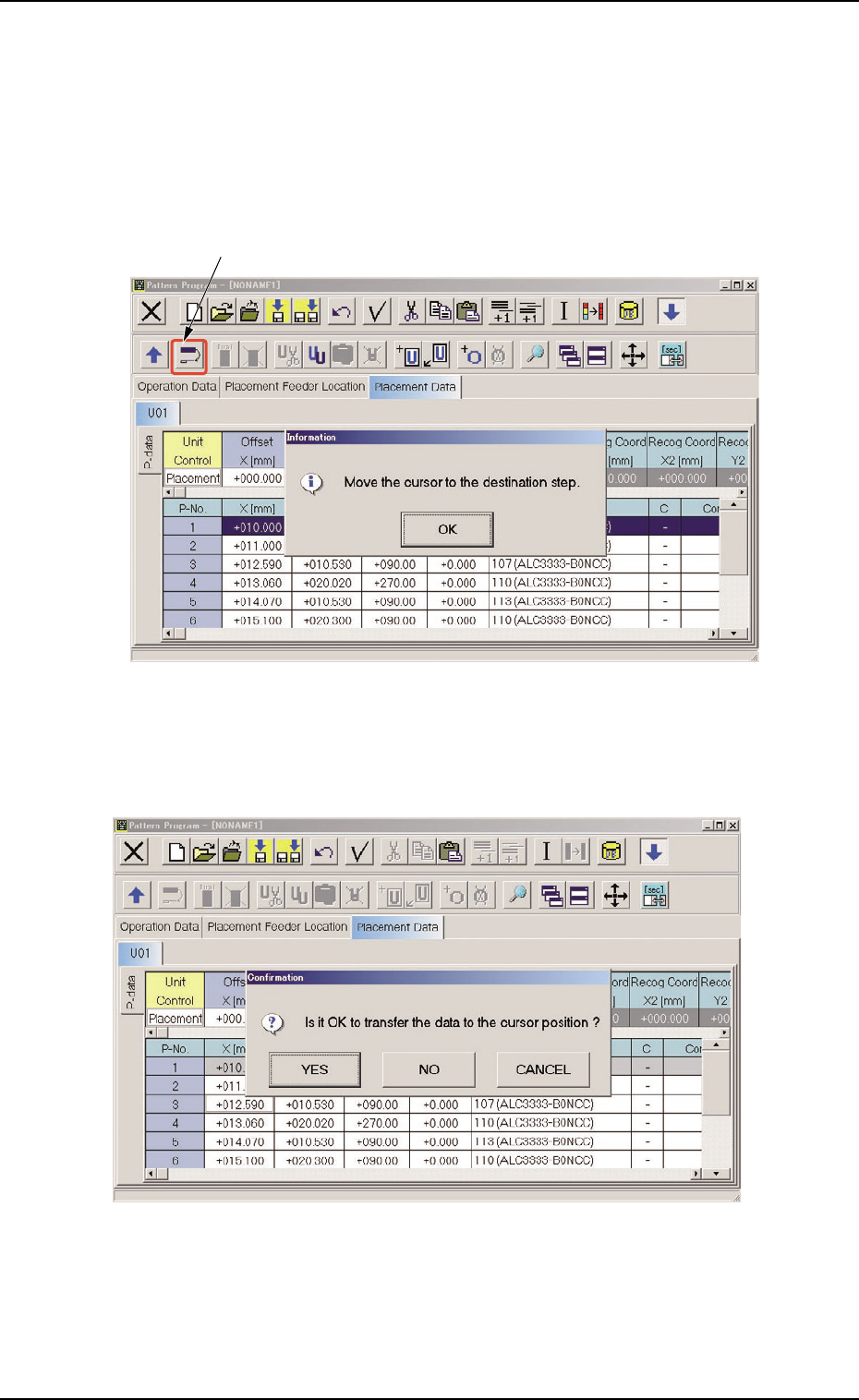
Transfer of P-No.
(1) Select the P-No. to be transferred with the touch screen or the pointing
device.
The selected line (P-No.) turns blue, indicating that it is selected.
(2) Select the "Move the selected step data" icon.
Fig. 3B170
(3) Press the [OK] button and specify the destination step.
Fig. 3B171
4.4 "Placement Data" Tab
"Move the selected step data" Icon
051 1-002 2-109 AIL01EDTP