3OM-1003-005.pdf - 第171页
T ransfer of Fdr . No. (1) Select the Fdr . No. to be transferred with the touch screen or the pointing device. The selected line (Fdr . No.) turns blue, indicating that it is selected. (2) Select the "Move the sele…
• Operation Procedure
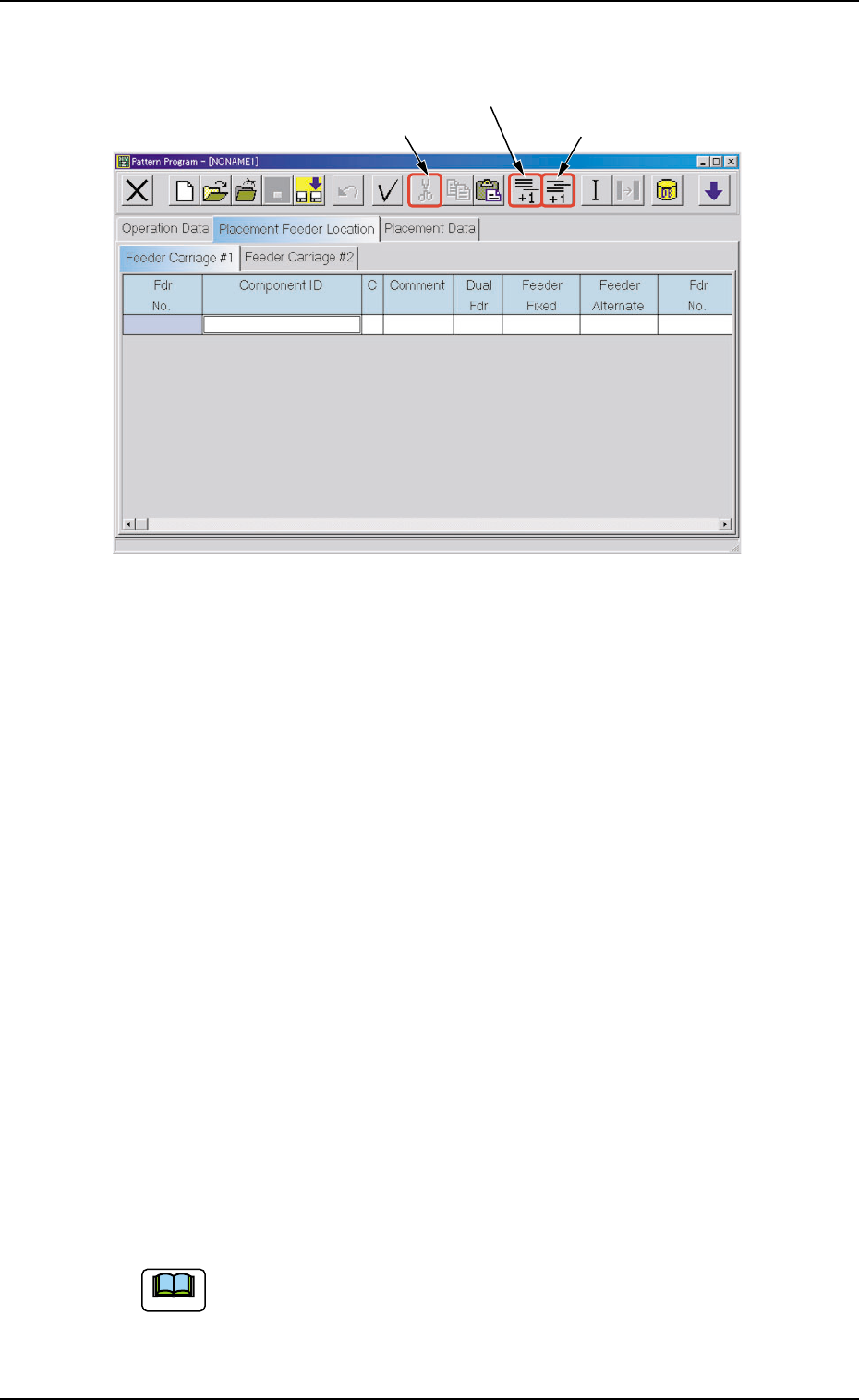
Fig. 3B161 Menu for Editing
Addition of "Fdr No."
(1) Select [Add Line] icon on the menu.
A new "Fdr No." is added to the last line (last Fdr No.).
Insertion of "Fdr No."
(1) Select the position where a Fdr. No. should be inserted with the
touch screen or the pointing device.
The selected line (Fdr. No.) turns blue, indicating that it is selected.
(2) Select [Insert Line] icon on the menu.
A new line (Fdr No.) is inserted at the selected line and the subse-
quent lines (Fdr Nos.) are shifted down.
Deletion of "Fdr No."
(1) Select the Fdr. No. to be deleted with the touch screen or the point-
ing device.
The selected line (Fdr. No.) turns blue, indicating that it is selected.
(2) Select "Delete" on the menu.
The selected line (Fdr No.) is deleted and the subsequent lines (Fdr
Nos.) are shifted up.
Do not set any parameters for the feeder carriages that are not
used.
Otherwise, a data error occurs. If parameters are set, be sure
to delete them.
[Add Line] Icon
[Cut] Icon
[Insert Line] Icon
4.3 "Placement Feeder Location" Tab
051 1-002 2-99 AIL01EDTP
Note
Transfer of Fdr. No.
(1) Select the Fdr. No. to be transferred with the touch screen or the
pointing device.
The selected line (Fdr. No.) turns blue, indicating that it is selected.
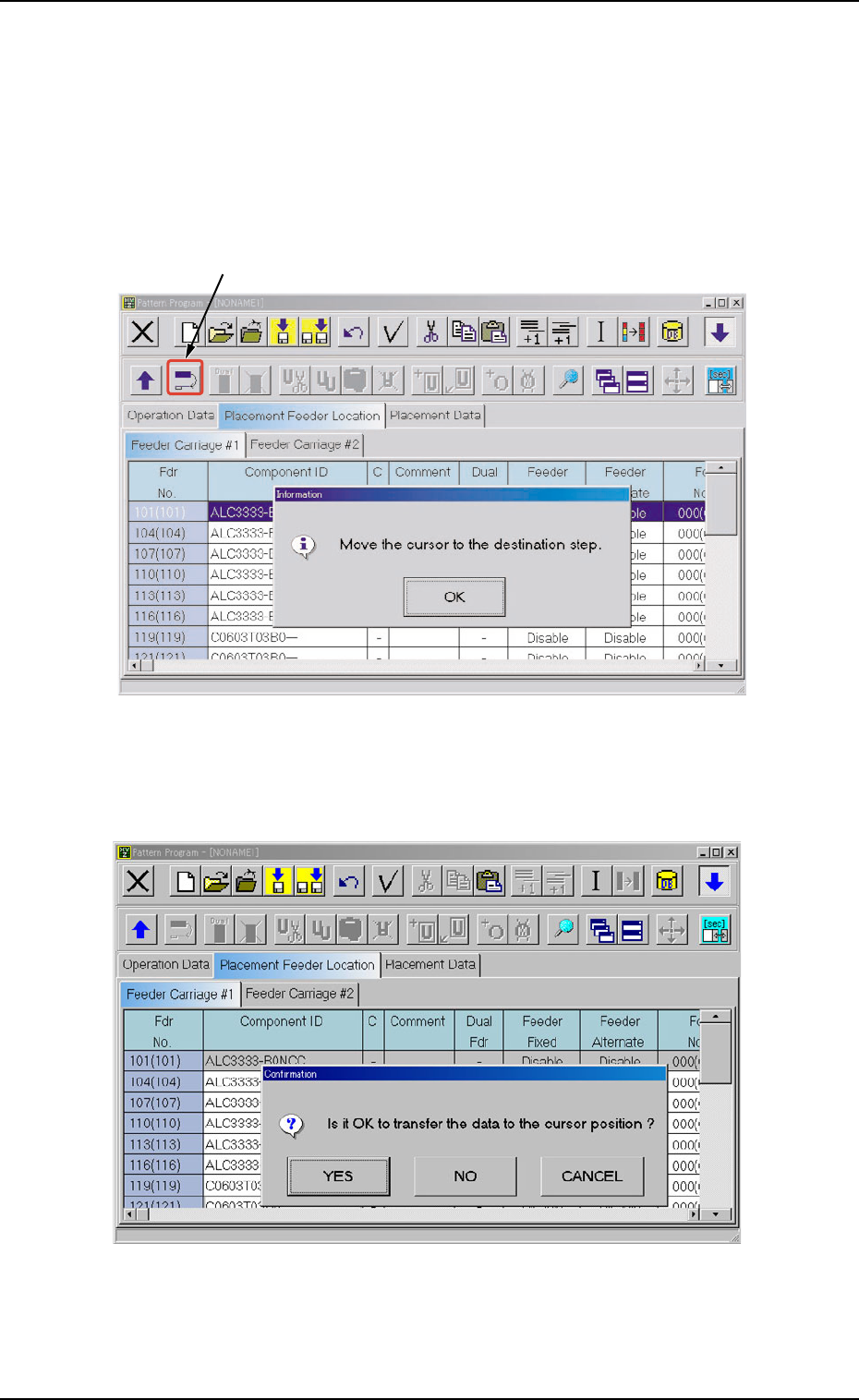
(2) Select the "Move the selected step data" icon.
Fig. 3B162
(3) Press the [OK] button and specify the destination step.
Fig. 3B163
4.3 "Placement Feeder Location" Tab
051 1-002 2-100 AIL01EDTP
"Move the selected step data" Icon
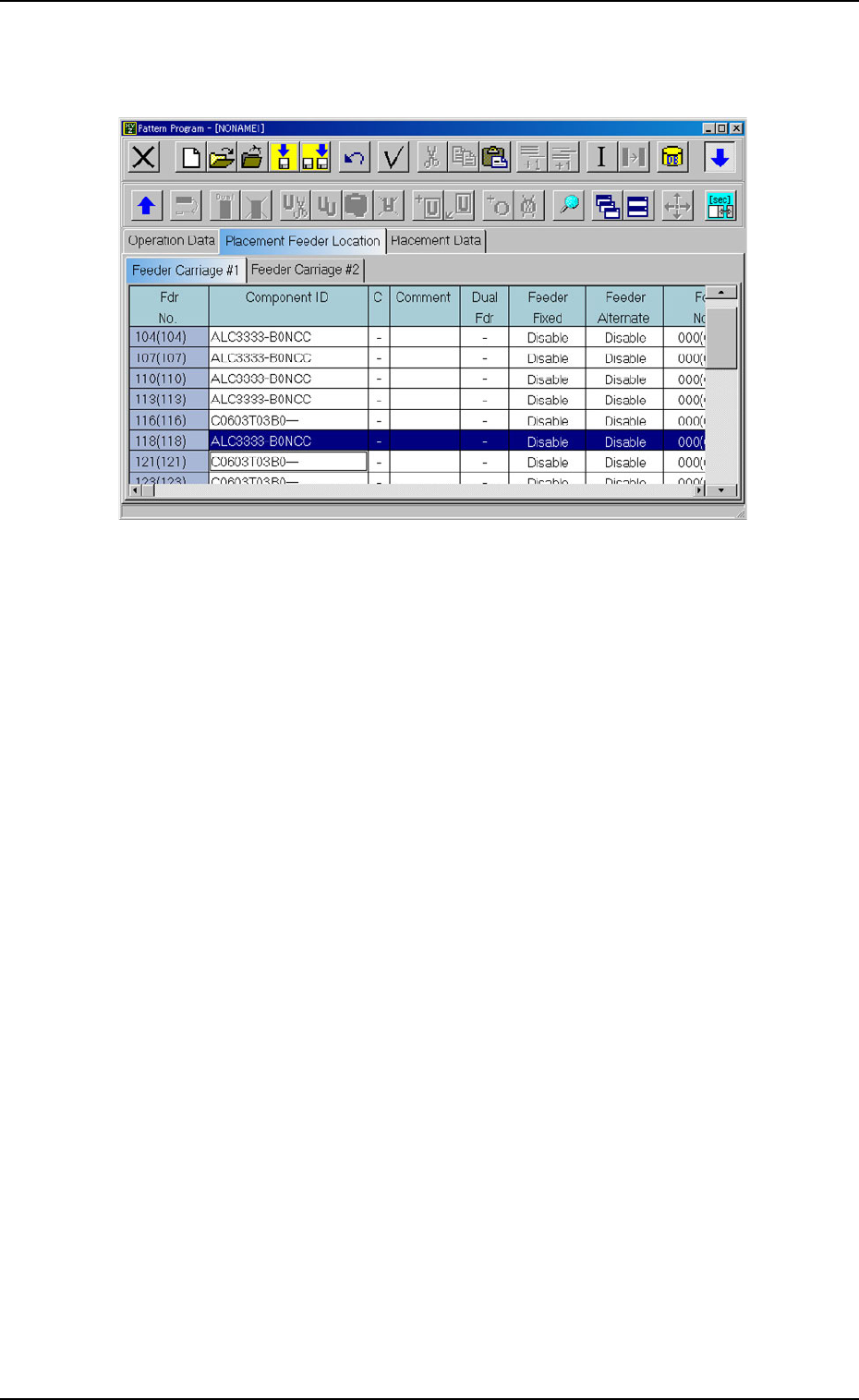
(4) Press the [YES] button. The line (step) of the selected Fdr. No. is
transferred to the step just above the specified line (step).
Fig. 3B164
4.3 "Placement Feeder Location" Tab
051 1-002 2-101 AIL01EDTP