3OM-1003-005.pdf - 第219页
3 .5 "Carrier Data" T ab The corresponding tab sheet appears when "Cylindrical", "Square", "De- form (Simple)", "IC (Simple)", "IC (Complex)", "Connector (…
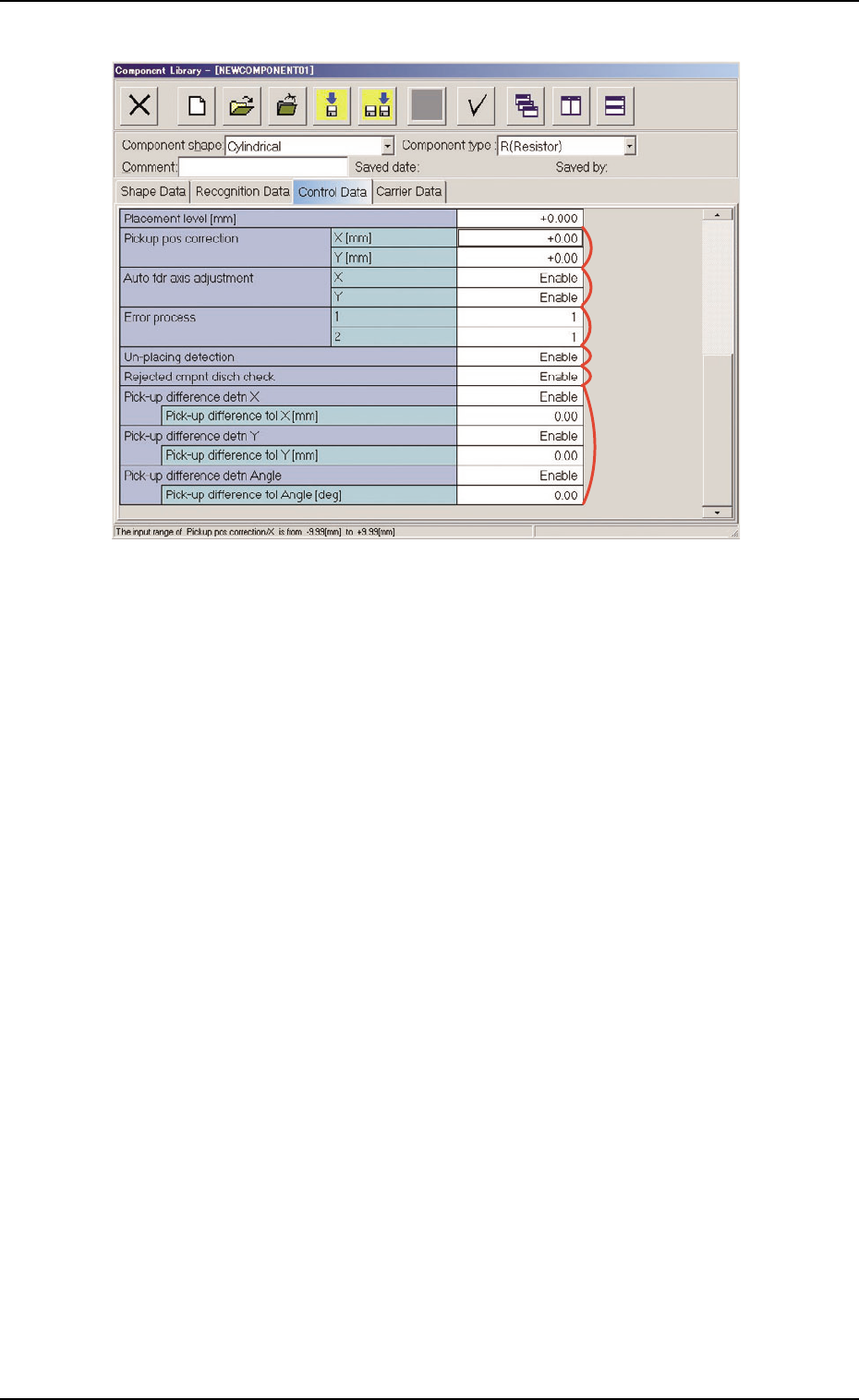
Fig. 3C23 "Control Data" Tab Sheet ("Cylindrical" Selected)
*8 Pickup pos correction, *9 Auto fdr axis adjustment,
*10 Error process, *11 Un-placing detection,
*12 Rejected cmpnt disch check
*13 Pick-up difference detn X, Y, Angle
Pick-up difference tol X [mm], Y [mm], Angle [deg]
When "Enable" is set in the "Pick-up difference detn X", "Pick-up
difference detn Y", and/or "Pick-up difference detn Angle" text box,
it is required to enter a parameter in the corresponding text box.
*9
*8
*10
*13
*12
*11
3.4 "Control Data" Tab
051 1-003 3-33 AIL01EDTP
3.5 "Carrier Data" Tab
The corresponding tab sheet appears when "Cylindrical", "Square", "De-
form (Simple)", "IC (Simple)", "IC (Complex)", "Connector (Simple)",
"Connector (Complex)", "Other Leaded (Simple)", or "Other Leaded
(Complex)", is selected in the "Component shape" text box.
• Sheet Layout
When the "Carrier Data" tab is pressed, the "Carrier Data" tab sheet
appears.
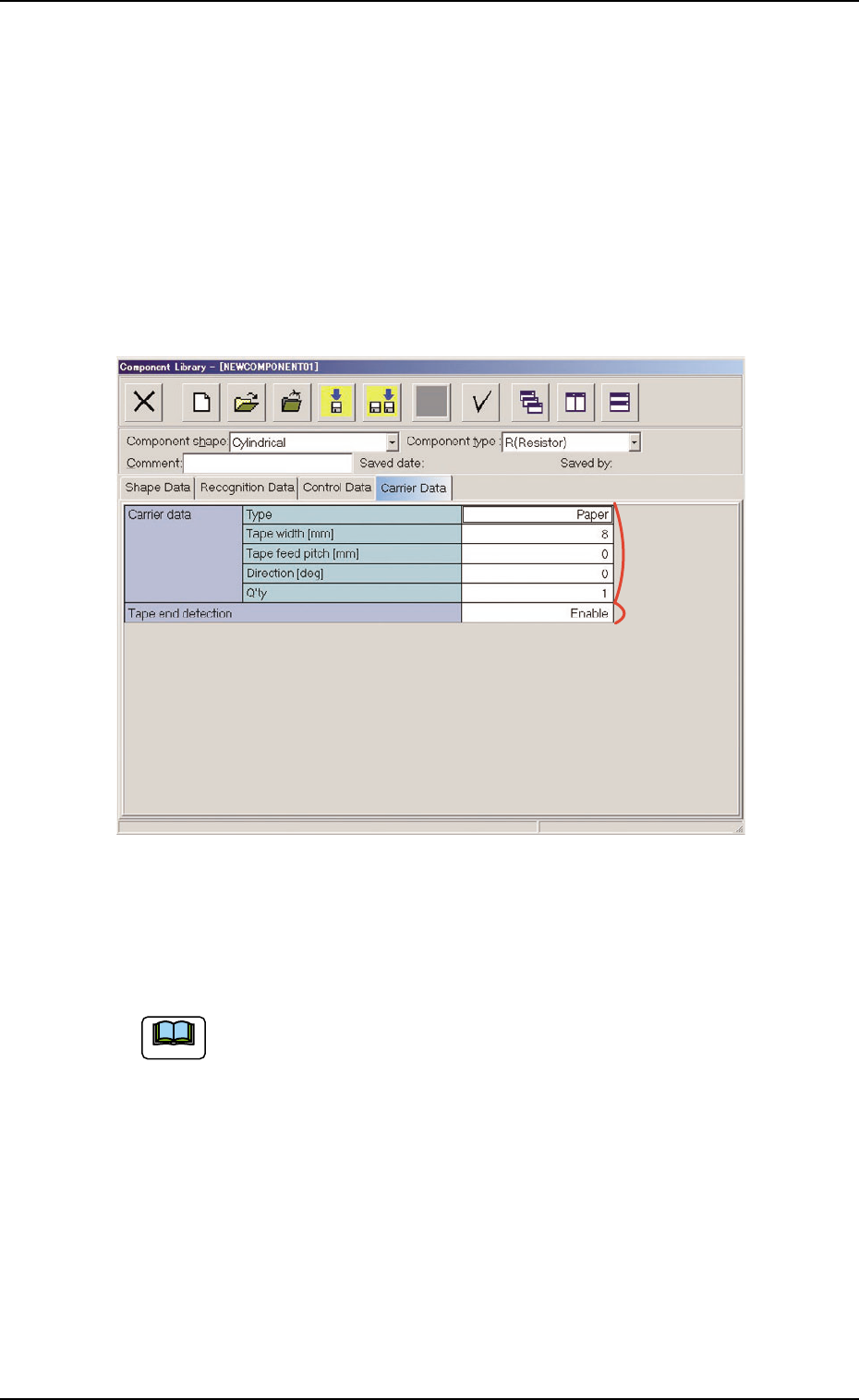
Fig. 3C24 "Carrier Data" Tab Sheet ("Cylindrical" Selected)
• Sheet Composition
Each parameter is displayed or can be entered.
Refer to "4.1.3 Basic Usage of Text Boxes" in "Section 2" for the
detailed information on how to enter parameters.
*1 Carrier data, *2 Tape end detection
*1
*2
3.5 "Carrier Data" Tab
051 1-002 3-34 AIL01EDTP
Note
4. Saving an active file of the component ID
The following describes how to save a newly created file (component
ID) or the edited parameters of the component ID.
• Operation Procedure
(1) Press the [
] or the [ ] icon on the toolbar.
[
] : Save
When pressed, this button saves the edited compo-
nent ID (file), replacing the original component ID (file)
with the current one.
[
] : Save As
When pressed, this button saves a newly created file
(data of a new component ID) or the edited file with
another name (component ID).
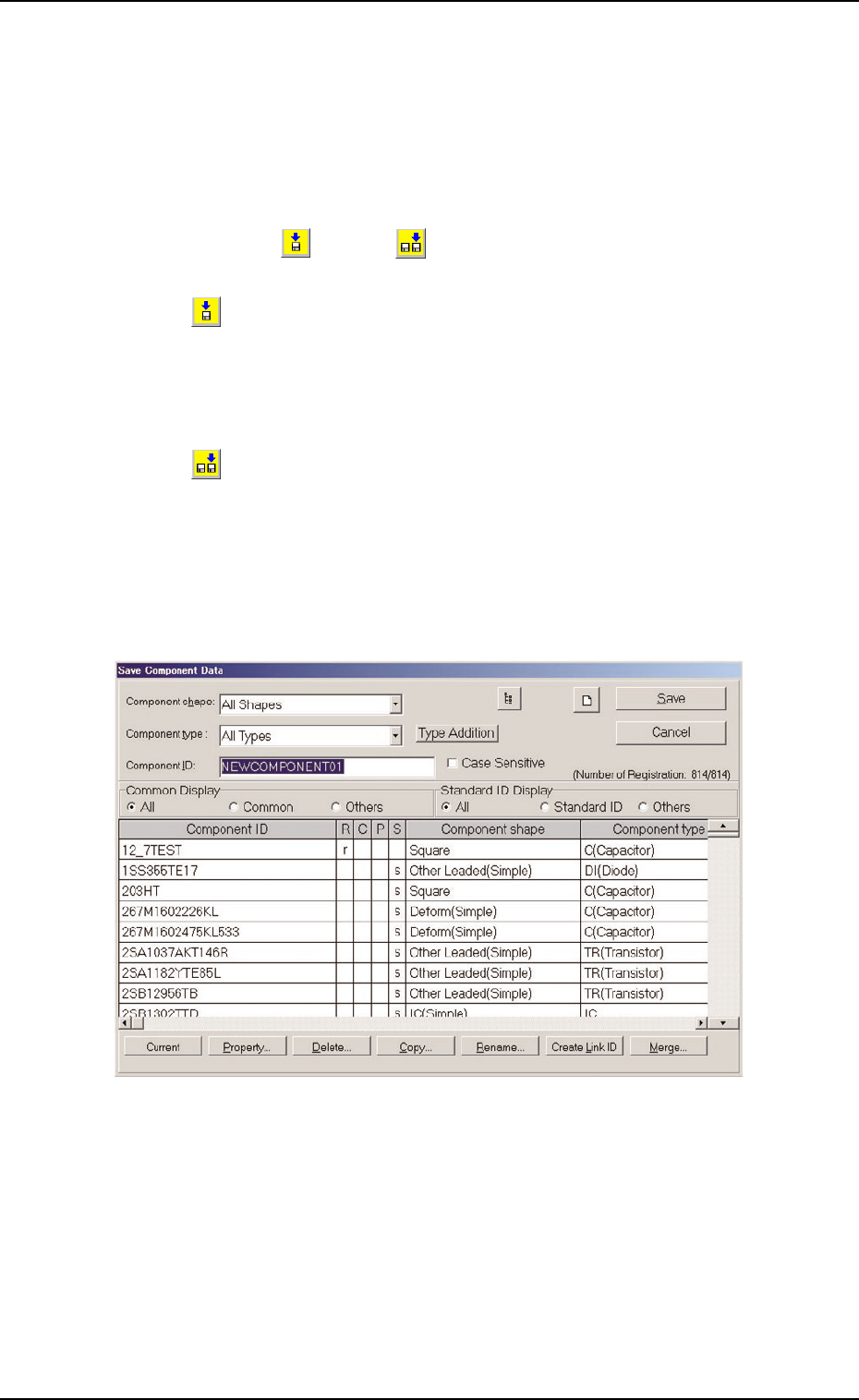
(2) When the [Save As] icon is pressed, the following window opens.
Fig. 3C25 "Save Component Data" Window
(3) Enter the pre-determined component ID as a file name in the "Com-
ponent ID" text box and press the [Save] button.
The data in the active edit window is saved as a file with the entered
component ID name.
4. Saving an active file of the component ID
051 1-002 3-35 AIL01EDTP