3OM-1003-005.pdf - 第231页
2 . 3 "Comp. Handling Err . Rate Dt." T ab The corresponding tab sheet enables the operator to check the pick-up rate calculated for each feeder or nozzle and based on each pick-up rate specified in the auto op…
0305-001 4-7 AIL01EDTP
2.2 "Patt. Prgm Manage. Dt." Tab
*4 [All] and [Search] Buttons
When pressed, this button makes it possible to search a program
name.
Enter characters in the text box under the [All] and [Search] button
and press the [Search] button. The program names which start with
the entered characters are displayed in the "Program Name"pane.
"*" (asterisk) and "?" (question mark) can be used as wild
cards.
abc* : The search function retrieves the program names
which start with "abc"
a?c : The search function retrieves the program names
which start with "a" and contain "c" as the third char-
acter.
When the [All] button is pressed, all program names appear.
*5 [Close] Button
When this button is pressed, the "Management Data" window closes.
Note
2.3 "Comp. Handling Err. Rate Dt." Tab
The corresponding tab sheet enables the operator to check the pick-up
rate calculated for each feeder or nozzle and based on each pick-up
rate specified in the auto operation setup data.
Refer to "3.3.1 "Auto Operation Setup" Tab" in "Section 5" for
the auto operation setup data.
• Sheet Layout
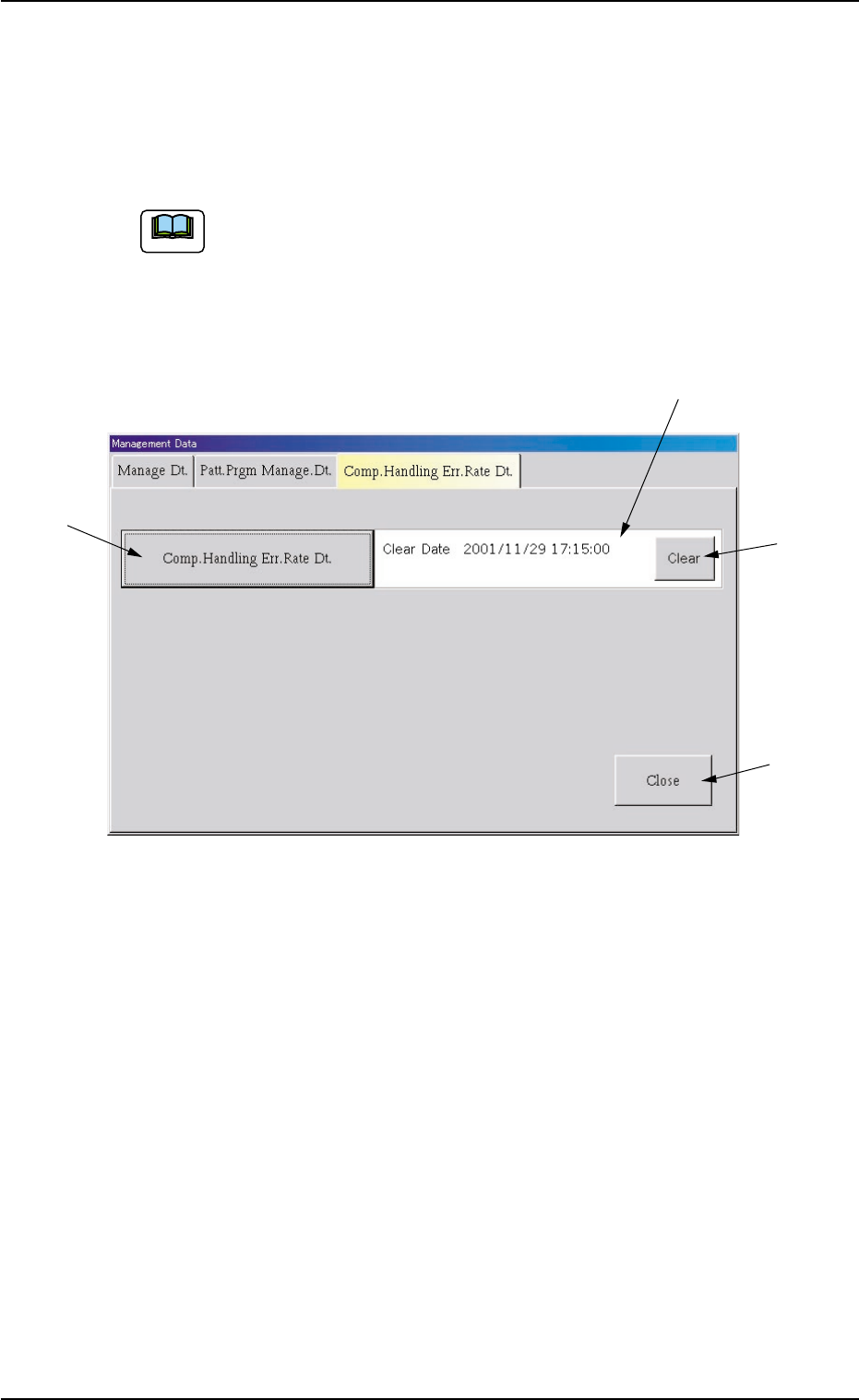
When the "Comp. Handling Err. Rate Dt." tab in the "Management Data"
window is pressed, the following tab sheet appears inside the window.
Fig. 3D4 "Comp. Handling Err. Rate Dt." Tab Sheet
• Sheet Composition
*1 [Comp. Handling Err. Rate Dt.] Button
When this button is pressed, the "Bypass & Rate Data - [Bypass]"
window opens.
Refer to "5. "Bypass & Rate Data" Window" for details.
*2 Clear Date and Comment
This pane displays the clear date & time and the comment of the
component handling error rate data.
*3 [Clear] Button
When this button is pressed, the component handling error rate data
is all cleared and the clear data & time is updated.
*4 [Close] Button
When this button is pressed, the "Management Data" window closes.
2.3 "Comp. Handling Err. Rate Dt." Tab
*3
*4
*2
*1
0305-001 4-8 AIL01EDTP
Note
3. "Management Data" Window
This window enables the operator to confirm the production performance
data covering the whole machine performance.
The contents of "Type #1" and "Type #2" are common to each other.
Distinguish between management spans and check the required items.
• Window Layout
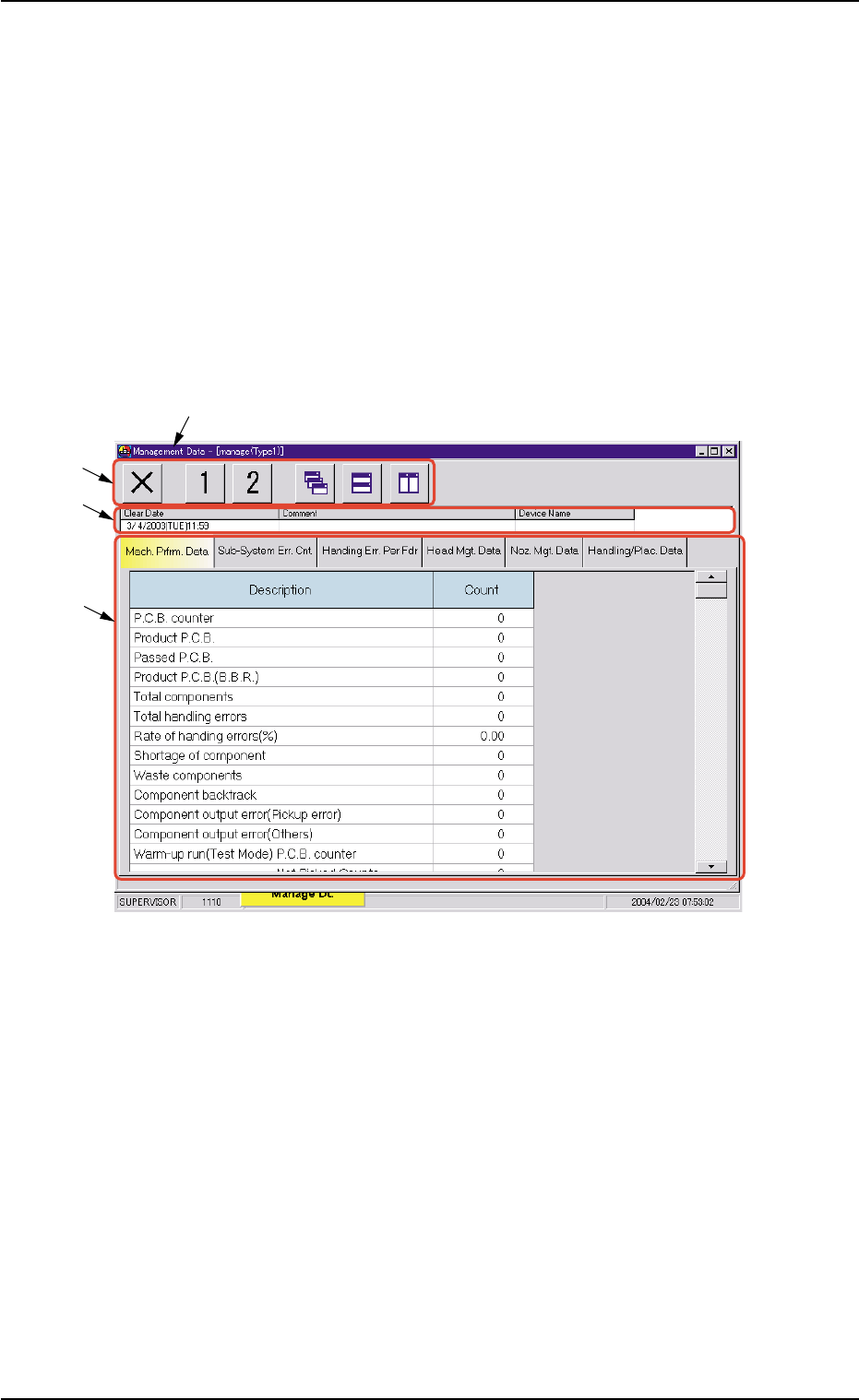
When the [Management Data] button is pressed in the "Manage Dt." tab
sheet, the"Management Data" window opens. (Operation Sequence:
[MGT DATA] Button on Main Menu Bar Æ "Management Data" Window
Æ [Manage Dt.] Button Æ "Management Data" Window).
Fig. 3D5 "Management Data" Window
• Window Composition
*1 Title Bar
The active window is titled "Management Data - [manage (Type1 or
Type2)] on this bar, making it clear which data (Type #1 or #2) is
selected.
*2 Toolbar
A collection of icons that typically make the common tools for all the
tab sheets easily accessible.
Refer to "3.1 Basic Operations in "Management Data" Window" for
the detailed information on how to use the icons.
3. "Management Data" Window
*3
*4
*1
*2
0403-002 4-9 AIL01EDTP