3OM-1003-005.pdf - 第235页
3.1.2 Navigations in "manage (T ype #)" Windows (1) How to close the "manage (T ype #)" window When the " " icon is pressed, the "manage (T ype #)" window closes. (2) How to select…
3.1 Basic Operations in "Management Data" Window
3.1.1 Toolbar and Icons
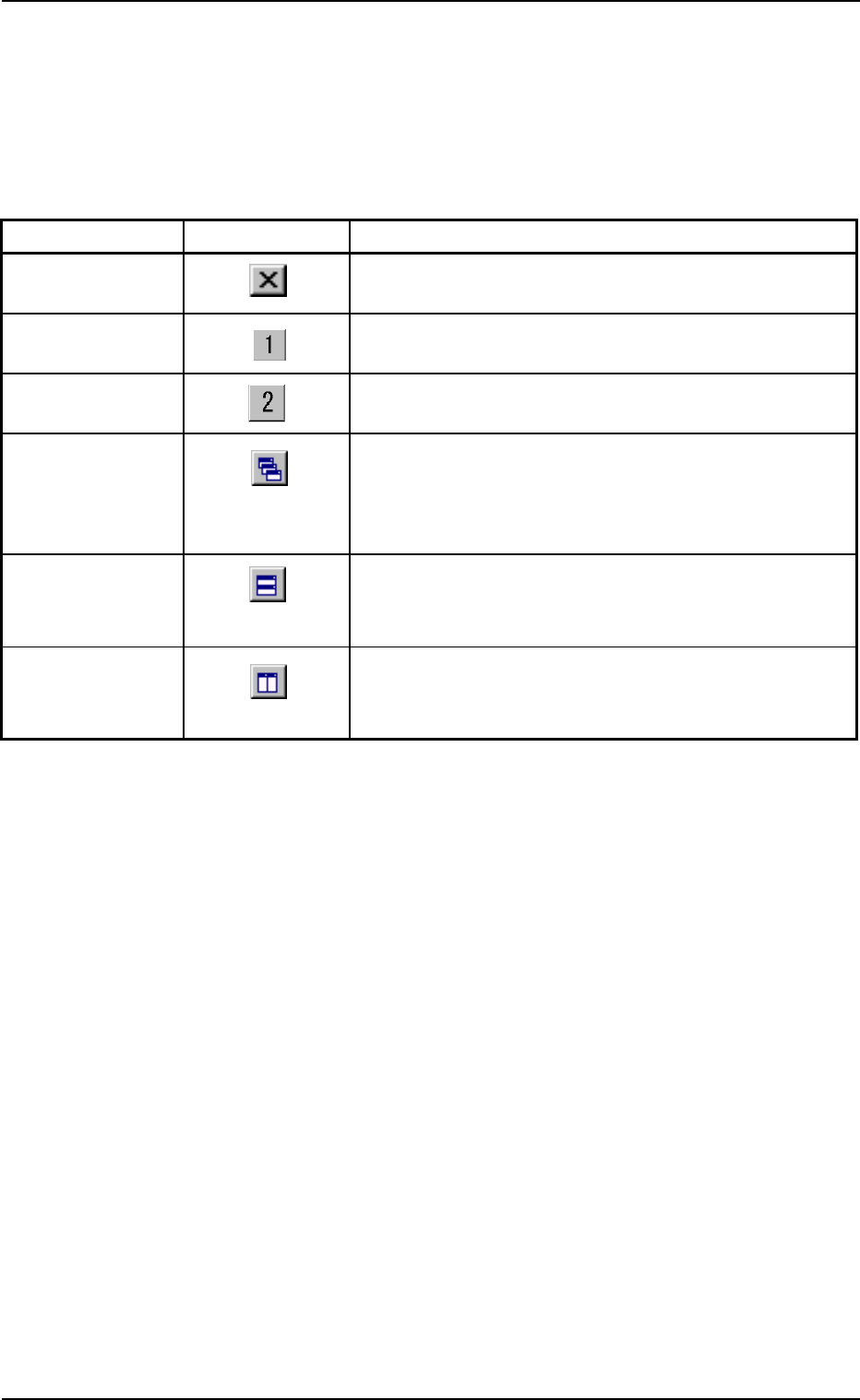
The following table shows the functions of the icons on the toolbar.
Table 3D4
Commands Icons Functions
Close When pressed, this button closes the "Management
Data - [manage (Type#)]" window.
Type1 When pressed, this button makes the "Management
Data - [manage (Type1)]" window visible.
Type2 When pressed, this button makes the "Management
Data - [manage (Type2)]" window visible.
Cascade When the "manage (Type1)" and the "manage (Type2)"
windows are opened at the same time, cascading the
windows overlays them so that you can see each title
bar.
Tile Horizontally When the "manage (Type1)" and the "manage (Type2)"
windows are opened at the same time, each window
is re-arranged up and down.
Tile Vertically When the "manage (Type1)" and the "manage (Type2)"
windows are opened at the same time, each window
is re-arranged side by side.
3.1 Basic Operations in "Management Data" Window
0305-001 4-11 AIL01EDTP
3.1.2 Navigations in "manage (Type #)" Windows
(1) How to close the "manage (Type #)" window
When the "
" icon is pressed, the "manage (Type #)" window
closes.
(2) How to select a "manage (Type #)" window
When the "
" icon is pressed, the "manage (Type1)" window be-
comes active.
When the "
" icon is pressed, the "manage (Type2)" window be-
comes active.
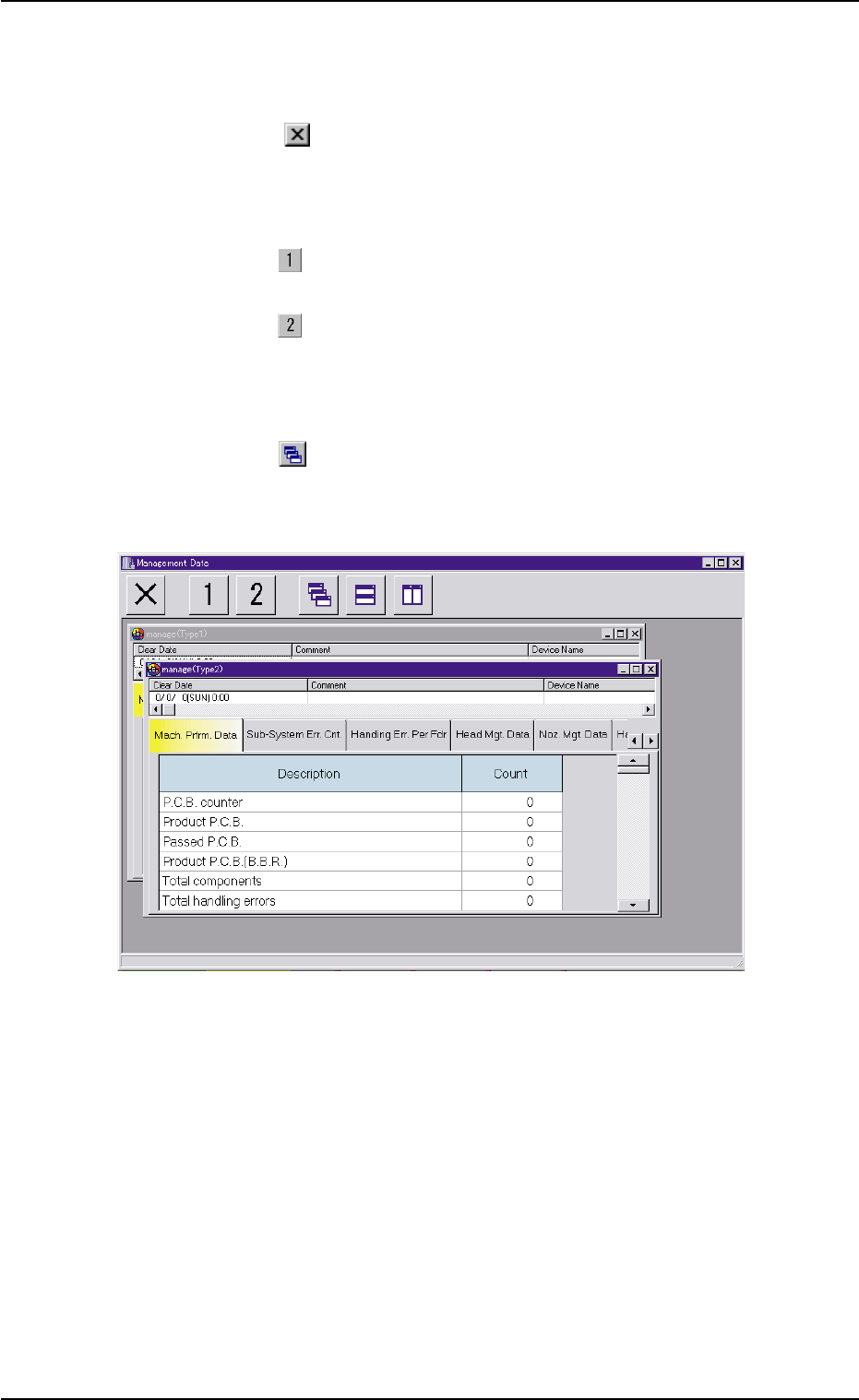
(3) How to cascade two "manage (Type #)" windows
When the "
" icon is pressed, the "manage (Type1)" and "man-
age (Type2)" windows are cascaded (overlaid), making each title
bar visible.
Fig. 3D6 Cascaded "Management Data" Windows
3.1 Basic Operations in "Management Data" Window
0305-001 4-12 AIL01EDTP
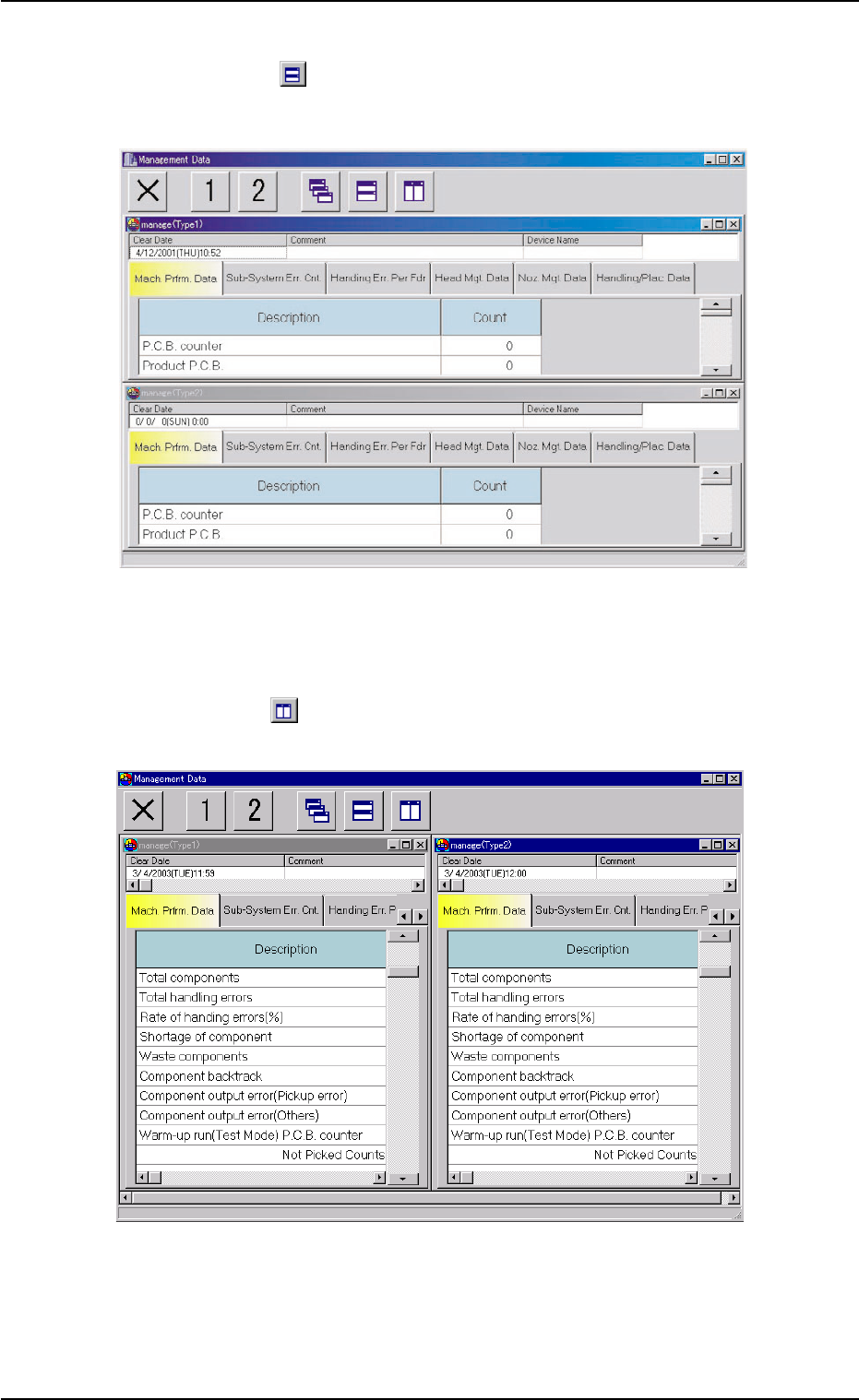
(4) Tile Horizontally
When the "
" icon is pressed, the "manage (Type1)" and "man-
age (Type2)" windows are re-arranged up and down.
Fig. 3D7 Horizontally Tiled "manage (Type1)" and "manage (Type2)" Windows
(5) Tile Vertically
When the"
" icon is pressed, the "manage (Type1)" and "manage
(Type2)" windows are re-arranged side by side.
Fig. 3D8 Vertically Tiled "manage (Type1)" and "manage (Type2)" Windows
3.1 Basic Operations in "Management Data" Window
0403-002 4-13 AIL01EDTP