MV-9_Chapter 5. Teaching.pdf - 第103页
错误 ! 使用“开始” 选项卡将 제목 2 应用于要在此处显示的文字。 错误 ! 使用“开始”选项卡将 제목 2 应用 于要在此处显示的 文字。 . 5- 103 Basically , select hor izo nta l + vertical light and G or L or in general , horizontal light and L that clearly show s pol arity m ark …
MV-9 User Manual
5-102
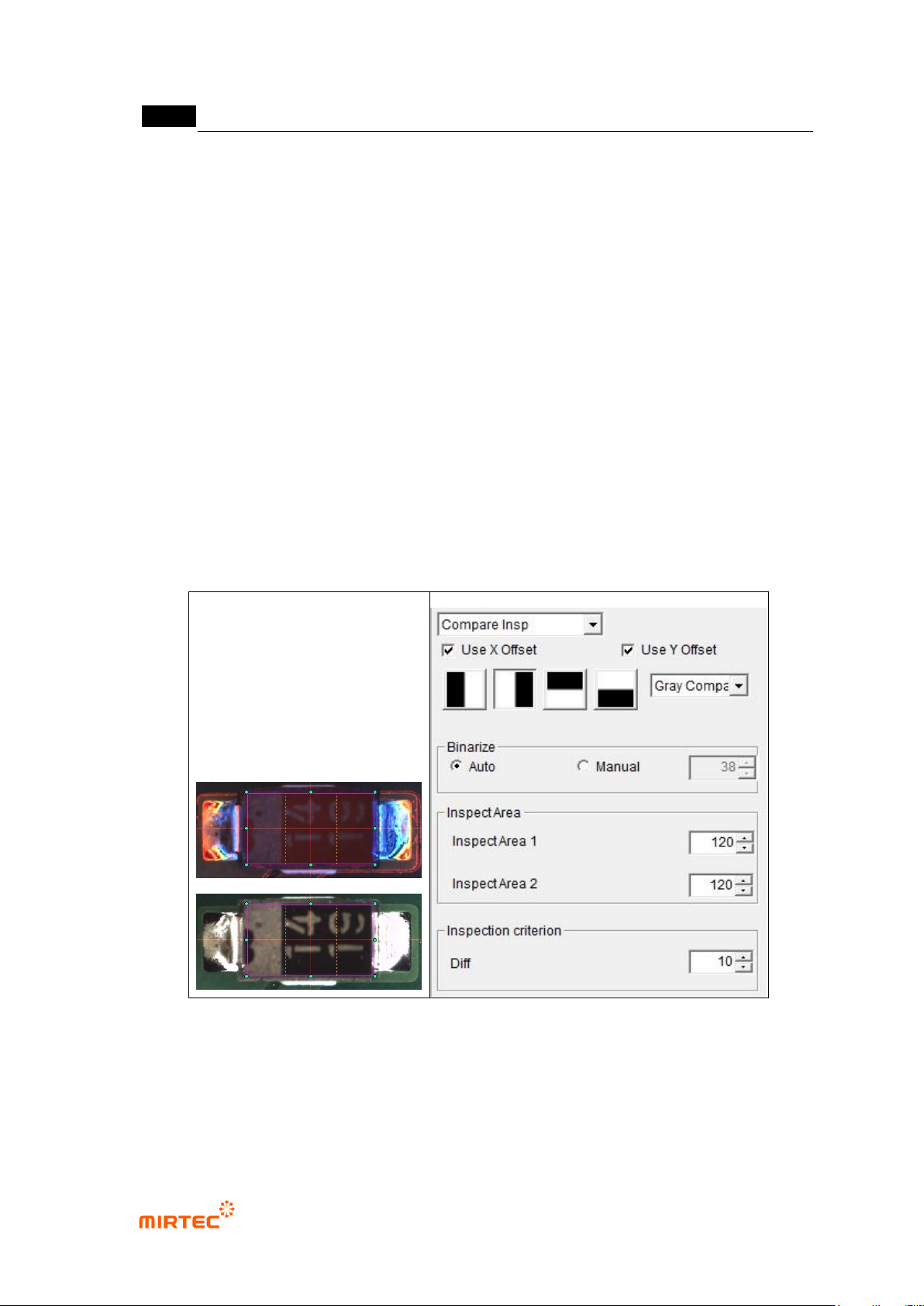
10) Comparison inspection
- Comparison inspection is an algorithm to inspect polarity of component that has polarity
such as diode and electrolytic condenser.
① Teaching method
(a) Draw inspection window in body area of inspection component.
(b) Select light type and image type.
(c) Select inspection type according to position of polarity mark.
(d) Select comparison method (pixel comparison, luminance comparison)
(e) If pixel comparison is selected for comparison method, click preview in operation
window. Auto or manually select binarization method to clearly display white band at
polarity part, and adjust binarization value.
(f) Set inspection area for pixel or luminance comparison
(g) Set inspection criteria
[Figure 5-106 comparison inspection teaching example]
② Parameter description
- Light type and image type
Select light type and image type for good separation of polarity part.
错误!使用“开始”选项卡将 제목 2 应用于要在此处显示的文字。错误!使用“开始”选项卡将 제목 2 应用
于要在此处显示的文字。 .
5-103
Basically, select horizontal + vertical light and G or L or in general, horizontal light
and L that clearly shows polarity mark and character can be selected.
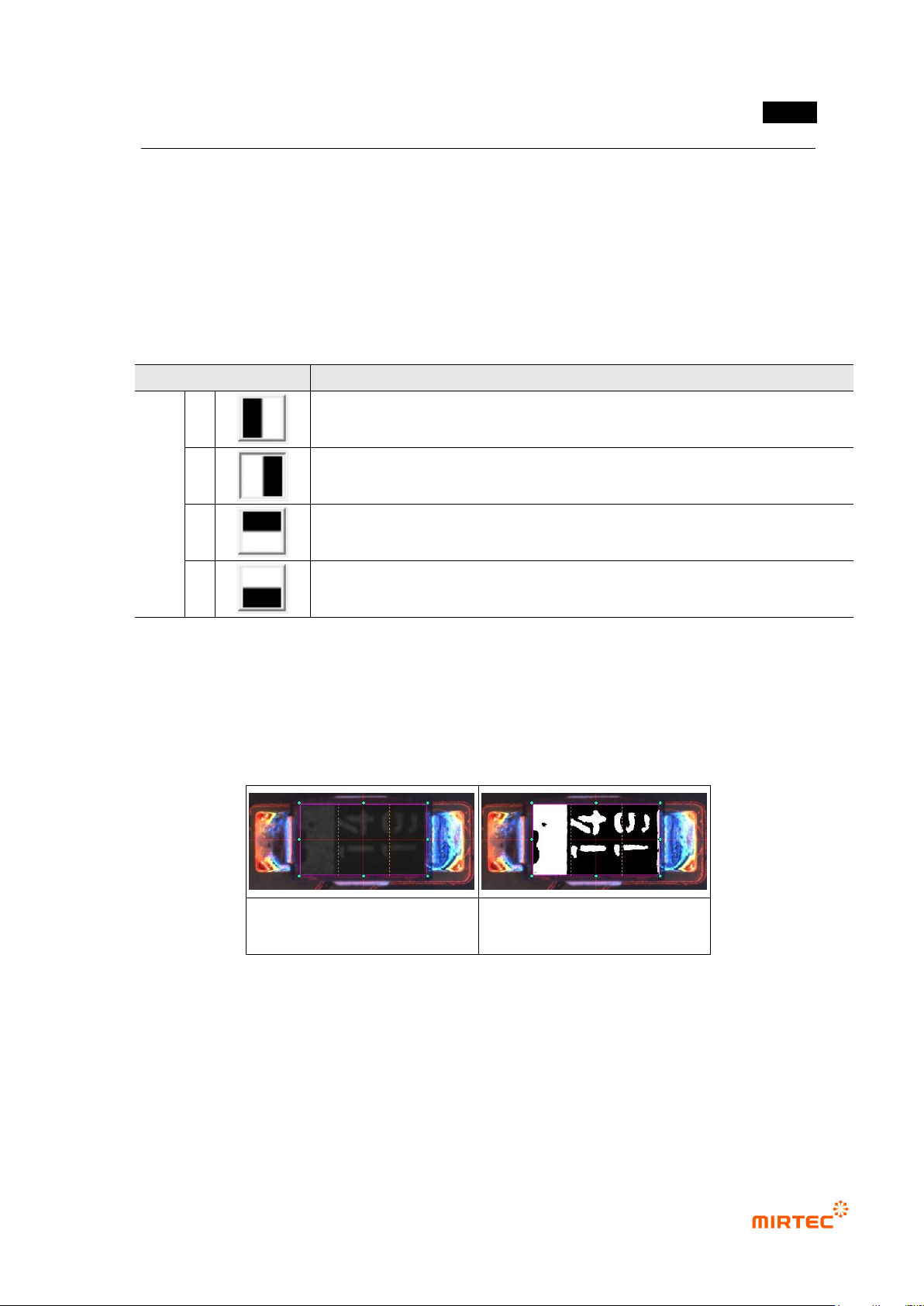
- Inspection type
In case of component with, diode has white band to display polarity, and electrolytic
condenser has black area on cap part. Select inspection type according to direction
of this characteristic.
[Table 5-8 Solder inspection – comparison inspection polarity inspection type]
Detection type
Description
Insp
ectio
n
type
1
Select for component that has white polarity mark on the right or
component that has black polarity mark on the left
2
Select for component that has white polarity mark on the left or
component that has black polarity mark on the right
3
Select for component that has white polarity mark on the bottom or
component that has black polarity mark on the top
4
Select for component that has white polarity mark on the top or black
component that has polarity mark on the bottom
- Comparison method
For comparison, there are pixel comparison to which binarization is applied and
luminance comparison that used luminance information.
In general, pixel comparison is used. Luminance comparison can be used if
contrast between 2 areas is high.
luminance comparison preview
image
pixel comparison preview
[Figure 5-107 comparison method type]
- Binarization
If pixel comparison is selected for comparison method, adjust binarization for good
separation of polarity mark area.
- Inspection area
MV-9 User Manual
5-104
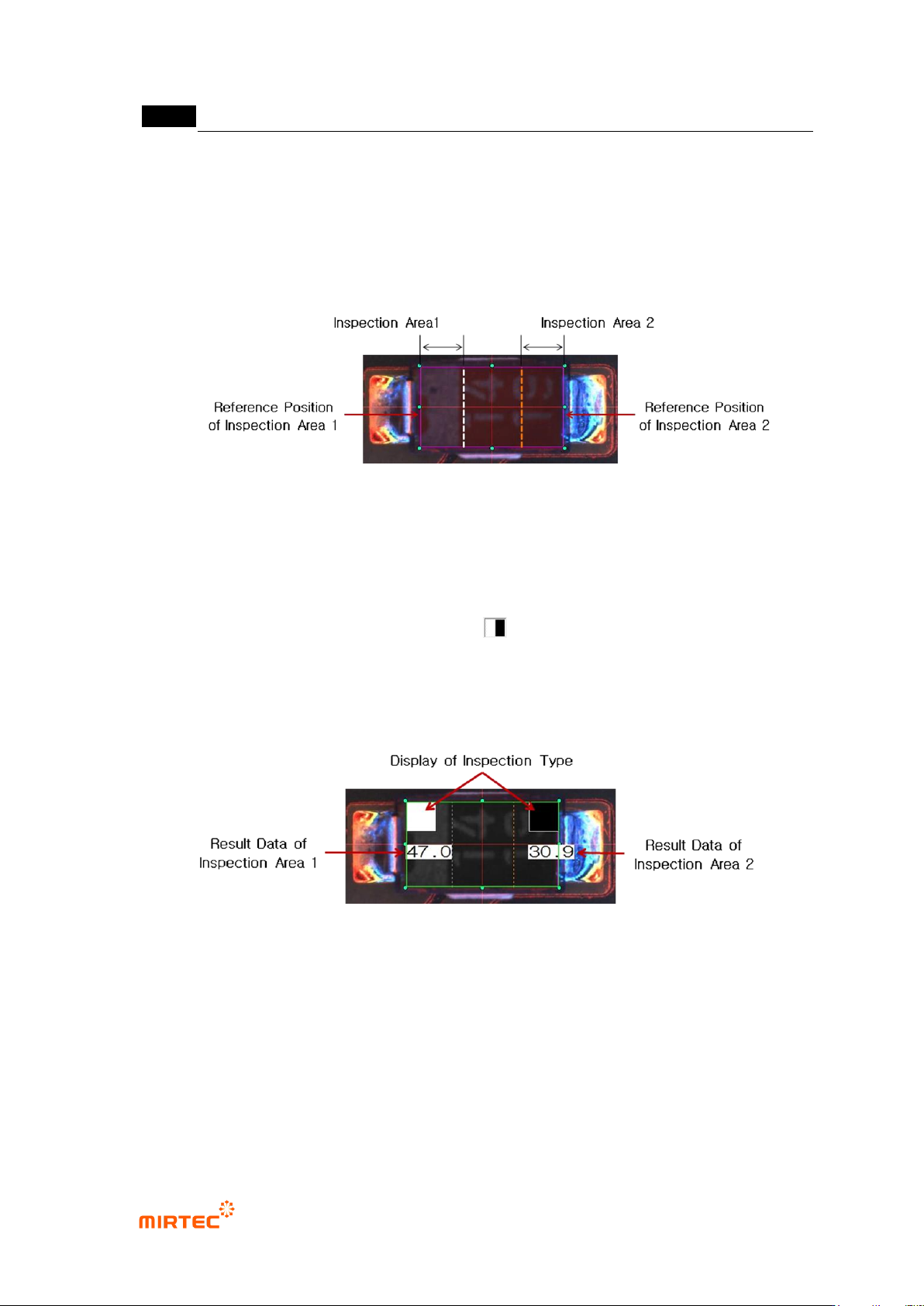
Width of each inspection area can be designated in electrode display area and
comparison target area.
White line is boundary line for inspection area 1, and yellow line is boundary line for
inspection area 2 during teaching. The left and top will be allotted as inspection
area 1, and right and bottom will be allotted as inspection area 2 based on based
on 0 degree during teaching, and they rotate together according to rotation angle.
[Figure 5-108 inspection area setting]
- Inspection criteria
Set difference of luminance between 2 areas or difference of pixel ratio. Sign of
inequality will be judged by inspection type.
For example, when inspection type is selected, judged as normal if inspection
criteria of inspection area 1 is higher than inspection area 2.
③ Inspection result in status screen
[Figure 5-109 Comparison inspection result display status (Trial inspection)]
- Result (Left White> Right Black): difference (Diff) between inspection result value 2 areas.
The left in brackets is white and the right is black, and calculation value in the left must be
above the right.
- Area 1, Area 2: average luminance or white pixel ratio of each area
- Gray Level Diff or White Pixel Diff: difference of average luminance of 2 areas or difference
of white pixel ratio