MV-9_Chapter 5. Teaching.pdf - 第245页
错误 ! 使用“开始” 选项卡将 제목 2 应用于要在此处显示的文字。 错误 ! 使用“开始”选项卡将 제목 2 应用 于要在此处显示的 文字。 . 5- 245 All inspection window type: select a ll inspect ion window of sam e type with the selecte d inspe c tion w i ndows. Selected inspection wi…
MV-9 User Manual
5-244
Component edit
This is used to create many single inspection windows for one component and edit desired
part in combination of these inspection windows.
Component library register
Refer to „7.1library function (page 7-5)‟ in „Chapter 7 additional function‟.
Package library register
Refer to „7.1library function (page 7-5)‟ in „Chapter 7 additional function‟.
Library representative image refresh
This option is used to change representative image that is firstly saved image of single
component window applied to library to current window.
Library batch apply
This option is used to batch apply setting value of each single component windows that are
registered in the library
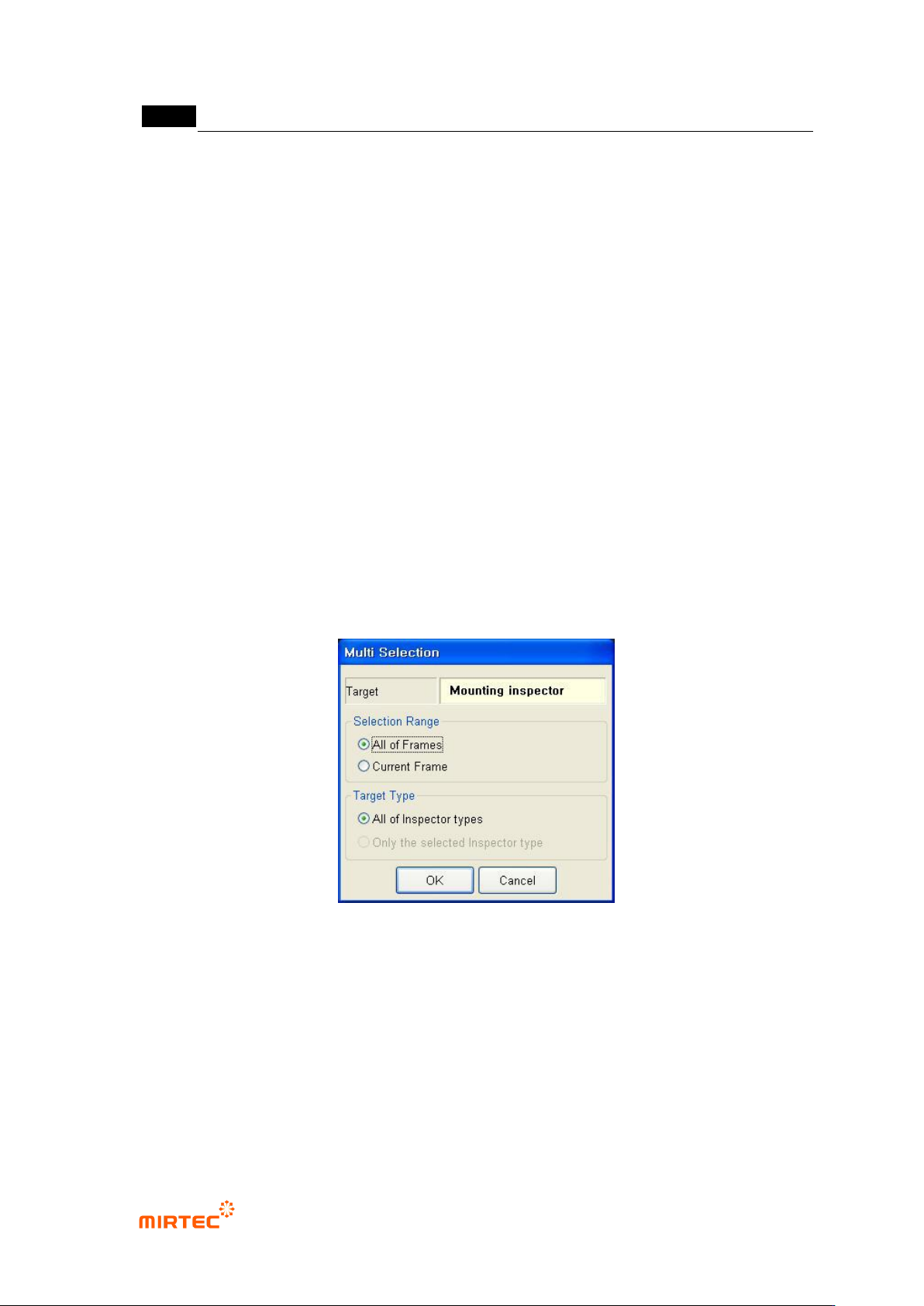
Same type window select
This is used to select the relevant inspection windows in order to change, delete and edit
parameter value of same type of inspection windows.
[Figure 5-320 multiple inspection window selection]
Selection target
Display type of the selected inspection window.
Selection range
All model: Find same type with the selected inspection window in all frames.
current frame: Find same type with the selected inspection window only in the current
frame.
Target type
错误!使用“开始”选项卡将 제목 2 应用于要在此处显示的文字。错误!使用“开始”选项卡将 제목 2 应用
于要在此处显示的文字。 .
5-245
All inspection window type: select all inspection window of same type with the selected
inspection windows.
Selected inspection window type: select only inspection type to which the selected
inspection window belongs.
i. Set selection range and target for the selected inspection window and click <OK>
button in multiple inspection window selection screen.
ii. If „all model‟ is selected in „Selection range‟, the robot will move to the frame at
which the first window of the selected inspection window is included.
iii. To change parameter value of inspection window, change parameter value
displayed in the relevant operation status screen in the main screen. At this point,
the value of the all selected inspection windows to the same value.
5.5.4 Additional functions during multiple inspection window selection
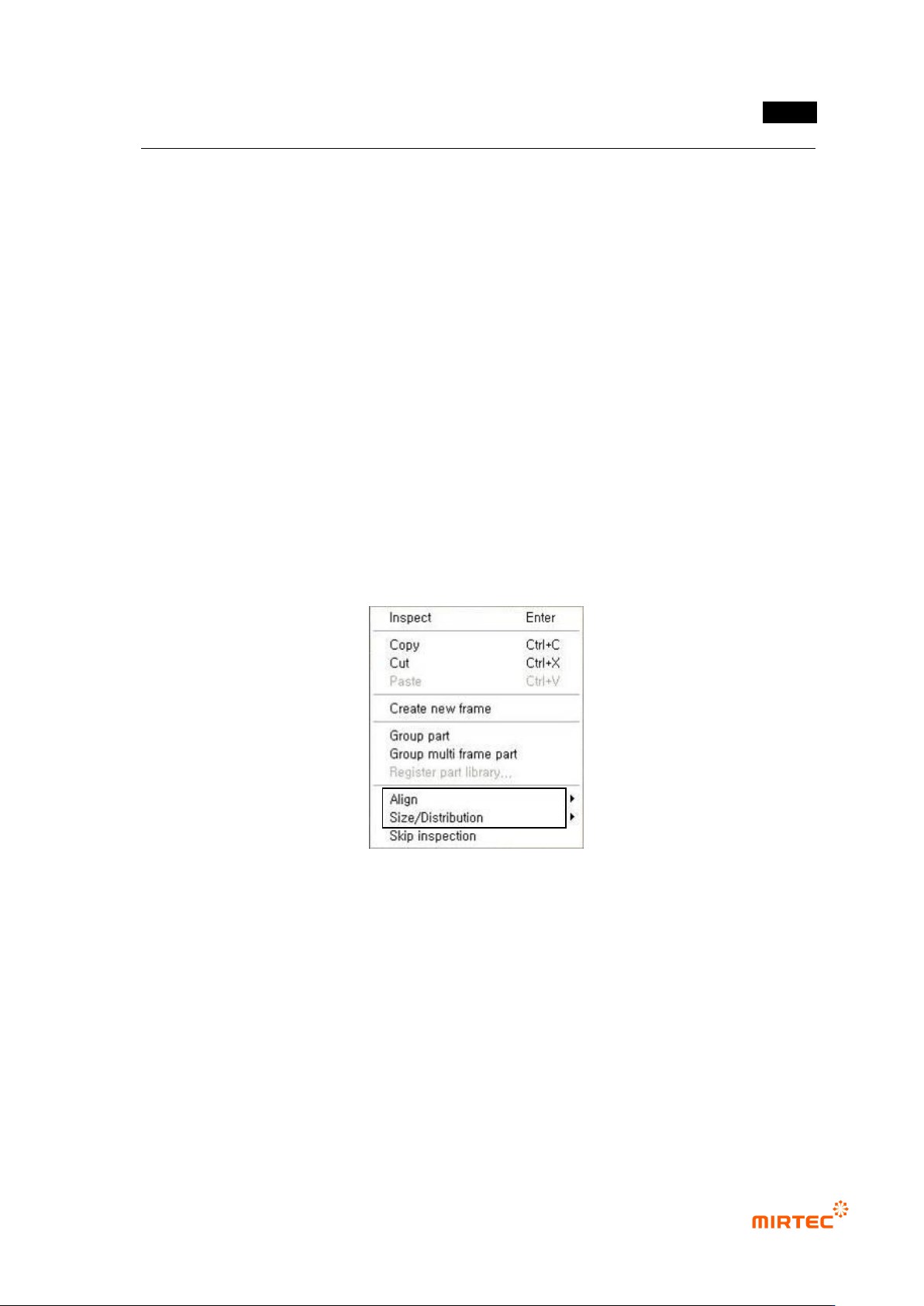
For multiple selection of inspection window in the relevant frame, click <object select> button
among „operating buttons‟ to select windows desired to be inspected or select each window using
„Ctrl + mouse left-click‟.
[Figure 5-321 add menu for inspection window multiple selection]
Align
This is used to align many inspection windows to up/down/left/right direction based on reference
inspection window. inspection window that is lastly selected during multiple selection or press
„Ctrl‟ key in the selected inspection windows to set the selected inspection window to reference
inspection window.
MV-9 User Manual
5-246
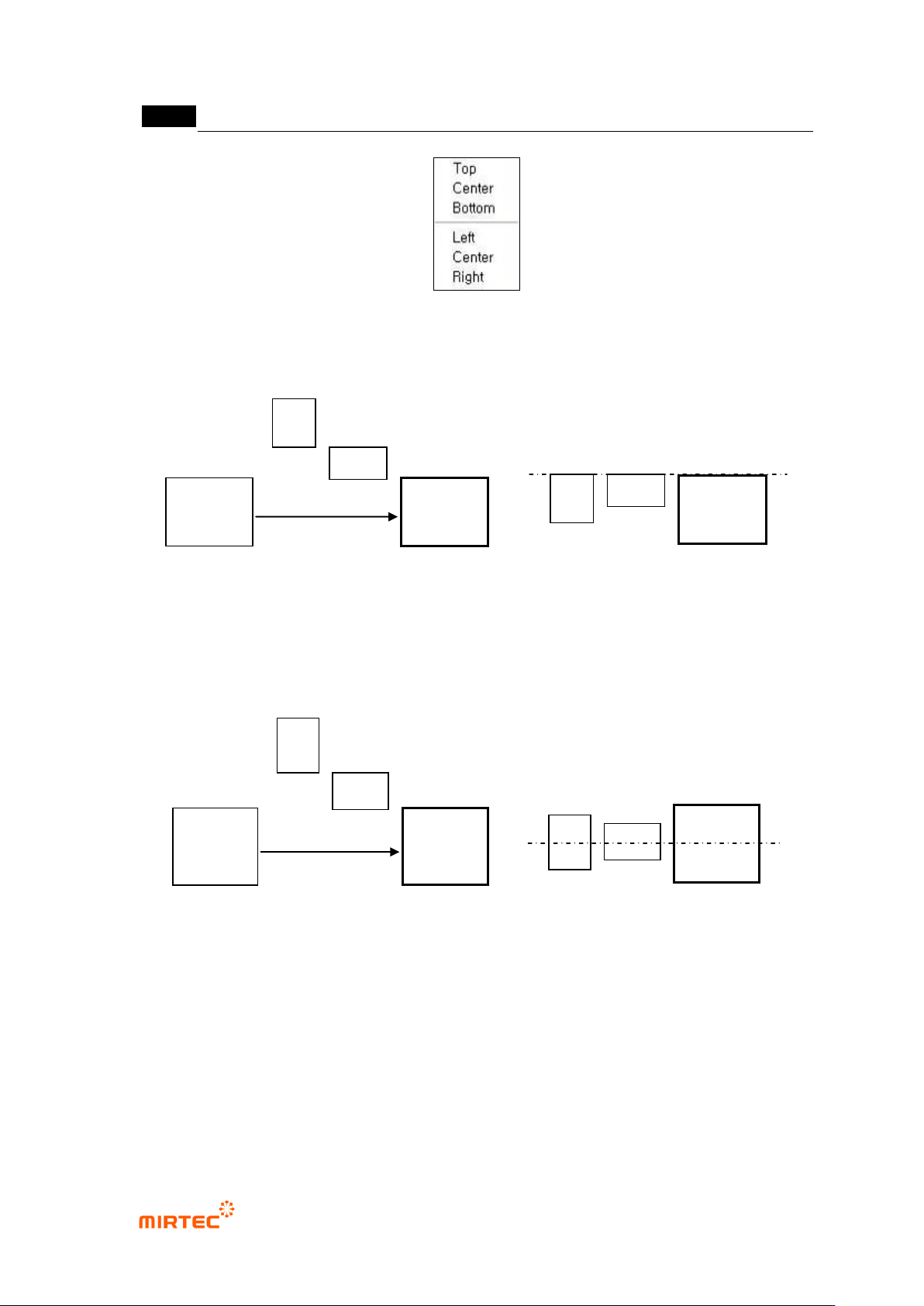
[Figure 5-322 inspection windows alignment method]
Top
This is to align based on the top of reference inspection window.
[Figure 5-323 Top alignment of inspection windows]
Center
This is to align based on the center of reference inspection window.
[Figure 5-324 Center alignment of inspection windows]
Bottom
This is to align based on the bottom of reference inspection window.
Before
alignment
After alignment
Reference
window
inspection
Before alignment
After alignment
Reference
window
inspection