MV-9_Chapter 5. Teaching.pdf - 第12页
MV -9 Use r Manual 5- 12 [Figure 5- 15 PCB area setting screen] ⑤ M ove the robot to the left dow n part of PCB, c lick <Down/le f t > button, and m o ve the robot to right up part and then click <Up/right > …
错误!使用“开始”选项卡将 제목 2 应用于要在此处显示的文字。错误!使用“开始”选项卡将 제목 2 应用
于要在此处显示的文字。 .
5-11
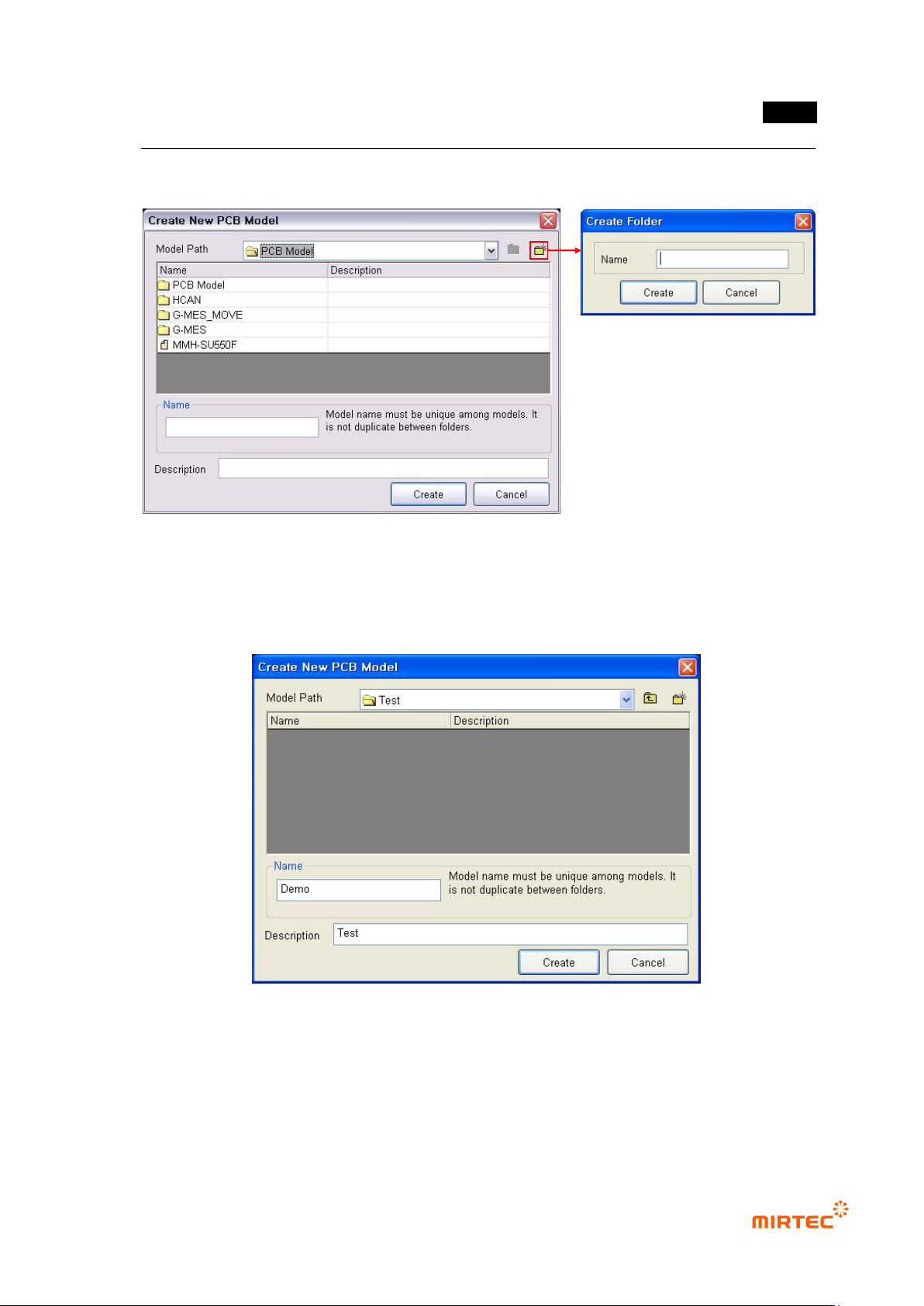
② To create a new PCB model in a new folder, as shown in [Figure5-13], click <folder> button
and enter folder name to be newly created.
[Figure 5-13 screen to create a new PCB model folder]
③ Click newly created folder, input name and description of a model that will be created, and
then click <Create> button. At this point, name of the model to be created must have unique
name among the whole registered model names.
[Figure 5-14 Screen to input name of a new PCB model folder]
④ Register a name of a new PCB model to display model area screen to set PCB area as
shown in the figure below.
MV-9 User Manual
5-12
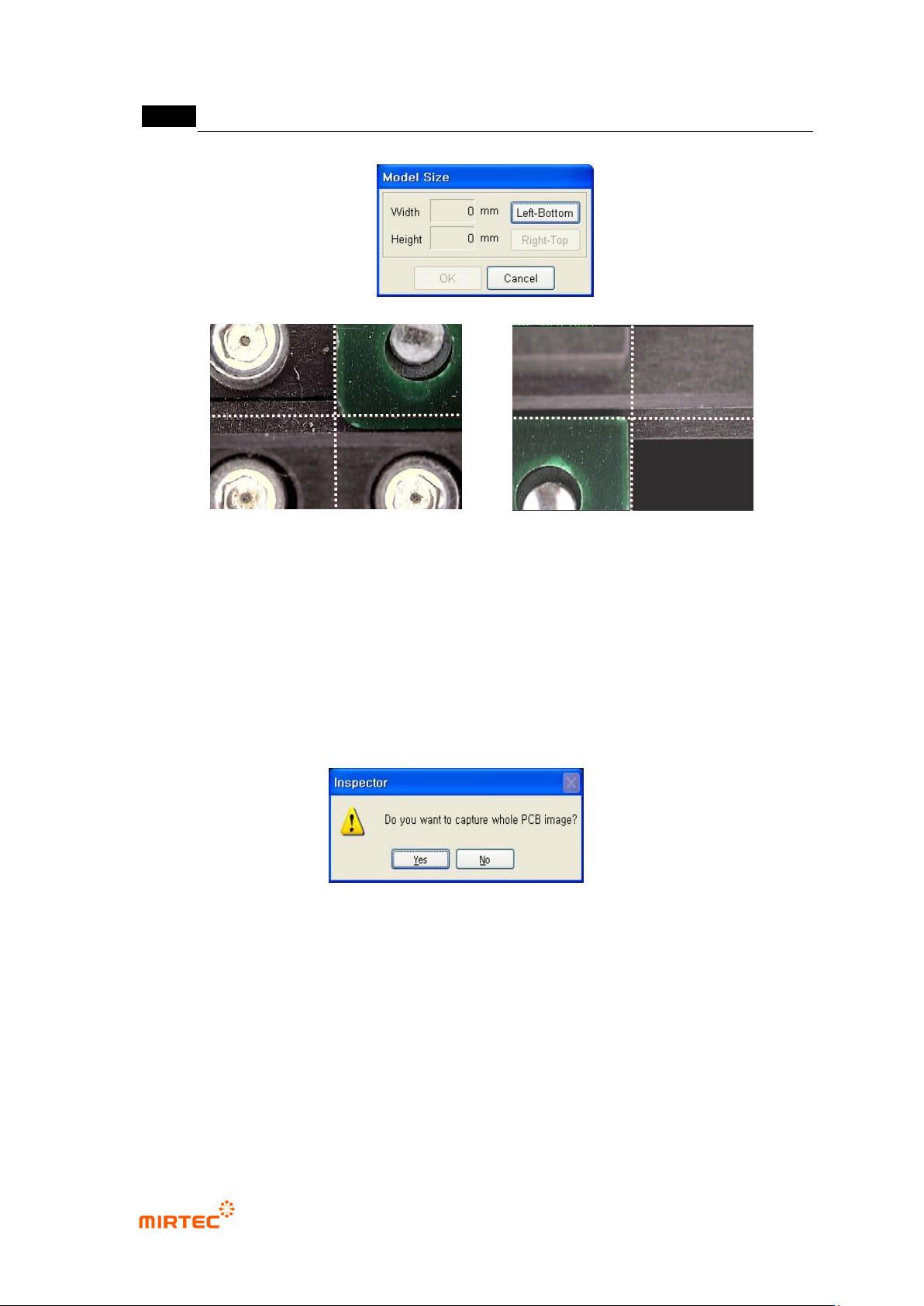
[Figure 5-15 PCB area setting screen]
⑤ Move the robot to the left down part of PCB, click <Down/left> button, and move the robot to
right up part and then click <Up/right> button in model area screen to set the size of new
PCB model. After setting, click <OK> button.
⑥ After size setting of a new PCB model, screen to ask if a user wants to image an image that
will be displayed in whole image screen. Click <Yes (Y)> button to image whole PCB image.
[Figure 5-16 Whole imaging confirmation screen]
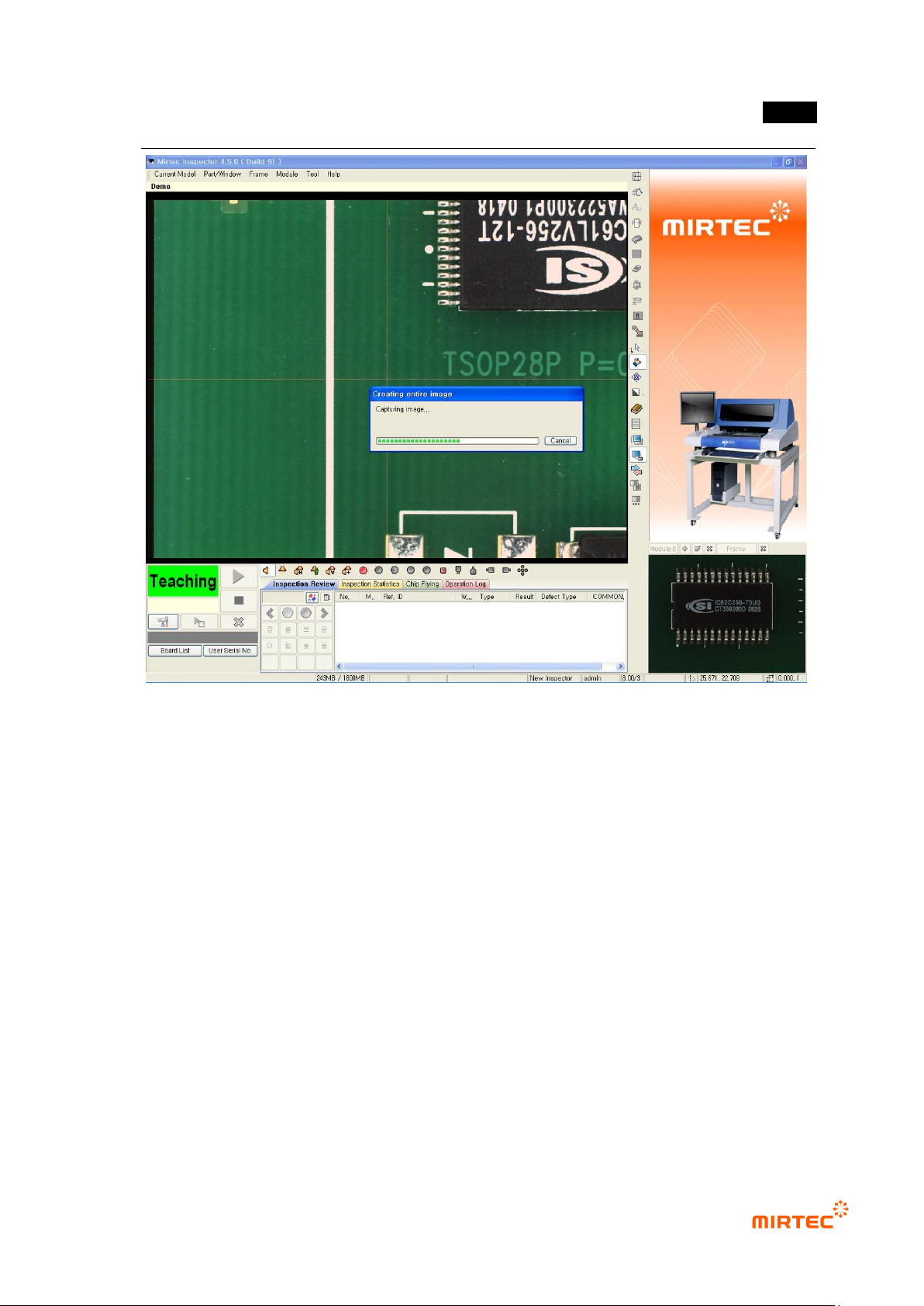
⑦ As shown in [Figure5-16], robot will image the whole PCB image from down/left part to
up/right part of PCB. At this point, currently imaged image will be displayed in whole image
screen.
(Left Bottom)
PCB
PCB
(Right Top)
错误!使用“开始”选项卡将 제목 2 应用于要在此处显示的文字。错误!使用“开始”选项卡将 제목 2 应用
于要在此处显示的文字。 .
5-13
[Figure 5-16 Whole PCB imaging screen]
2) Setting the module Fiducial mark
Module Fiducial mark is a reference mark to check PCB mount position among created images in
created many frames in module (PCB piece) and to compensate position.
① Select „Set module Fiducial mark‟ in „current model‟ in menu bar or popup menu in whole
image screen. Fiducial mark registration screen will be displayed and it will be changed to
Fiducial mark light among „light setting types‟.