MV-9_Chapter 5. Teaching.pdf - 第84页
MV -9 Use r Manual 5- 84 manual binarization i mage au to binarization image [Figure 5- 91 T eachin g example of tap inspection win dow] ① Parameter desc ription T ap inspection wind ow - Do not go over tap area while …

错误!使用“开始”选项卡将 제목 2 应用于要在此处显示的文字。错误!使用“开始”选项卡将 제목 2 应用
于要在此处显示的文字。 .
5-83
6) Tap inspection
- Tap inspection is algorithm to detect foreign material on pad and solder ball defect.
① Teaching method
(a) Draw binary inspection window in inspection area and select tap inspection for inspection
type.
(b) Select preview in operation window.
(c) Select manual binarization for normal criteria – preview and select default light type and
image type.
(d) Set manual binarization type and binarization value to display tap area in white and to
separate defect over tap to black checking preview image.
(e) Adjust size filtering and space filling for noise removal.
(f) Select auto binarization in normal criteria – preview, and select light for auto binarization.
(g) Conduct trial inspection to display the current value of auto binarization. Adjust min and
max value range based on current value to display defect in black.
(h) Adjust size filtering and space filling for noise removal.
(i) Select binarization or average value or binarization and average value.
(j) Set detection condition for good/defect judgment.
MV-9 User Manual
5-84
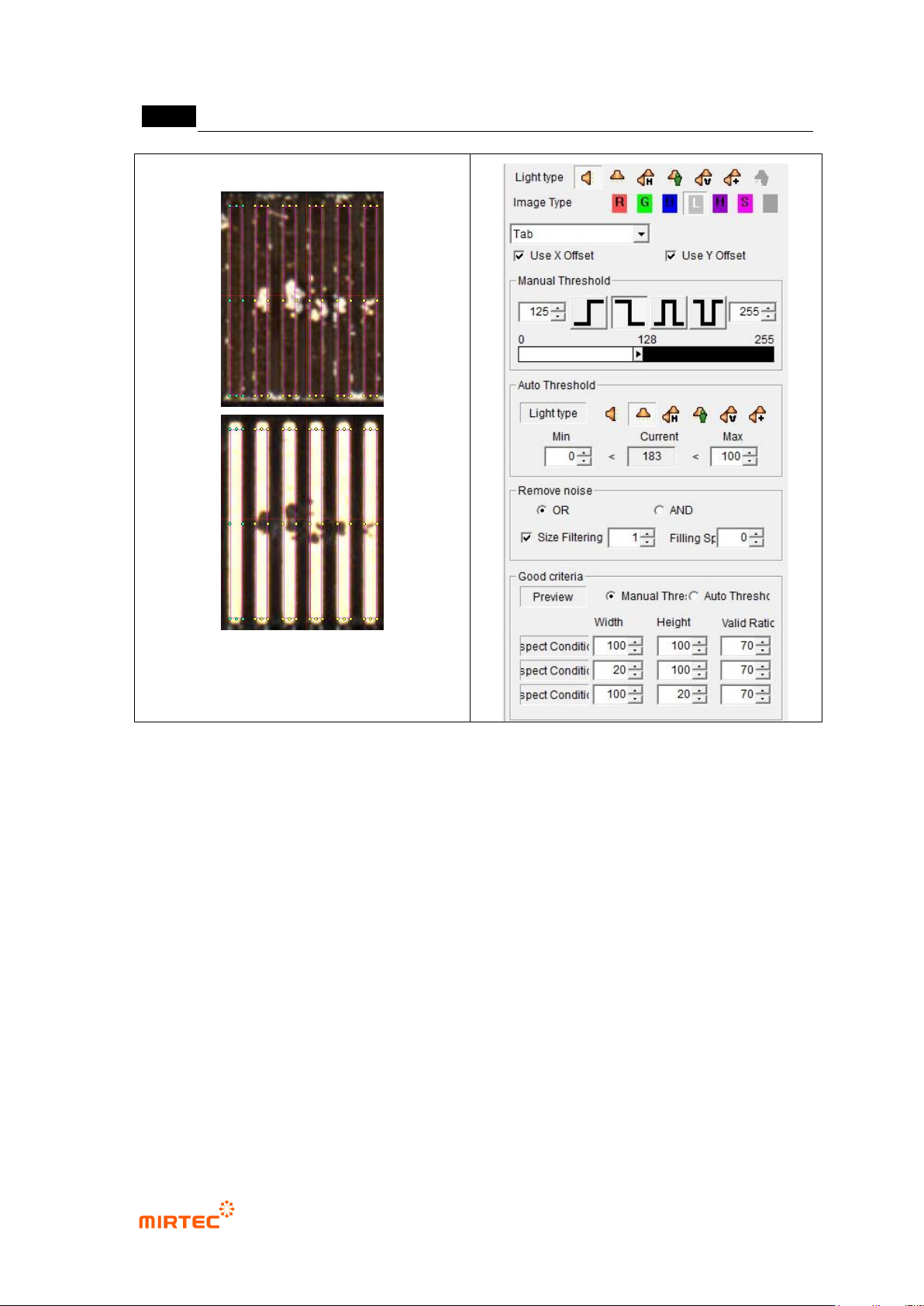
manual binarization image auto binarization
image
[Figure 5-91 Teaching example of tap inspection window]
① Parameter description
Tap inspection window
- Do not go over tap area while drawing inspection window.
- For tap inspection, black area is detected as defect in binarization result. Defect over tap
and area that is not tap will be displayed in black by binarization and false defect or whole
of tap teaching region can be judged as defect.
Normal criteria – preview
- Select preview image type displayed in the screen.
- Manual binarization: use image of the selected default light type and image type, and
create preview image by applying manual binarization type and binarization value.
- Auto binarization
Use image of light type selected for auto binarization, and use min-current-max
value set for auto binarization to conduct binarization.
错误!使用“开始”选项卡将 제목 2 应用于要在此处显示的文字。错误!使用“开始”选项卡将 제목 2 应用
于要在此处显示的文字。 .
5-85
Automatically extract binarization value to display the value in current for trial
inspection.
will be automatically set for binarization type.
Manual binarization
- Set light type, image type and binarization to detect dark defect.
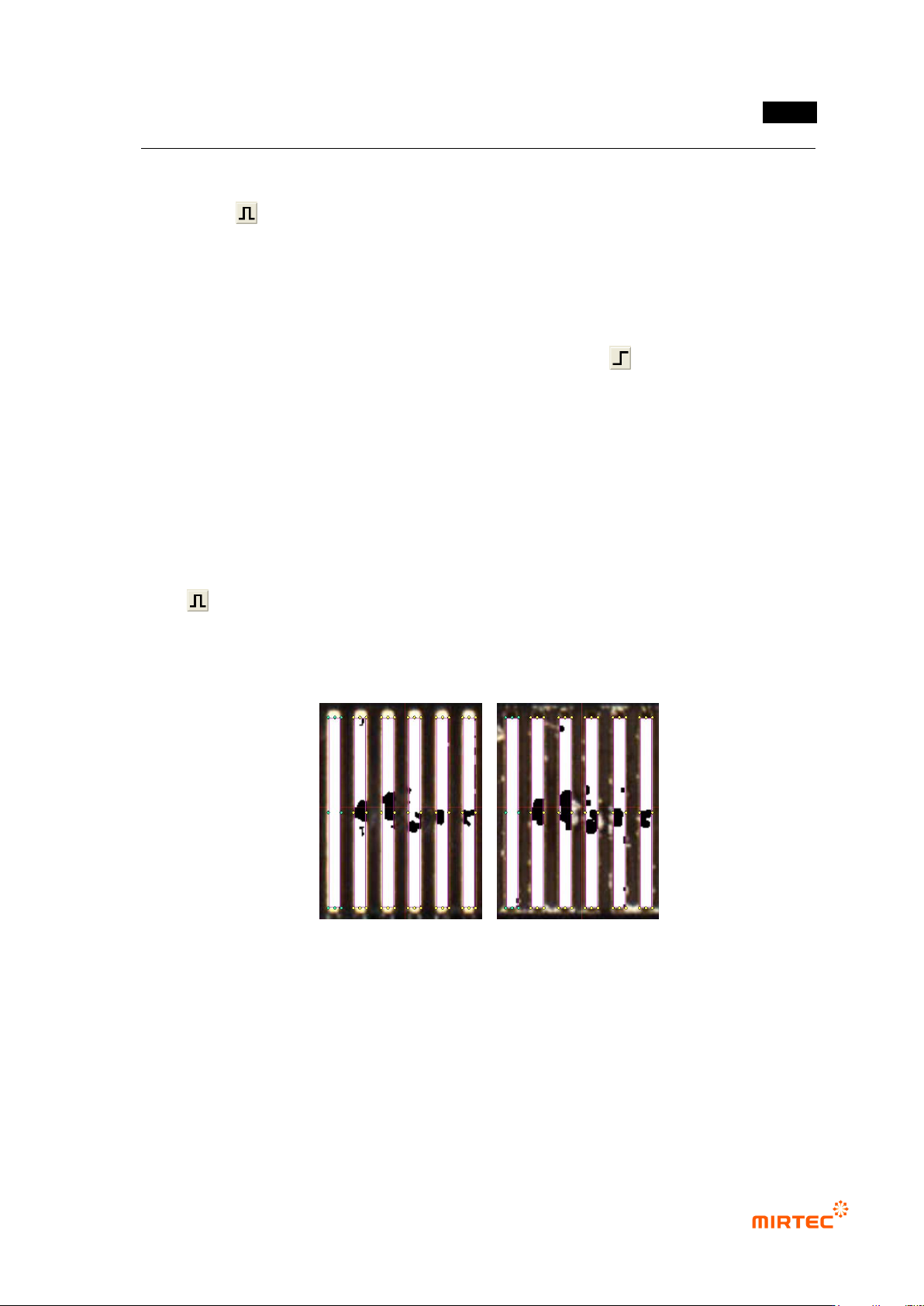
- Set binarization type and binarization value range to display defect in black in preview
image in the screen when manual binarization is selected in normal criteria – preview.
- In general, select horizontal + vertical light and R or L. select for manual binarization
type. If white light is used, select vertical light and L. However, select another light type
and image type according to defect characteristic.
Auto binarization
- Set light type, image type and binarization to detect bright defect.
- Set binarization type and binarization value range to display defect in black when auto
binarization is selected in preview image in the screen in normal criteria – preview.
- In general, select horizontal light, and L type will be automatically selected for image type.
However, select another light type and image type according to defect characteristic.
- will be automatically selected for binarization type. Binarization range will be set to
(current value – min) ~ (current value + max). If current value – min is below „0‟, it will be
set to „0‟. If current value + max are above 255, it will be set to 255.
Manual binarization image Auto binarization image
[Figure 5-92 Tap inspection window preview image]
Binarization or average value or binarization and average value
- Use auto binarization image and manual binarization image to create composite image.
- Binarization or average value:
sum of sets in 2 images of black area will be displayed in composite image.