MV-9_Chapter 5. Teaching.pdf - 第98页
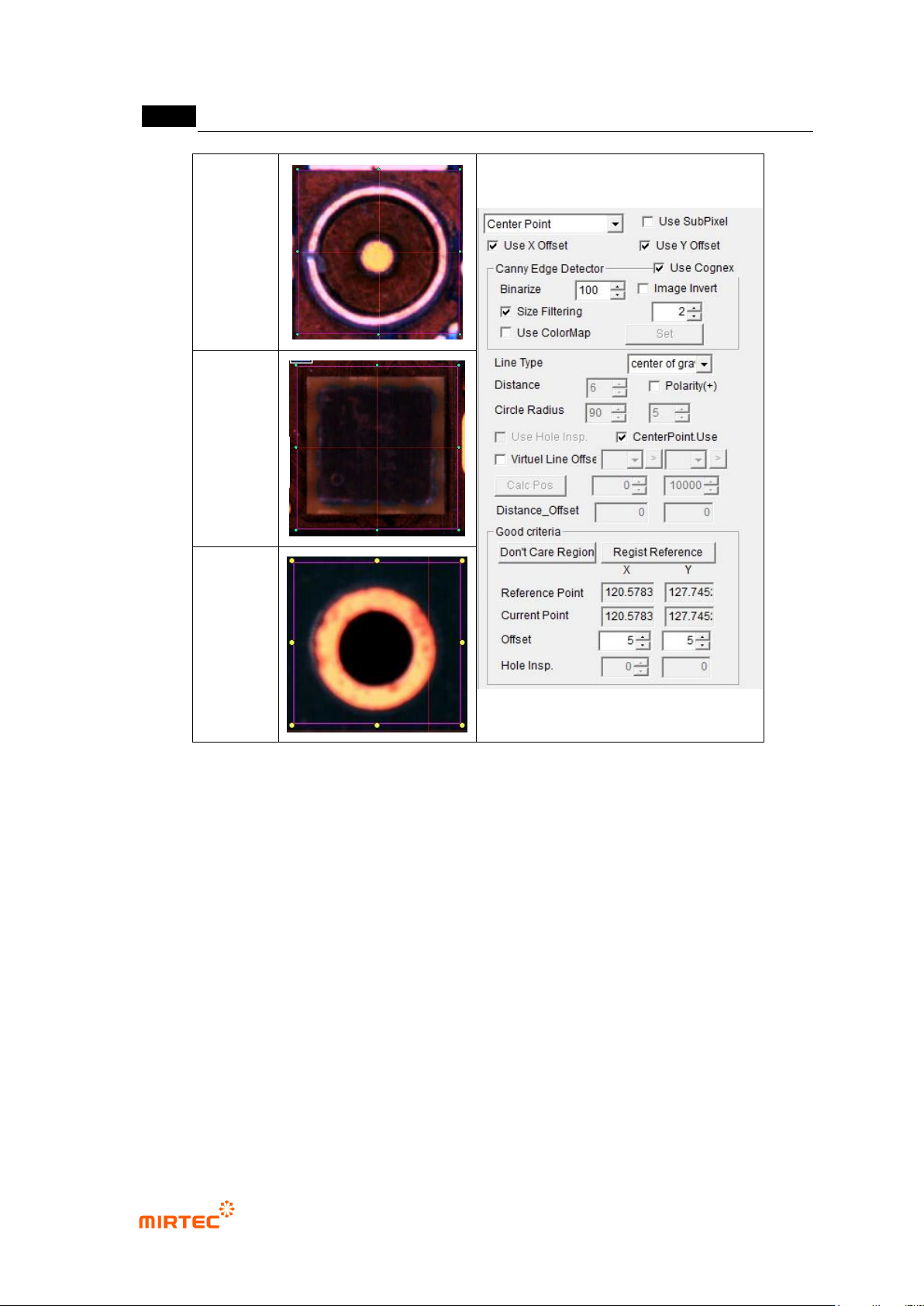
MV -9 Use r Manual 5- 98 Circle center search Rectangle center search Center of gravity search [Figure 5- 103 component center search inspection window teaching exampl e] ① Parameter desc ription Use SubPixel - Check a…

错误!使用“开始”选项卡将 제목 2 应用于要在此处显示的文字。错误!使用“开始”选项卡将 제목 2 应用
于要在此处显示的文字。 .
5-97
9) Component center search
- This algorithm is to search and register center position of inspection target and to conduct
the following 2 inspections.
inspection for component Shift
Measurement of relative distance for reference point (virtual line offset)
- For measurement of relative distance, refer to BLU inspection. Here, we describe only
functions of shift inspection.
- Detection types are circle center search, rectangle center search and center of gravity
search.
C-Chip / R-Chip: used for System Calibration.
LED Circle / Color LED: used for BLU inspection.
① Teaching method
(a) Draw inspection window in inspection area.
(b) Select preview in operation window.
(c) Select whether to use SubPixel and Cognex.
(d) Set binarization value checking preview image.
(e) If image reverse is necessary, check at this.
(f) To detect edge by using color information, check at color map and click setting button,
and adjust color, saturation and luminance in color map.
(g) Select detection type.
(h) Set circle search range, Polarity (+), Circle Radius, Use hole inspection, Use CenterPoint,
virtual line offset according to detection type.
(i) Set „Don‟t care region‟.
(j) Conduct trial inspection, check whether central point is well found, and click reference
point registration button.
(k) Set tolerance range.
MV-9 User Manual
5-98
Circle
center
search
Rectangle
center
search
Center of
gravity
search
[Figure 5-103 component center search inspection window teaching example]
① Parameter description
Use SubPixel
- Check at this item to detect center using gray image.
Canny edge detector
- Use Cognex: check at this item to detect edge using Cognex tool.
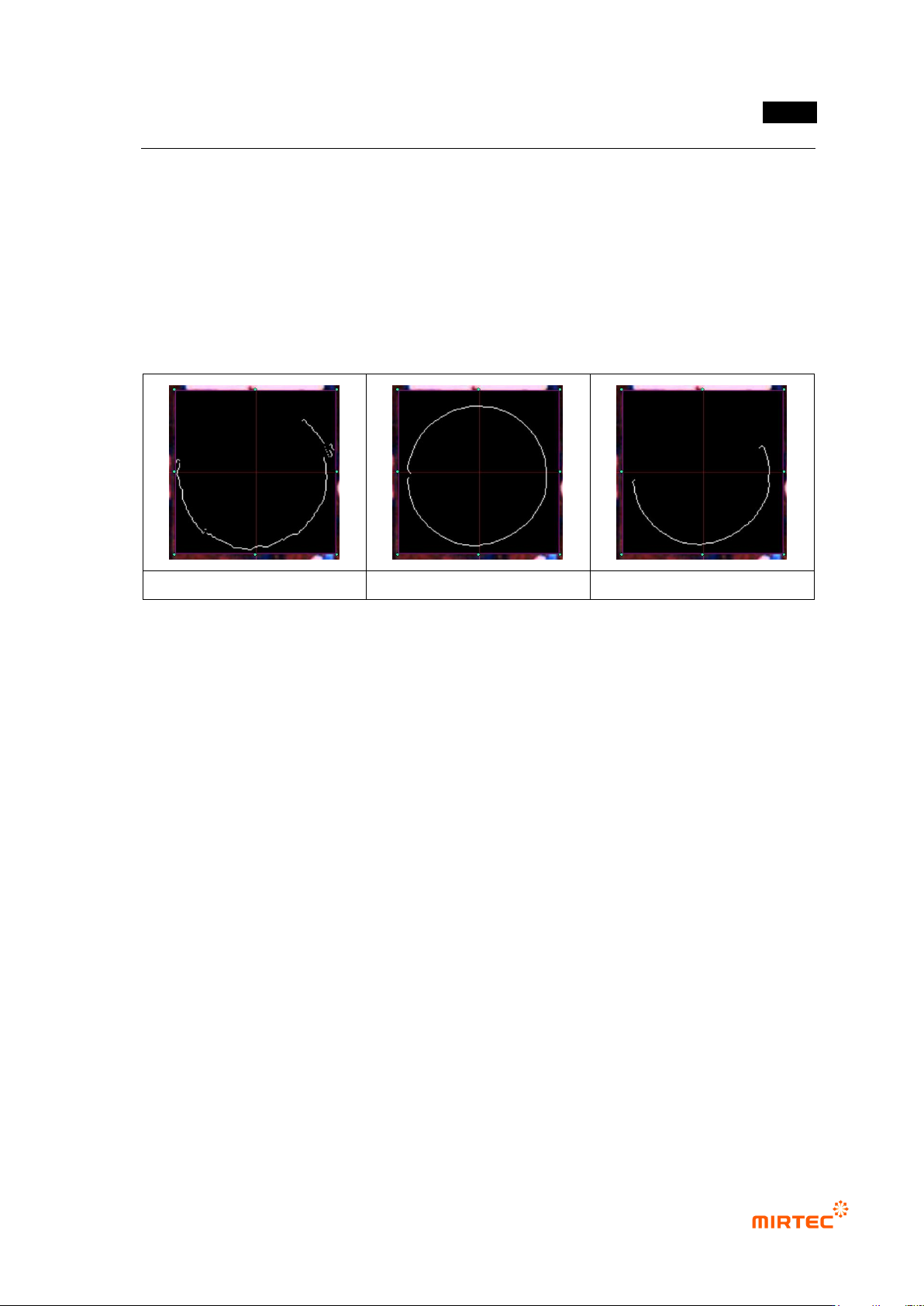
- Binarization
Adjust binarization value to clearly display edge.
If the value is set too low or high, edge will not clearly displayed. Therefore, check
edge extraction status in preview image by adjusting binarization value.
- Image reverse
错误!使用“开始”选项卡将 제목 2 应用于要在此处显示的文字。错误!使用“开始”选项卡将 제목 2 应用
于要在此处显示的文字。 .
5-99
Check at this item to reverse white to black and black to white in current preview
image.
Use this item only when detection type is Center of Gravity.
- Color map
Check at this item to detect edge using color information, and „Set‟ button will be
activated.
Click „Set‟ button to display color map, and adjust color, saturation and luminance to
clearly display edge checking preview image.
When binarization = 50
When binarization = 100
When binarization = 240
[Figure 5-104 Canny edge detection example according to binarization value]
Detection type
- Select shape of component to be detected.
Use exterior edge for Circle and Rectangle, and use information for center of gravity.
Circle search range
- This will be activated only when detection type is Circle.
- To detect more correct close circle, points that are farther than circle search range input
value will be excluded. In general, set it to below 10.
Polarity (+)
- This function will be used only when detection type is Circle and LED Circle.
- This shows edge characteristic. If it is not checked, find negative edge (edge which
changes from white to black). If it is checked, find positive edge (edge which changes from
black to white).
Circle Radius
- This will be activated only when detection type is LED Circle.
- The first value is radius of circle to be detected and the second value is allowable range of
circle radius.
CenterPoint Use