MV-9_Chapter 5. Teaching.pdf - 第243页
错误 ! 使用“开始” 选项卡将 제목 2 应用于要在此处显示的文字。 错误 ! 使用“开始”选项卡将 제목 2 应用 于要在此处显示的 文字。 . 5- 243 [Figure 5- 318 multiple copy] Special mark Skip inspection window This function will i mm edi ately skip the selected inspection window …
MV-9 User Manual
5-242
5.5.3 Additional functions during inspection window selection
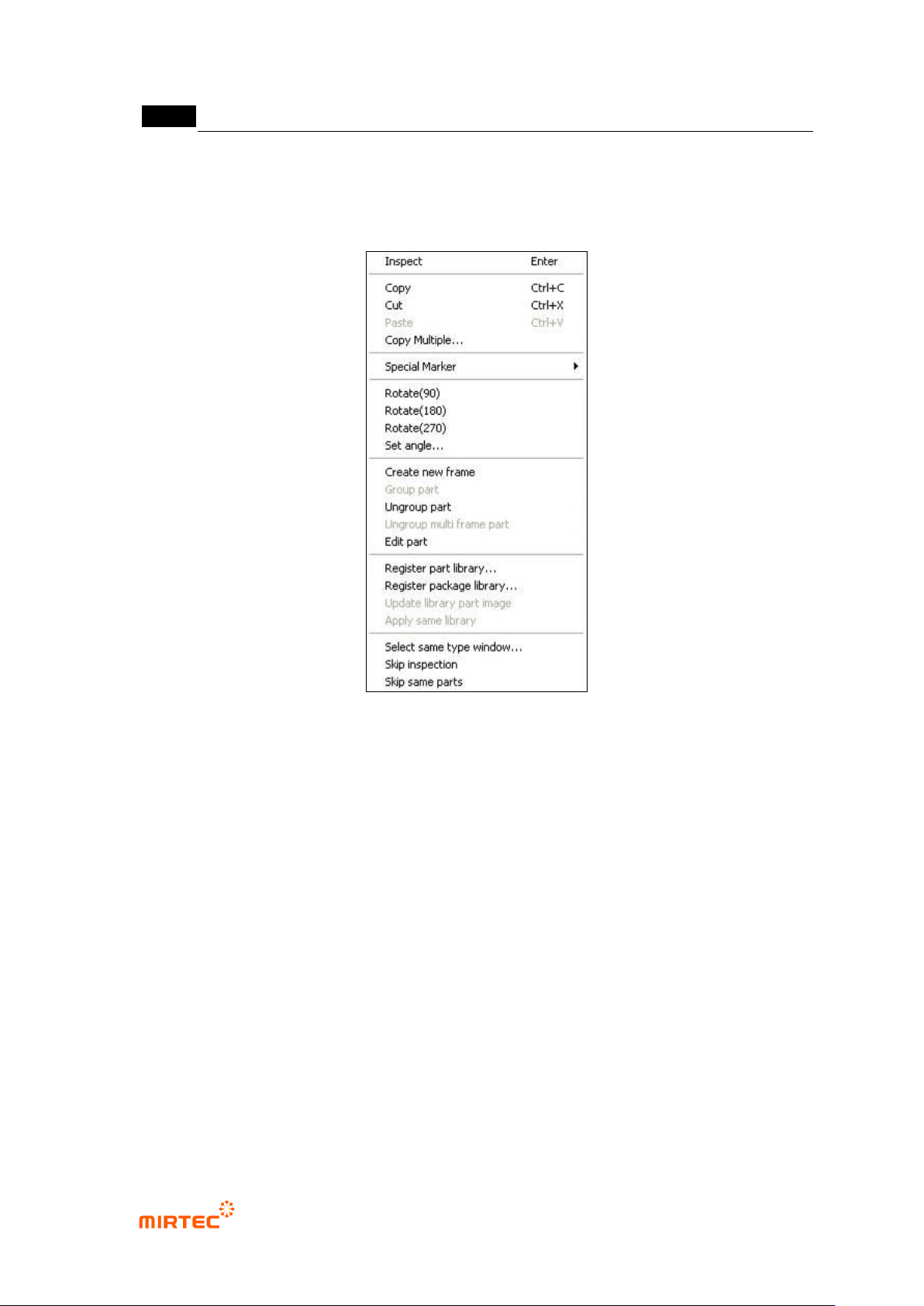
This is about popup menu displayed by clicking right button of the mouse that be used when
inspection window that completed teaching is selected in frame image screen.
[Figure 5-317 inspection window related function]
Inspection
This is used to inspect only the selected inspection window. This is useful to search correct
parameter setting value of the relevant inspection window during teaching. inspection result
will be displayed in the status screen, and many inspection windows can be inspected.
Copy
This is used to create window that has same attribute with selected inspection window.
Cut
This is used to cut selected inspection window.
Paste
This is used to paste inspection window that is already copied or cur in the relevant frame.
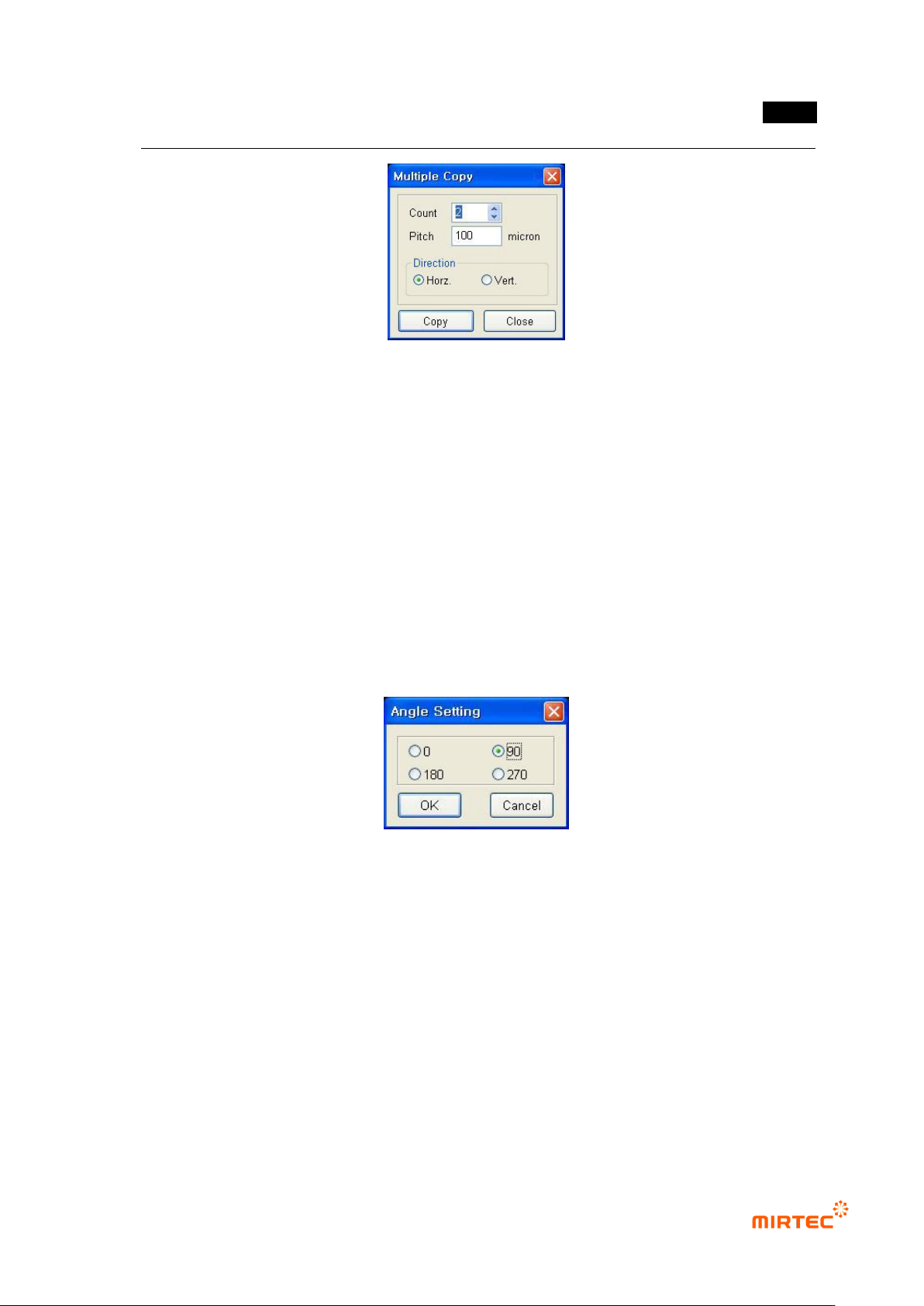
Multiple copy
This is used to copy many selected inspection windows at a time.
错误!使用“开始”选项卡将 제목 2 应用于要在此处显示的文字。错误!使用“开始”选项卡将 제목 2 应用
于要在此处显示的文字。 .
5-243
[Figure 5-318 multiple copy]
Special mark
Skip inspection window
This function will immediately skip the selected inspection window. In case of occurrence
of defect in window that is set as skip inspection window, the following PCB will be skipped
without conducting inspection.
Frame compensation mark
If correct substrate compensation can‟t be done by only PCB compensation mark, use
frame compensation mark for more correct inspection.
Angle setting
This is not to rotate teaching window and registered image of the selected inspection window
or component, but newly set only angle window or component that is currently selected.
[Figure 5-319 Angle setting]
To new frame
Not like component that completed teaching in the current frame, use this option to insert
component that newly completed teaching into a new frame.
Grouping components
This is used to group many inspection windows into one component after creating many single
inspection windows.
Component ungroup
This is used to create many single inspection windows for one component and ungroup these
inspection windows into single inspection window.
MV-9 User Manual
5-244
Component edit
This is used to create many single inspection windows for one component and edit desired
part in combination of these inspection windows.
Component library register
Refer to „7.1library function (page 7-5)‟ in „Chapter 7 additional function‟.
Package library register
Refer to „7.1library function (page 7-5)‟ in „Chapter 7 additional function‟.
Library representative image refresh
This option is used to change representative image that is firstly saved image of single
component window applied to library to current window.
Library batch apply
This option is used to batch apply setting value of each single component windows that are
registered in the library
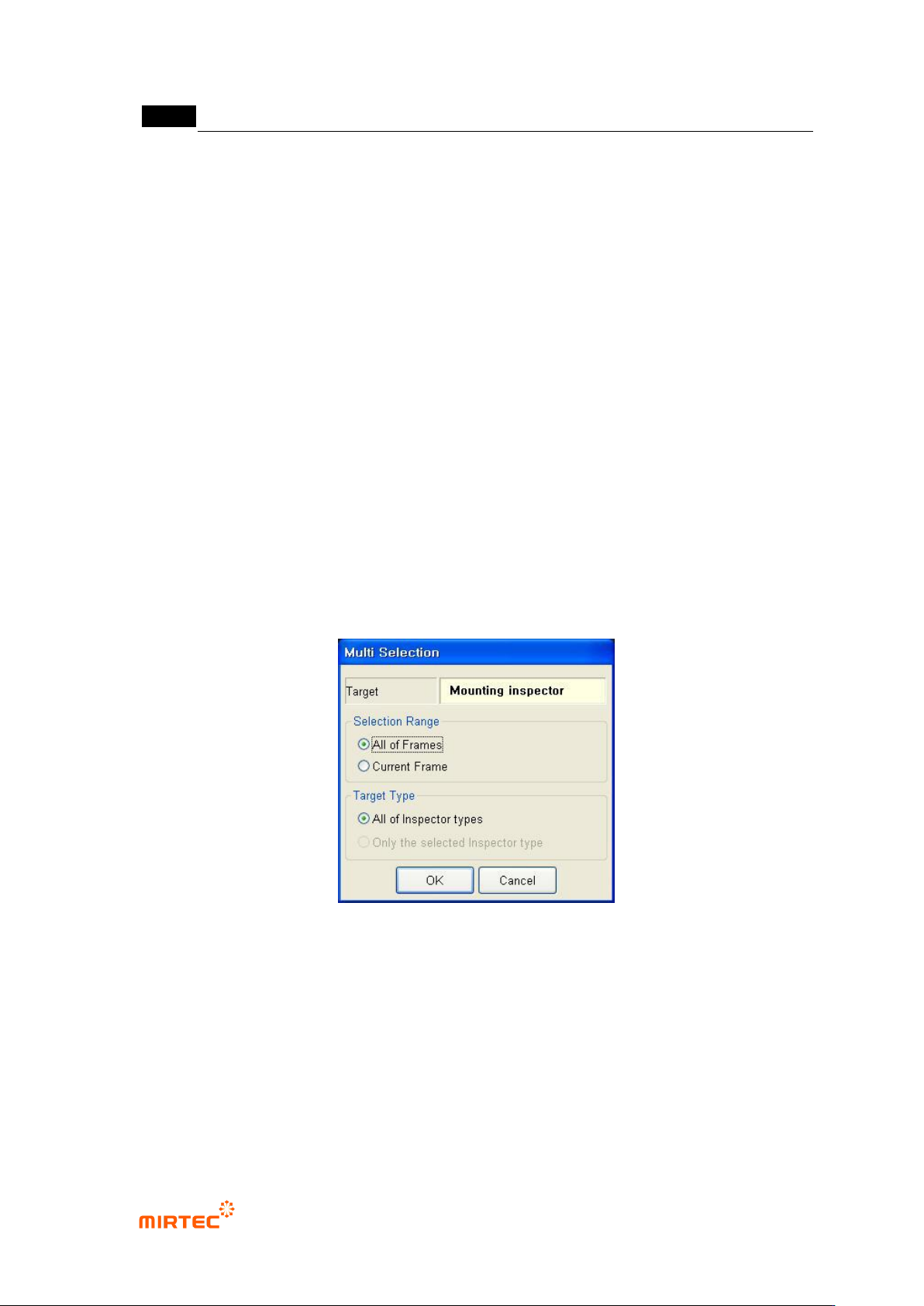
Same type window select
This is used to select the relevant inspection windows in order to change, delete and edit
parameter value of same type of inspection windows.
[Figure 5-320 multiple inspection window selection]
Selection target
Display type of the selected inspection window.
Selection range
All model: Find same type with the selected inspection window in all frames.
current frame: Find same type with the selected inspection window only in the current
frame.
Target type