MV-9_Chapter 5. Teaching.pdf - 第41页
错误 ! 使用“开始” 选项卡将 제목 2 应用于要在此处显示的文字。 错误 ! 使用“开始”选项卡将 제목 2 应用 于要在此处显示的 文字。 . 5- 41 (c) Click non -m ounti ng inspection ( s oldering) in p a ram eter windo w . (d) Set solder start area. Green area in inspection w in dow e…
MV-9 User Manual
5-40
Judge good as defect
- This is to set inspection result to normal when it is defect.
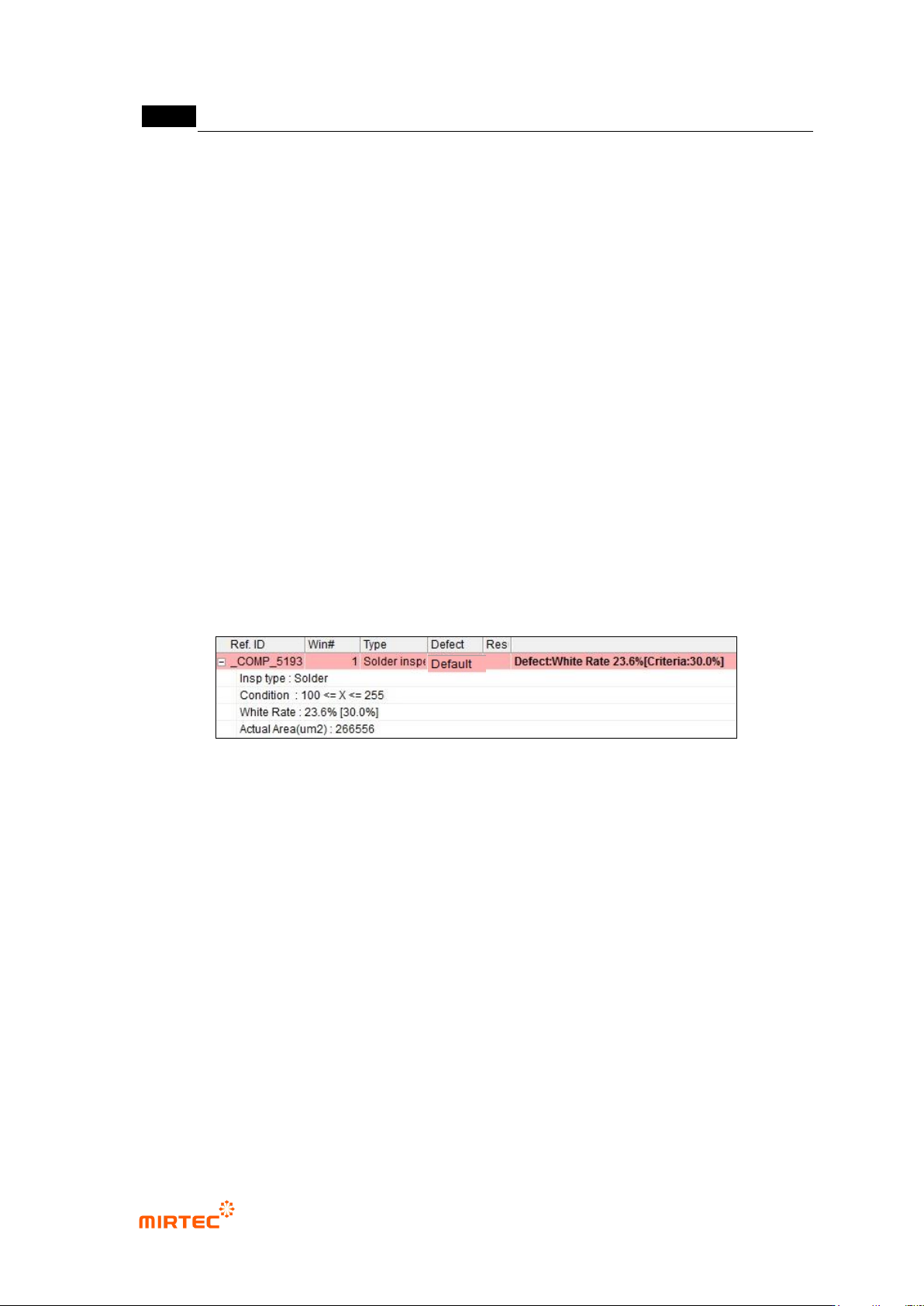
③ Soldering inspection (basic) result in status screen
- To directly inspect solder amount inspection window that completed teaching, select
solder amount inspection window, and select „inspect' item in popup menu displayed by
clicking right button of the mouse. Now, the following inspection result will be displayed
in status screen in the main screen.
Inspection type
- Inspection type
Condition
- White level area during binarization
White pixel ratio
- White area ratio in solder amount inspection window.
- Percent value in brace means ratio value of white area for normal judgment.
[Figure 5-43 Inspection result in status screen]
2) Non-mounting inspection (soldering)
- This is to conduct non-mounting inspection using color information of electrode area and
solder area of chip type component that is soldered.
- In case of normal components, electrode area will be displayed in red. However, if non-
mounting defect occurs, blue ratio increase in electrode area. This characteristic is used to
detect non-mounting defect.
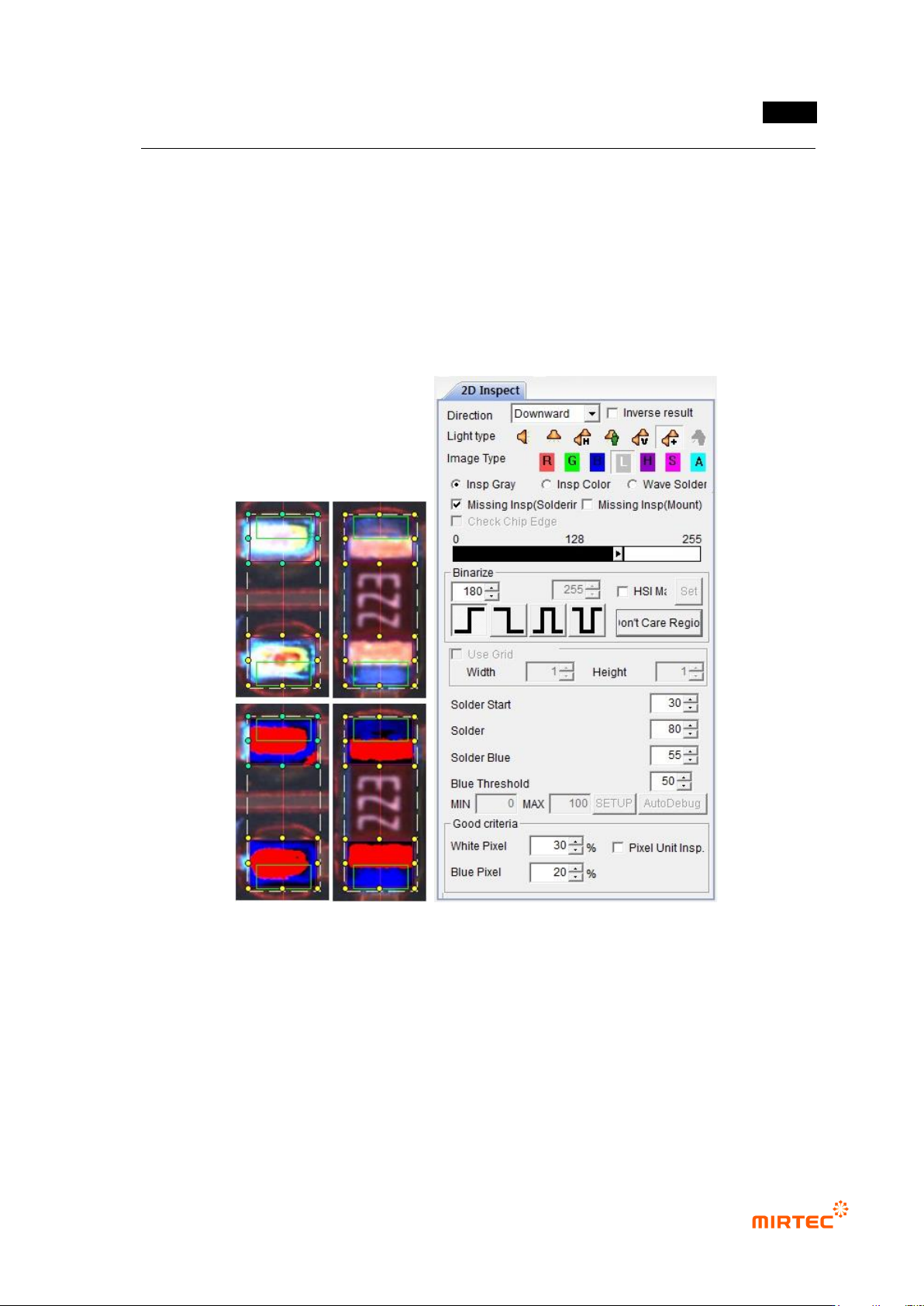
① Teaching method
(a) Draw solder inspection window including solder area and chip electrode, and select
direction.
(b) Select horizontal + vertical light for light type, and basically, „A‟ will be automatically
selected for image type.
错误!使用“开始”选项卡将 제목 2 应用于要在此处显示的文字。错误!使用“开始”选项卡将 제목 2 应用
于要在此处显示的文字。 .
5-41
(c) Click non-mounting inspection (soldering) in parameter window.
(d) Set solder start area. Green area in inspection window expands toward electrode. set
start area not to include electrode but to include solder area
(e) Set solder width. Length of green area in inspection window will be adjusted to the width
direction of electrode.
(f) Adjust binarization value and solder blue ratio so that electrode can be separated to red
and solder area can be separated to blue.
(g) Enter normal criteria.
[Figure 5-44 Soldering inspection (basic) window creation screen and preview image]
② Parameter in non-mounting inspection (mounting) window
- Non-mounting inspection (mounting)
This is used to detect non-mounting defect during soldering status inspection at the rear
part of soldering process.
- Binarization
Set binarization value of red and blue.
MV-9 User Manual
5-42
- Solder start
Set start position of solder inspection area. In general, set it to electrode end, and
electrode is not included.
- Solder width
This is to set width of solder inspection area. Inspection window width will be set to
100%.
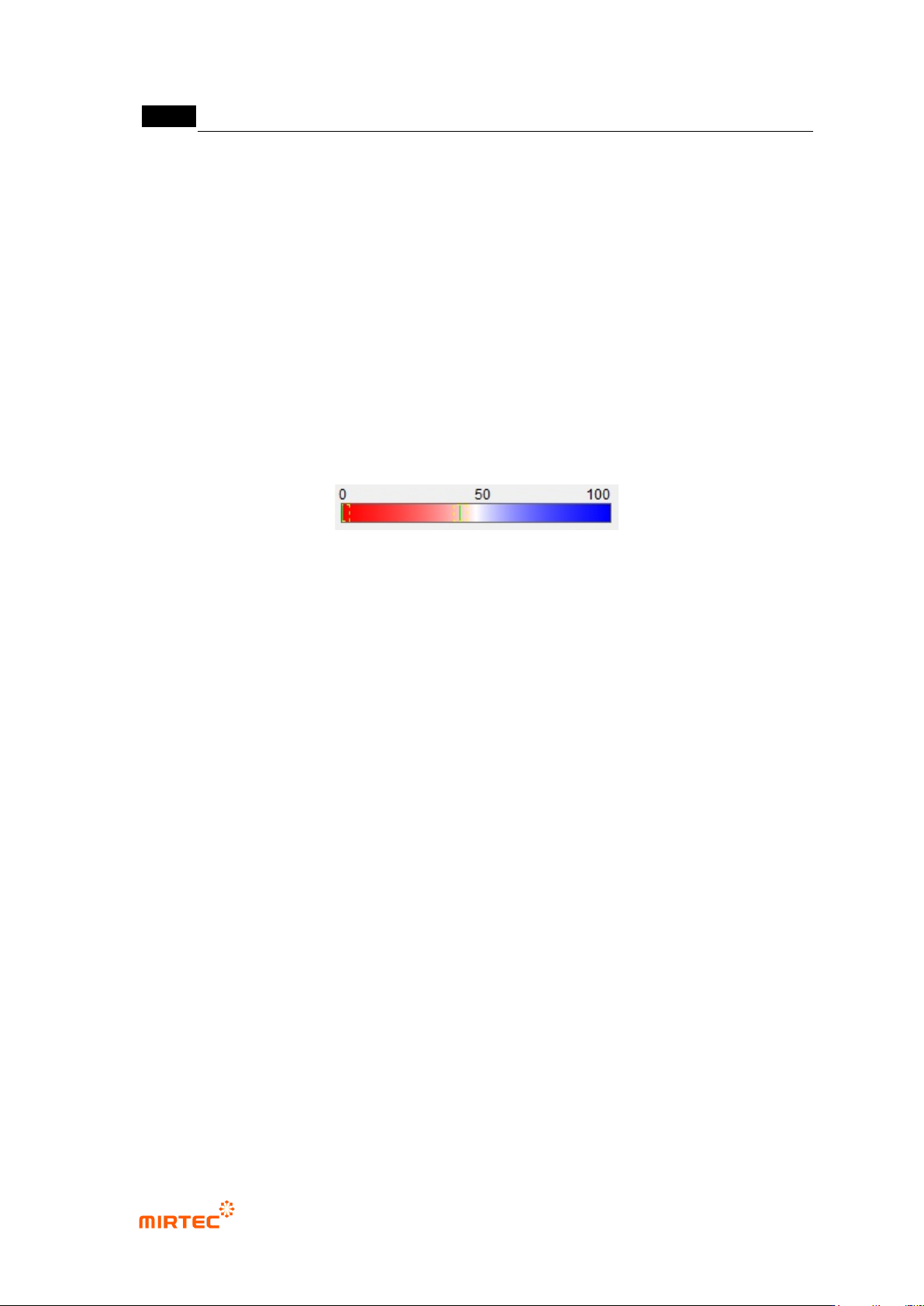
- Solder blue ratio
This is to set blue reference of solder. Blue and red ratio. Based on 50, if it is below 50,
it is red series. If it is above 50, it is blue series. Remove solder with value below
reference value.
Electrode will be displayed in red + white in color light, and solder is displayed in blue.
Hence, set it within approximately 50 ~ 60 range.
- Blue binarization
This is to set reference value for binarization of blue range judged by solder blue ratio.
- White pixel ratio
This is to set good/defect judgment reference value white pixel ratio for solder area
(outer). If it is below reference value, judge as defect.
- Blue pixel ratio
This is to segment inner area (chip body direction, inner) and outer area (solder
direction, outer) based on center of red area (electrode). Calculate ratio of blue pixel in
each area.
Blue pixel ratio is defined by blue ratio in inner area comparing to blue ratio in outer
area. If it is higher than reference value, judge as defect. This means that blue ratio is
high at electrode and inward.
③ Non-mounting inspection (soldering) result in status screen
- Inspection Type: name of inspection window.
- Condition: binarization setting status.
- Outer Blue Rate: ratio of blue pixel in solder area. Value in brace is reference value.
- Missing Rate: ratio of blue pixel ratio to blue pixel ratio in outer area in inner area.
0% means that there is no blue in inner area, and this percentage is bigger than 0%,
there has much blue in inner area.
- Outer Blue Count: number of blue pixel in outer area