N7201A616E00_0317.pdf - 第281页
NPM-W 2 EJM7DE-MB-04O-0 0 Ov er view Operating procedure 4-3-1 ■ T eaching flow Creating the productio n data (inspection FOV data) Loading the pr oduction data Capturing the images of teaching PCBs Setting with the 2D i…
NPM-W2 EJM7DE-MB-04O-00
Produc-
tion
configu-
ration
Setting soft switch
Operating procedure
4-2-1
A
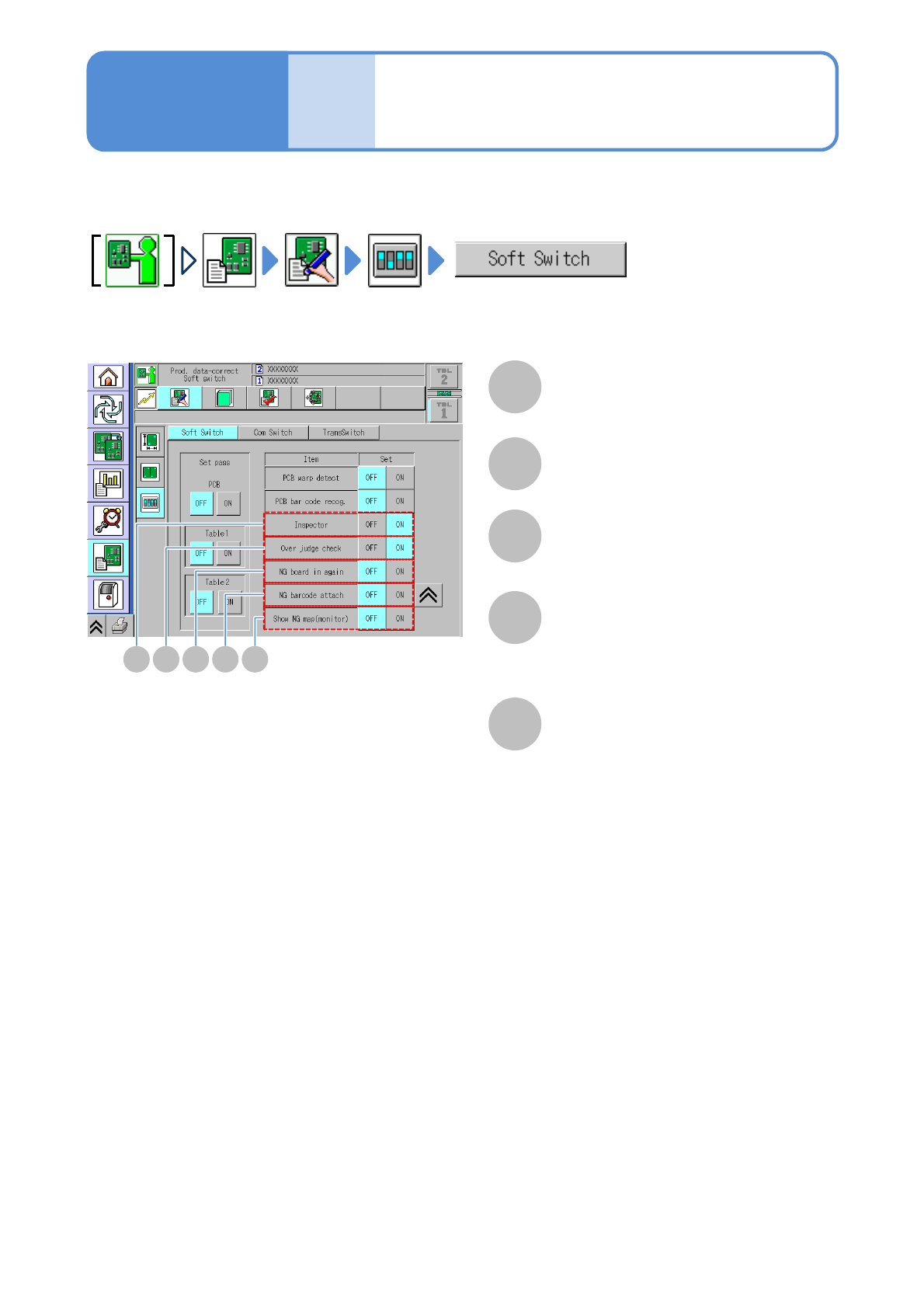
This section describes component inspection by the PCB inspection head, and parameter settings
required to reload repaired PCBs.
A
The inspection function is enabled.
Inspector
B C D E
B
The over judgment input function is enabled.
Over judge check
C
The function used to reload the defective
PCBs that have been repaired is enabled.
NG PCB in again
D
The operation used to affix a barcode to
the reloaded PCBs is enabled.
NG barcode attach
E
The location and image of the rejected
component on a PCB are displayed.
Your own monitor and mouse need to
have been connected to the inspection
box.
Show NG map (monitor)
4-2-1
NPM-W2 EJM7DE-MB-04O-00
Overview
Operating procedure
4-3-1
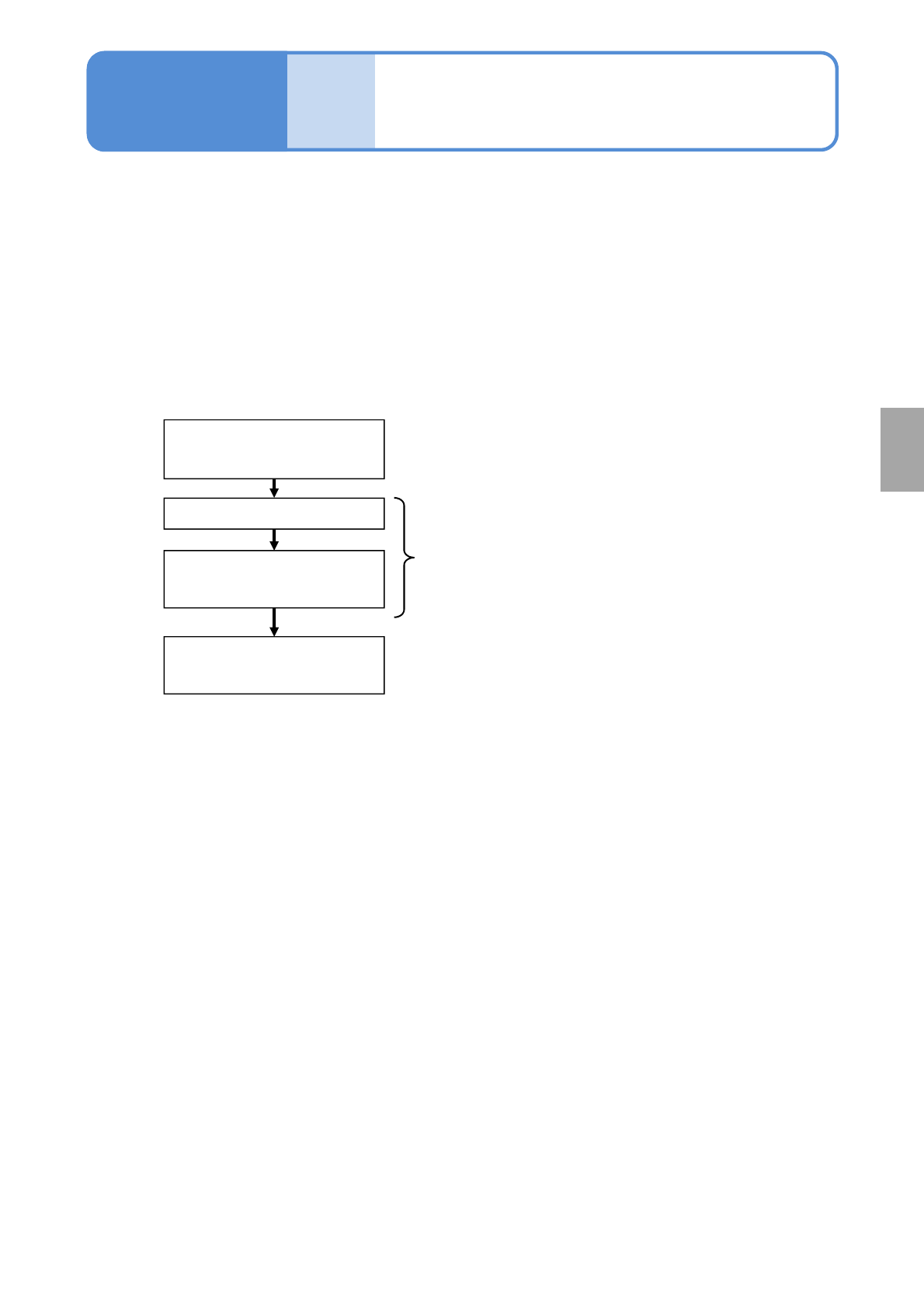
■Teaching flow
Creating the production data
(inspection FOV data)
Loading the production data
Capturing the images of
teaching PCBs
Setting with the 2D inspection
editor
Created by NPM-DGS
Edited with NPM-DGS
Operated by the machine
Produc-
tion data
and
teach
4-3-1
This section describes teaching intended for component inspection.
To judge whether any components are on board or not, NPM-DGS is used for teaching of the colors of both
PCB and component. Before a judgment is formed, the inspection head captures the image of a PCB in the
case of teaching of the PCB color and the image of on-board components in the case of teaching of the on-
board component color.
Production data after inspection is edited by [2D inspection editor] of the NPM-DGS.
●It is possible to configure [Setting of soft switches] only, as far as the NPM-W2 equipped with the
inspection head is concerned.
The mouse, keyboard, or monitor being connected to NPM-W2 or the inspection BOX cannot be used for
editing production data.
Component
inspection
NPM-W2 EJM7DE-MB-04O-00
4-3-2-1
Capturing the images of
teaching PCB
(PCB after component
placed)
1
Loading the production data
1
Operating procedure
4-3-2
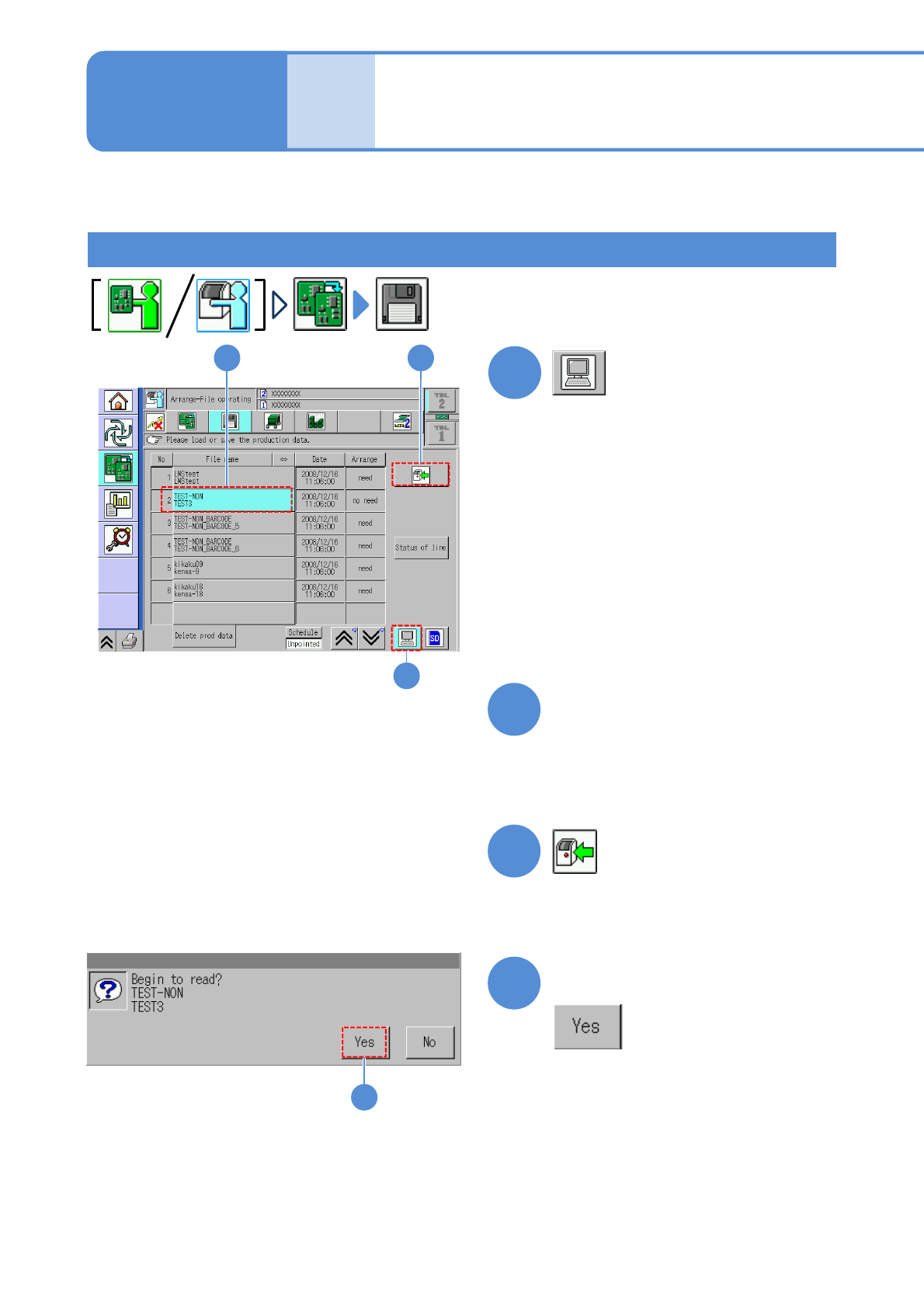
●The target device is switched to LNB.
(The file name of the data registered in
an LNB list is displayed.)
Choose the desired filename.
(The selected filename is displayed in
light blue.)
● Pressing [Date] sorts the filename in
descending order of date.
2
3
4
(The data starts downloading)
Produc-
tion data
and
teach
32
4
1
Confirm the message
This section describes how to capture an image of a PCB with components placed, which is used for data
edit on “2D inspection editor”.