00198178-04_GS_FeederManager_3.3_R18-1_EN.pdf - 第10页
SIPLACE Feeder Ma nager 3.3 (R18 -1) / Getting S tarted 08/2018 Edition 10 2.4 Online Help The Online Help conta ins details about the program functions. 2.4.1 A ccessing the Online Help via the F1 key Start the contex…

SIPLACE Feeder Manager 3.3 (R18-1) / Getting Started 08/2018 Edition
9
2 Information
2.1 Where can I get information
If there are questions regarding this software guide or more detailed information is required about a
particular topic, please contact the appropriate SIPLACE representative or us directly at:
ASM
Assembly Systems GmbH &
Co. KG
Rupert-Mayer-Str. 44
D-81359 Munich / Germany
2.2 SIPLACE on the World Wide Web (WWW)
Log into our SIPLACE® homepage at http://www.asm-smt.com.
You can choose between the German and English versions.
The different sections contain information about our products, services and contact persons.
In addition, registered customers can also access the MySIPLACE user group. Here you can call
up special information about our placement systems e.g.
– technical documentation
– technical information
– spare parts lists etc.
Registration for the MySIPLACE user group is very simple:
Click at the head of the web site on MyASM and then on the Register link.
Fill in the registration form and send it off to us.
Soon afterwards, you will receive your access authorization with USER ID and password.
2.3 Languages
The Feeder Manager software supports following languages
English
German
Simplified Chinese
Korean
SIPLACE Feeder Manager 3.3 (R18-1) / Getting Started 08/2018 Edition
10
2.4 Online Help
The Online Help contains details about the program functions.
2.4.1 Accessing the Online Help via the F1 key
Start the context-sensitive Help system for the current dialog with the F1 key.
2.4.2 Accessing the Online Help via the Menu bar
Start the context-sensitive Help system for the current dialog by selecting Help – Online
Help in the menu bar.
See chapter 10 Help for more details on the Help menu.
SIPLACE Feeder Manager 3.3 (R18-1) / Getting Started 08/2018 Edition
11
3 Starting / Terminating Feeder Manager
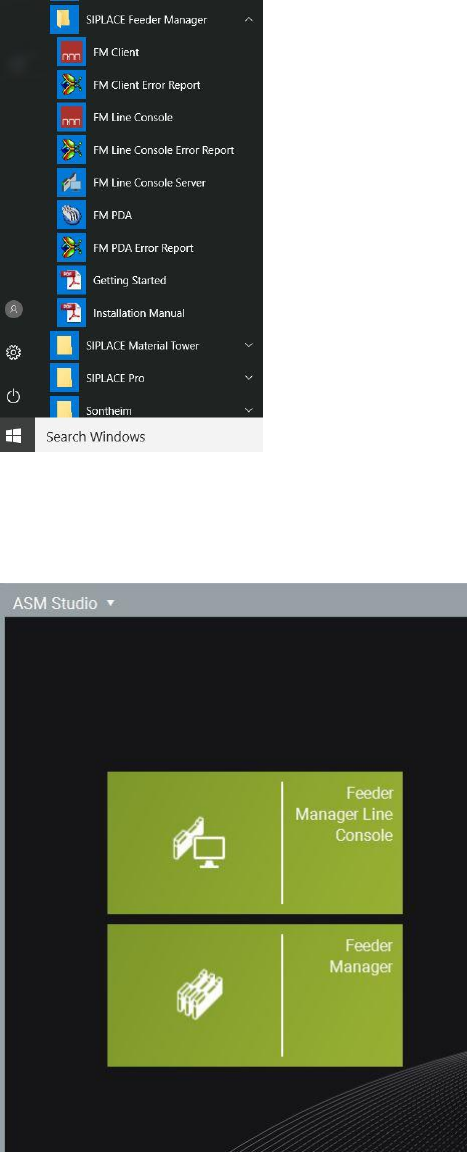
After Feeder Manager is installed successfully, following application icons will be added to the
Windows Start menu under All Programs SIPLACE Feeder Manager.
Figure 3-1 Feeder Manager folder as seen in Windows Start Menu
You will also be able to find the FM Client and FM Line Console icon on the ASM Studio
Desktop.
Figure 3-2 FM Client and Line Console icons on ASM Studio Desktop