00198178-04_GS_FeederManager_3.3_R18-1_EN.pdf - 第54页
SIPLACE Feeder Ma nager 3.3 (R18 -1) / Getting S tarted 08/2018 Edition 54 Location name Allows the user to e nter a loca tion nam e to search for. Location status Allows the user to sel ect a specific location st atus o…
SIPLACE Feeder Manager 3.3 (R18-1) / Getting Started 08/2018 Edition
53
Retire
Click on this button to retire the location. Once retired, the location cannot be used and
the Location status changes to Retired.
Note:
The system does not allow a location to be retired if feeders are assigned to it.
In such cases, the Retire button is disabled.
Activate
Click on this button to activate a retired location.
Upon activation, the location is available for use and the Location status is set back to the
status that was active before retiring.
6.2 Search Location view
Sear Location function can be accessed from the main menu via either
1) Search Search Location or
2) Location Search Location.
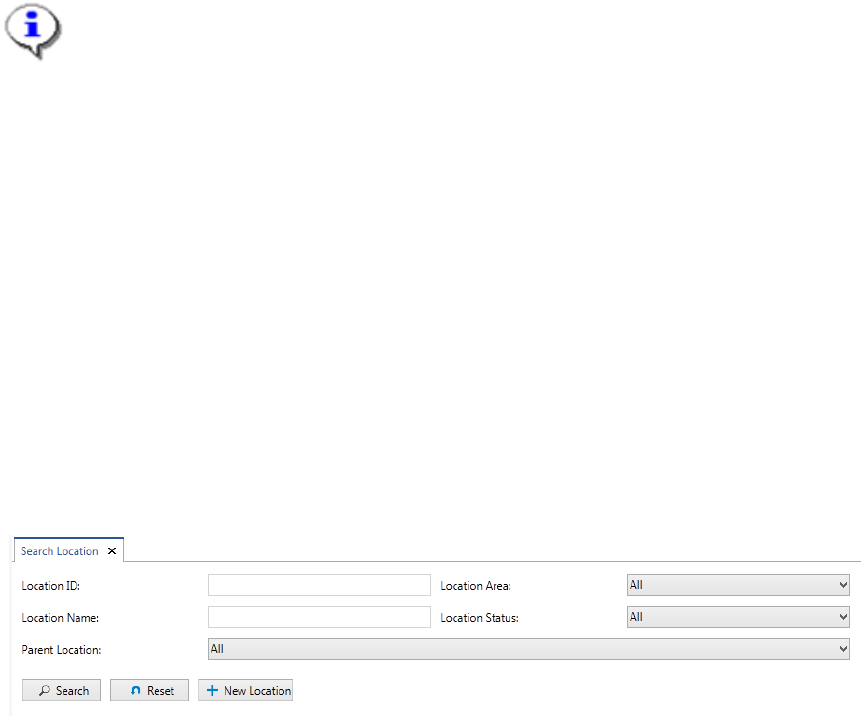
The Search Location tab is displayed as following.
Figure 6-4: Search Location view
Enter the details to search for a location.
6.2.1 Description of the fields
Location ID
Allows the user to enter a location ID to search for.
Location area
Allows the user to select a specific location area to search for or all location areas from the
drop-down list. The following pre-defined location areas exist in the system:
– Storage Area
– Offline Area
– Production Area
– Maintenance Area
– Unknown Location
– Outside Factory
SIPLACE Feeder Manager 3.3 (R18-1) / Getting Started 08/2018 Edition
54
Location name
Allows the user to enter a location name to search for.
Location status
Allows the user to select a specific location status or all location states to search for from the
drop-down list. The following pre-defined location status values exist in the system:
Active
A location is active and can be used.
Retired
A location has been retired and cannot be used. A location can only be retired when no
feeders are assigned to it.
Parent location
Allows the user to select a specific parent location or all parent locations from the drop-down
list, if the location has been created as a sub-location of another location.
6.2.2 Description of the buttons
Search
Click on this button to search for a location based on the criteria selected.
A list of locations matching the search criteria is displayed.
Reset
Click on this button to clear all fields and reset them to their default values (if any).
New Location
Click on this button to add a new location.
SIPLACE Feeder Manager 3.3 (R18-1) / Getting Started 08/2018 Edition
55
6.3 Print Offline Area Setup
Click on Location Print Offline Area Setup in the menu bar to open the view.
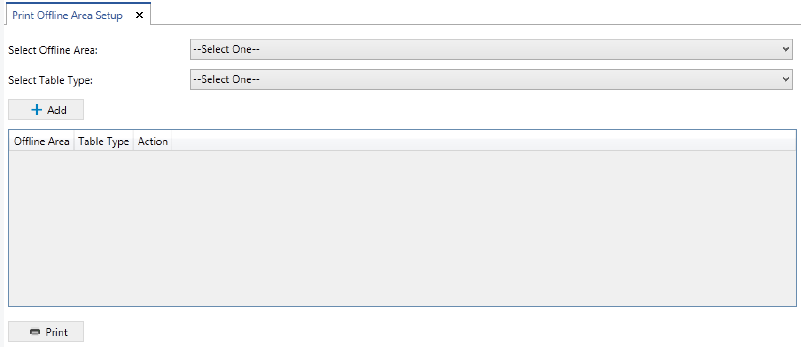
The Print Offline Area Setup view is displayed.
Figure 6-5: Print Offline Area Setup view
Select the offline area and table type details, for which offline setup barcodes shall be
printed on an A4 size paper.
If no docking station is available, it is possible to scan the printed barcodes with the barcode
scanner in the offline area.
6.3.1 Description of the fields
Offline Area
Allows the user to select an offline area from the drop-down list to be printed.
Table Type
Allows the user to select a table type from the drop-down list to be printed.
6.3.2 Description of the buttons
Add
Click on this button to add the selected offline area and table type to the printing list.
It is possible to add multiple offline areas/table types to the printing list.
Print Barcode
Click on this button to print the barcodes for the items in the printing list.