00198178-04_GS_FeederManager_3.3_R18-1_EN.pdf - 第34页
SIPLACE Feeder Ma nager 3.3 (R18 -1) / Getting S tarted 08/2018 Edition 34 Note: This function is onl y applicable to S feeders with the feeder ID f orm at set to “INTERNAL”. See sec tion 9 .3 ID Format f or details. If …
SIPLACE Feeder Manager 3.3 (R18-1) / Getting Started 08/2018 Edition
33
Click on this button to export the complete maintenance history, including all the details, to an
excel file.
For all three categories (Defect, Verification and Complete Maintenance), the exported excel
will append the detail fields to each of the maintenance records and combine them into one
excel sheet. Fields without any data will be omitted.
Note:
Exported excel files require Microsoft Office Excel or Excel Viewer 2007 or higher to open.
5.2 Add New Feeders (Batch) view
Click on Feeder – Add New Feeders (Batch) or on New… – Add New Feeders (Batch)
in the menu bar to open the view.
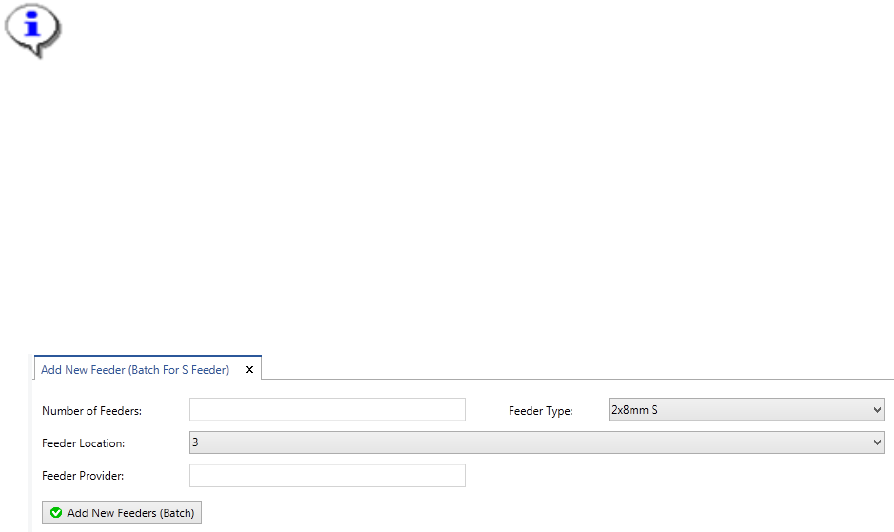
The Add New Feeders (Batch For S Feeder) view is displayed.
Figure 5-12: Add New Feeders (Batch For S Feeder) view
Enter the details for new feeder barcodes that shall be printed.
SIPLACE Feeder Manager 3.3 (R18-1) / Getting Started 08/2018 Edition
34
Note:
This function is only applicable to S feeders with the feeder ID format set to
“INTERNAL”. See section 9.3 ID Format for details.
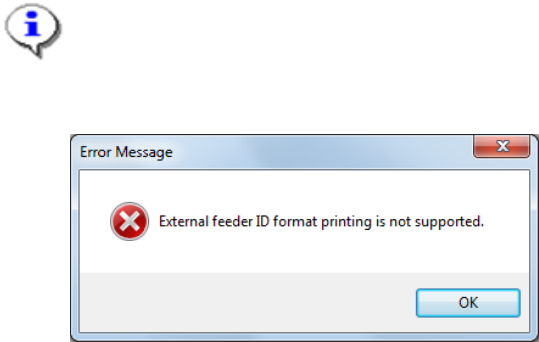
If the setting is “EXTERNAL”, following message will be shown.
Figure 5-13 External feeder ID format printing not supported message
The user should set the feeder ID format to “INTERNAL” in order to use this
function.
5.2.1 Description of the fields
Number of feeders
Allows the user to enter the number of new feeder barcodes to be printed. This field is
mandatory.
Feeder type
Allows the user to select the feeder type of the feeders for which barcodes are to be printed
from the drop-down list. If the feeder type is not known at the time of barcode printing, it is
possible to select Unknown Feeder Type.
SIPLACE Feeder Manager 3.3 (R18-1) / Getting Started 08/2018 Edition
35
Feeder location
Allows the user to select the default location of the new feeders for which barcodes are to be
printed from the drop-down list. If the location is not known at the time of barcode printing, it is
possible to select Unknown Location.
Feeder Provider
Allows the user to enter the feeder supplier information.
5.2.2 Print Feeder ID Barcodes
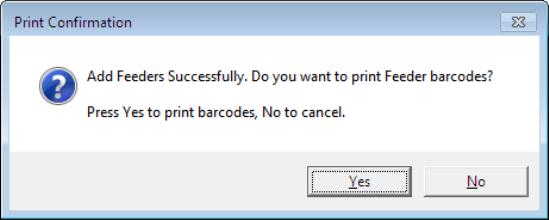
Once the batch of feeders are successfully generated, Feeder Manager will ask you whether
the feeder barcodes are to be printed with the following dialog.
Figure 5-14 Add New S Feeders by Batch - Confirmation Dialog
Press Yes to print the barcodes of the newly generated S feeders to your preconfigured
barcode printer, or No to cancel the barcode printing for now.
It is highly recommended that you print the barcodes for all the newly added feeders for easy
of managing.